
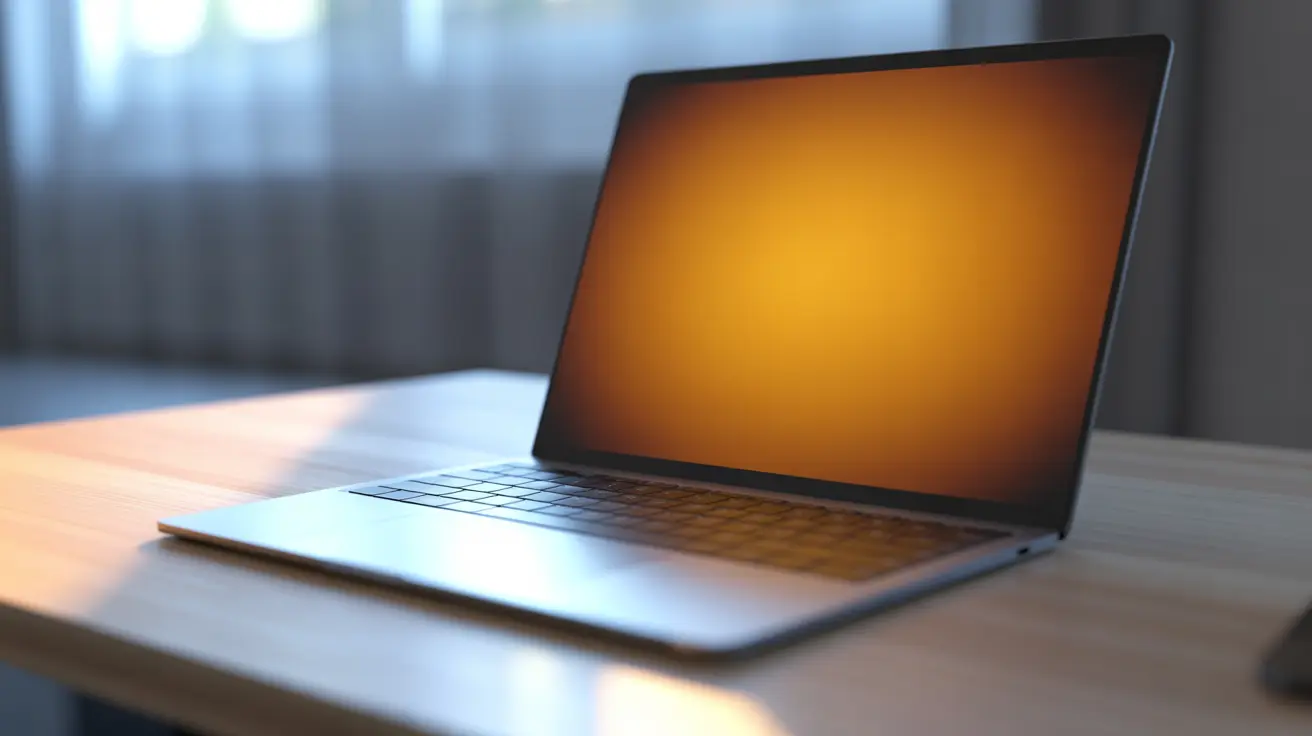
| A MacBook Pro screen turns orange for one of six common reasons.The usual culprits are Night Shift, True Tone, a damaged color profile, a graphics switching glitch, or a faulty dock.Less often, a worn display cable causes it, and that shows clear warning signs before you spend money. |
Your MacBook Pro looked fine an hour ago. Now the screen has an orange cast, and you are wondering if you broke something expensive.
The good news is that most cases are not hardware failures. Run through the checks below before you assume the worst.
Checks Before You Book A Repair
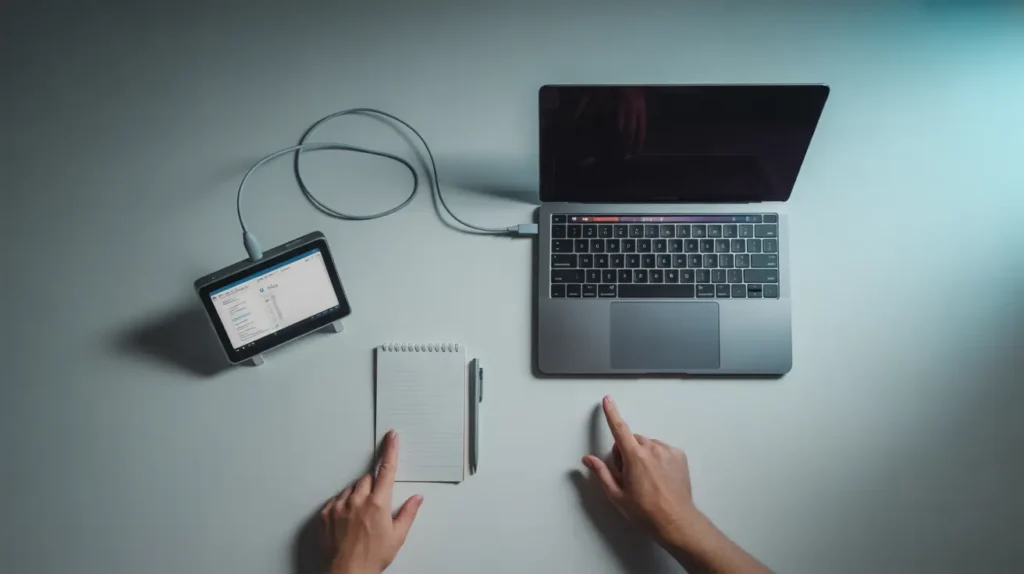
These checks take about five minutes. They tell you almost everything you need to know before spending money.
- Plug your MacBook into an external display. If colors look normal there, the panel or its cable is likely the cause.
- Restart your Mac into Safe Mode. If the orange tint disappears, a background app or startup item is involved.
- Open System Settings, then Battery, and toggle Automatic Graphics Switching off and back on. If the tint changes during the toggle, a graphics handoff glitch is the trigger.
- Open and close the lid slowly while you watch the screen. If the orange shifts with the lid angle, a worn display cable is likely involved.
What Is Actually Turning Your Screen Orange
Five things commonly cause this color shift on a MacBook Pro. Two of them rarely show up in other guides.
Night Shift, True Tone, or Color Filters Left On
Night Shift and True Tone both warm up your screen colors on purpose. Many people forget these settings stay on after one adjustment.
The whole screen looks tinted evenly, not just one spot.
A Corrupted Display Color Profile
macOS stores a color profile that tells your screen how to render colors. An update or a calibration app can quietly swap that profile.
The tint started right after a macOS update or a new app install.
Automatic Graphics Switching Glitch
Intel MacBook Pro models switch between two graphics chips to save battery. Sometimes that handoff briefly renders colors incorrectly.
The tint flickers or resets when you plug in a charger or open a demanding app.
A Faulty Thunderbolt Dock or USB-C Hub
A failing dock or hub can send a weak or incorrect display signal. This problem is common with older or unbranded accessories.
The orange tint only appears when the dock or hub stays connected.
Flexgate Cable Wear or Aging LCD Panel
Models from 2016 to 2019 use a thin display cable known for wearing out. Older panels can also develop heat related discoloration over time.
The tint sits near the bottom edge or worsens after long gaming sessions.
| Cause | Quick Sign | Likely Fix Path |
| Night Shift, True Tone, or Color Filters | Even tint across the whole screen | Software setting |
| Corrupted color profile | Started after an update or app install | Software reset |
| Graphics switching glitch | Flickers when charging or under load | Settings toggle |
| Faulty dock or hub | Only happens with accessory connected | Remove accessory |
| Cable wear or panel aging | Worse near bottom edge or with lid angle | Professional repair |
How To Fix An Orange MacBook Pro Screen

Work through these fixes from easiest to hardest. Stop as soon as the tint clears.
1. Turn Off Night Shift, True Tone, and Color Filters
Cost: Free
- Open System Settings, then Displays, and switch True Tone off.
- Click Night Shift and set the schedule to off.
- Open Accessibility, then Display, and turn off Color Filters.
The tint should disappear within seconds if this was the cause.
This single step solves most orange screen cases.
2. Reset The Display Color Profile
Cost: Free
- Open System Settings, then Displays, then Color Profile.
- Choose the default profile that matches your MacBook model.
- Remove any third party profile installed by a calibration app.
Colors return to normal once the correct profile loads.
This fix works especially well after a recent macOS update.
3. Toggle Automatic Graphics Switching
Cost: Free
- Open System Settings, then Battery, then Battery Health.
- Turn Automatic Graphics Switching off.
- Restart your Mac, then turn the setting back on.
This step resets the handoff between your two graphics chips.
Many Intel MacBook Pro owners see this as a clear flickering tint.
4. Remove Your Dock or USB-C Hub
Cost: Free
- Disconnect any dock, hub, or adapter from your MacBook.
- Restart your Mac with nothing else connected.
- Reconnect the accessory and watch the screen closely.
If the tint stays gone, the accessory was causing it.
Replacing a cheap hub costs far less than a screen repair.
5. Reset NVRAM
Cost: Free
- On Intel models, shut down, then hold Option, Command, P, and R during startup for 20 seconds.
- On Apple Silicon models, simply restart your Mac, since NVRAM resets automatically.
- Check the screen once your Mac finishes restarting.
This step clears stored display settings that may be corrupted.
It rarely hurts to try, and it never deletes personal files.
6. Update macOS and Any Dock Firmware
Cost: Free
- Open System Settings, then General, then Software Update.
- Install any available macOS update.
- Check the manufacturer site for a firmware update for your dock.
Apple regularly patches display bugs in smaller point releases.
This overlooked step fixes more cases than people expect.
7. Book A Professional Diagnostic
Cost: $89 to $599 depending on the issue
- Run the external display test described earlier in this guide.
- Note whether the tint changes with the lid angle.
- Bring those notes to an Apple Store or a certified repair shop.
A cable replacement usually costs less than a full panel replacement.
Getting a real diagnosis first can save you from overpaying.
| Fix | Cost | Best For |
| Turn off Night Shift, True Tone, Color Filters | Free | Even tint across the screen |
| Reset color profile | Free | Tint after an update |
| Toggle graphics switching | Free | Flickering tint under load |
| Remove dock or hub | Free | Tint only with accessory connected |
| Reset NVRAM | Free | General display glitches |
| Update macOS and firmware | Free | Known software bugs |
| Professional diagnostic | $89 to $599 | Tint that survives every software fix |
When To Call In A Professional
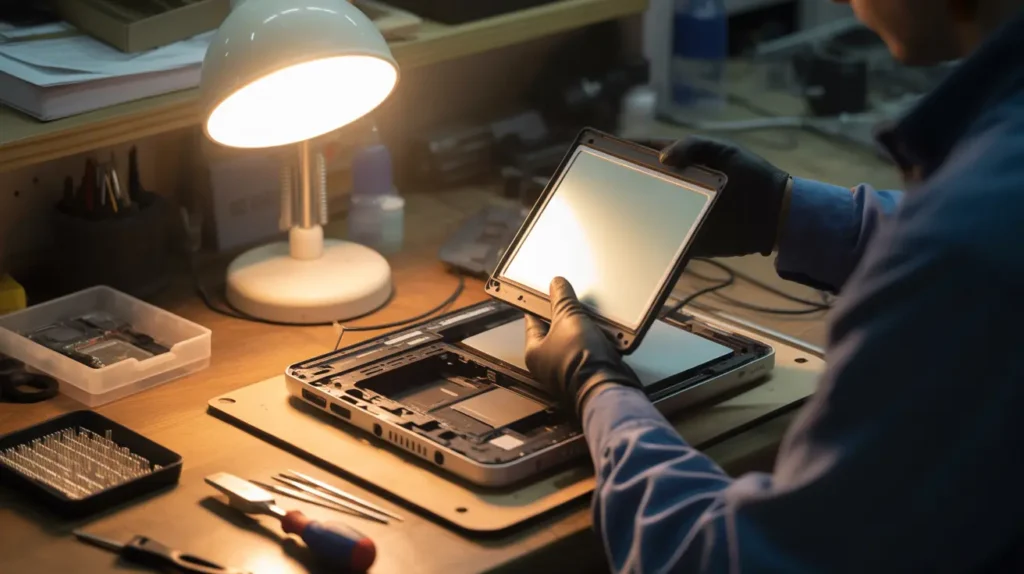
Repair technicians see this exact pattern often, especially on 2016 to 2019 models. A cable that frays from years of opening and closing the lid rarely heals on its own.
Apple covers Flexgate repairs free of charge on qualifying models. AppleCare Plus covers accidental screen damage for a service fee of $99 per incident.
Book a repair if the tint survives Safe Mode, changes with the lid angle, or shows up in macOS Recovery. Any one of these signs points to hardware, not a setting you can fix yourself.
How To Stop It From Happening Again
A few habits keep this problem from coming back.
- Keep macOS updated so display bug patches install automatically.
- Check Accessibility settings after any major macOS update, since Color Filters can turn back on.
- Update dock and hub firmware twice a year, not only when something breaks.
- Avoid leaving a dock connected during a cold boot, since some units glitch on startup.
- Inspect the lid hinge area for wear if your MacBook Pro is from 2016 to 2019.
- Keep your MacBook out of direct sunlight and away from pillows or blankets that trap heat.
Common Questions About Orange MacBook Screens

Can A Dock Or Hub Really Turn My Screen Orange
Yes, a failing or cheap dock can send a weak display signal to your MacBook. Disconnect it for a few minutes and watch whether the tint clears.
My Screen Only Turns Orange After I Close And Reopen The Lid
This pattern usually points to a worn display cable rather than a software setting. It is most common on MacBook Pro models from 2016 to 2019.
Will Turning Off Automatic Graphics Switching Fix The Tint For Good
It often clears a flickering tint caused by a graphics handoff glitch. If the tint returns later, a deeper graphics issue may need a professional check.
Is It Safe To Keep Using My MacBook With A Small Orange Patch
A small patch is safe to use for now, but it can spread on hardware related cases. Get it tested soon so a minor cable issue does not turn into a full panel replacement.
The Bottom Line
Most orange MacBook Pro screens come down to one setting or one profile. Run through the free fixes first, since they solve the vast majority of cases.
If the tint survives Safe Mode and changes with the lid, stop guessing and get it tested. A cable repair now usually costs less than a full panel replacement later.
Disclaimer
This article is for general informational purposes and does not replace a professional repair diagnosis. Follow these steps at your own risk.
screendotfix.com is not affiliated with Apple Inc, and all trademarks belong to their respective owners. Pricing mentioned reflects general market rates and may vary by region.
Editor Note
Reviewed for technical accuracy by the screendotfix.com editorial team. All fixes were verified against current macOS versions.
Pricing reflects general market rates and may vary by region. This article will be updated when new fixes are confirmed.
About The Author
James is the founder of screendotfix.com. He has spent years diagnosing display hardware and software issues across major device brands.
All content is written from direct technical experience and hands-on testing. Free fixes are always recommended before any paid repair option.
Article Summary
An orange MacBook Pro screen has several common causes. These include Night Shift, True Tone, a corrupted color profile, a graphics switching glitch, and a faulty dock.
Most cases clear up for free within a few minutes using the settings above. Hardware causes like a worn display cable are less common, but they show clear warning signs.
Test with an external display and Safe Mode first. Book a professional diagnostic only if the software fixes do not clear the tint.