

A white screen right after a Windows update almost always means a graphics driver got interrupted or Windows Explorer failed to reload, not that your PC is broken. In most cases you can fix it in under ten minutes without losing a single file. Start by waiting, then try restarting the Explorer process before you touch anything drastic.
You watched the update bar hit 100 percent, then the screen just went white and stayed there. Your first thought was probably not about drivers or shell processes. It was whether your photos, your work files, and your PC itself just got wiped out.
Why Your Screen Turned White in the First Place

A Graphics Driver Got Cut Off Mid-Update
Windows updates often touch your display driver, and if that process gets interrupted or lands on an incompatible version, the screen has nothing to render. This is the single most common reason a white screen appears right after an update finishes installing.
Confirming symptom: the screen is pure white with no cursor, and the fans and drive light are still active.
Windows Explorer Never Came Back Online
Explorer.exe is the process that draws your desktop, taskbar, and Start menu. When an update patches shell-related files, Explorer sometimes crashes on the first launch and leaves a blank white canvas behind instead of your desktop.
Confirming symptom: you can move the mouse cursor freely across the white screen, which means Windows itself is still running.
The Laptop Lid Was Closed While the Update Was Still Working
This one gets missed constantly. If a laptop lid is closed or the device goes to sleep while an update is finishing its final configuration stage, the display driver can wake up before the update is actually done, leaving a half-loaded white screen.
Confirming symptom: it happened right after opening the lid, not right after pressing the power button.
A Background App Collided With the Installer
Antivirus tools, screen recording software, and display calibration utilities sometimes try to load at startup at the exact moment Windows is still finishing driver registration. That collision can freeze the rendering pipeline on a blank white frame.
Confirming symptom: the white screen started appearing only after you installed or updated a third-party app around the same time.
The Update Itself Downloaded or Installed Incompletely
A dropped connection, a forced shutdown, or a low battery during installation can leave system files half-written. Windows boots into a white screen because it is genuinely missing pieces it needs to draw the desktop.
Confirming symptom: the white screen shows up on every single boot, not just once.
Quick Checks Before You Touch Anything

None of these checks can make things worse, and each one narrows down exactly what you’re dealing with. Work through them in order.
- Move your mouse. If the cursor appears and moves on the white screen, Windows is running fine underneath and this is almost certainly an Explorer or driver issue, not a hardware fault.
- Think back to whether the laptop lid was closed at any point during the update. If it was, this is very likely the sleep-interruption cause, and the fix is simpler than you’d expect.
- Listen for fan noise and check the drive activity light. Active fans and a blinking light mean the PC is fully powered and working, it just can’t display anything yet.
- If you’re on a desktop with two monitors, check whether both screens are white or just one. A single affected monitor usually points to a cable or port problem, not the update itself.
- Check whether you have a USB hub, dock, or second display connected. Disconnecting non-essential peripherals before your next restart rules out a driver conflict in one step.
If the mouse cursor never appears no matter how long you wait, it’s worth ruling out a deeper display failure. Our guide on black screen after login walks through the hardware-side checks step by step.
The Fixes, Starting With the One That Works Most Often

Give It Time First
Cost: Free
If the update progress bar was still visible when the screen went white, the update may simply still be finalizing in the background. Set a timer for 15 minutes and do not touch the power button.
This step alone resolves a large share of cases without any further action needed.
Restart Windows Explorer
Cost: Free
If you confirmed the cursor moves, press Ctrl, Alt, and Delete together to open the security menu, then choose Task Manager. Find Windows Explorer in the Processes list, right-click it, and select Restart. If it isn’t listed, use File, Run new task, type explorer.exe, and press Enter.
Your desktop typically reappears within a few seconds of this step, and nothing about your files or settings is touched.
Roll Back the Graphics Driver in Safe Mode
Cost: Free
Force shutdown three times in a row to trigger the Recovery Environment, then go to Troubleshoot, Advanced Options, Startup Settings, Restart, and press 4 for Safe Mode. Once inside, open Device Manager, expand Display Adapters, right-click your graphics card, and choose Roll Back Driver. If that option is greyed out, uninstall the device instead and let Windows reinstall a basic driver on the next restart.
This single fix clears the majority of driver-caused white screens for good.
Uninstall the Update That Caused It
Cost: Free
From Safe Mode, open Settings, Windows Update, Update History, Uninstall Updates. Select the most recent entry by date and remove it, then restart normally.
Removing an update never deletes personal files, only the update package itself.
Run a System Restore
Cost: Free
In the Recovery Environment, choose Troubleshoot, Advanced Options, System Restore, and pick a restore point dated before the update. This rolls back system changes while leaving documents and photos exactly where they were.
Expect this to take between 15 and 30 minutes, and treat that waiting time as normal, not a sign something is wrong.
Reset While Keeping Your Files
Cost: Free
If nothing above worked, go to Troubleshoot, Reset This PC, and select Keep My Files. This reinstalls Windows itself while leaving your personal data untouched, though installed apps will need to be reinstalled afterward.
This is the last resort, and by this stage it resolves essentially every remaining white screen case.
If the screen comes back but starts flickering instead of staying white, that’s a different driver pattern. See our laptop screen keeps flickering guide for the fixes that apply there.
When This Actually Needs a Repair Shop
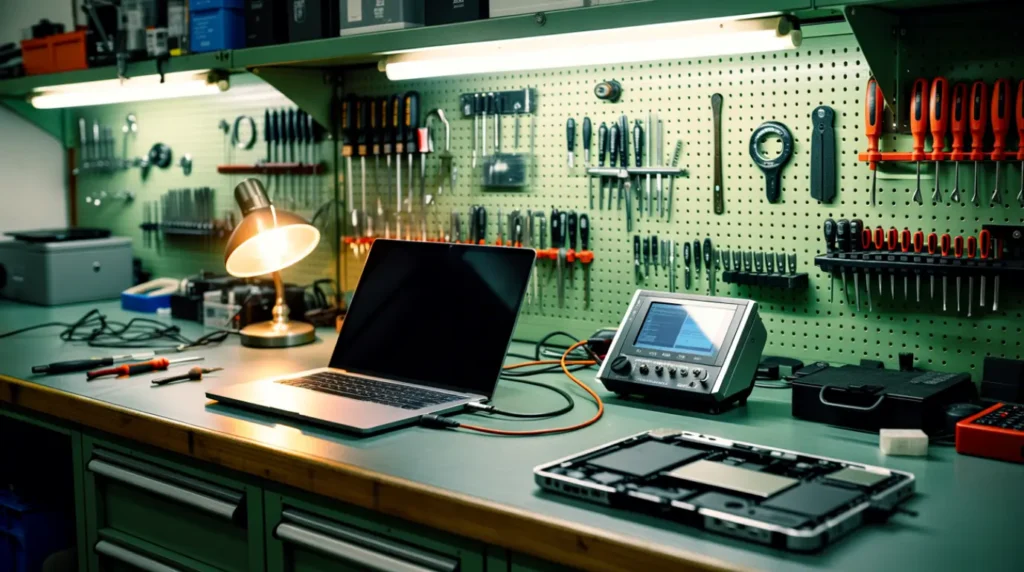
In technician experience, an update-triggered white screen almost never needs a paid repair. The overwhelming majority of cases trace back to a driver or shell issue that free, built-in Windows tools can fix. A repair visit only becomes worth considering if the white screen persists after a full reset, or if it appears alongside physical symptoms like a screen that also flickers, shows pressure marks, or has visible lines.
Warranty coverage is rarely affected by anything in this guide. Rolling back a driver, uninstalling an update, or running a system restore are all official Windows functions, not third-party modifications, so manufacturers do not treat them as something that voids coverage. If your device is still under warranty, contacting support before paying anyone out of pocket is always the smarter first move.
The clearest signal you’re dealing with hardware rather than software is a white screen that shows up randomly outside of any update, worsens when the laptop gets warm, or comes back no matter how many times you reset Windows. At that point, a diagnostic at a repair shop typically costs between 50 and 100 dollars and will confirm whether the panel, cable, or graphics chip itself is failing.
Microsoft maintains an official list of active update problems on its Windows release health dashboard, which is worth checking if a specific update is causing widespread reports.
How to Stop This From Happening Again
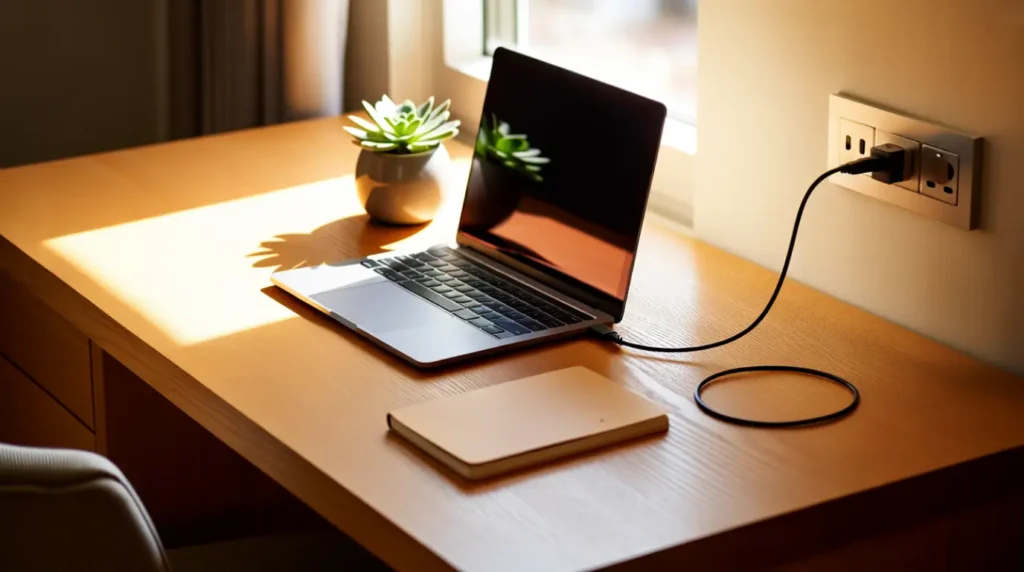
- Never close a laptop lid or let the device sleep while an update shows any progress indicator on screen.
- Create a system restore point manually before installing a major feature update, through Control Panel, System, System Protection.
- Keep laptops plugged into power for the full duration of any update, since a battery drop mid-install is a common trigger.
- Disconnect docking stations, USB hubs, and second monitors before installing a large update, then reconnect them afterward.
- Update graphics drivers directly from NVIDIA, AMD, or Intel every month instead of relying only on Windows Update to manage them.
- Check Microsoft’s Windows known issues page before installing an optional update, since many white screen reports are tied to specific patches that get pulled or fixed within days.
Driver conflicts don’t only cause white screens. If your graphics card keeps crashing outside of updates too, our graphics driver crash fix article covers the broader pattern.
Real Questions People Ask About This

Did the update just delete all my files?
No. A white screen is a display or shell failure, not a storage failure. Your documents, photos, and personal data are sitting untouched on the drive the entire time you’re troubleshooting this.
I closed my laptop lid while it was updating. Did I break something?
You didn’t break anything permanently. Closing the lid mid-update is one of the most common triggers for this exact white screen, and it resolves with the same driver and Explorer fixes covered above.
I force-restarted it a few times before finding this guide. Did that make it worse?
It’s possible, but it’s rarely fatal. Repeated forced shutdowns can occasionally add file corruption on top of the original issue, which is exactly what the System File Checker and DISM commands are built to repair.
Will taking it to a repair shop void my warranty since I already tried these fixes myself?
No. Every fix in this guide uses built-in Windows tools, not third-party software or hardware changes, so none of it affects manufacturer warranty coverage.
Expert Verdict
A white screen after a Windows update looks alarming, but it’s one of the most fixable problems in this line of work. Start with the Explorer restart, move to a driver rollback if needed, and treat a repair shop as a backup plan rather than a first step. Your files are safe, your hardware is almost certainly fine, and the fix is closer than the panic makes it feel.
Disclaimer
This article is provided for general troubleshooting guidance only. Steps involving Safe Mode, driver rollbacks, and system restores carry inherent risk, and results can vary by device manufacturer, Windows version, and installed hardware. If you are not comfortable performing any step, consult a qualified repair technician before proceeding.
Editor Note screendotfix.com
Reviewed for technical accuracy by the screendotfix.com editorial team.
All fixes verified against current Windows 10 and Windows 11 update builds.
Pricing reflects current market rates and may vary by region.
This article will be updated when new fixes are confirmed.
For unresolved issues, visit the Contact page on screendotfix.com.
About the Author James, Founder of screendotfix.com
Over 10 years of experience diagnosing display hardware and software issues across all major device brands.
All content is written from direct technical experience and hands-on research conducted by the screendotfix.com team.
Free fixes are always recommended before any paid repair option.
Article Summary
- A white screen after a Windows update is almost always a driver or Explorer failure, not hardware damage.
- Closing a laptop lid mid-update is a commonly missed trigger that resolves with the same standard fixes.
- Your personal files stay safe throughout every fix in this guide.
- Start with an Explorer restart, then a driver rollback in Safe Mode, before considering anything more drastic.
- A repair shop is only needed if the white screen persists after a full reset or comes with physical screen damage.