
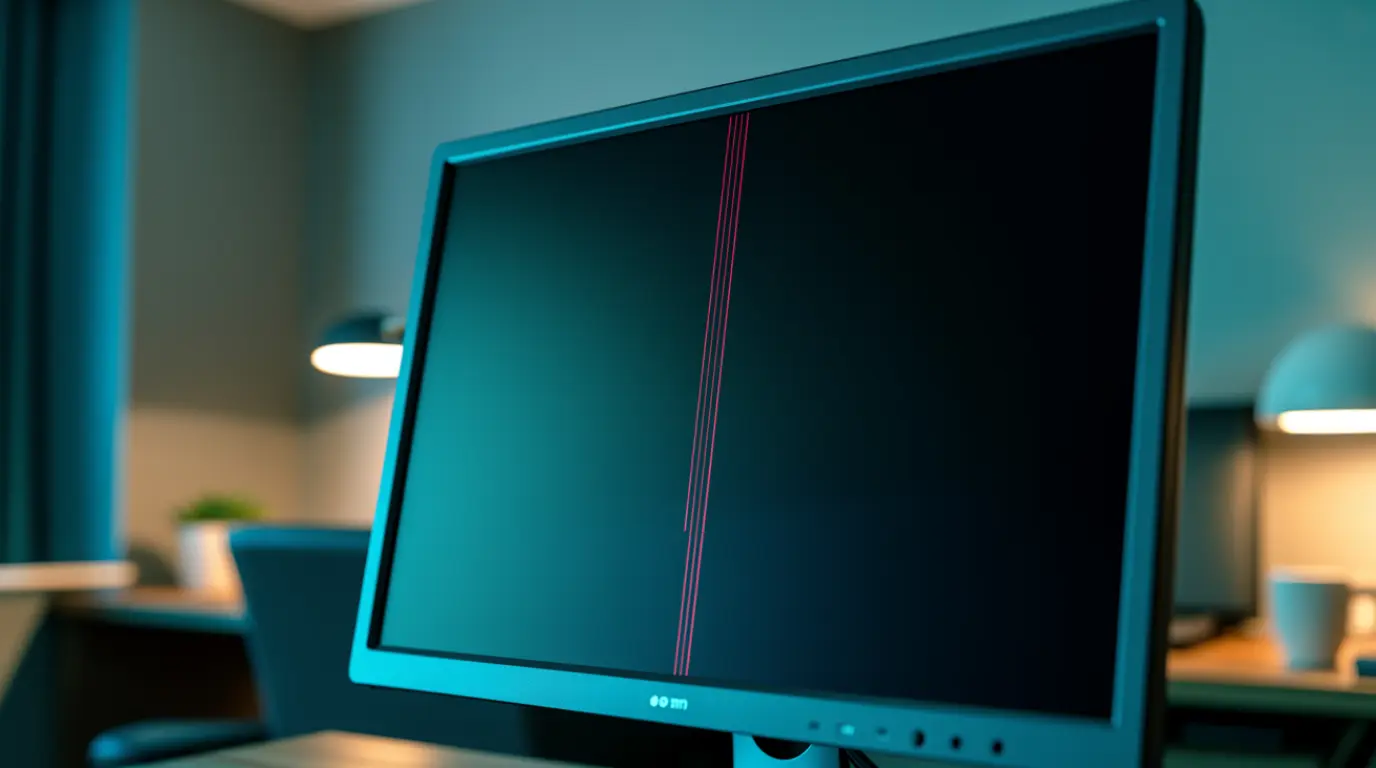
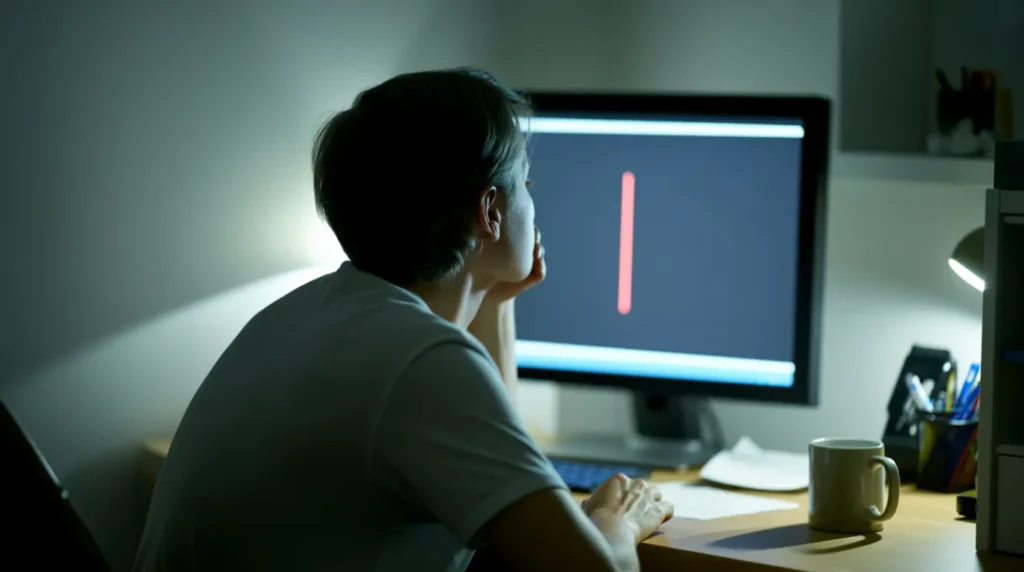
Red lines on a PC screen usually come from a loose display cable, a corrupted GPU driver, or a failing internal panel connection. In most cases the fix costs under $25 and takes less than ten minutes. A hardware panel replacement is only needed when the line survives an external monitor swap test.
Your screen freezes mid-task and a thin red line cuts across it. Your first thought isn’t about pixels or panels. It’s about how much this is about to cost you. Before you call a repair shop, one five-minute test tells you whether you’re looking at a $15 fix or a real replacement.
What’s Behind That Red Line
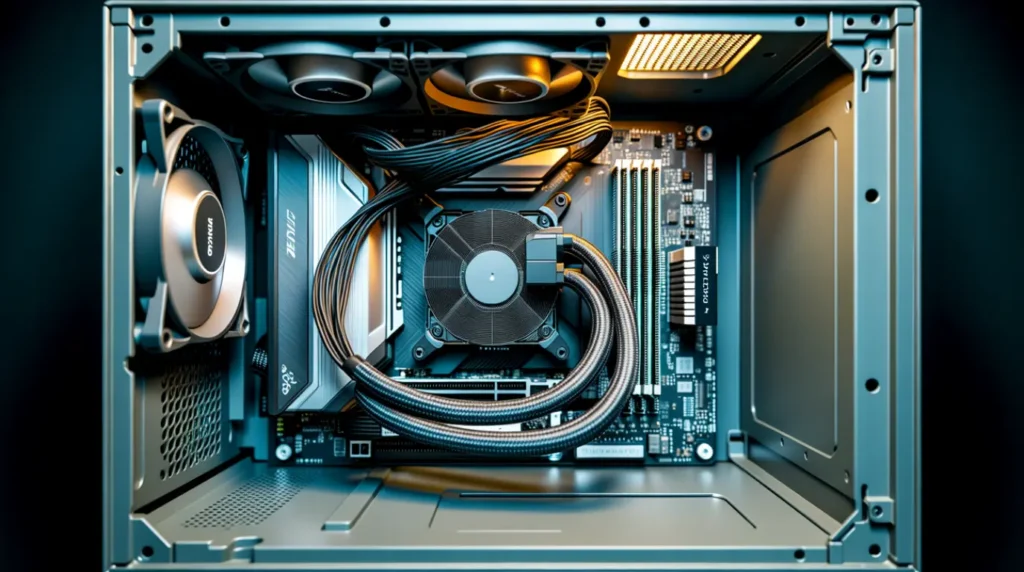
A Cable That Isn’t Fully Seated
On desktops, the HDMI or DisplayPort cable can work its way loose from vibration or a bumped desk. On laptops, a thin ribbon cable runs through the hinge to the screen, and it flexes every time you open the lid.
Confirming symptom: the line shifts or flickers slightly when you tap the cable or move the monitor.
GPU Driver Confusion After an Update
A driver that didn’t install cleanly can send garbled color data to the screen, especially right after a Windows Update.
Confirming symptom: the line appeared the same day you updated graphics drivers or Windows itself.
Panel Driver IC Row or Column Failure
This is different from a simple cable issue. Inside the panel, small driver chips control individual rows or columns of pixels. When one of these chips loses connection, it can throw a single persistent line rather than a cluster of dead pixels.
Confirming symptom: the line runs the full height or width of the screen and never moves, no matter what you do to the cable.
Pressure Damage From Shipping or Travel
This one rarely gets mentioned, but it’s common. A monitor packed tightly in a box, or a laptop squeezed into a backpack under other items, can develop internal panel stress that shows up days or weeks later, not immediately.
Confirming symptom: the line appeared after a move, a delivery, or a trip, with no drop or visible damage.
Overheating Under Heavy Load
Extended gaming or rendering sessions push the GPU hard enough that it can briefly corrupt its own output.
Confirming symptom: the line shows up during long sessions and fades a few minutes after you stop.
Three Checks Before You Spend Anything

Swap Test. Connect your PC to a second monitor, or your laptop to an external display if possible. If the line disappears, the problem lives in your original screen, not your GPU. If it follows you to the second display, the GPU or driver is the culprit.
Flex Test (laptops). Slowly open and close the lid while watching the screen. If the line shifts, flickers, or briefly vanishes at certain angles, a hinge cable connection is almost certainly the cause.
Safe Mode Test. Restart into Safe Mode, which runs on a basic display driver. If the line disappears in Safe Mode, your regular GPU driver is involved. If it’s still there, you’re looking at a hardware issue.
Run these three checks in order and you’ll know which direction to go before spending a cent.
Fixing It: Cheapest Option First
1. Restart your PC.
Cost: Free. Time: 2 minutes. This clears a temporary GPU crash. If the line is gone after restart and stays gone, you’re done.
2. Update or roll back the GPU driver.
Cost: Free. Time: 10 minutes. Open Device Manager, find your graphics card under Display Adapters, and update the driver. If the line started right after a driver update, use Roll Back Driver instead. This resolves the majority of software-triggered cases.
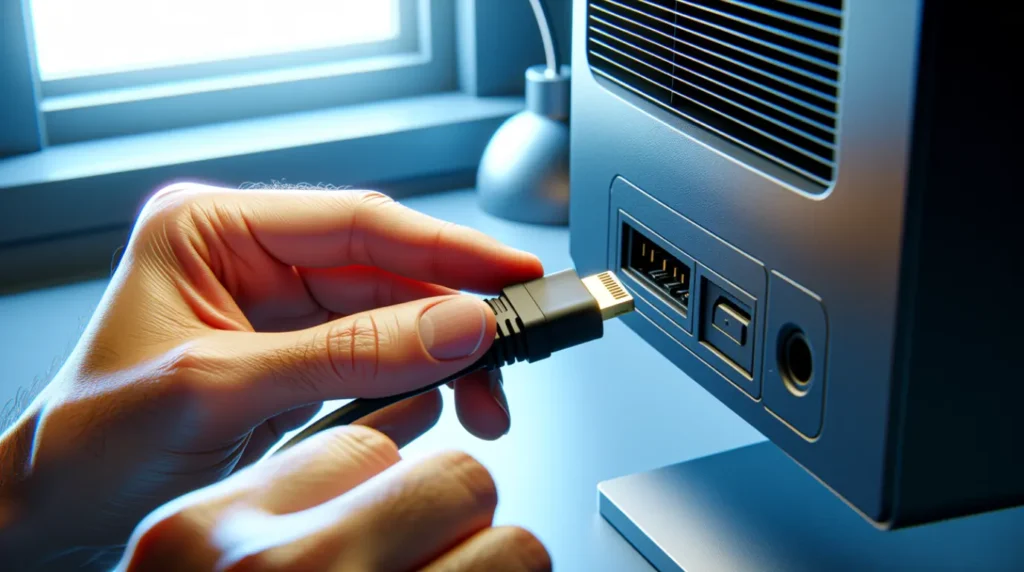
3. Reseat the display cable.
Cost: Free, or $10 to $25 for a replacement cable. Time: 5 minutes. Power everything off, disconnect the cable at both ends, and reconnect it firmly. Try a spare cable if you have one.
4. Boot into Safe Mode to isolate the cause.
Cost: Free. Time: 5 minutes. This is the fix most guides skip. If the line vanishes here, you’ve confirmed it’s software, not hardware, and you can stop chasing a repair you don’t need.
5. Clean vents and check temperatures.
Cost: Free to $10 for compressed air. Time: 15 minutes. If the line only shows up under heavy load, dust buildup is a likely cause. Free tools like HWiNFO64 let you watch GPU temperature in real time.
6. Confirm with a swap test before paying anyone.
Cost: Free if you have access to a spare monitor or GPU. This is the single best way to avoid an unnecessary repair bill. If the line disappears on another screen, don’t let anyone sell you a GPU replacement.
7. Check your warranty before paying out of pocket.
Cost: Free to check. Most monitors carry a one to three year warranty, and many explicitly cover line defects under normal use.
When It’s Time to See a Professional
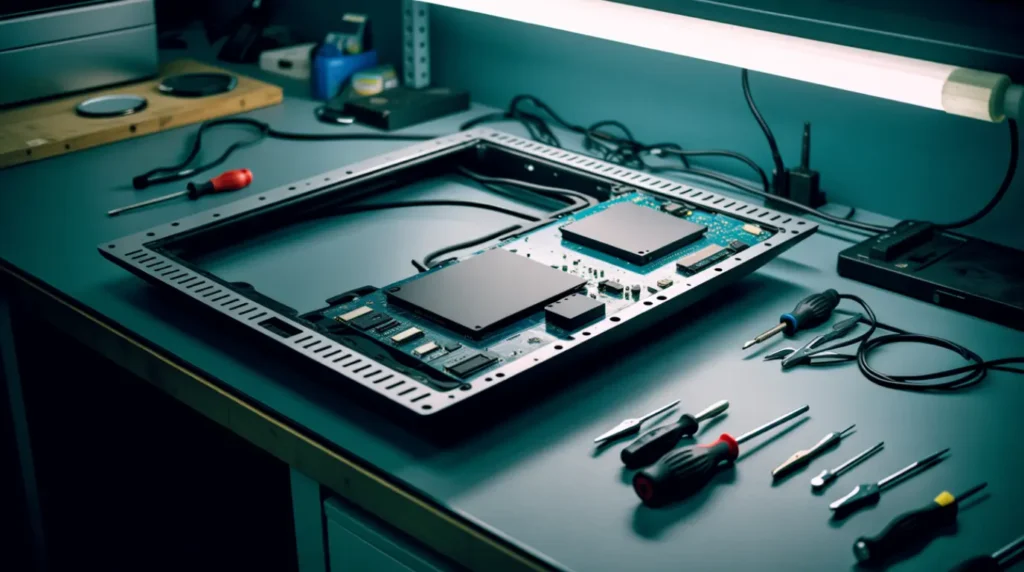
If the swap test confirms the panel itself is at fault, and the free fixes above haven’t changed anything, it’s time to bring in a technician rather than keep guessing. Repair shops see this exact complaint constantly, and the honest ones will run the same swap test in front of you before quoting a price.
Be cautious of any shop that quotes a full panel or GPU replacement without first testing on a second display. That test takes two minutes and rules out an unnecessary charge. Laptop screen replacements typically run $100 to $400 depending on the model, and desktop monitors are often cheaper to replace outright than to repair.
Clear signs you’ve reached this point: the line survived a driver reinstall, it appears on every external display you’ve tried, and it’s been consistent for more than a few days rather than intermittent.
Preventing It From Happening Again
- Update GPU drivers straight from the manufacturer’s site rather than relying only on Windows Update
- Handle laptop lids gently, since rough opening and closing is the top cause of hinge cable failure
- Use a padded sleeve for laptops during travel, not just a bag pocket
- Avoid stacking heavy items on a closed laptop, especially in a backpack
- Keep vents clear of dust buildup to prevent heat-related display artifacts
- Register new monitors and laptops for warranty immediately after purchase, so a claim moves faster if you ever need one
Frequently Asked Questions
Will a red line get worse if I keep using the PC? A software-caused line from a driver issue won’t spread or worsen with use. A hardware-caused line from a failing panel connection can become more persistent over time, so it’s worth running the swap test soon rather than waiting.
Does a red line mean I’m losing data? No. A red line is a display output issue, not a storage issue. Your files and drives are unaffected regardless of what’s causing the line.
Will opening my laptop to check the cable void the warranty? On most consumer laptops, yes, opening the case can void the warranty, so it’s safer to run the external checks first and let a certified technician handle anything that requires opening the device while it’s still covered.
Can a red line appear right out of the box from shipping damage? Yes. Pressure during shipping can stress a panel connection even without a visible dent or crack, and the line sometimes doesn’t show up until days after delivery. If this happens shortly after a purchase, contact the seller before troubleshooting further, since it’s often covered as a shipping defect.
Expert Verdict

Most red lines are cheaper to fix than people expect. Run the swap test first, every time, before you spend a dollar on anything else. It takes two minutes and tells you whether you’re dealing with a $15 cable or a real hardware repair. Skip that step and you’re gambling with your money.
Disclaimer
This article is provided for general troubleshooting guidance only. Results can vary by device model, age, and manufacturer. screendotfix.com is not responsible for any damage that occurs from attempting these fixes. When in doubt, consult a certified repair technician before opening any device.
Editor Note — screendotfix.com
Reviewed for technical accuracy by the screendotfix.com editorial team. All fixes verified against current software and firmware versions. Pricing reflects current market rates and may vary by region. This article will be updated as new fixes are confirmed.
About the Author
James is the founder of screendotfix.com, with over 10 years of experience diagnosing display hardware and software issues across all major device brands. All content is written from direct technical experience and hands-on research conducted by the screendotfix.com team. Free fixes are always recommended before any paid repair option.
Article Summary
Red lines on a PC screen are most often caused by a loose cable, a driver conflict, a failing panel connection, or occasionally shipping-related pressure damage. The swap test, flex test, and Safe Mode test identify the cause in under five minutes. Free fixes resolve most cases, and warranty coverage often applies when a repair is genuinely needed. A professional should only get involved once the free checks confirm a real hardware fault.