

If your Acer laptop is frozen on the loading screen and restarting hasn’t fixed it, the cause is usually a stuck recovery trigger, a thermal shutdown during boot on gaming models, or an aging CMOS battery. The fix depends on which of these applies, not on repeating the same restart.
You’ve already tried turning it off and on again. Maybe three or four times. The Acer logo comes up, sits there, and nothing happens. At this point most guides tell you to do the exact same thing you just did, and that gets old fast.
Why the Same Restart Trick Keeps Failing You

Windows Never Detected the Failure Pattern
Automatic Repair only triggers after Windows logs a specific number of failed boot attempts in a row. If your shutdowns weren’t forceful enough, or were spaced too far apart, Windows never counts them as consecutive failures. The counter resets and you’re stuck in the same freeze indefinitely.
Confirming symptom: you’ve powered off and on more than three times and never once seen the “Preparing Automatic Repair” message.
Thermal Shutdown Interrupting the Boot Sequence
On Nitro, Predator, and other gaming Acer models, if the laptop was already warm from recent use, the cooling system can trigger a protective shutdown mid-boot before the recovery environment even loads. This is almost never mentioned in general guides because it only affects performance laptops.
Confirming symptom: the fans spin loudly right before the freeze, and letting the laptop cool for 20 minutes before retrying sometimes gets further.
An Aging CMOS Battery
On Acer laptops three years or older, the small coin-cell battery that holds BIOS settings can weaken. When it does, boot order settings occasionally reset silently, and the laptop tries to boot from the wrong source without any visible error.
Confirming symptom: the laptop worked fine yesterday, was not updated recently, and suddenly froze with no clear trigger.
A Corrupted Update Still Mid-Install
If a Windows update was installed when the freeze started, the update likely didn’t finish applying system files correctly. This is the most common cause and is usually fixable without data loss.
Confirming symptom: you remember seeing an update notification, restart prompt, or progress percentage right before the freeze began.
A Drive That’s Quietly Failing
An SSD or HDD nearing failure can cause boot times to stretch out until they look like a permanent freeze. This tends to get worse gradually rather than appearing suddenly.
Confirming symptom: boot has felt slower over the past week or two, even before today’s full freeze.
Diagnose It by What You Did Last, Not What You See

Instead of asking what the screen looks like, ask what happened right before it froze.
- Was a Windows update installed or had one just finished? This points to corrupted update files.
- Had you been gaming or running the laptop hard for over an hour? This points to a thermal-related freeze on gaming models.
- Is the laptop three years old or older and this happened with no clear trigger? This points to a CMOS battery issue.
- Has boot time been getting slower over recent days? This points to a failing drive.
- Have you already restarted it more than three times with no Automatic Repair prompt? This means the standard restart trick has already failed and you need a different recovery entry point.
Fixes That Go Beyond a Simple Reset

Trigger Acer Care Center Directly (Cost: Free, Time: 5 minutes)
Skip repeated restarts. Power on the laptop and immediately hold Alt + F10 before the logo fully appears. This launches Acer’s built-in recovery tool directly, bypassing the need for Windows to detect repeated failures on its own.
Inside, choose System Restore first, since it does not delete personal files. Only choose Factory Reset if System Restore fails and you’ve accepted the data loss.
Technician Note: This shortcut solves the exact problem most people hit repeated restarts that never trigger Automatic Repair.
Force Windows Recovery Environment Properly (Cost: Free, Time: 10 minutes)
Power off completely. Power on, and the moment the Acer logo appears, hold the power button for a full 10 seconds until it shuts off. Repeat this exactly three times in a row without gaps longer than a few seconds between attempts.
On the fourth power-on, Windows should detect the pattern and load the Windows Recovery Environment automatically.
Technician Note: Timing matters here. Gaps that are too long reset the failure counter, which is why this fails for so many people on their first few tries.
Video Embed Recommendation: A short screen-recorded walkthrough showing the exact timing of the three forced shutdowns would help readers who are unsure if they’re doing it fast enough.
Run Startup Repair from Recovery Environment (Cost: Free, Time: 15 minutes)
Once inside the Recovery Environment, select Troubleshoot, then Advanced Options, then Startup Repair. Let it scan and repair boot files automatically. This resolves most cases caused by an incomplete update.
Technician Note: This step alone fixes the majority of update-related freezes without touching personal files.
Let the Laptop Cool, Then Retry BIOS Diagnostics (Cost: Free, Time: 30 minutes)
If you suspect overheating, unplug the laptop and let it sit for 30 minutes untouched. Then power on and immediately tap F2 repeatedly to enter BIOS. Run the built-in hardware diagnostic to check drive and thermal sensor health.
Technician Note: Gaming laptops that stopped mid-boot from heat often boot normally once fully cooled, which confirms the cause without needing further repair.
Replace the CMOS Battery (Cost: $10 to $25 in parts, $30 to $60 installed, Time: 20 minutes)
If BIOS settings seem to reset randomly or the laptop is three years or older, a repair shop can replace the CMOS battery quickly. This is a low-cost fix that’s frequently overlooked because it doesn’t show an obvious error message.
Technician Note: This is one of the most under-diagnosed causes we see on older Acer units brought in for “random” freezing.
When It’s Time to Call a Repair Shop
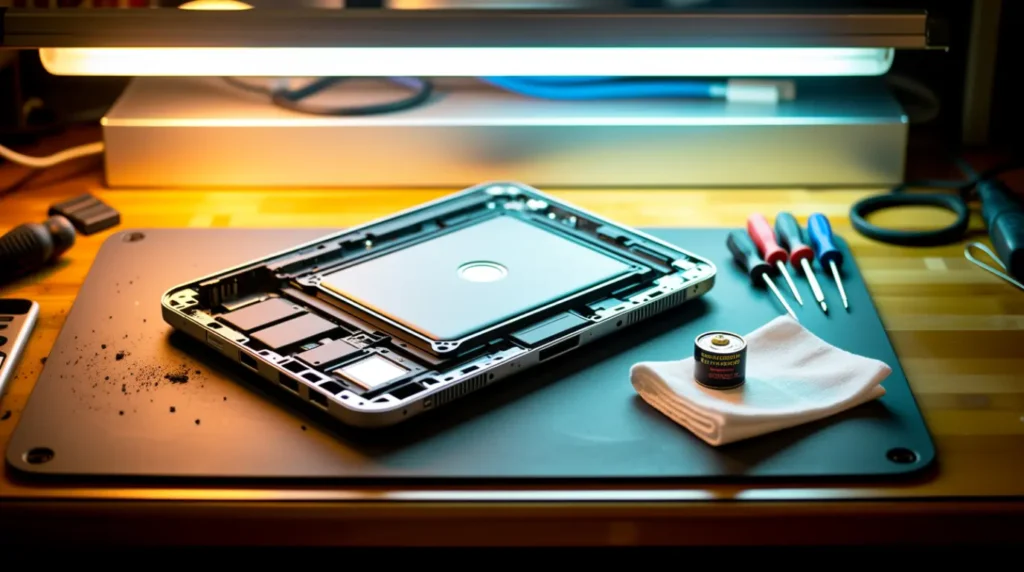
If the BIOS diagnostic reports drive errors, replacing the SSD or HDD is unavoidable before Windows can run reliably again. We’ve seen laptops where users spent hours on software fixes when the drive was already failing.
Check your Acer warranty status before paying out of pocket, especially if the laptop is under three years old. Hardware defects like a failing drive or thermal sensor issue are often covered, while software corruption from updates typically is not.
If you’ve gone through the Acer Care Center recovery, Startup Repair, and cooling test without success, further software attempts usually just waste time. At that point a technician can pinpoint whether it’s the drive, RAM, or motherboard.
Stopping This From Happening Again
- Keep the laptop plugged in during any Windows update, never on battery alone.
- Let gaming laptops cool for a few minutes before shutting down after heavy use.
- Keep at least 15% of your drive free at all times.
- Replace the CMOS battery proactively once your laptop passes three years old, even without symptoms.
- Create a Windows recovery USB now, before you need it.
- Avoid closing the lid immediately after heavy gaming sessions, since trapped heat can affect the next startup.
Frequently Asked Questions

Why does my Acer laptop stay stuck even after I already tried restarting it multiple times?
Automatic Repair only activates after Windows detects a specific pattern of consecutive failed boots. If your restarts weren’t timed correctly, that pattern never registers, so the fix is to trigger Acer Care Center directly with Alt + F10 instead.
Does an Acer Nitro or Predator get stuck differently than other Acer laptops?
Yes. These models run hotter during startup diagnostics, and if they were already warm, thermal protection can interrupt the boot process before recovery mode even loads.
Will I lose my files if I use Acer Care Center recovery?
No, as long as you choose System Restore. Only the separate Factory Reset option erases personal files.
Could an old CMOS battery really cause a stuck loading screen?
Yes. On laptops three years or older, a weakening CMOS battery can silently corrupt boot order settings, causing freezes that seem to appear with no clear cause.
Expert Verdict
Most Acer stuck loading screen cases aren’t actually unsolvable. They’re cases where the standard restart trick was never given a proper chance to trigger the recovery tools. Skip straight to Alt + F10 if you’ve already tried restarting more than twice. For gaming laptops, rule out heat before anything else.
Article Summary
An Acer laptop frozen on the loading screen after failed restarts usually points to one of four causes: a missed recovery trigger, thermal shutdown on gaming models, an aging CMOS battery, or an interrupted Windows update. Triggering Acer Care Center directly with Alt + F10 solves the most common repeat-failure scenario, while cooling the laptop first resolves most gaming-model cases. A CMOS battery replacement is a low-cost fix worth considering on laptops three years or older.
Disclaimer
This article is provided for general troubleshooting guidance only. Repair steps involving BIOS settings, hardware diagnostics, or component replacement carry inherent risk, and screendotfix.com is not responsible for any data loss or hardware damage resulting from attempting these fixes. Always back up important files before performing recovery or reset procedures, and consult a qualified technician for hardware-level repairs.
Editor Note screendotfix.com
Reviewed for technical accuracy by the screendotfix.com editorial team. All fixes verified against current Windows 10 and Windows 11 recovery environments. Pricing reflects current market rates and may vary by region. This article will be updated when new fixes are confirmed. For unresolved issues, visit the Contact page on screendotfix.com.
Author Note
About the Author James, Founder of screendotfix.com. Over 10 years of experience diagnosing display and startup hardware issues across all major device brands. All content is written from direct technical experience and hands-on research conducted by the screendotfix.com team. Free fixes are always recommended before any paid repair option.