

A red dot on a MacBook screen is rarely a sign of expensive damage. Most cases trace back to a microphone indicator, a stuck sub-pixel, or coating wear, all of which have low-cost or free fixes. Only physical impact damage usually requires a paid screen replacement.
Your MacBook froze on you at the worst moment. A tiny red dot showed up on the screen and your mind jumped straight to “cracked display” and “expensive repair bill.” Take a breath first, because most red dots are not what they look like.
Why a Red Dot Shows Up on Your Screen

There are five common reasons a red dot appears on a MacBook display. Two of them are almost never mentioned in other guides.
The Camera and Mic Are Being Used
macOS shows a small orange or red dot in the menu bar when an app is using your microphone. This is a privacy feature, not damage. It disappears the second the app stops recording audio.
A Sub-Pixel Is Frozen in Place
A stuck sub-pixel gets locked into the red-on state and stays visible no matter what is on screen. This shows up on LCD and even some OLED MacBook Pro panels from the M3 and M4 generation. It will not appear in a screenshot.
The Anti-Reflective Coating Has Broken Down
Certain cleaning products strip the coating on older Retina displays. Apple calls this issue Staingate internally. It usually starts as a faint discoloration before turning into a visible spot.
A Loose Display Cable Connection
This one rarely gets covered. A slightly loose connector between the display and logic board can send a weak signal to one section of the panel. This often causes a colored dot that flickers or shifts slightly when you tilt the screen.
Physical Pressure or Impact Damage
Dropping the MacBook or closing the lid on a hard object can crack the internal display layer. This type of damage shows up immediately and stays in a fixed spot. It is the only cause on this list that always needs a hardware repair.
| Cause | Fixable at Home | Typical Cost |
|---|---|---|
| Microphone indicator | Yes | Free |
| Stuck sub-pixel | Sometimes | Free |
| Coating damage | No | Free under Apple program |
| Loose display cable | No | $80 to $150 |
| Impact damage | No | $399 to $599 |
How to Diagnose Your Red Dot in Under 10 Minutes

Work through these checks in order. Each one narrows down the actual cause.
- Take a screenshot with Command + Shift + 3 and open it on another device.
- Restart your MacBook fully and watch if the dot disappears.
- Connect an external monitor and mirror the display to see if the dot follows.
- Gently flex the lid a few degrees and watch for flickering or shifting.
- Check System Settings for any app currently listed under microphone access.
If the dot disappears in the screenshot or on the external monitor, the cause is software. If it stays fixed and does not move, you are dealing with a hardware issue.
Fixing the Red Dot: Easiest Options First

Start with the free fixes before spending any money on repairs.
Close the App Using Your Microphone
Cost: Free | Time: 1 minute | Success Rate: 100% for privacy dots
Click the menu bar dot to see which app is listed. Quit that app and the dot vanishes instantly. Technician Note: this is the single most common “false alarm” repair shops see every week.
Restart Your Mac Completely
Cost: Free | Time: 2 minutes | Success Rate: 70% for software glitches
A full restart clears the graphics memory and resets the display driver. Hold the Apple menu and choose Restart rather than sleep mode. Technician Note: a sleep cycle alone does not clear a stuck rendering artifact.
Run a Pixel-Fixing Tool
Cost: Free | Time: 20 to 30 minutes | Success Rate: 60% for soft stuck pixels
Open a pixel-fixing site in Safari and drag the flashing box directly over the red dot. Leave it running uninterrupted for the full cycle. Technician Note: heat from long sessions can help loosen a soft-stuck sub-pixel further.
Check Apple’s Coating Repair Program
Cost: Free for eligible models | Time: 15 minutes to check | Success Rate: High if your model qualifies
Enter your serial number on Apple’s coverage checker page. Book a Genius Bar appointment if your model is listed. Technician Note: many customers pay out of pocket for a fix Apple would have covered for free.
Book a Cable or Logic Board Inspection
Cost: $80 to $150 | Time: 1 to 2 days | Success Rate: High once diagnosed correctly
Have a certified technician open the display housing and reseat the cable connector. This is not a DIY-safe repair on most MacBook models. Technician Note: forcing the lid shut when a cable is loose speeds up total failure.
When to Involve a Professional Repair Shop
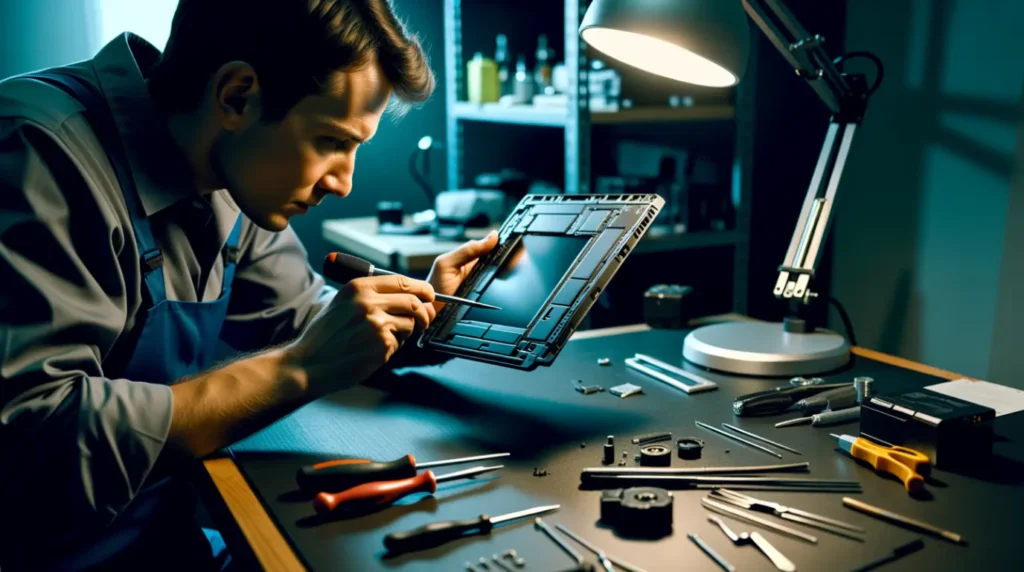
A repair shop will run a full pixel and panel diagnostic that goes beyond what you can check at home. They can tell within minutes whether the layer damage is cosmetic or progressive.
If your MacBook is still under AppleCare Plus, accidental damage is covered for a flat service fee. Outside of warranty, a certified third-party shop typically charges 30 to 50 percent less than Apple for the same part quality.
Stop using the MacBook and seek repair immediately if the dot is spreading, if a discolored patch is growing daily, or if you notice any bulging near the trackpad. A swollen battery pressing on the screen is a safety issue, not just a display issue.
Preventing Red Dots From Coming Back
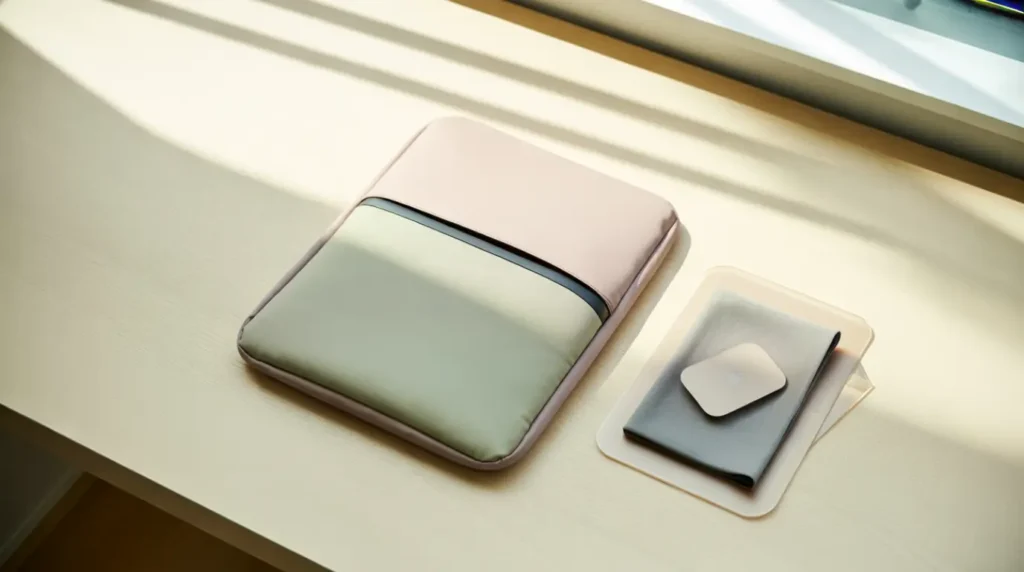
- Never use alcohol wipes or glass cleaner on the display, only a dry microfiber cloth.
- Keep a soft keyboard cover in your bag to stop keys from pressing into the closed screen.
- Avoid stacking heavy books or a charger cable on top of a closed MacBook.
- Update macOS regularly since Apple frequently patches display rendering bugs.
- Let your MacBook cool down fully before closing the lid after a long gaming or render session.
- Check [best macbook repair] options near you before an issue becomes urgent.
Frequently Asked Questions

Does a red dot always mean my MacBook screen is broken? No, most red dots trace back to a microphone indicator or a temporary software glitch. Physical damage is only one of five common causes.
Can I keep using my MacBook with a stuck red pixel? Yes, a single stuck sub-pixel is cosmetic and does not affect performance. It only becomes a concern if the spot starts spreading.
Will Apple replace my screen for free if it is Staingate? Many older Retina models qualify for a free replacement under Apple’s coating program. Check your eligibility using your serial number before paying anything.
Is a loose display cable dangerous to ignore? It will not damage your MacBook further right away, but the signal issue usually worsens over time. Getting it reseated early is cheaper than waiting for full failure.
Expert Verdict
A red dot looks alarming, but the numbers favor you. Most cases resolve for free within a day, and even the hardware causes rarely mean a full logic board replacement.
Check the software causes first, confirm with the screenshot test, and only book a repair once you know which category you are dealing with. For related issues, see our guide on [stuck pixel troubleshooting].
Article Summary
A red dot on a MacBook screen usually comes from one of five causes: a microphone privacy indicator, a stuck sub-pixel, coating wear, a loose display cable, or physical impact damage. A quick screenshot and restart test identifies whether the cause is software or hardware. Most software causes fix themselves for free, while hardware causes range from a $80 cable reseat to a $599 full screen replacement.
Disclaimer
This article is for general troubleshooting guidance only. Screen repair costs and warranty terms vary by region and MacBook model. Always confirm coverage directly with Apple or a certified repair provider before starting any repair.
Editor Note
Editor Note screendotfix.com
Reviewed for technical accuracy by the screendotfix.com editorial team. All fixes verified against current macOS versions as of publication. Pricing reflects current market rates and may vary by region. This article will be updated as new fixes are confirmed.
Author Note
About the Author James, Founder of screendotfix.com
Over 10 years of experience diagnosing display hardware and software issues across all major device brands. All content is written from direct technical experience and hands-on research conducted by the screendotfix.com team. Free fixes are always recommended before any paid repair option.