
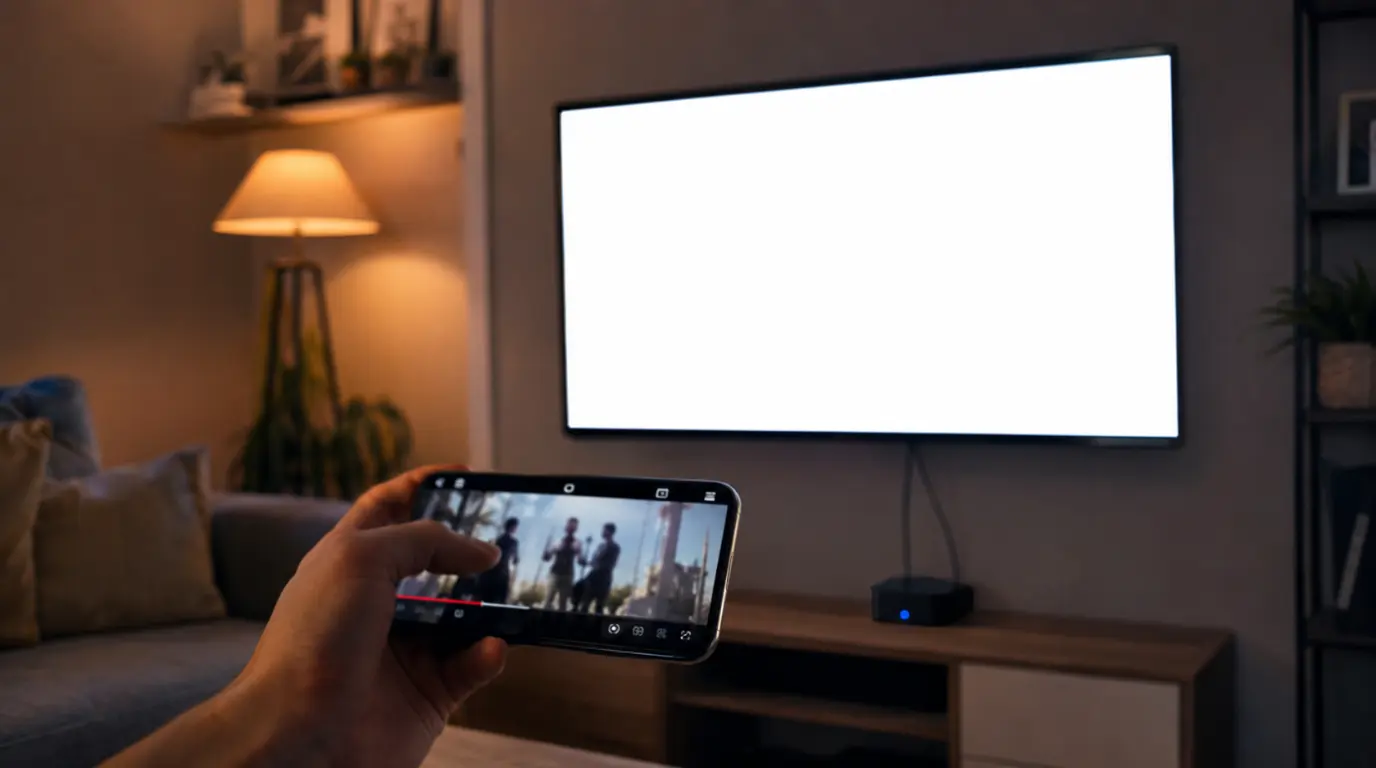
Sound’s playing. The thumbnail loaded fine when you picked the video. Then the second you send it to the TV, the screen goes solid white and stays that way while the audio keeps running underneath it like nothing’s wrong.
That combination (audio present, video missing, only on the TV) rules out about half the usual YouTube troubleshooting advice before you even start. Your phone isn’t broken. Your account isn’t broken. This is a handoff problem between two devices, and the fix depends entirely on how you’re casting.
The fix depends on which of these three things you’re actually doing:
- Tapping the Cast icon inside the YouTube app (the TV plays the video directly, your phone becomes a remote) this is usually a Chromecast/Smart TV app cache or Wi-Fi band problem.
- Mirroring your entire phone screen to the TV (Smart View, screen mirroring, or AirPlay used in full-mirror mode) this is usually copy-protection blocking the video layer, not a bug.
- Opening YouTube’s own app directly on the TV, with your phone not involved at all, is a Smart TV app-cache or firmware issue local to the TV.
Figure out which one applies to you before trying anything else. The rest of this guide is split the same way.
Two Different Things Get Called “Casting” And That’s the Whole Problem
Most troubleshooting guides treat casting as one action. It isn’t. When you tap the Cast icon inside the YouTube app, your phone sends a link and a timestamp to the TV, and the TV pulls the video directly from YouTube’s servers over your Wi-Fi. Your phone’s screen has nothing to do with what plays.
Mirroring is completely different. Your phone renders the entire screen status bar, app, everything as a live video feed and pushes that whole image to the TV. YouTube’s video content rides along as part of that mirrored feed rather than being requested independently by the TV.
Those are two different pipelines with two different failure modes, which is why the same “clear the cache” advice that works for one does nothing for the other.
If you’re getting a white screen with no casting involved at all just the YouTube app or a browser going white on the device in front of you that’s a separate, more common issue with its own set of causes (VPN routing, expired session tokens, corrupted browser profiles). I’ve covered that scenario in detail in the site’s general YouTube white screen troubleshooting guide, and it’s worth checking first if casting isn’t part of your situation.
Scenario 1: You Tapped the Cast Icon in the YouTube App
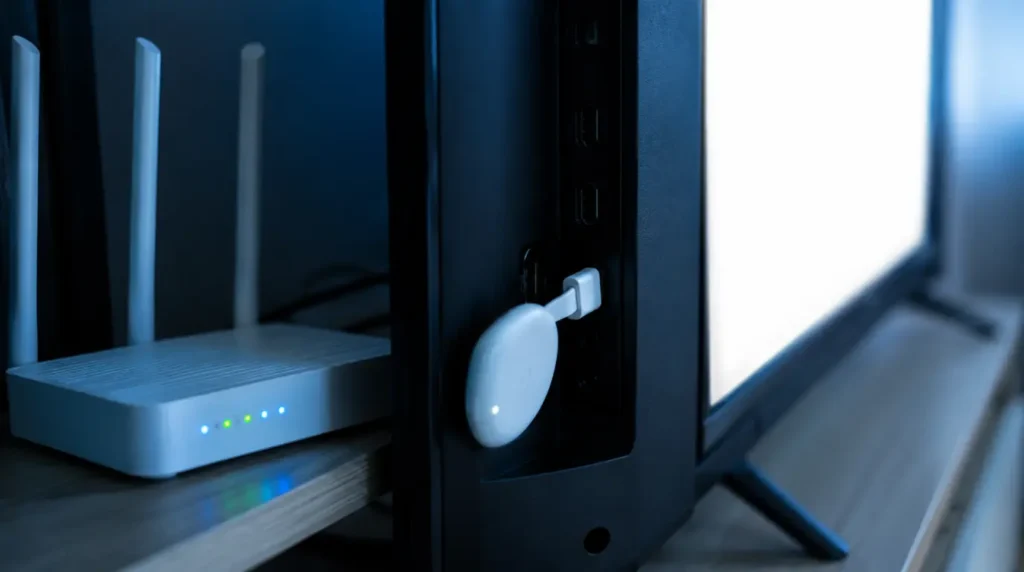
This is the direct-cast path Chromecast, Chromecast with Google TV, or a Smart TV’s built-in Cast receiver. Three things cause a white screen here more often than anything else.
A stuck app cache on the receiving device. The TV or Chromecast keeps a local cache of thumbnails and player assets. A partially downloaded file sitting in that cache can block the video layer from rendering while the audio stream, which comes through a separate pipeline, keeps playing normally.
An HDMI-CEC handshake renegotiation. CEC lets your TV remote control the streaming device plugged into it. On some TV and streaming-stick pairings, CEC also triggers the two devices to briefly renegotiate the HDMI signal mid-playback, and that renegotiation can drop the video signal to white for a few seconds or indefinitely if it doesn’t recover.
A Wi-Fi band mismatch between your phone and the streaming device. If your phone is connected to the 5 GHz band and the Chromecast is sitting on the 2.4 GHz band (or vice versa), the initial cast request can succeed while the actual video stream struggles to establish cleanly, producing exactly this symptom.
How to fix it
- Restart the Chromecast or streaming stick first. Unplug the power cable, wait about 10 seconds, plug it back in, and wait for it to fully reconnect before casting again.
- Clear the YouTube app’s cache on the TV itself, not your phone. On Samsung, go to Settings → Apps → YouTube → Clear Cache. On LG webOS, go to Settings → General → Apps → YouTube → Reset. On Google TV or Sony, go to Settings → Apps → See all apps → YouTube → Storage → Clear Cache.
- Turn off HDMI-CEC on both devices and test again. On Samsung TVs it’s labeled Anynet+, on LG it’s SimpLink, on Sony it’s Bravia Sync all found under external device or connection settings. On Fire TV it’s under Settings → Display & Sounds → HDMI-CEC Device Control.
- Put your phone and your Chromecast on the same Wi-Fi band. Open the Google Home app, tap your device’s tile, go to Settings → Device information → Wi-Fi to confirm which band it’s using, then check your phone’s Wi-Fi settings to match it.
- If nothing above resolves it, factory reset the Chromecast as a last step, not a first one it clears out corrupted setup data that a simple restart won’t touch.
Scenario 2: You’re Mirroring Your Whole Phone Screen
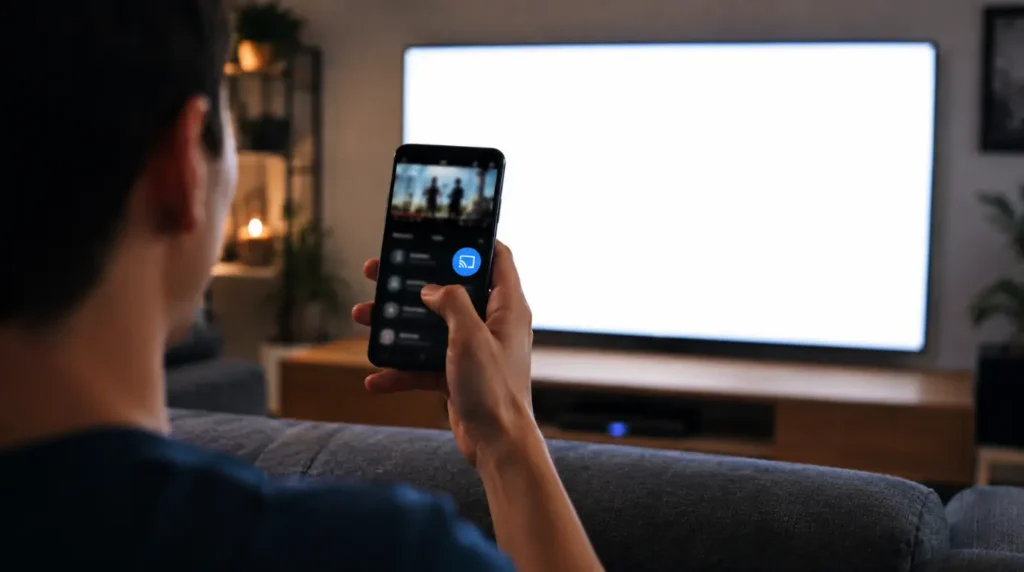
If you use Smart View, Screen Mirroring, or AirPlay in full-mirror mode (not the Cast or AirPlay icon inside YouTube’s own player), the white screen you’re seeing is very often not a bug at all.
Some YouTube content, certain movies, paid rentals, and specific licensed or age-restricted videos carries a copy-protection flag that deliberately blocks the video layer when it detects the screen is being mirrored, while letting audio through untouched. It’s a studio-side restriction, not a fault in your phone, your TV, or the YouTube app.
The fix is to stop mirroring and cast directly instead. Open the video in the YouTube app, tap the Cast icon inside the player itself, and select your TV. If you’re on an iPhone and are using AirPlay through the Control Center, do the same thing: open the video first, tap the AirPlay icon inside the YouTube player, and pick your Apple TV or AirPlay-compatible television from there. That request goes through YouTube’s own casting protocol instead of a raw mirrored video feed, and copy-protected content plays normally through it.
If the video still goes white after switching to direct casting, the cause has moved to Scenario 1 above, and the same fixes apply.
Scenario 3: The TV’s Own YouTube App Is White (Phone Not Involved)
Some people call this “casting” even when their phone never touches it; they’re just opening YouTube’s app directly on a Smart TV. If that’s your situation, the phone isn’t relevant to the fix at all.
This points squarely at the TV itself: a corrupted app cache, an outdated app build, or a firmware update that changed how the TV’s operating system handles video rendering without anyone announcing it.
- Update the YouTube app through your TV’s own app store first Samsung’s Smart Hub, LG’s Content Store, or the Google Play Store on Google TV devices.
- Clear the app’s cache and data, not just the cache, using the same menu paths listed in Scenario 1.
- Check for a pending system firmware update under the TV’s general or system settings that is separate from the app update and gets missed constantly.
- Uninstall and reinstall the app entirely if clearing data didn’t help. This resets any corrupted local files a simple cache clear can’t reach.
A Note on Chromecast Hardware Failures
Occasionally a white screen or a total casting failure isn’t caused by your setup at all. Google has had periods where a batch of older Chromecast devices stopped casting entirely due to a device certificate issue on Google’s end, unrelated to anything a user did. If restarting, cache-clearing, and band-matching all fail and your Chromecast is several years old, check Google’s own Cast troubleshooter before assuming the device itself is broken and avoid factory resetting an older Chromecast during a known outage, since Google has specifically warned that a reset can lock the device out until their fix rolls out.
Questions People Actually Ask
Why does the screen only go white when I cast, but play fine on my phone?
Because casting hands the video off to a second device with its own cache, its own firmware, and in the case of mirroring, its own copy-protection checks. Your phone playing the video correctly only confirms your account and connection are fine; it doesn’t rule out anything happening on the TV’s side of the handoff.
Why is there audio but no video specifically while casting?
Audio and video travel through separate pipelines even during a cast session. A stuck cache, a CEC renegotiation, or a copy-protection block typically interrupts only the video layer, which is why sound keeps playing while the screen stays white.
Does switching from mirroring to the Cast icon actually fix copy-protected content?
Yes, in the large majority of cases. The Cast icon requests the video directly from YouTube’s servers to the TV, rather than sending a raw video feed of your phone’s screen, so the protection flag that blocks mirrored playback doesn’t apply to it.
Can my router cause this even if my phone’s Wi-Fi looks fine?
Yes. If your phone and your Chromecast end up on different bands or even different guest/main network segments, the initial connection can succeed while the sustained video stream struggles, which shows up exactly as a white screen rather than a clear connection error.
The Bottom Line
Work out which of the three casting methods you actually used before trying anything else that single step rules out two-thirds of the wrong fixes immediately. Direct-cast issues usually clear up with a TV-side cache clear or a CEC toggle. Mirroring issues usually aren’t bugs at all, and switching to the in-app Cast or AirPlay icon solves them outright. And a white screen on the TV’s own YouTube app, with your phone never involved, almost always comes down to an app update or a cache clear on the television itself.
James, founder of screendotfix.com.