
YouTube Goes White With No Warning Here’s What’s Actually Wrong
A white YouTube screen is genuinely confusing because it gives you nothing to work with. No error message. No spinning loader. Just a blank page sometimes silent, sometimes with audio running in the background as if the video loaded fine and only the visuals decided not to show up.
The standard advice is to clear your cache and disable your ad blocker. That’s not wrong exactly, but it’s incomplete. In practice, cache-clearing fixes maybe a third of white screen cases. The rest come down to things most guides either don’t know about or skip over. This article covers those.
The Short Version
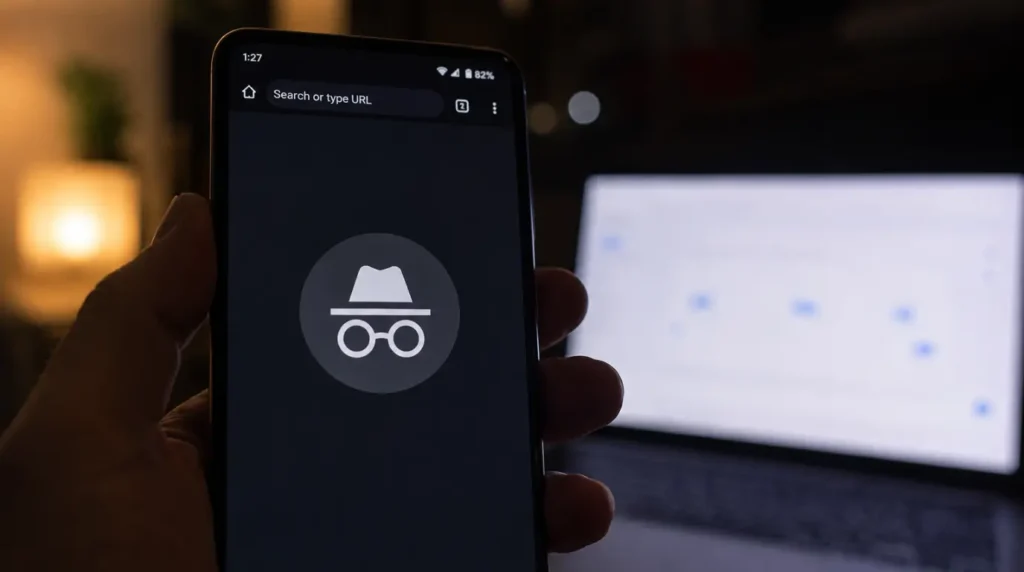
If you want one quick answer: open an incognito window right now and try YouTube there.
- If it loads fine: A browser extension is your problem and you’ve just saved yourself 20 minutes of troubleshooting.
- If it’s still white in incognito: Keep reading.
The three causes that most consistently get missed are a VPN routing your traffic through a restricted region, a session token that’s expired or broken after a Google account change, and a corrupted browser profile that cache-clearing can’t touch.
Not All YouTube White Screens Are the Same Problem
The symptom matters here. Take 10 seconds to identify which version you’re dealing with; it narrows down the cause significantly.
Every page on YouTube is white
The whole site fails, not just individual videos. This is almost always an extension conflict or a hardware acceleration mismatch. Neither is serious, both have quick fixes.
Certain videos go white, others load fine
This one is usually tied to your account session or to VPN-based regional restrictions. Age-gated or region-locked content tends to fail silently with a white page rather than showing a proper error.
Sound plays but the screen is completely white
The audio pipeline and the visual renderer are separate processes in most browsers. When hardware acceleration breaks, the audio keeps going but nothing appears on screen. This symptom almost always resolves the moment you toggle hardware acceleration off or on in your browser settings.
Only goes white in fullscreen
This is a separate and specific bug, a GPU rendering conflict that only triggers when the video element tries to take over the full display. It affects Chrome and Edge on Windows 11 more than anything else. The fix is the same hardware acceleration toggle, but it’s worth knowing it’s a distinct issue from general white screen problems.
Fine on your phone, broken on your laptop
Whatever the cause is, it’s device-specific or browser-specific, not an account issue. Something on that machine is interfering. Extensions, a stale browser profile, or a DNS cache that needs flushing are the most likely candidates.
What’s Actually Causing It
Ad blockers get the most blame sometimes fairly, but not as often as guides suggest. These are the causes that show up more often in practice and get skipped over more often in articles.
A VPN routing you through a restricted region
YouTube doesn’t always respond to regional restrictions with a proper block message. Sometimes it just fails silently, the page loads white and nothing happens. If you’re connected through a VPN server in a region where the content you’re trying to watch isn’t available, this is exactly what you’ll see. Switching server locations or disconnecting entirely for a moment will tell you immediately whether the VPN is involved.
A broken or expired session token
Google issues session tokens that keep you logged in over time. Those tokens can quietly expire, or break entirely after a password change, a security flag on your account, or just a very long period without a full sign-out. When the token goes bad, YouTube sometimes shows a white screen rather than prompting you to log in again. Signing out, clearing YouTube’s cookies specifically, and signing back in usually sorts this within 60 seconds.
A corrupted browser profile not just corrupted cache
These two things get confused constantly. Cache is temporary files that build up and go stale. A browser profile is your entire browser environment, your saved settings, extension configuration, session data, and more. Profile corruption often happens after a browser crash or a forced shutdown mid-session. Clearing cache does absolutely nothing for a corrupted profile. The only real fix is creating a fresh one.
Local DNS records that haven’t refreshed
Your device stores cached DNS records to speed up connection times. When YouTube’s infrastructure changes and your local cache hasn’t updated, some page elements fail to resolve and the result looks like a partial load, or a completely white page. Flushing the DNS cache takes one terminal command and about 30 seconds, and it’s one of those fixes that works when nothing else makes sense.
How to Fix It Easiest First
Test in an incognito window before anything else
Incognito mode runs with no extensions active. If YouTube works fine in incognito but not in your regular browser, an extension is the problem.
- Go back to your normal window.
- Disable all extensions at once.
- Re-enable them one at a time until the white screen comes back to find the culprit.
Note: Don’t assume it’s just your ad blocker. Grammar checkers, theme extensions, screenshot tools, VPN extensions can silently break YouTube’s page renderer.
Sign out of Google completely, then sign back in
Click your account icon in the top-right corner of YouTube, sign out fully, then sign back in. This forces a fresh session token. If the white screen was caused by an expired or broken token, it typically disappears immediately after logging back in.
Disconnect your VPN or switch server
If you use a VPN whether as a standalone app or a browser extension disconnect it entirely and reload YouTube. If the page loads, the VPN is the issue. Try switching to a different server location before re-enabling it. A server in the US, UK, or another major region where YouTube’s CDN is well-established usually resolves it.
Clear YouTube’s data specifically, not your whole browser history
In Chrome:
- Go to youtube.com.
- Click the lock icon in the address bar.
- Select Site settings, then click Clear data.
This removes only YouTube’s cached files and cookies without clearing saved passwords or anything else in your browser. After clearing, reload YouTube and sign back in.
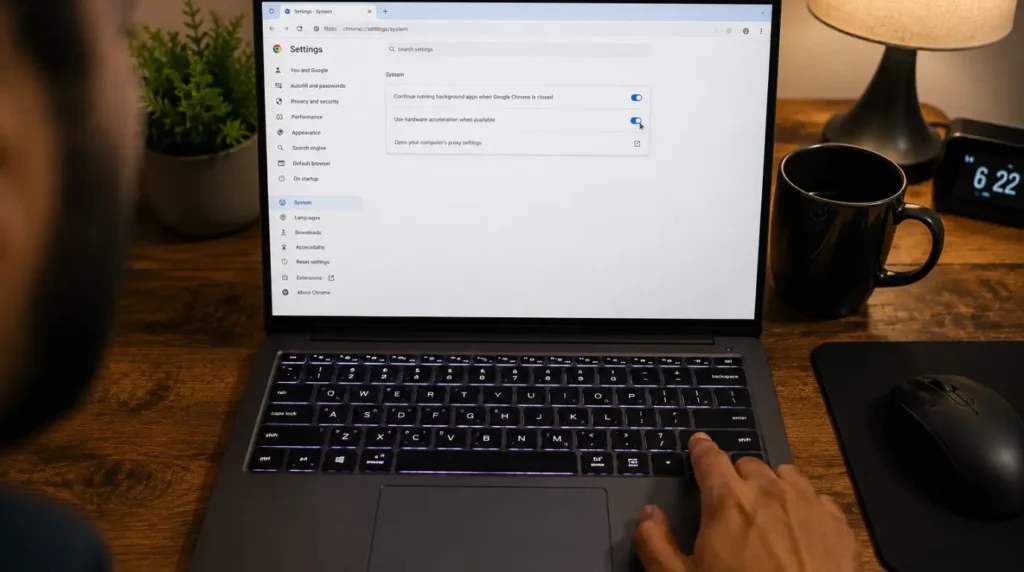
Toggle hardware acceleration in your browser
This fix is particularly important if your audio is playing but the screen stays blank.
- In Chrome: Settings → System → toggle “Use hardware acceleration when available” → click Relaunch.
- In Edge: Settings → System and performance → toggle the same setting → restart the browser.
If hardware acceleration is currently on, turn it off. If it’s off, turn it on. The issue is a mismatch with your GPU setup.
Flush your DNS cache
- On Windows: Open Command Prompt and run ipconfig /flushdns.
- On Mac: Open Terminal and run sudo dscacheutils -flushcache; sudo killall -HUP mDNSResponder.
Restart your browser after running the command.
Create a new browser profile
In Chrome, click your profile icon in the top-right corner and select Add to create a new profile. Sign into YouTube from this new profile. If it loads normally, your original profile has corruption that cache-clearing won’t fix. You can move your bookmarks and saved passwords over through Chrome’s settings before retiring the old profile.
Uninstall and reinstall the YouTube app
If you are experiencing this on a standalone application:
- Android: Settings → Apps → YouTube → Uninstall → Reinstall from Play Store.
- iPhone / iPad: Hold the YouTube app → Remove App → Reinstall from App Store.
- Smart TVs (Samsung / Sony): App settings → YouTube → Uninstall → Reinstall from the TV’s app store.
Note: On Smart TVs in particular, firmware updates occasionally break YouTube’s rendering without any warning. A clean reinstall usually clears it.
When the Problem Is Your Account, Not Your Device
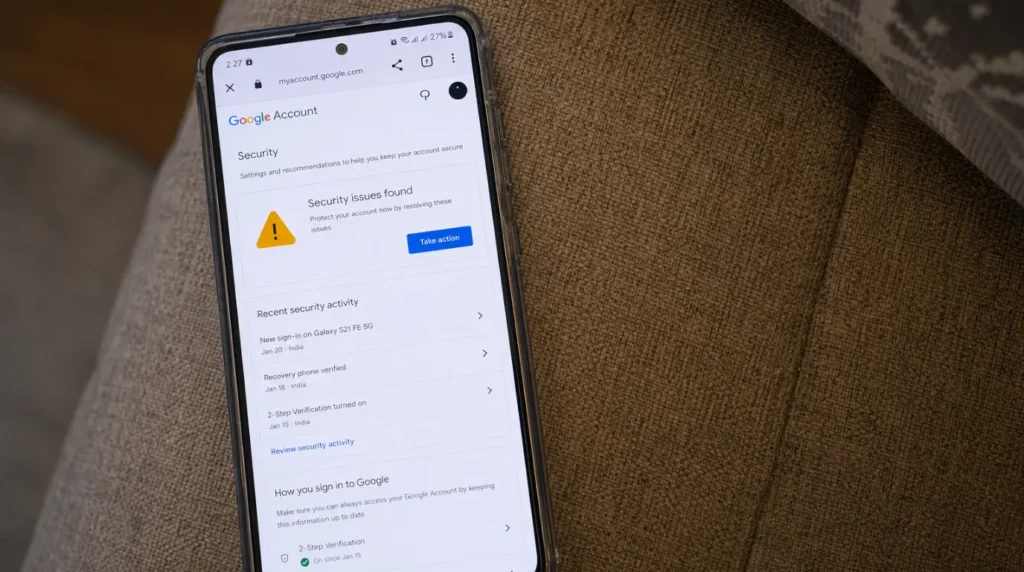
If YouTube shows a white screen on every browser, on multiple devices, and even after reinstalling the app the issue is almost certainly account-level rather than device-level. Google occasionally places temporary restrictions on accounts that have triggered security flags or shown unusual activity patterns.
Check your Google Account’s security page directly at myaccount.google.com. If there are alerts, flagged sign-ins, or security warnings listed there, address those first. Google’s account recovery process is the only path through this.
How to Stop It Coming Back
- Stay current with browser updates: Check for updates in Chrome or Edge through Settings → Help → About it checks automatically and downloads if you’re behind.
- Review your extensions every few months: Going through your installed extensions every couple of months and removing anything you no longer actually use prevents most unexpected script errors.
- Keep your VPN app updated: Outdated VPN clients, especially ones that handle DNS locally, are a quiet and common cause of intermittent YouTube failures.
Questions People Actually Ask

Why does YouTube go white on specific videos but not others?
This almost always points to either a regional restriction (more common if you’re using a VPN) or a session issue affecting content that requires account verification, age-gated videos, channel memberships, or certain licensed content. Sign out and back in first.
The audio is playing fine. Why is the screen completely white?
Because video and audio render through different processes in the browser. Hardware acceleration affects the visual renderer specifically. Toggle hardware acceleration in your browser settings, relaunch, and the visual layer should recover.
Does this happen on YouTube TV as well?
Yes, and it actually happens more often on Smart TVs running YouTube TV than on desktop browsers. Firmware updates on the TV itself can break the YouTube app’s rendering layer. Uninstalling and reinstalling the app is consistently the fastest fix.
Why did this start with no warning and no changes on my end?
Browser extensions update in the background without asking. An extension update that broke compatibility with YouTube’s current build is the single most common cause of this starting without any obvious trigger. Open incognito to test it immediately.
Can a weak internet connection cause a YouTube white screen?
Occasionally. If the connection is unstable enough that YouTube’s page scripts fail to load completely, the result can look like a white screen rather than a loading error. Run a speed test and try a wired connection if you’re on Wi-Fi.
The Bottom Line
Start with the incognito test and it gives you an answer in under 30 seconds. If that doesn’t identify the problem, the session refresh and VPN check together cover the next most likely causes.
The stubborn cases almost always trace back to a corrupted browser profile or a DNS issue. Work through the list in order and you will likely find the fix long before reaching the harder steps.
About the Author James, Founder of screen.fix.com. Over 10 years of display troubleshooting experience. Content based on practical technical research. Free solutions prioritized before paid repair. Focused on realistic and trustworthy troubleshooting advice.