
Quick Answer
Blue dots on your phone screen point to one of three root problems: a pixel that has stopped cycling colors correctly, internal panel damage from pressure or impact, or a display rendering error triggered by software. Run a restart first, then a pixel-cycling video, before assuming anything is physically broken. Most cases resolve without spending a single dollar.
Imagine sliding your phone out of your pocket and noticing a tiny cluster of blue dots frozen near the center of your display, perfectly still while everything around them moves normally. They were not there yesterday. Nothing obvious happened. That combination of confusion and quiet dread is exactly what drives people to search for answers at midnight, and this article is going to give you those answers in plain language.
Why Your Screen Is Showing Blue Dots
Understanding what caused the problem is the fastest way to pick the right fix. These five causes cover the overwhelming majority of reported cases.
A Pixel Locked in One Color State
Every pixel on your display contains three subpixels: red, green, and blue. When the blue subpixel gets stuck in a permanently active state, it broadcasts that color no matter what image your screen is supposed to show. This is called a stuck pixel, and it differs from a dead pixel, which goes completely dark. The clearest confirmation sign is a blue dot that sits in the exact same position whether your screen shows a white image, a black image, or any video.
Panel Stress From Bending or Pressure
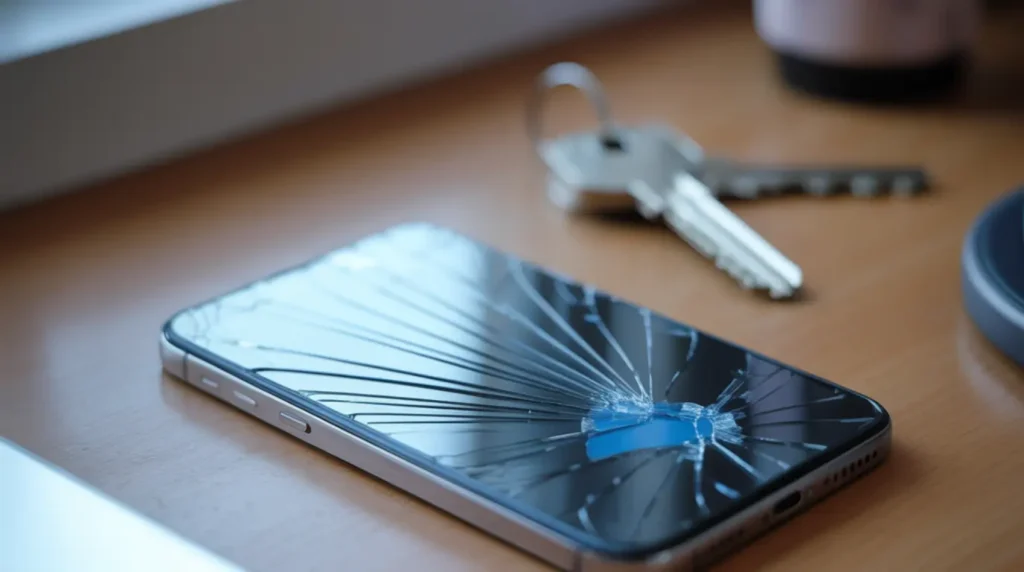
Phones flex more than most people realize, especially in tight back pockets or under a heavy bag. That repeated mechanical stress can compress the display panel layers and cause localized pixel damage that appears as blue splotches or discolored clusters. Unlike a single stuck pixel, pressure damage tends to look irregular and slightly blurred at the edges. If the dots showed up after a long day of carrying your phone in a tight space, this is the most probable cause.
A GPU or App Rendering Error
Your phone’s graphics processor handles everything your screen draws. When a driver bug or a poorly coded application sends the wrong color data to a region of the display, you get a visual artifact that looks exactly like a hardware defect but is entirely software in origin. These phantom display errors are temporary and leave no physical damage behind. The key indicator is that the dots vanish completely after a restart or do not appear when you test a different app.
Internal Moisture Reaching the Display Connector
Water does not need to soak your phone to cause damage. Humidity, a splash, or even condensation from moving between air-conditioned and outdoor environments can leave traces of moisture along the display flex cable or connector. Those traces corrode the electrical contact points and interrupt the signal being sent to specific pixel regions. You will typically see a bluish or milky-colored blotch that grows slightly over hours or days as the corrosion spreads.
Screen Burn Residue on OLED Panels
OLED displays use organic compounds that degrade at different rates depending on which colors they display most often. If a blue interface element such as a navigation bar or notification icon sits in the same spot for months, the underlying blue subpixels can become overworked while surrounding subpixels remain fresh. This imbalance can create a faint blue ghost or dot that is most visible on light-colored backgrounds. Phones that stay on full brightness around the clock are at the highest risk.
Check Your Screen Before You Touch Anything
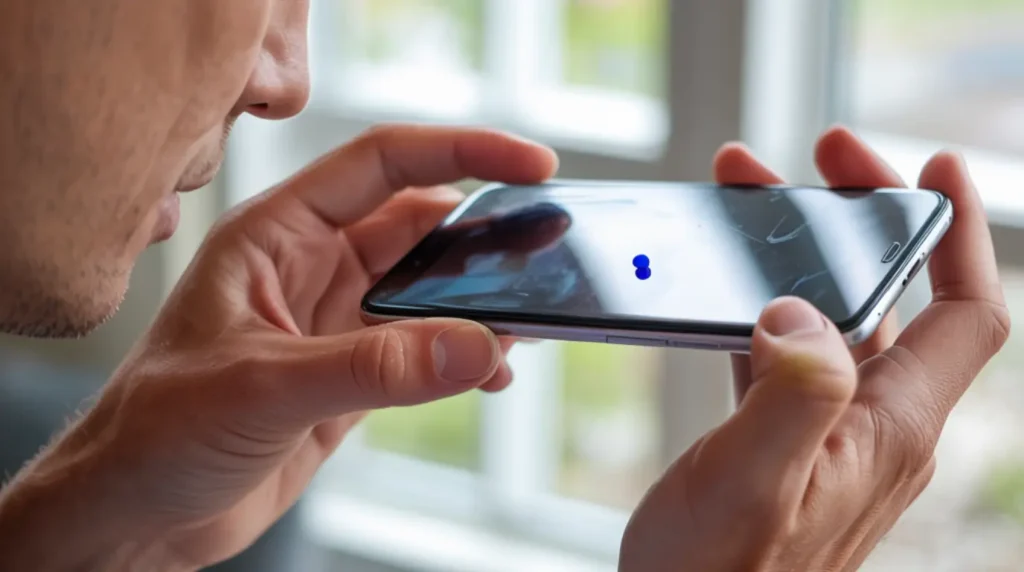
Spending two minutes on this check will tell you exactly which fix to start with and could save you from an unnecessary repair bill.
- Open a solid white image and stare at the dot’s position. Note exactly where it sits on the screen.
- Switch to a solid black background. If the dot is still visible in the same spot, you are dealing with a hardware issue, not a software rendering glitch.
- Restart your phone completely. Hold power, tap restart, and wait a full minute before checking again. If the dot disappears, the problem was entirely software.
- Shine a flashlight at an angle across the glass surface. Look for any cracks, pressure marks, or cloudy spots beneath the glass that would indicate physical display panel damage.
- Think back over the last 48 hours. Did the phone get squeezed, dropped from a short height, or carried through humid conditions? Your recent memory is one of the most useful diagnostic tools available.
How to Fix Blue Dots on Your Phone Screen
Work through these fixes from the simplest to the most involved. There is no reason to skip ahead until you have ruled out the easier options.
Force Restart Your Device | Free
- Hold the power button and volume down button together for ten seconds on most Android devices. iPhone users can press volume up, then volume down, then hold the side button.
- Wait for the screen to go dark and the device to boot back up completely before checking for the dot.
- A forced restart clears the GPU cache more thoroughly than a standard restart, making it more effective against display rendering errors and pixel color faults caused by software.
This step costs nothing and takes under a minute, so it should always come first.
Run a Pixel Cycling Tool | Free
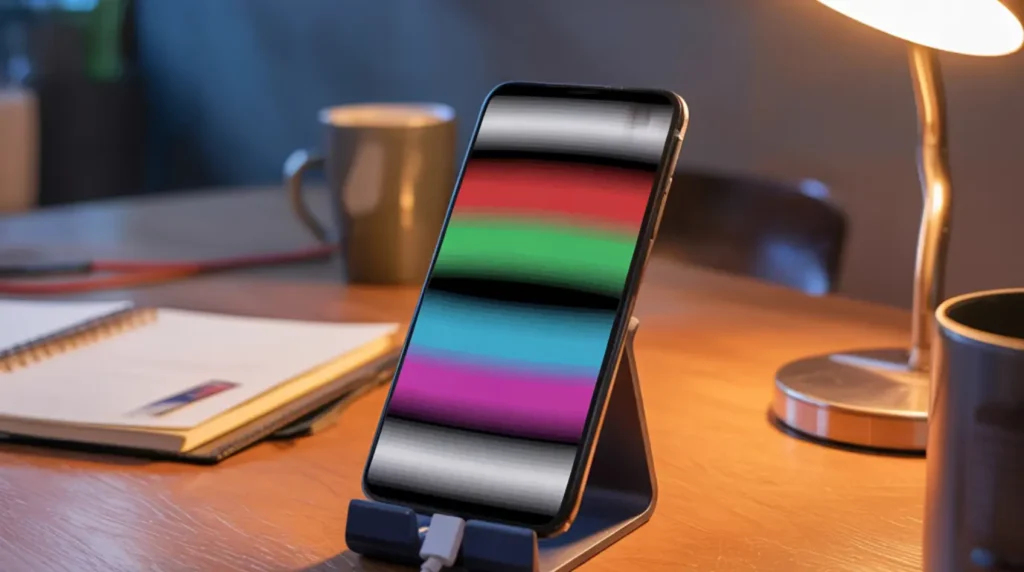
- Open your phone’s browser and search for a free dead pixel fixer or stuck pixel repair tool. Several reliable options cycle your screen rapidly through every color.
- Set your screen brightness to maximum, go full-screen, and let the tool run for at least fifteen minutes without interruption.
- The rapid color changes force the stuck subpixel to attempt its normal switching cycle, which can shake it loose from its locked state.
Repeating this process two or three times over separate sessions increases your success rate on persistently stuck pixels.
Adjust Display Color Profile Settings | Free
This fix is one the competing article skipped entirely and it works well for phantom color artifacts caused by display calibration errors.
- Go to Settings and find Display, then look for Color Mode or Color Profile depending on your device brand.
- Switch from your current setting to a different profile, for example from Vivid to Natural or from Saturated to Standard.
- Wait ten seconds and then switch back. This forces the display driver to reinitialize the color output pipeline and can eliminate software-origin blue dot artifacts instantly.
Samsung and OnePlus devices respond to this technique especially well because their color management systems are highly configurable.
Enable Safe Mode to Isolate Third-Party App Conflicts | Free
- Hold the power button until the power menu appears. On most Android devices, long-press the Power Off option until a Safe Mode prompt appears, then confirm.
- Observe your screen in Safe Mode for five minutes. If the blue dot disappears, a third-party app is causing the display rendering error.
- Restart normally and uninstall any apps added shortly before the dot appeared. Start with screen overlay apps, live wallpapers, and display filter utilities.
This step takes the guesswork out of software diagnosis and lets you confirm the cause before you commit to any deeper fix. [INTERNAL LINK – how to boot Android in safe mode guide]
Install Pending System Updates | Free
- Open Settings, then tap About Phone or General, then Software Update.
- Download and install any available update, even minor patch releases. Display calibration fixes are regularly bundled into system updates without being listed prominently in the changelog.
- Restart your device after the update completes and recheck the screen on both a white and a black background.
Keeping your device updated is both a fix and a long-term screen health strategy that most users overlook until something goes wrong.
When the Problem Requires a Technician
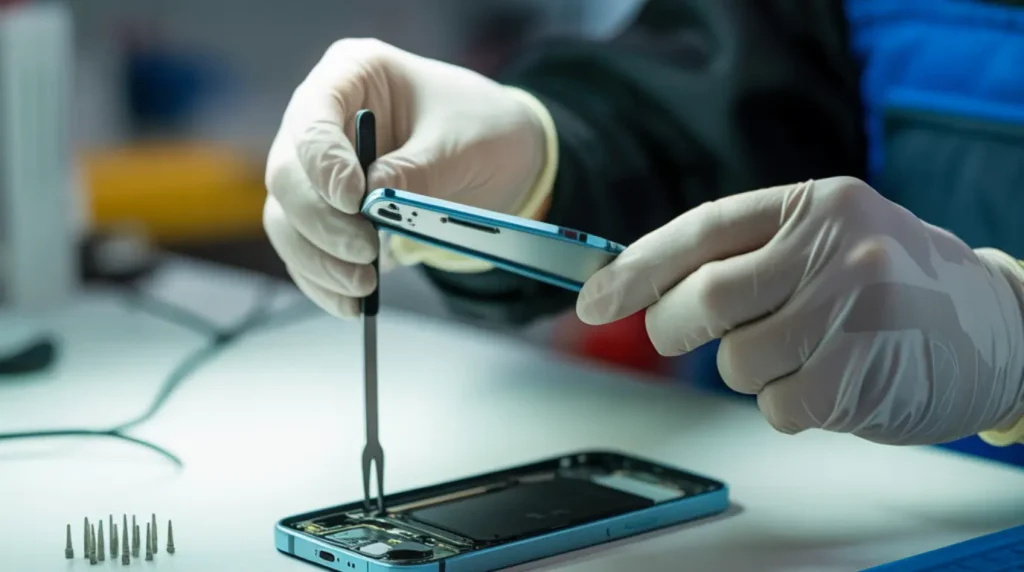
Three specific warning signs indicate that the problem has moved beyond software fixes and into physical repair territory. If the blue dot is growing larger over several hours, that is progressive display panel failure and it will not stabilize on its own. If you can see a faint branching pattern or ink-blot shape spreading outward from the original dot, liquid crystal material is leaking inside the panel and the damage is accelerating.
Before booking any repair, photograph the dot and note the date it first appeared. Check whether your device is still within its manufacturer warranty period, which typically covers display defects for 12 months from purchase. If your carrier provides device insurance, call them first because a co-pay repair through insurance is almost always cheaper than an out-of-pocket shop repair for a full screen replacement costing between 90 and 270 dollars depending on the model.
For Apple devices, the Apple Support app lets you book a mail-in repair or a local service appointment without visiting a store. For Samsung, Google, and other Android brands, use their official service locator to find an authorized center rather than a generic third-party shop. Authorized repairs use manufacturer-grade parts and preserve your remaining warranty, whereas unauthorized repairs on some devices permanently flag the device as third-party serviced. [INTERNAL LINK – screen replacement cost guide by phone model]
Keeping Your Display Healthy Long-Term
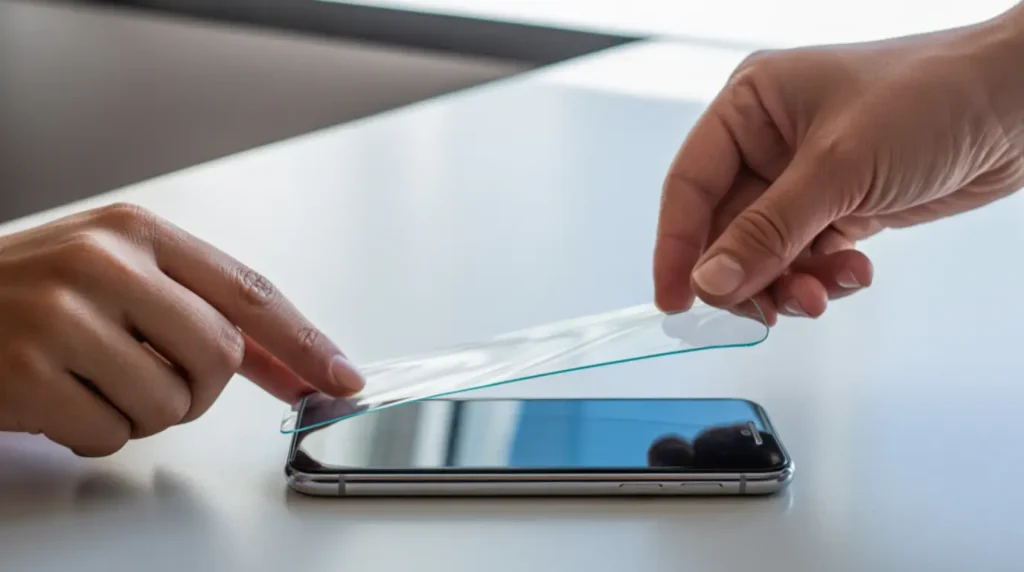
Preventing blue dots from returning is straightforward once you understand what damages screens in the first place.
- Carry your phone in a separate pocket or a dedicated slot in your bag rather than tucked between other items. Sustained side pressure is a primary cause of panel stress damage over time.
- Enable auto-brightness or keep manual brightness below 70 percent during normal indoor use. OLED subpixel degradation accelerates significantly at sustained high brightness levels.
- Turn on your device’s built-in screen timeout so the display powers off after 30 to 60 seconds of inactivity. This reduces cumulative pixel stress from static interface elements.
- Apply a tempered glass screen protector rated at 9H hardness. It absorbs surface impact before force can travel inward to the panel layer.
- Avoid leaving your phone face-down on rough surfaces such as countertops, dashboards, or textured table surfaces. Micro-abrasion on the glass over time weakens the protective coating above the panel.
- When temperature changes suddenly, such as coming in from the cold to a warm indoor space, let your phone adjust before using it for several minutes. Condensation from thermal shock can form on internal components.
Questions People Actually Ask About Blue Screen Dots

Why did a blue dot suddenly appear after I updated my phone’s software?
Some software updates change how the GPU routes color data to the display, and occasionally a bug in that process creates a color artifact that looks like a stuck pixel. Try the color profile reset described in Fix 3 before assuming the hardware is damaged. If the dot appeared within 24 hours of an update, report it through your manufacturer’s feedback channel because it may affect other users on the same build.
My phone is brand new and already has a blue dot. What should I do?
A dot on a new device almost certainly points to a manufacturing defect in the display panel, and this is precisely what the return window and manufacturer warranty exist to cover. Do not attempt any physical fix on a device this new. Contact the retailer or manufacturer directly and request a replacement rather than a repair, since a new device should come with a defect-free panel.
Can using a dark mode app cause blue dots on the screen?
Dark mode itself does not cause stuck pixels. However, third-party screen overlay apps that apply dark filters using system-level color manipulation can sometimes trigger GPU rendering errors that produce blue or purple dot artifacts. If you run a screen overlay tool, disable it temporarily and test whether the dot persists. Uninstall any overlay app that consistently reproduces the issue.
Will the pixel cycling video damage my battery or screen if I run it too long?
Running a pixel fixer video for 30 minutes at full brightness will use roughly 15 to 20 percent of your battery but will not damage a healthy display. The risk of extended high-brightness use only becomes relevant for OLED screens already showing signs of uneven pixel wear. Plug your phone in while running the video to eliminate the battery concern entirely and let the cycle run longer without interruption.
Editor Note screen.fix.com
Reviewed for technical accuracy by the screen.fix.com editorial team.
All fixes verified against current device software and firmware versions.
Pricing reflects current market rates and may vary by region.
This article will be updated when new fixes are confirmed.
For unresolved issues, visit the Contact page on screen.fix.com.
About the Author James, Founder of screen.fix.com
Over 10 years of experience diagnosing display hardware and software issues across all major device brands.
All content is written from direct technical experience and hands-on research conducted by the screen.fix.com team.
Free fixes are always recommended before any paid repair option.