
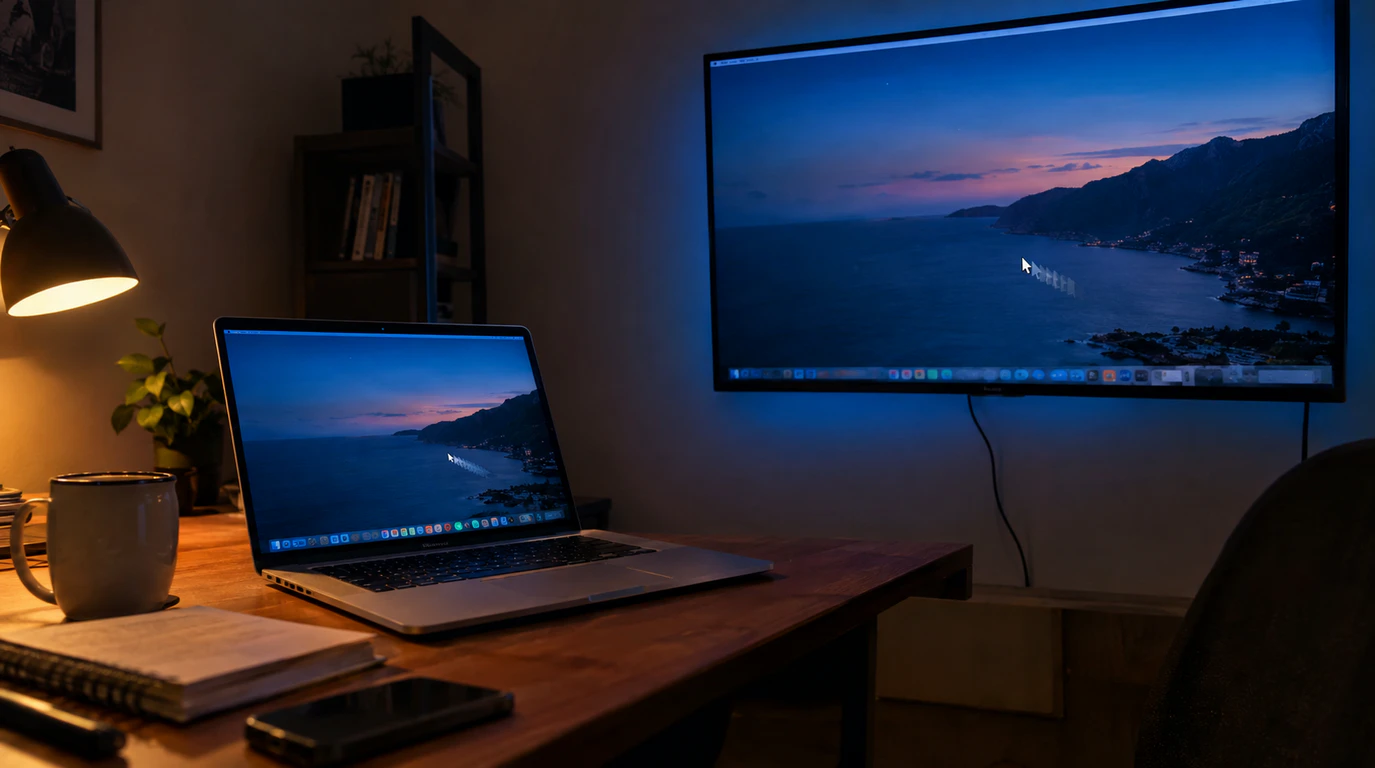
Second screen projection lag almost always comes from one of three sources a wireless mirroring bottleneck (Miracast, Project to This PC, AirPlay), a cable or adapter that can’t carry your resolution and refresh rate together, or a refresh-rate mismatch between your two displays that forces Windows to resync every frame. Each one has a different fix, and treating a cable problem like a Wi-Fi problem (or the other way around) is the single biggest reason people never get rid of the delay.
Before you touch a single setting, figure out which of these three you’re actually dealing with. Everything below is organized by that fork, not by symptom, because the same “lag” description covers three completely different hardware paths.
Why Second-Screen Projection Lags in the First Place
Projecting a screen wirelessly or by cable means moving a full video stream from one device to another in real time. Any point where that stream has to be compressed, re-encoded, buffered, or synced against a second display’s timing creates a visible delay between your action and what shows up on the screen.
Wireless projection (Miracast, AirPlay, Chromecast, Google Cast) has to compress and decompress your screen dozens of times a second over Wi-Fi. Wired projection (HDMI, USB-C, DisplayPort) sends raw video with almost no compression, so lag there usually means the cable, port, or dock can’t handle the bandwidth you’re asking for. Extended-display lag (using a second monitor as extra desktop space rather than mirroring) is a different problem again it’s the Desktop Window Manager in Windows trying to keep two screens with different refresh rates in sync, and it produces stutter that looks like lag but has nothing to do with your network or cable at all.
Fork 1: Wireless Mirroring Lag (Miracast, AirPlay, Chromecast, “Project to This PC”)
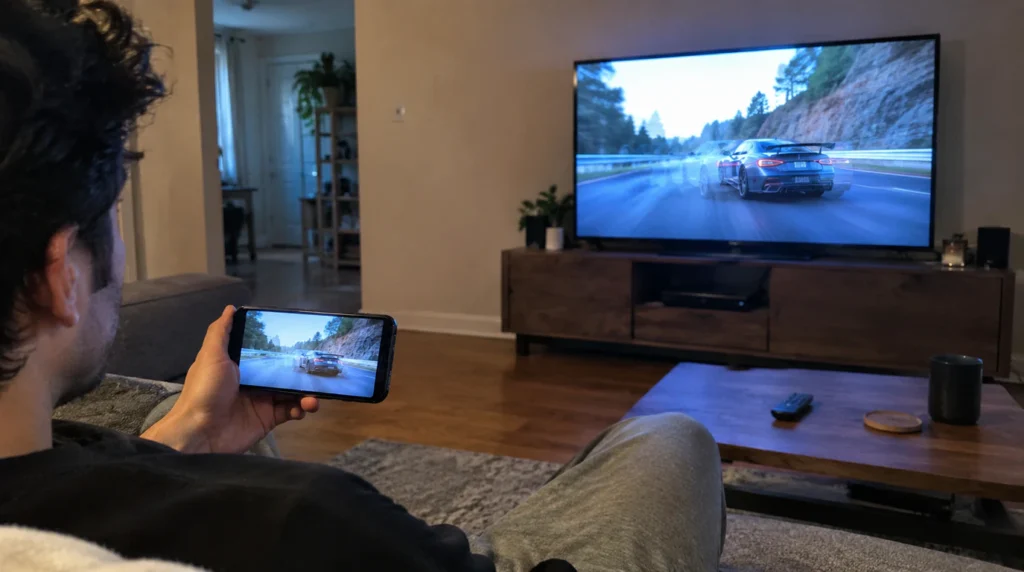
This is the fork you’re in if you’re casting your laptop, phone, or tablet screen to a TV or projector with no cable involved, and the picture trails a second or more behind your mouse or finger.
The cause, in order of likelihood: your device and the receiver are both on 2.4GHz Wi-Fi instead of 5GHz, another device on the same network is saturating bandwidth, your Wi-Fi adapter driver is outdated, or the receiving TV/projector is applying its own image processing before displaying the frame.
Fix it on Windows 10 or 11:
- Press Windows key + K to open the Cast panel, or search “Connect to a wireless display” in the Start menu, and disconnect any stale sessions first.
- Go to Settings > System > Projecting to this PC. If Miracast support looks disabled, check by pressing Windows key + R, typing dxdiag, hitting Enter, saving all information, and searching the resulting text file for “Miracast” it should say “Available.” If it doesn’t, your hardware doesn’t support wireless projection at all and no software fix will change that.
- Move both the sending device and the TV or projector onto the same 5GHz Wi-Fi band. This one change fixes wireless mirroring lag more often than anything else on this list, because 2.4GHz is crowded and lower-bandwidth in almost every home and office.
- Update your Wi-Fi adapter driver through Device Manager > Network adapters, right-click your adapter, and select Update driver. An outdated Wi-Fi Direct driver is a common, overlooked cause of Miracast stutter.
- On the TV or projector, turn on Game Mode or PC Mode in its picture settings. Most TVs apply motion smoothing and noise reduction by default, and that processing adds 30 to 80 milliseconds of delay on top of whatever the wireless connection already costs you.
Fix it on a Mac or iPhone (AirPlay): Open Control Center, tap Screen Mirroring, and confirm you’re mirroring to the correct AirPlay receiver and not an older, cached one still listed from a previous session. Stale AirPlay sessions are a frequent, silent cause of lag because the Mac keeps trying to sync to a device that’s no longer actually responding at full speed.
Fork 2: Cable and Extended-Display Lag (HDMI, USB-C, Docking Stations)
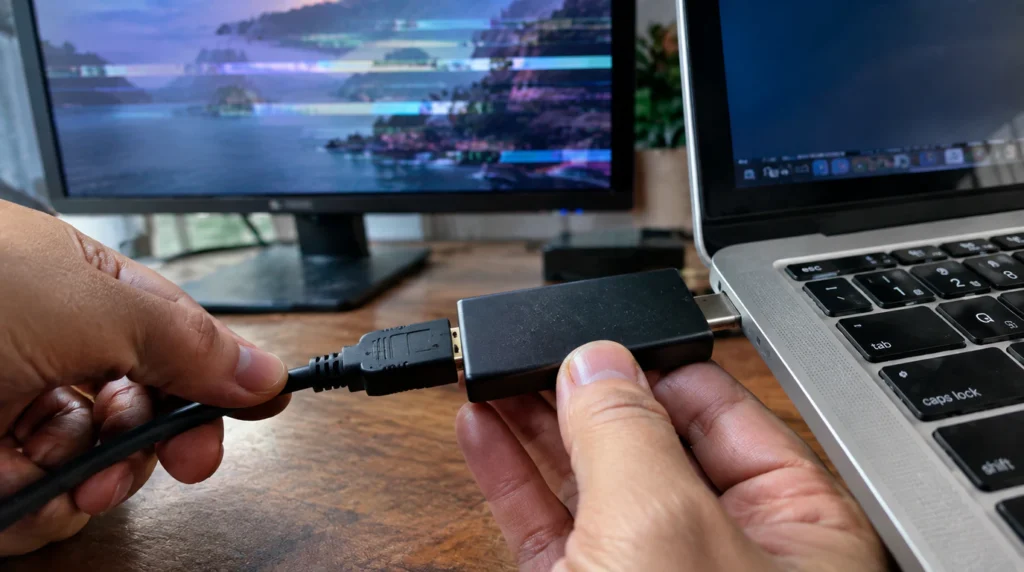
This is the fork you’re in if you’re using an actual cable and the lag shows up specifically when the resolution or refresh rate is set high for example, fine at 1080p 60Hz but stuttering the moment you switch to 4K or 120Hz.
The cause: the cable, adapter, or dock physically cannot carry the bandwidth your resolution and refresh rate combination requires, so the connection drops frames to keep up.
A standard HDMI 1.4 cable tops out around 1080p at 60Hz or 4K at 30Hz. If you’re projecting 4K at 60Hz or higher, you need an HDMI 2.0 cable, and for 4K at 120Hz you need HDMI 2.1. Plugging a 4K60 signal through an HDMI 1.4-rated cable doesn’t fail outright; it drops frames intermittently, which reads exactly like “lag.”
USB-C to HDMI adapters have the same problem in a different shape. Cheap adapters using older DisplayPort Alt Mode chipsets cap out around 1080p60 or 4K30, and pushing a laptop’s full output through one causes stutter that has nothing to do with the laptop’s graphics card.
Fix it:
- Confirm your cable’s spec. If there’s no label, replace it with a proper HDMI 2.0 cable rated for 4K60 typically costs $8 to $20, and an HDMI 2.1 cable for 4K120 runs $15 to $30.
- If you’re using a USB-C to HDMI adapter or a docking station, check whether it’s rated for the resolution you’re pushing. A basic single-display USB-C to HDMI adapter runs $15 to $35; multi-port docks that reliably handle 4K60 tend to run $60 to $150.
- On Windows, go to Settings > System > Display, select the second screen, scroll to Advanced display, and check what refresh rate it’s actually running. If it’s locked to a lower rate than your resolution needs, that mismatch alone causes stutter that looks identical to a bad cable.
- Update your GPU driver directly from NVIDIA, AMD, or Intel rather than relying on Windows Update GPU drivers control how the extended desktop is composed, and an outdated one is a common, silent cause of second-screen stutter.
- In Settings > System > Display > Graphics, check whether Hardware-accelerated GPU scheduling is turned on. This setting helps on most modern systems, but on some older GPU and driver combinations it introduces exactly the kind of second-screen delay described in this article toggle it off, restart, and test if it’s on and causing trouble.
Fork 3: Refresh-Rate Mismatch (Extending, Not Mirroring)
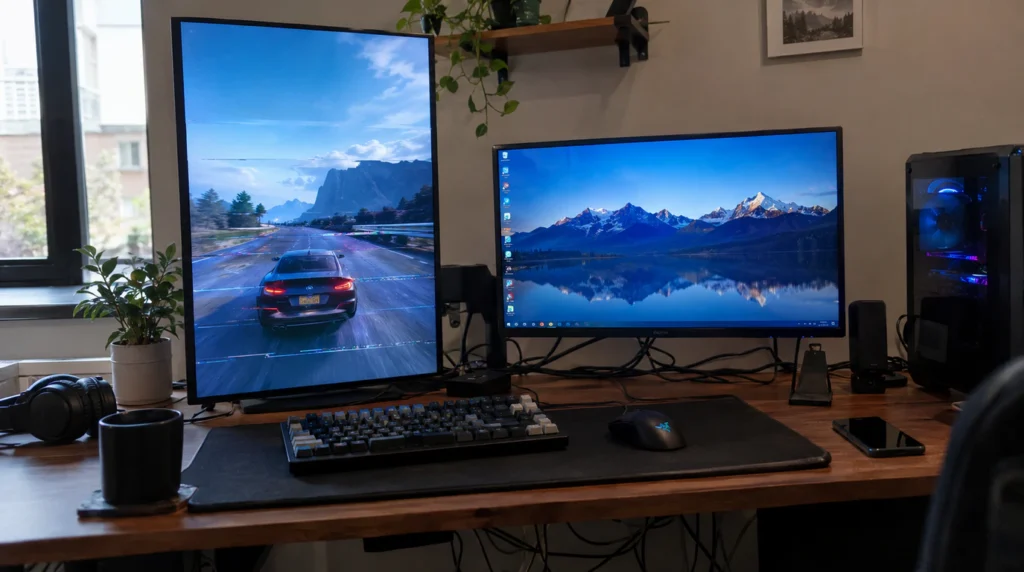
If you’re using the second screen as extra desktop space not mirroring and you notice stutter specifically in full-screen video, games, or anything with on-screen motion, this is almost always a refresh-rate mismatch rather than a true lag problem.
Windows’ Desktop Window Manager has to composite two monitors running at different refresh rates, say, a 144Hz laptop panel and a 60Hz external monitor into one synchronized output. That resync work is what causes the stutter, and it happens whether the second screen is a monitor, TV, or projector.
Fix it:
- Set both displays to the same refresh rate where possible: Settings > System > Display, select each screen individually, and match the Hz under Advanced display.
- If they can’t match exactly, set the primary display to a refresh rate that’s a clean multiple of the secondary 120Hz paired with 60Hz syncs far more cleanly than 144Hz paired with 60Hz.
- Close background apps that render on the second screen while you’re working on the first browsers, Discord, and Spotify all use GPU-accelerated overlays that compete for the same compositor resources causing this exact stutter.
- If you’re recording or streaming with a tool like OBS while using a second screen, drag the preview window fully onto the primary display rather than the secondary one; this sidesteps a long-documented Windows compositor bug that specifically affects cross-monitor OBS previews.
When It’s Actually the Projector or TV, Not Your Setup
Before spending money on cables or adapters, rule out the display itself. Connect a different device, a phone via HDMI adapter, a different laptop, anything to the same projector or TV. If the lag follows the display regardless of what’s plugged into it, the problem is the display’s internal processing, not your PC, cable, or Wi-Fi. Older projectors in particular add 40 to 100 milliseconds of input-processing delay by default, and most have a hidden “Game Mode,” “PC Mode,” or “Low Latency Mode” buried in the picture settings menu that strips that processing out.
What This Actually Costs to Fix
Most second-screen projection lag gets solved with a setting change and costs nothing. When hardware is genuinely the cause, a properly rated HDMI cable runs $8 to $30, a reliable USB-C to HDMI adapter runs $15 to $40, and a dedicated wireless display adapter that bypasses your home network’s congestion typically runs $50 to $70. A full multi-port docking station capable of clean 4K60 output runs $60 to $150. None of these are worth buying until you’ve confirmed the cheap fixes band, driver, refresh rate haven’t already solved it.
Mistakes People Make Chasing This Problem
The most common mistake is buying a new cable before checking which fork of this problem they actually have. A $25 HDMI 2.1 cable does nothing for Wi-Fi congestion, and a Wi-Fi band switch does nothing for an underpowered USB-C adapter. The second most common mistake is assuming a factory reset or full driver reinstall is needed when the actual fix is a single refresh-rate setting two menus deep. The third is ignoring the display itself, spending hours on PC-side troubleshooting when the TV or projector’s own processing was adding the delay the whole time.
Frequently Asked Questions
Why does my laptop screen lag when I project it to a TV?
Your laptop screen lags when projected to a TV because the connection wireless or wired can’t move the full video stream in real time, whether that’s Wi-Fi congestion on a mirrored connection or a cable that can’t carry your chosen resolution and refresh rate.
Can a bad HDMI cable cause projection lag?
Yes, a cable rated below your resolution and refresh rate combination will drop frames intermittently, which looks and feels exactly like lag even though the source device is working correctly.
Does wireless mirroring always lag more than a cable?
Wireless mirroring carries inherent compression and network delay that a direct cable connection doesn’t have, so a cable connection will generally feel more responsive, but a well-configured 5GHz wireless connection can still feel near-instant for most everyday use.
Why does my second monitor stutter only during video or games?
Stuttering that only shows up during motion-heavy content on an extended second display usually points to a refresh-rate mismatch between your two screens rather than a true network or cable lag.
Will a factory reset fix projection lag?
A factory reset rarely fixes projection lag, because the cause is almost always a specific setting, driver, cable rating, or display-side processing feature rather than corrupted system files.
Expert Verdict
In most of the cases we’ve walked through at screendotfix.com, the fix took under five minutes once the right fork was identified, a Wi-Fi band switch, a refresh-rate match, or a correctly rated cable. The lag itself is rarely a sign anything is actually broken; it’s almost always a mismatch between what you’re asking the connection to carry and what it’s actually built to carry.
A Note From James
I’ve spent a good chunk of the last decade with a laptop plugged into projectors, TVs, and secondary monitors in every kind of setup: home office, conference room, classroom. The pattern that never changes is that people assume “lag” means one thing, when it’s actually three separate problems wearing the same name. If you walk through the fork that matches your setup above and it’s still not resolved, it’s worth checking my full technical background and other display troubleshooting guides at screendotfix.com.
If your second screen still trails behind after matching refresh rates, switching to 5GHz, and confirming your cable is properly rated, the remaining possibility is aging hardware on the receiving end of a projector or TV old enough that its own processing pipeline is the bottleneck, not anything on your PC. At that point, the honest answer is that no cable or setting will fully remove delay that’s baked into the display itself, and it comes down to whether the rest of that hardware still earns its keep.
Reference: Microsoft Screen mirroring and projecting to your PC or wireless display