
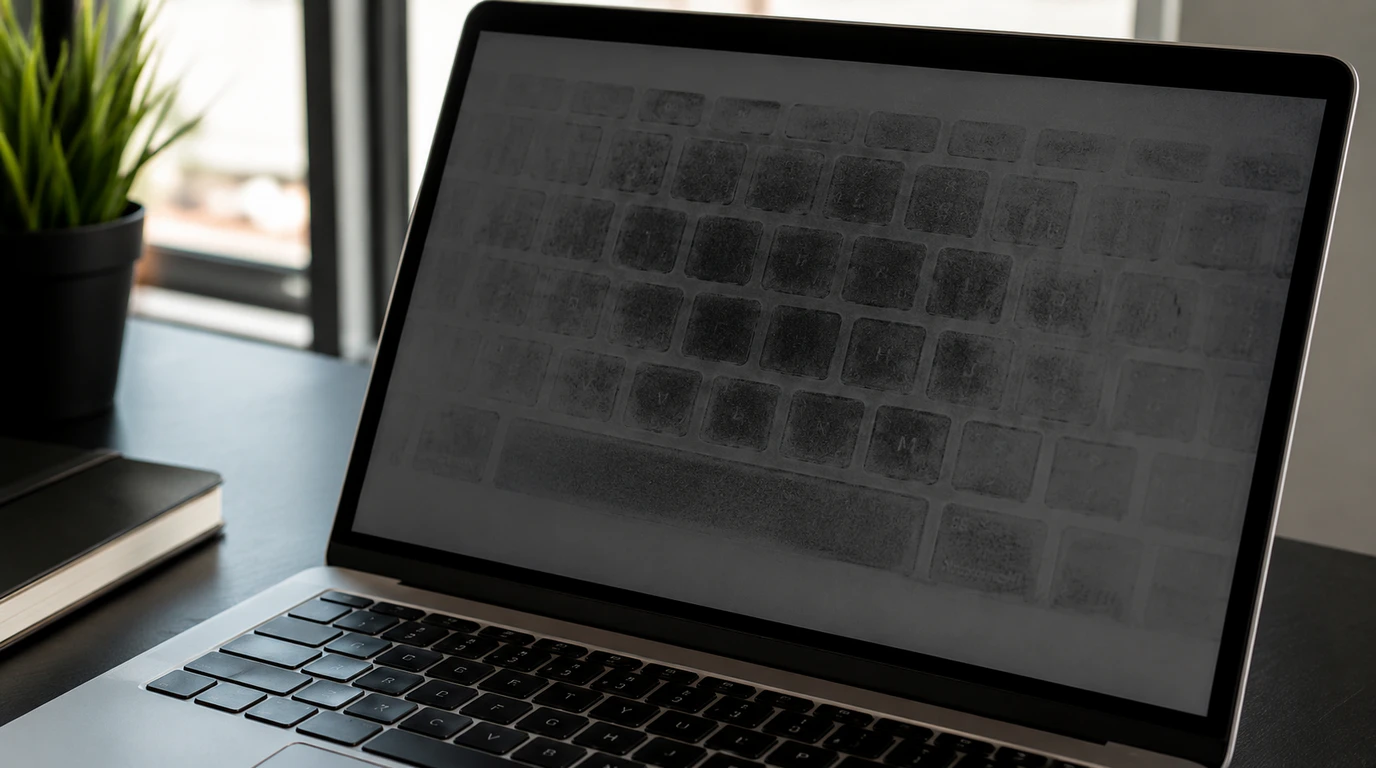
Most keyboard marks on a laptop screen are skin oil transferred from the keys during lid closure, and a microfiber cloth with distilled water removes them in under five minutes. If the marks stay visible with the laptop fully powered off, or look like cloudy bright patches rather than a grey keyboard outline, the anti-reflective coating or the LCD cell layer underneath it has been physically damaged, and cleaning will not bring the screen back. Screendotfix.com sees both versions at the repair bench every week, and the test below tells you which one you’re dealing with before you touch a cloth to the glass.
The 10-Second Screen-Off Test (Do This Before Anything Else)
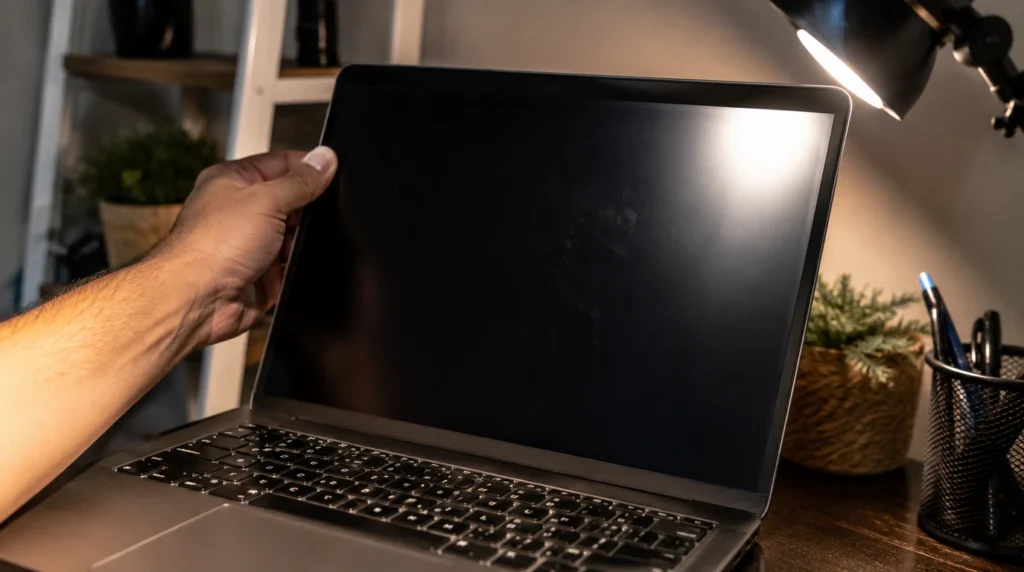
Shut the laptop all the way down, not sleep mode, then look at the screen at an angle under a bright light.
If the keyboard pattern disappears completely when the screen is off, you have surface residue, and it wipes off. If a faint key-shaped outline is still visible on the dead black glass, or the marks look like pale, cloudy blotches rather than sharp key shapes, the panel itself has been marked. That second version doesn’t clean away, no matter what product touches it.
This one check saves most readers from scrubbing a permanent mark for twenty minutes with increasingly aggressive cleaners. James has watched customers do exactly that at the counter, screen still smudged, coating now dulled from the scrubbing on top of the original damage.
Why Keyboard Marks Show Up in the First Place
Ultrabooks and most 13″ to 15″ consumer laptops leave less than a millimeter of clearance between the keycaps and the display when the lid closes. Every key touches the glass at that gap, every single time you shut the laptop.
Skin oil is the most common transfer material, and it accounts for the majority of marks screendotfix.com sees in for cleaning-only visits. Dust sitting on the keys acts as a mild abrasive between the keycap and the anti-reflective (AR) coating the thin, wipeable-looking layer on the outside of the glass that reduces glare and repeated closing slowly scuffs that coating in the exact shape of the keys.
Pressure adds a second cause on top of oil and dust. Anything resting on a closed lid, a phone, a charger brick, a stack of books in a bag, forces the keys into the panel with far more force than a normal close. That pressure can bruise the LCD cell layer directly beneath the coating, which is a different, more serious injury than a surface scuff.
Three Types of Keyboard Marks Which One Do You Have?
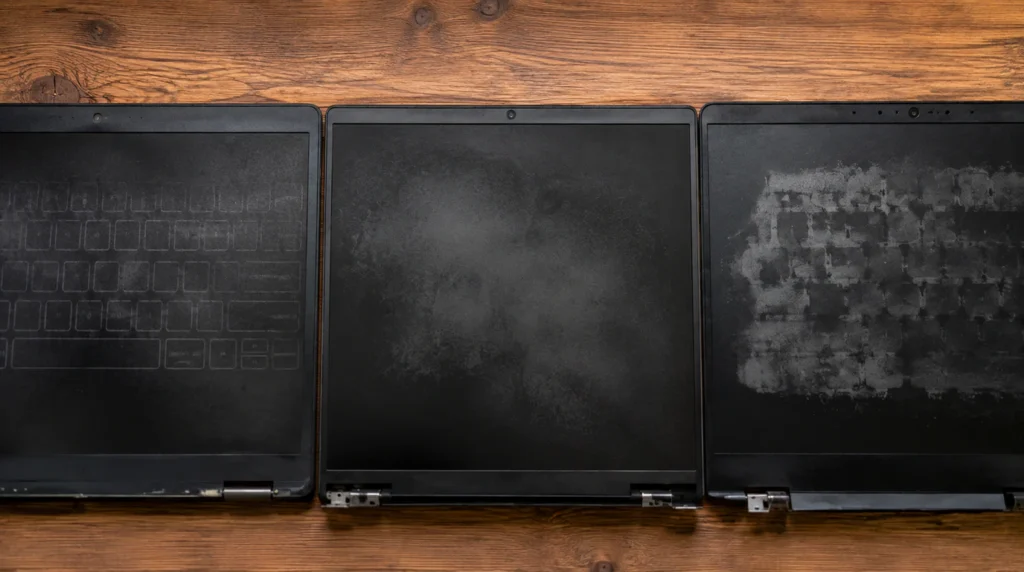
| Type | What it looks like | Screen-off test | Fixable? | Typical cause |
| Oil and dust smudge | Grey, blurry keyboard outline, worst on white backgrounds | Disappears completely | Yes, cleans off | Skin oil + dust transfer during normal closing |
| AR coating abrasion | Faint but permanent key shapes, slightly hazy patch under light | Still faintly visible | No, coating is worn away | Years of dust grinding against the coating on closing |
| LCD pressure damage | Cloudy, bright, or discolored blotches shaped like keys or a full grid | Still visible, sometimes worse under light | No, requires panel replacement | Weight or pressure on a closed lid (bags, books, chargers) |
How to Clean Keyboard Marks That Are Actually Smudges
If the screen-off test showed nothing, your laptop screen just needs cleaning. Follow this order and stop as soon as the marks lift, since more aggressive steps aren’t needed for oil residue.
- Power the laptop down completely and unplug the charger.
- Wipe the screen with a dry microfiber cloth first, using straight strokes, not circles.
- Dampen a fresh microfiber cloth with distilled water only and wipe again if marks remain.
- For marks that survive step 3, dampen the cloth with a solution that’s 70% isopropyl alcohol and wipe gently, never spraying liquid directly onto the glass.
- Let the screen air-dry for at least two minutes before closing the lid.
Never use paper towels, tissue, or any cloth with a rough weave, since these leave micro-scratches that make the next set of marks harder to clean. Never use ammonia-based glass cleaner, acetone, or vinegar on a laptop display; all three can strip the AR coating on contact.
When the Marks Won’t Wipe Off: AR Coating Damage
A screen that still shows faint key shapes after the full cleaning routine above has AR coating abrasion, not a cleaning problem. The coating is a physical layer, roughly a few micrometers thick, and once it’s ground away in a key-shaped pattern, no cloth or solution restores it.
Coating damage is cosmetic rather than functional. The screen still displays correctly, colors and brightness are unaffected, and the marks are usually only obvious on white or light-colored backgrounds. Most owners of a screen with coating-only damage choose to live with it rather than pay for a full panel swap, since the display itself hasn’t failed.
Why Some Marks Look Like Cloudy Patches Even With the Screen Off: LCD Pressure Damage
Cloudy, bright, or discolored blotches that hold their shape with the laptop fully off mean the LCD cell layer has been physically bruised, not just marked on the surface. This is the same category of internal panel damage covered in our guide to green dots appearing on a laptop screen, where pressure or impact disturbs the liquid crystal layer instead of just scuffing the coating on top of it.
Pressure damage typically comes from something resting on a closed lid inside a bag: a charger, a water bottle, a stack of textbooks. The keys concentrate that outside force into small points, and the panel bruises at exactly those points in a keyboard-shaped grid.
This type of damage does not spread on its own and does not get better with time. It also does not get worse unless the laptop takes another hit, so there’s no urgency beyond deciding whether the repair is worth the cost.
MacBook and Keyboard Marks: Why Apple Laptops Get Hit Hardest
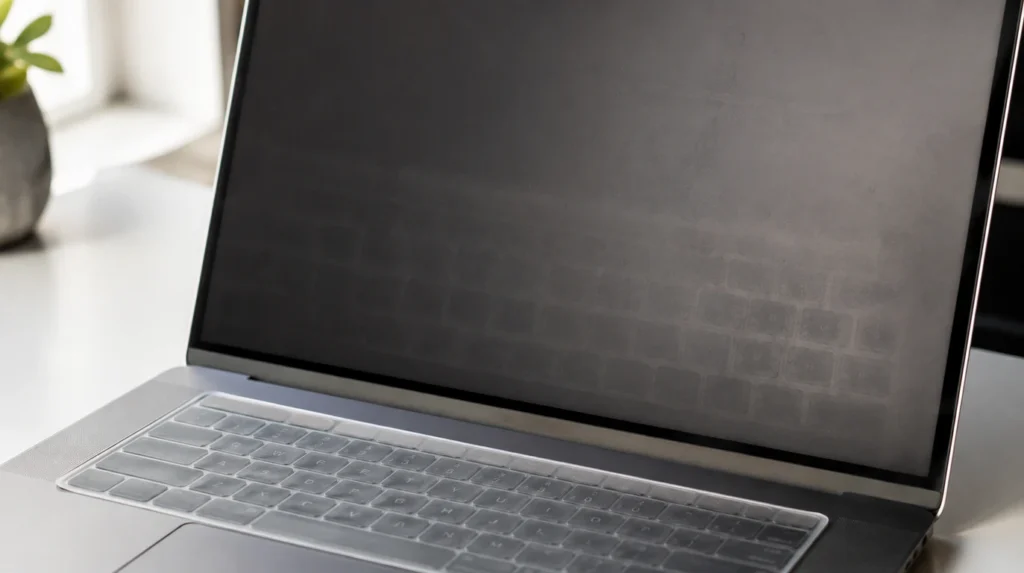
MacBook Air and MacBook Pro models are reported for keyboard marks more often than most Windows ultrabooks, largely because of how thin the lid closes and how reflective the glass coating is under office lighting. Apple’s own support community has threads from MacBook Pro M1 and M2 owners describing key-shaped marks that showed up after normal use, with no drop or spill involved.
A silicone keyboard cover makes this worse on a MacBook, not better. The cover fills the small gap between keys and screen completely, so instead of eleven separate key points touching the glass, the entire keyboard area presses against it as one flat, even surface every time the lid shuts.
If a MacBook screen shows pressure damage rather than a cleanable smudge, the repair path is a full display assembly replacement, the same fix covered in more depth in our guide to Mac screen purple lines and their cost, where a similar type of internal panel damage shows up as color banding instead of cloudy patches. Apple does not sell a standalone glass or coating replacement for MacBook displays; the top case comes as one sealed unit.
Screen Repair Cost by Damage Type
| Damage type | Fix | US cost (USD) | UK cost (GBP) |
| Oil/dust smudge | Cleaning only | $0 (or ~$10–15 for cleaning kit) | £0 (or ~£8–12 for kit) |
| AR coating abrasion | Not repairable; cosmetic only | $0 | £0 |
| Windows laptop, LCD pressure damage | Full panel replacement | $120–$350 | £75–£250 |
| Windows gaming laptop, high-refresh panel | Full panel replacement | $200–$400 | £150–£310 |
| MacBook Air, display assembly | Full top display replacement | $220–$500 | £180–£400 |
| MacBook Pro, display assembly | Full top display replacement | $300–$730+ | £230–£600+ |
Costs vary by exact model, panel resolution, and whether the repair is done at an authorized service center or an independent shop. AppleCare+ typically reduces a MacBook screen repair to a flat $99 service fee if the plan is still active on the device.
Common Mistakes That Make Keyboard Marks Worse
- Scrubbing a permanent mark harder instead of accepting it’s coating damage
- Using a silicone keyboard cover on a laptop that already shows early marks
- Spraying cleaner directly onto the glass instead of onto the cloth first
- Stacking anything on top of a closed laptop lid inside a bag
- Closing the lid on a stray USB cable, pen, or crumb left on the keyboard
- Ignoring cloudy patches for months, assuming they’ll fade on their own
How to Stop Keyboard Marks From Coming Back
- Wipe the keyboard with a dry microfiber cloth before every lid closure if you’re typing daily
- Skip silicone keyboard covers on ultrabooks with a sub-1mm keyboard-to-screen gap
- Keep the laptop in a padded sleeve inside a bag so nothing else can press on the lid
- Check the keyboard for crumbs, pen caps, or cables before closing every time you travel
- Follow Apple’s own official cleaning guidance for Mac displays if you own a MacBook, since it specifies water-only cleaning first and flags which solvents to avoid
Frequently Asked Questions
Can keyboard marks on a laptop screen fix themselves over time?
No, keyboard marks on a laptop screen never fix themselves. Oil smudges stay until wiped off, and coating or pressure damage stays until the screen is cleaned or replaced, whichever applies.
Why did keyboard marks appear overnight on my screen?
Marks that appear overnight are almost always oil transfer from a single hard lid closure, often after the keyboard wasn’t wiped down following a meal or greasy hands, and a distilled-water clean usually removes them immediately.
Why are keyboard marks worse on a white background?
Keyboard marks show up worse on white or light backgrounds because both surface smudges and coating damage scatter light differently than the surrounding glass, and that scattering is far more visible against a bright, even background than a dark one.
Can cleaning make keyboard marks worse?
Yes, cleaning can make keyboard marks worse if you use a paper towel, an ammonia-based glass cleaner, or acetone, since all three can scratch or strip the anti-reflective coating and turn a temporary smudge into permanent damage.
Is it worth repairing a laptop screen for keyboard marks alone?
It’s usually only worth a full panel replacement if the marks are actual pressure damage on an otherwise healthy laptop under three or four years old; coating-only marks are cosmetic and most owners choose to live with them instead of paying for a new panel.
Expert Verdict
Wipe first, judge second. Screendotfix.com’s bench data lines up with what shows up in the mailbag: the large majority of “keyboard marks” questions turn out to be oil, not damage, and the screen-off test above sorts the two in ten seconds flat.
Author Note
I’m James, founder of screendotfix.com. I’ve spent the past decade at the repair bench working on everything from cracked MacBook Pro panels to flickering budget Chromebooks, and keyboard marks are one of the most common “is my screen broken” questions that come through the door. Most of the time it isn’t. When it is, now you know exactly which category you’re in and what it costs to fix.
Closing
Run the screen-off test before you spend a dollar on cleaning products or panic about a replacement. If the marks vanish with the display dark, you’re five minutes from a clean screen. If they don’t, you’re looking at either a coating scuff you can live with or a pressure-damaged panel with a clear, priced repair path above either way, you now know which one it is.