
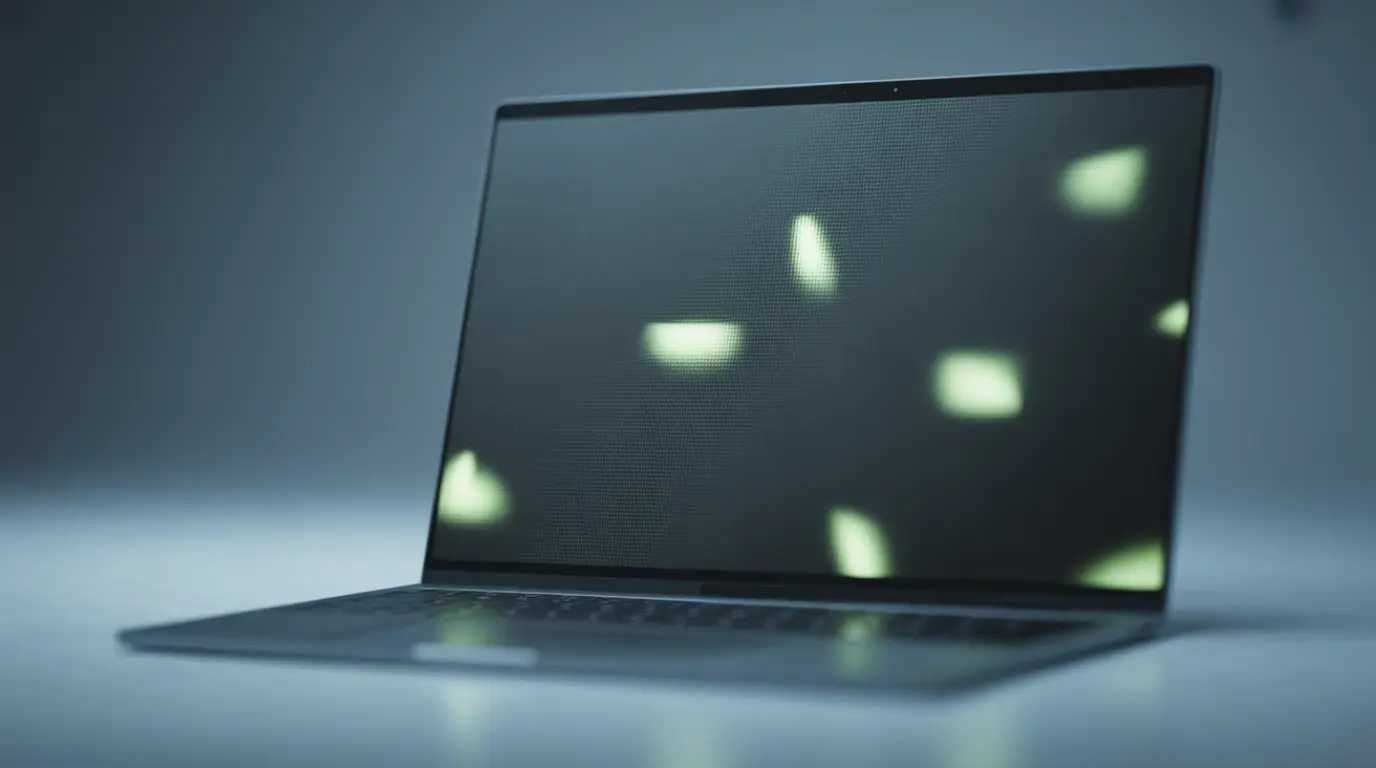
Green dots on a laptop screen usually come from a stuck pixel, a corrupted GPU driver, or a worn display cable. The pattern they make static, flickering, or only appearing under load tells you which one almost instantly.
You close a game, glance at your desktop, and there it is. A tiny green dot sitting on your screen like it’s been there forever. Most people’s first thought is “my screen is dying.” It usually isn’t.
What the Dots Are Actually Telling You
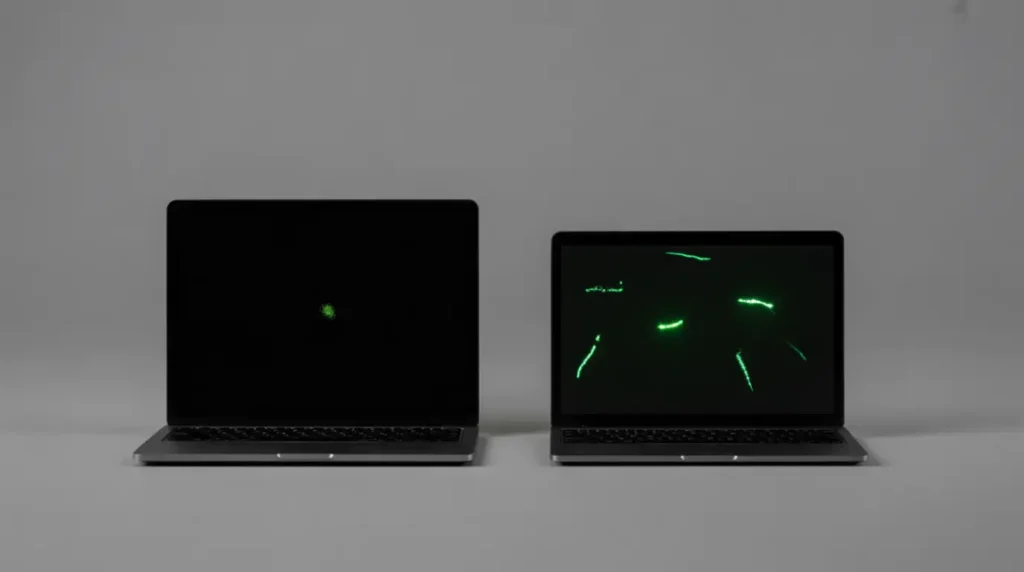
The shape and timing of green dots matter more than people realize. A technician doesn’t run five tests before guessing the cause the behavior already gives it away.
A Single Dot That Never Moves
This is almost always a stuck subpixel. It sits in the exact same spot no matter what’s on screen, day after day.
Dots That Multiply or Scatter Randomly
Scattered, shifting dots point toward a driver problem or GPU memory fault rather than a physical defect.
Dots Only After Gaming or Video Rendering
This pattern means GPU heat, not hardware failure. Corrupted drivers can cause artifacts like this, and lowering VRAM frequency is sometimes enough to resolve it before assuming the card is dying.
Dots That Shift When You Flex the Lid
If gently tilting the screen changes how the dots look, the display cable running through the hinge is the likely cause, since it flexes every time the laptop opens and can fray or loosen over thousands of cycles.
Dots Visible From the Moment You Power On
If the dots show up before Windows even loads, during the manufacturer logo screen, software isn’t involved at all. That points straight to the panel or its driver board.
Diagnose the Pattern Before You Touch Anything

Two quick checks confirm what the behavior already suggested.
- Boot into BIOS or Safe Mode. If the dots disappear here, the GPU driver is the cause.
- Connect an external monitor. Dots that don’t show up externally confirm the laptop’s own screen or cable is the issue.
- Gently flex the lid a few degrees while dots are visible. Movement-linked changes point to the cable.
- Note whether dots appear only under heavy load like gaming or rendering.
Technician Note: A dot that fades after a driver reinstall but reappears a week later isn’t actually fixed. It’s a sign the cable or panel is the real cause underneath.
How to Fix Green Dots on a Laptop Screen

Start with the free options before anything physical.
Restart and Clear GPU Memory
Cost: Free | Time: 2 minutes | Success Rate: Moderate
A clean restart clears temporary GPU memory faults. If the dots vanish and stay gone, that’s your answer.
Reinstall the Graphics Driver
Cost: Free | Time: 10 minutes | Success Rate: High for software causes
Open Device Manager, expand Display Adapters, right-click your GPU, and choose Uninstall Device. Restarting afterward lets Windows attempt to reinstall the driver automatically. If dots return within days, this confirms a hardware cause underneath. HP Support Community
[Watch a short video walkthrough of this step for a visual reference.]
Run a Pixel-Refresh Tool
Cost: Free | Time: 20 to 30 minutes | Success Rate: Works on roughly half of soft stuck pixels
Use a browser-based pixel refresh tool, drag the flashing box over the dot, and let it cycle for 20 to 30 minutes. This is safe and reversible since nothing physical is touched.
Clean Vents and Watch GPU Temperature
Cost: Free to $10 for compressed air | Time: 15 minutes
If dots only appear during gaming, clean every vent and fan grille. Monitor GPU temperature with a free utility. Sustained heat above 85 to 90 degrees Celsius during normal use is a sign the thermal system needs attention.
Reseat or Replace the Display Cable
Cost: $30 to $80 | Time: Same-day at most shops
If the lid-flex test confirmed cable movement, a technician can open the hinge area and reseat or replace the ribbon cable. This is far cheaper than a full panel swap and solves most cable-related cases permanently.
Professional Panel Replacement
Cost: $120 to $500 depending on laptop model | Time: Same-day to 3 days
If dots appeared instantly after a drop, persist on an external monitor, or show before Windows loads, the panel itself needs replacing. There’s no software fix for physical impact damage.
When to Get Professional Repair
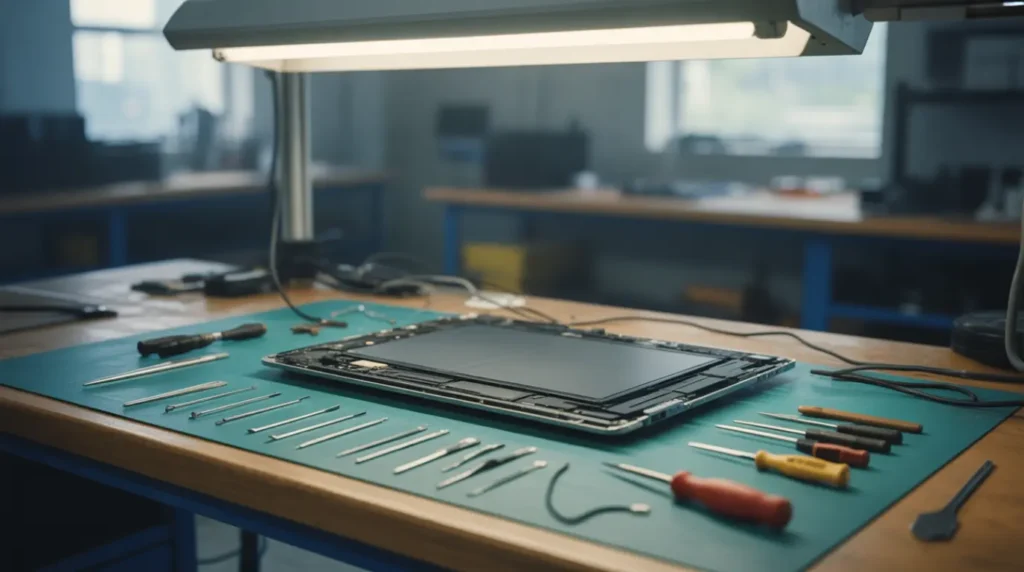
Most repair shops can tell within minutes whether it’s a $40 cable fix or a $200+ panel replacement, just by running the same flex and external-monitor tests covered above. Don’t wait until a single dot turns into a cluster.
Warranty coverage is worth checking before paying anything. A defect that showed up within the first few weeks of normal use is typically covered, while accidental damage usually needs a separate protection plan. If the laptop is older and a full panel costs more than the laptop’s resale value, replacing the device often makes more financial sense than repairing it.
Preventing Green Dots Before They Start
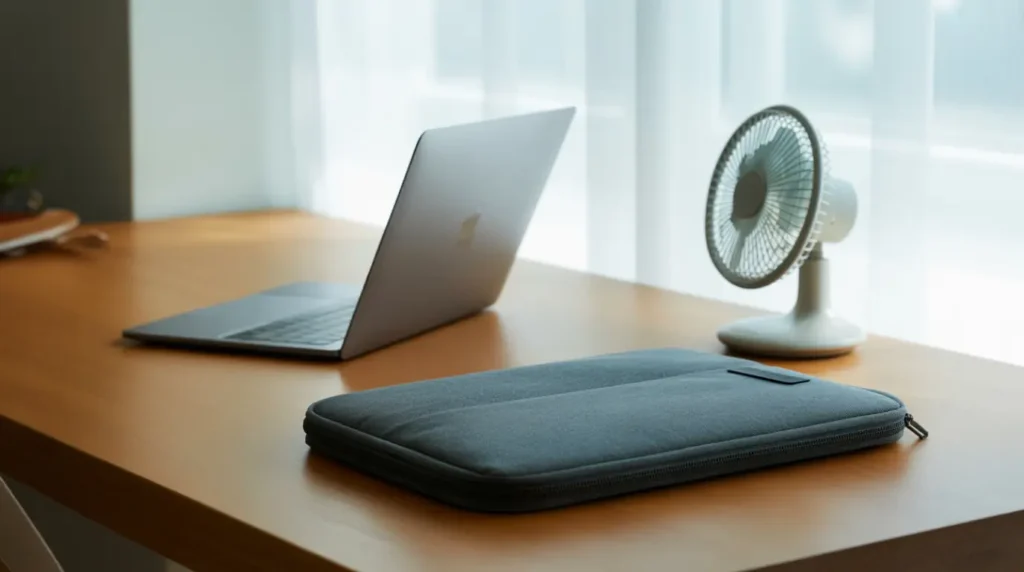
- Keep the laptop on a hard, flat surface so vents stay clear.
- Use a padded sleeve during transport, since impact is the leading cause of permanent dot damage.
- Avoid stacking anything on a closed lid.
- Clean dust from vents every few months, especially if you game regularly.
- Open and close the lid gently rather than yanking it, since this is what wears the display cable over time.
- Update GPU drivers right after major Windows updates instead of waiting for problems to appear.
Frequently Asked Questions
Why do green dots only show up while gaming?
Usually GPU heat buildup during sustained load, not a dying card. Dots that fade within seconds after closing the game point to a driver or thermal issue rather than permanent damage.
Can green dots disappear and come back later?
Yes. A driver fix can hide a dot temporarily, but if a loose cable or early panel wear is the real cause, it tends to return days or weeks later.
How do I know if it’s the cable and not the panel?
Gently flex the lid a few degrees while the dots are visible. If they shift, flicker, or multiply, the cable is the likely cause rather than the panel itself.
Is it safe to keep using a laptop with green dots?
Yes for daily use, but avoid pressing on the screen yourself. If dots are spreading week over week, get it looked at before the cable or panel fails completely.
Expert Verdict

Green dots almost never mean your laptop is dying. In most cases I’ve seen, it’s either a five-minute driver fix or a cheap cable reseat, not a panel replacement. Watch how the dots behave for a day before spending anything. That single observation usually tells you more than any test does.
Disclaimer
This article is for general troubleshooting guidance only. Pricing and repair times vary by region, device model, and shop. Always confirm warranty status before approving any paid repair.
Editor Note screendotfix.com
Reviewed for technical accuracy by the screendotfix.com editorial team. Fixes verified against current driver and firmware behavior as of 2026. This article will be updated as new fix methods are confirmed.
Author Note
About the Author James, Founder of screendotfix.com. Over 10 years of hands-on experience diagnosing display hardware and software issues across major laptop brands. Free fixes are always recommended first, before any paid repair option.
Article Summary
Green dots on a laptop screen come from one of three sources: a stuck pixel, a corrupted GPU driver, or a worn display cable. The pattern the dots make static, scattered, gaming-only, or movement-linked points to the cause before running any formal test. Start with a restart and driver reinstall since both are free and fix most software-based cases. If dots shift when the lid flexes, the cable is the likely fix at $30 to $80. Dots present from power-on or after physical impact require a panel replacement. Most laptops with green dots are fixable without buying a new device.