
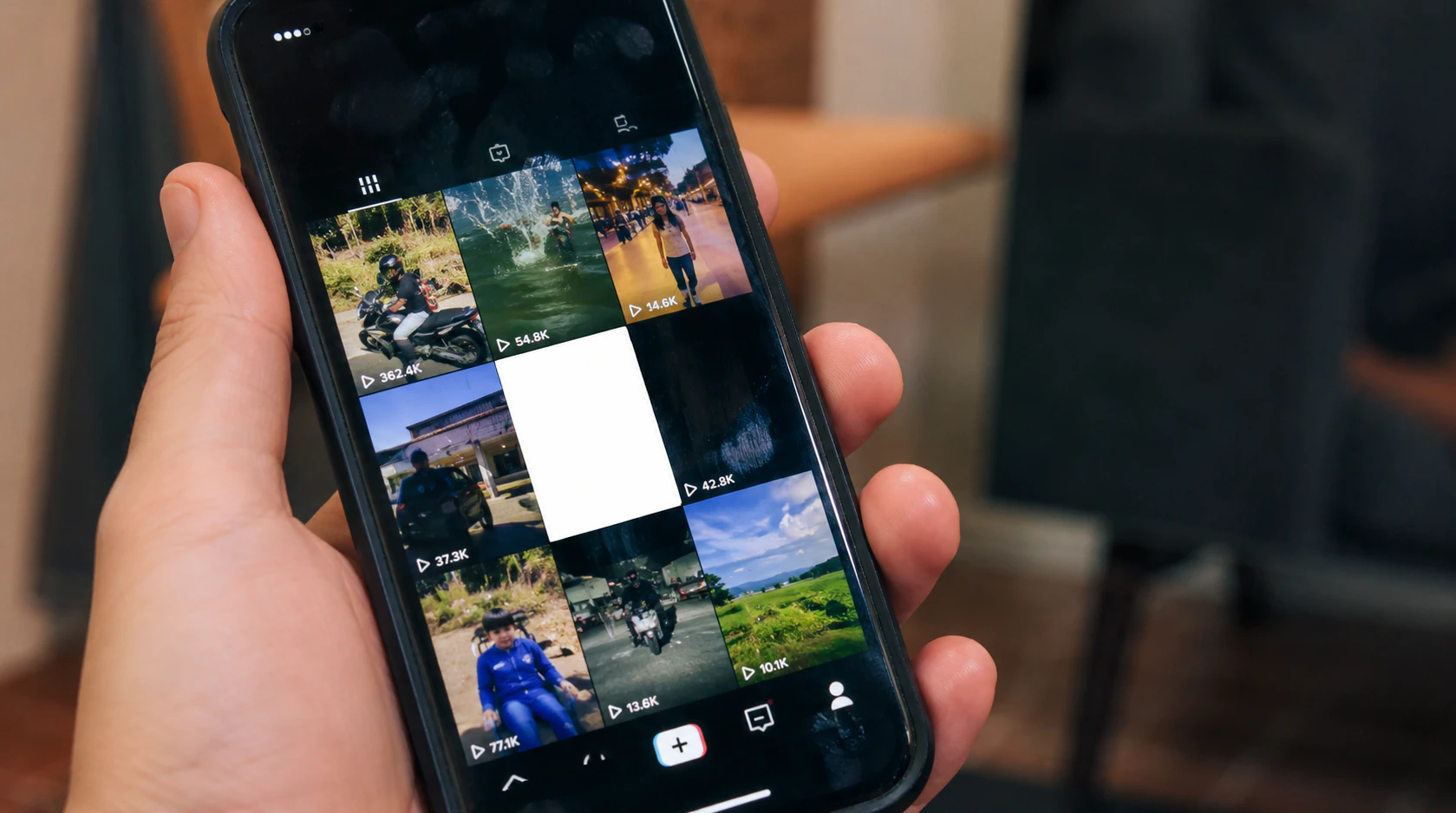
You post a video. The upload bar fills. And instead of your video, or your feed, or your Creator Center, you get a flat white rectangle. Here’s the part that trips people up: “TikTok white screen when posting” isn’t one bug with one fix. It’s three separate failures that happen to look identical from the outside.
Which one you have depends on where the white shows up, not just that it’s white.
First, Figure Out Which of the Three You’re Actually Looking At
Run this check before touching any fix below. It takes about 30 seconds and it decides everything else in this guide.
- Open the video from your own profile grid. If the thumbnail tile is a blank white square but the video plays normally when you tap it, you have a cover-render issue, not an upload issue.
- Watch what happens during the upload itself. If the whole screen goes white or freezes while the progress bar is still moving before the post even finishes you have a full-screen upload freeze, which is a different failure than a bad thumbnail.
- Check if you posted through a browser instead of the app. If you uploaded through TikTok Studio on desktop (studio.tiktok.com) and the editor or preview pane went white, that’s a browser-side rendering failure, and none of the mobile app fixes below will touch it.
Most guides on this topic only cover scenario one. That’s the most common case, but it’s not the only one, and if you’re dealing with scenario two or three, following thumbnail-fix advice will waste your time.
Scenario 1: The Cover Thumbnail Is White, But the Video Plays Fine
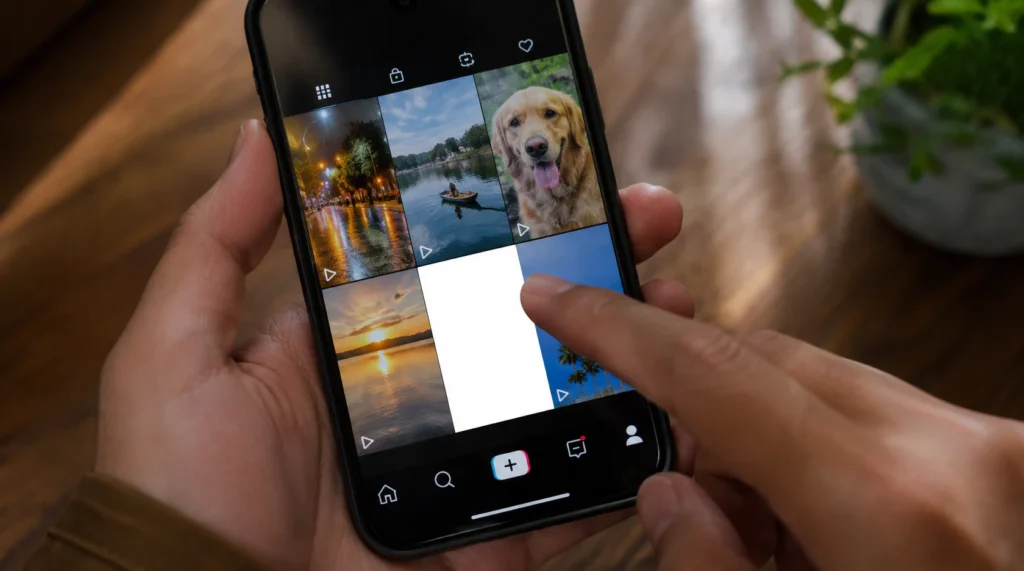
TikTok generates your video’s cover image on its own servers after the file finishes uploading; it doesn’t just grab a frame from your phone’s editor preview. That server-side render step is a separate job from the upload itself, and it’s the one most likely to fail or lag.
A blank white cover almost always means the render job is either still queued or pulled a genuinely blank frame, not that anything is wrong with your video file.
Three things cause this specific failure:
- The render queue is backed up. This happens most during high-traffic windows evenings in your local time zone and weekend afternoons when server-side jobs simply take longer to clear.
- The source frame really is blank. If your video opens on a hard cut, a flash transition, a fade-in from white, or a filter with heavy grain over the first frame, TikTok’s automatic pick can land on a frame that’s technically accurate and also useless as a cover.
- A stale local cache is showing you an old placeholder. TikTok stores thumbnail data locally by video ID. If your app’s cache updated a beat before the real thumbnail finished syncing from the server, your phone can keep showing the placeholder even after the real cover is ready.
Fix it in this order
- Pull-to-refresh your profile grid and wait. Most render-queue delays clear within a few minutes on their own. Don’t repeat this more than once or twice if it’s still white after ten minutes, move on.
- Manually reselect the cover frame. Open the video, tap the three-dot menu, choose Edit cover, and drag the selector to a frame a second or two away from any cut, flash, or fade. This overrides the automatic pick entirely, so it fixes both the queue-delay case and the genuinely-blank-frame case.
- Offload the app instead of force-quitting it. On iPhone: Settings → General → iPhone Storage → TikTok → Offload App, then reopen and log back in; this clears the stale local cache without deleting your drafts. On Android: Settings → Apps → TikTok → Storage → Clear Cache (never Clear Data, which wipes drafts too).
Scenario 2: The Whole Screen Goes White While the Video Is Still Uploading
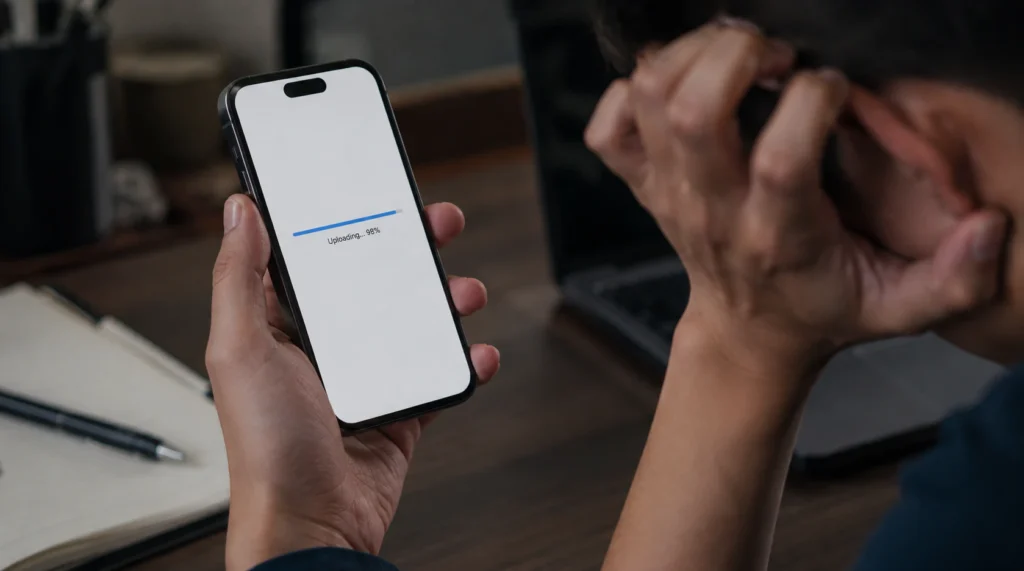
This one is less common but more alarming, because it happens before the post even completes the progress bar is still moving, or has just finished, and the entire app UI whines out instead of returning you to your feed.
A full-screen white-out during the upload itself usually points to a memory or storage problem on your phone, not a TikTok server issue.
The app is rendering a new video preview, encoding a cover, updating your feed cache, and writing the file to local storage all within a few seconds. On a phone that’s low on free storage or already juggling several open apps, that render step can fail silently and leave the screen stuck on a blank frame instead of crashing outright.
Three checks that matter here and that thumbnail-only guides skip entirely:
- Free storage under roughly 1GB. TikTok needs working space to encode the upload locally before it hands the file to the server. Under that threshold, the render step is far more likely to stall.
- Low Power Mode (iPhone) or a battery saver mode (Android) is active. These modes throttle background rendering, which is exactly the process that’s failing here.
- You switched apps mid-upload. Backgrounding TikTok while it’s still processing the video to answer a text, check email, anything can interrupt the render before it finishes writing the new frame.
Fix it in this order
- Free up storage first. Delete a few large photos, videos, or unused apps until you’re comfortably above 1–2GB free, then retry the post.
- Turn off Low Power Mode / battery saver before posting, and keep TikTok in the foreground until the upload fully completes.
- Force close and reopen the app, then check your profile. If the post exists but still shows a frozen white preview, delete it and repost rather than trying to “fix” a partially-written upload; a half-processed post rarely repairs itself.
Scenario 3: You Posted Through TikTok Studio on Desktop and the Screen Went White
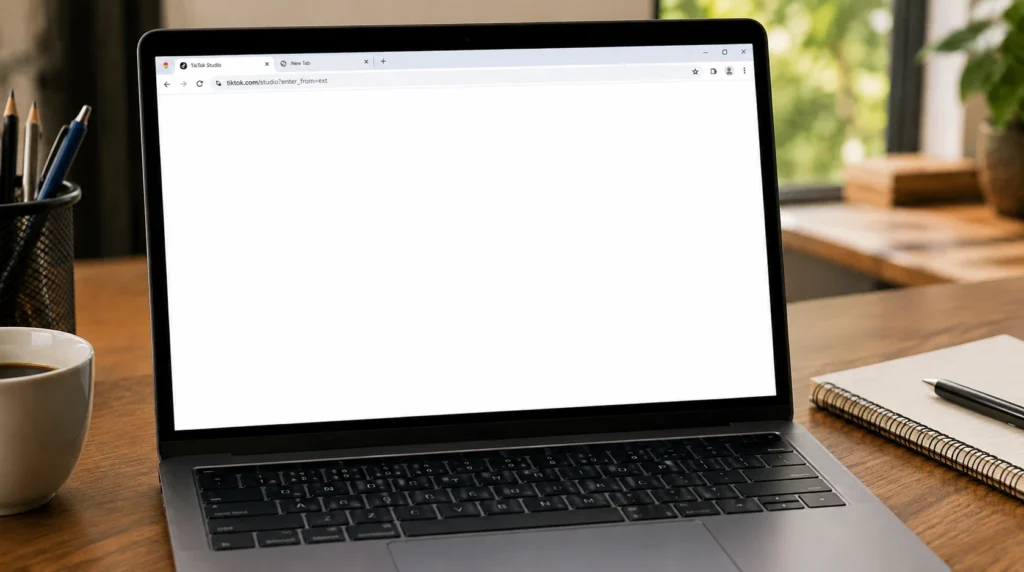
TikTok Studio (studio.tiktok.com) runs the upload and cover-editing interface inside your browser instead of the native app, and it fails differently. A white screen here is almost always a browser rendering conflict, not a TikTok server problem.
This shows up most on:
- Browser ad blockers or privacy extensions that block the scripts TikTok Studio uses to render the editor and preview panel
- An outdated Chrome, Edge, or Safari build, since Studio relies on newer browser APIs than the standalone TikTok site does
- A browser profile with corrupted cached data, usually after a crash or forced shutdown during a previous session
Fix it in this order
- Open TikTok Studio in a private/incognito window first. If it loads correctly there, an extension is the cause to disable ad blockers and privacy extensions for studio.tiktok.com specifically rather than site-wide.
- Update your browser to the current version and reload the page, since Studio’s editor is one of the more script-heavy tools TikTok runs in-browser.
- Clear cached images and files for tiktok.com and studio.tiktok.com specifically, rather than wiping your whole browser cache, then log back in.
A Symptom That’s Related But Not the Same Bug: Creator Center and Shop White Screens
If your white screen is showing up when you open collaboration requests, sample requests, or brand invites inside TikTok Shop’s Creator Center rather than when you’re posting a video, that’s a different feature entirely, running on its own backend. The fixes above for cover thumbnails won’t touch it. The most consistent workaround reported by creators dealing with this is force-closing the app, clearing cache the same way described in Scenario 1, and reopening Creator Center directly from your profile’s Shop tab rather than from a push notification link, which sometimes opens a stale cached version of the page.
Comparison: Which Scenario Matches What You’re Seeing
| What you see | Where it happens | Likely cause | Fastest fix |
| White thumbnail, video plays fine | Profile grid, after posting | Server-side cover render delay or cache | Manually reselect cover |
| Full white screen, upload still in progress | Native app, during upload | Low storage or backgrounded app | Free up storage, stay in foreground |
| White editor or preview pane | Browser, studio.tiktok.com | Extension or browser cache conflict | Test in incognito window |
| White Creator Center / Shop page | Native app, Shop tab | Separate Shop backend issue | Reopen from profile, not notification |
Mistakes That Make This Take Longer
- Deleting and instantly reposting a video with a white cover restarts the render queue from zero instead of letting the original one finish.
- Tapping “Clear Data” instead of “Clear Cache” on Android, which wipes saved drafts along with the cache.
- Assuming a white cover means the upload failed and re-recording the whole video, when in almost every Scenario 1 case the file is already sitting on TikTok’s servers intact.
- Repeating the same refresh five or six times instead of moving to the manual cover fix after the first two attempts doesn’t work.
FAQ
Why does my TikTok screen turn white right when I post?
Your screen turns white when posting because TikTok separates the video upload from the cover-image render the upload almost always finishes fine, while the cover render is a slower background job that can lag, queue, or occasionally pull a blank source frame.
Does a white TikTok cover mean my video didn’t post?
No. A white cover almost never means the video failed to post. Tap the thumbnail if it plays normally, the file uploaded correctly and only the still-image cover is affected.
Why does TikTok Studio go white on my computer but not on my phone?
TikTok Studio on desktop runs through your browser rather than TikTok’s native app, so a white screen there is typically caused by an ad blocker, an outdated browser, or corrupted browser cache not by the same server-side thumbnail process that affects mobile.
Can low storage really cause a white screen during upload?
Yes. TikTok needs local storage space to encode and write the video before handing it to the server, and a phone with less than about 1GB free is noticeably more likely to freeze on a blank white frame mid-upload.
Should I report this to TikTok support?
Only after trying the fix matching your scenario above and confirming the video won’t play at all after several minutes at that point it may be a server-side outage rather than something fixable on your end, and TikTok’s own support tools reflect the current in-app menu paths more accurately than any third-party guide can.
Where This Leaves You
A white screen when posting on TikTok is almost never a lost video. It’s three separate, unrelated failures: a slow cover render, a storage-starved upload freeze, or a browser conflict on desktop that all happen to present the same flat white square. Match your symptom to the right scenario above before trying a fix, and you’ll usually be sorted in under five minutes.
If the white screen keeps happening across unrelated apps, not just TikTok, our Messenger white screen guide and YouTube white screen breakdown cover the same cache-versus-server pattern on those platforms, which helps confirm whether the issue is TikTok-specific or something broader on your device.
Disclaimer: Results vary by device, TikTok app version, browser, and account settings. screendotfix.com is not affiliated with TikTok, ByteDance, or TikTok USDS Joint Venture LLC.
Author Note: I’m James, founder of screendotfix.com. I’ve spent years working through app-level rendering bugs like this one across phones, tablets, and browsers, and I write these guides from the same troubleshooting order I’d actually use on my own device cheapest and fastest checks first, hardware or account-side causes last.