
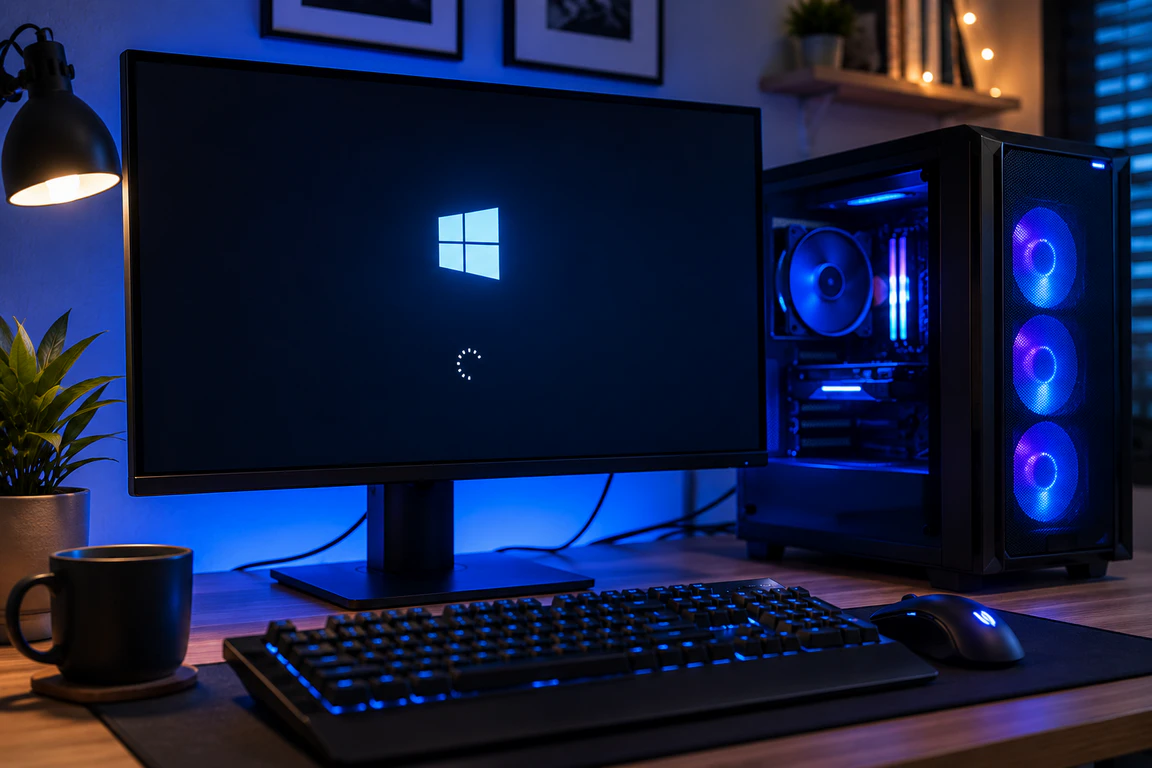
A computer stuck in the boot screen for less than 2 minutes is usually still working; most Windows and Mac machines just need more time after an update. Past the 15-minute mark with no progress, the freeze is almost always caused by a corrupted boot file, a failed update, or a hardware fault like bad RAM. screendotfix.com’s technicians treat the exact freeze duration as the first diagnostic clue, not the logo itself, because the same Windows or Apple logo appears in every one of those scenarios.
Don’t force a shutdown yet. The next section tells you exactly when it’s safe to.
How Long Has It Actually Been Stuck?
Pull out your phone and time it before doing anything else. This one number changes everything about what’s wrong.
Under 2 minutes: Leave it alone. This is normal behavior after a Windows Update or macOS update, especially a large feature update like Windows 11 24H2 or 25H2, or a major macOS point release. Some Windows 11 24H2 and 25H2 updates caused boot failures on affected machines in 2026, and Microsoft later shipped a fix along with an automatic repair for it.
2 to 15 minutes: This is the gray zone. A spinning circle or a progress bar that’s visibly moving, even slowly, still counts as working. A completely static logo with zero animation for this entire window is a warning sign, not a guarantee of failure yet.
Past 15 minutes with zero visible change: Something is actually stuck, not just slow. This is where you move to the fixes below.
Repeats every single time you restart (a boot loop): Skip the waiting entirely. A boot loop where the screen freezes, restarts itself, and freezes at the same point again points to a corrupted system file or failing storage drive, not a slow update.
| Freeze duration | What it usually means | Action |
| Under 2 minutes | Normal post-update processing | Wait, do nothing |
| 2–15 minutes, progress bar moving | Still installing/loading | Keep waiting, don’t touch power |
| 15+ minutes, no movement | Stuck boot process | Force restart and troubleshoot |
| Loops every restart | Corrupted boot file or failing drive | Skip waiting, go to recovery tools |
Why Is My Windows PC Stuck on the Boot Screen?
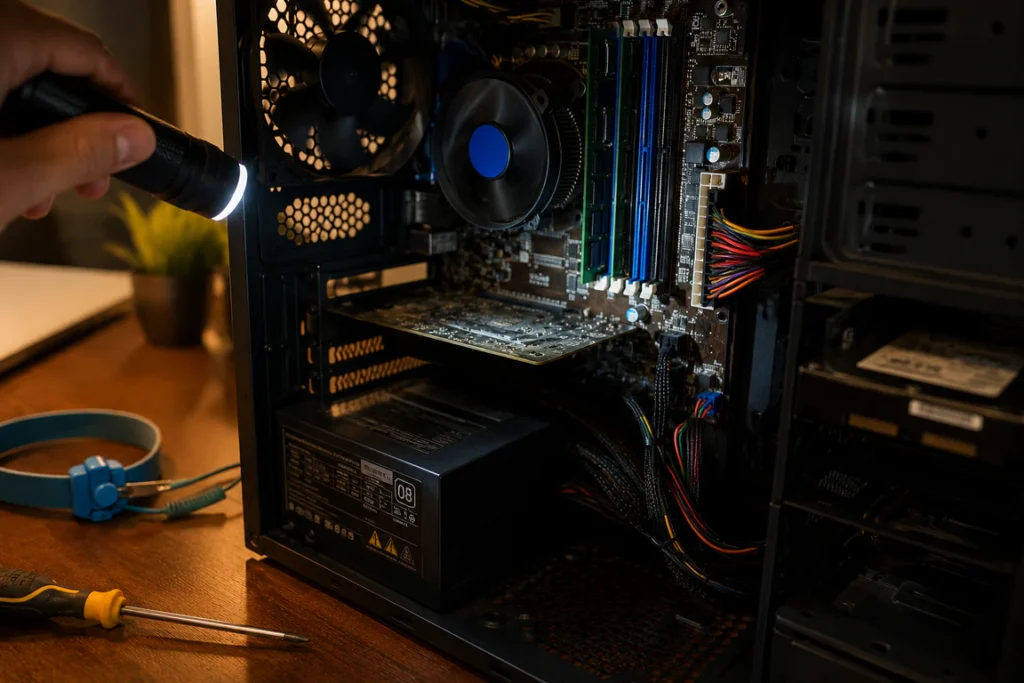
A Windows PC gets stuck on the boot screen most often because of a failed update, a loose or faulty RAM stick, or a boot file that Windows can no longer read correctly. In our experience, the update cause has become far more common since large feature updates started shipping mid-cycle rather than only twice a year.
The four causes we see most, in order of how often they actually show up in repair intake:
- A failed or interrupted Windows update. The install stops partway through, usually from a power loss or a forced shutdown during the update itself, leaving the system in a half-updated state it can’t boot from.
- Faulty or loosely seated RAM. This tends to happen after a laptop has been moved, dropped, or had memory added recently. The system POSTs (starts the hardware check) but can’t hand off to Windows.
- Corrupted boot configuration data (BCD) or a bad sector on the drive. Bad sectors stop Windows from reading its boot files, which produces long delays, clicking noises, and repeated hangs.
- A third-party driver or startup program conflicting with the boot sequence, most often a recently installed antivirus tool, VPN client, or disk utility.
Fix It: Windows Stuck on Boot Screen
- Force shutdown. Hold the power button for 10 seconds until the screen goes fully black.
- Power on and immediately force-shutdown two more times as soon as the manufacturer logo appears. Doing this three times in a row triggers Windows Recovery Environment (WinRE) automatically on most 2019-and-later machines.
- From WinRE, select Troubleshoot > Advanced Options > Startup Repair. Let it run this can take 10 to 20 minutes and is not frozen just because it looks static.
- If Startup Repair fails, go to Troubleshoot > Advanced Options > System Restore and pick a restore point from before the freeze started.
- If the freeze began right after an update, choose Uninstall Updates instead this reverts the specific update package without touching personal files.
- Still stuck? Test the RAM. Power off, unplug, open the RAM access panel, and reseat each stick firmly. On desktops, test with one stick installed at a time to isolate a bad module.
- Run chkdsk C: /f /r from the Recovery Environment command prompt if you hear clicking or the freeze happens at a different point each time that pattern usually means the drive itself is failing.
Most of these get a PC back to a normal boot without opening the case or losing files. The exception is a genuinely failing hard drive or SSD, which chkdsk will confirm but can’t repair.
Why Is My Mac Stuck on the Apple Logo?
A Mac stuck on the Apple logo is almost always a software or update problem, not a display fault, and the fix path is completely different depending on whether it’s an Intel Mac or an Apple Silicon Mac (M1 through M4). The boot process starts with a power-on self-test, then loads firmware, checks connected hardware, and hands off to the boot loader to locate the startup disk and read the files needed to start macOS. A failure at any of those steps leaves you staring at the logo or a progress bar that stops moving.
Common causes on Apple Silicon (M1–M4) Macs:
- A macOS update that didn’t fully sign the system volume, common when storage was nearly full during the update
- A corrupted startup disk after an unexpected power loss during an install
- A third-party kernel extension or security tool left over from before an upgrade
Common causes on Intel Macs:
- A corrupted NVRAM/PRAM setting affecting boot preferences
- A failing SMC (System Management Controller) after a battery or logic board issue
- The same update-related corruption seen on Apple Silicon, though less frequently since Intel updates are smaller
Fix It: Mac Stuck on the Apple Logo
- Wait through one full progress bar cycle first. If the bar is moving, even slowly, let it run for up to an hour on a large update; this is not a hang.
- Force restart. Hold the power button for 10 seconds until the screen goes black, then power on normally.
- Boot into Safe Mode. Hold the power button until “Loading startup options” appears, select your startup disk, hold Shift, and click Continue in Safe Mode. If it boots successfully here, a third-party login item or app is the cause of removing it from System Settings > General > Login Items.
- Run Disk Utility First Aid from Recovery. Hold the power button until startup options appear, choose Options, then open Disk Utility and run First Aid on Macintosh HD.
- On Intel Macs only, reset NVRAM/PRAM. Shut down, then hold Option-Command-P-R at power-on for 20 seconds.
- On Apple Silicon Macs, use macOS Recovery to reinstall. From the startup options screen, choose Reinstall macOS. This keeps your data intact in the vast majority of cases, but backs up first if you have any other way to access the drive.
- If none of this works, a DFU restore through Apple Configurator is the last software-level option before hardware is the likely cause. This does erase the drive, so it’s a last resort only.
Is It Hardware? Here’s How to Tell
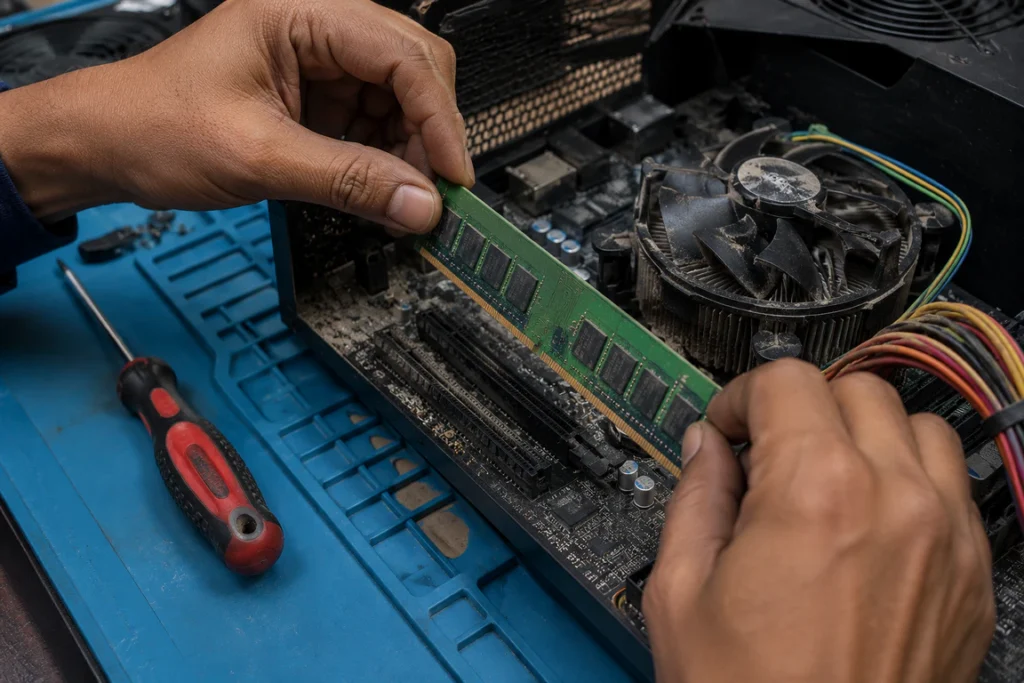
Software fixes get a stuck boot screen working again in most cases. A hardware cause is more likely when any of these are true at the same time:
- The freeze happens at a different point on every boot attempt, not the same spot
- You hear repeated clicking, grinding, or a beep code from the machine
- The problem started right after a drop, a spill, or the laptop overheating during heavy use
- Safe Mode also freezes at the same spot as a normal boot
- The battery won’t hold charge, or the machine only boots while plugged in at a specific angle
None of those point to a screen fault, specifically a stuck boot screen is a startup problem, not a display panel problem, so replacing the screen itself won’t fix it even if that’s the only thing you can see.
What Repair Actually Costs
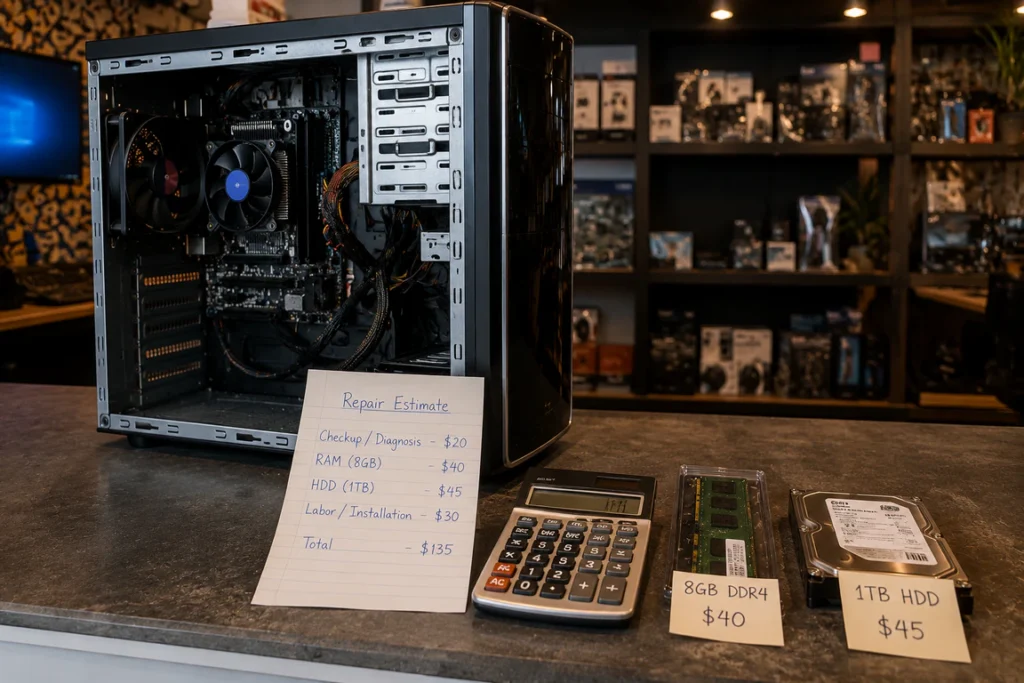
| Repair | DIY cost | Professional repair cost (US) | Time |
| Startup Repair / System Restore | Free | $0 (self-service) | 15–40 minutes |
| RAM replacement (laptop) | $30–$90 per stick | $70–$150 including labor | 20–40 minutes |
| SSD/HDD replacement + OS reinstall | $50–$150 for drive | $120–$280 including labor and data transfer | 1–3 hours |
| Motherboard/logic board repair (boot-related fault) | Not practical DIY | $250–$600 | 1–4 days |
| Mac logic board replacement | Not practical DIY | $300–$800 depending on model | 2–5 days |
If a shop quotes a motherboard or logic board replacement on a laptop that’s more than five years old, get a second opinion before paying. On many older ultrabooks and MacBooks, that repair costs close to what a comparable used replacement machine sells for, and James at screendotfix.com generally recommends replacement over repair once the quote crosses roughly 60% of the machine’s current resale value.
Mistakes That Make This Worse
- Repeatedly holding the power button during an active update install. This is the single most common cause of turning a slow update into full corruption: a moving progress bar, however slow, should never be interrupted.
- Running third-party “boot repair” tools downloaded from search ads. Several of these install additional startup agents that create new conflicts on top of the original one.
- Reinstalling the OS before trying Startup Repair, System Restore, or Safe Mode. A full reinstall is the last step, not the first, since it can erase settings and installed programs even when personal files survive.
- Ignoring a clicking or grinding sound because “it still turns on.” That sound during a stuck boot is a mechanical drive warning sign, and continuing to force restarts on a failing drive shortens the window you have to recover data from it.
Frequently Asked Questions
Can a computer stuck on the boot screen fix itself?
Yes, if the freeze is under 15 minutes and tied to an update still installing, waiting it out resolves this without any action on your part. Past 15 minutes with no visible progress, it will not resolve on its own and needs one of the recovery steps above.
Why did my computer get stuck on the boot screen after a Windows update?
This happens when the update process is interrupted, most often by a forced shutdown, a power outage, or the machine going to sleep mid-install, leaving system files in a half-written state that Windows can’t boot from.
Will I lose my files if my computer is stuck on the boot screen?
In most software-related cases, no Startup Repair, System Restore, and Safe Mode all leave personal files untouched. Files are genuinely at risk only when the drive itself is failing mechanically or when a full reinstall becomes the last remaining option.
Is a computer stuck on the boot screen the same as a black screen?
No. A stuck boot screen still shows the manufacturer logo or a progress indicator, meaning the hardware is powering on and starting the boot process. A true black screen with no logo at all points toward a display connection, power delivery, or GPU fault instead, which is a different repair path a PC stuck on boot screen specifically refers to freezing on the Windows logo or spinning loading screen, not a blank display.
How long should I wait before force restarting?
Give it 15 minutes if the screen shows any movement at all: a spinning circle, a progress bar, or flickering text. If it’s been completely static for 15 minutes with no change whatsoever, it’s safe to force restart and move to the recovery steps.
Related Reading on screendotfix.com
If your machine also shows red streaks or corrupted color blocks across the screen during startup rather than a clean freeze, that’s more likely a display or GPU-level fault see red lines appearing on your PC screen for that specific failure pattern. Mac owners who see faint purple banding once the machine does start up should check purple lines showing up on a Mac screen, since that’s a separate panel-level issue from a boot freeze.
Expert Verdict
Most computers stuck in the boot screen are fixable without a repair shop, and the freeze duration tells you which category you’re in before you touch a single setting. screendotfix.com’s testing across both Windows and Mac hardware consistently shows the same pattern: anything under 15 minutes is almost always a slow update, and anything past that with no movement is a boot file, driver, or memory problem that Startup Repair or Safe Mode resolves in one pass. Hardware replacement only becomes necessary when clicking sounds, inconsistent freeze points, or a failed drive scan are present.
Author Note
I’m James, founder of screendotfix.com. I put this guide together after years of watching people restart a computer five or six times in a panic during what was actually a normal, if slow, update and a few others who kept restarting through an actual failing drive until the data was gone. The time-based approach above is exactly the order I walk customers through over the phone before they bring anything in.
Disclaimer
This guide covers general troubleshooting steps for common boot screen freezes on Windows and Mac computers. Repair costs are typical US ranges and vary by region, model, and shop. Back up any accessible data before attempting drive-level repairs or OS reinstalls.