
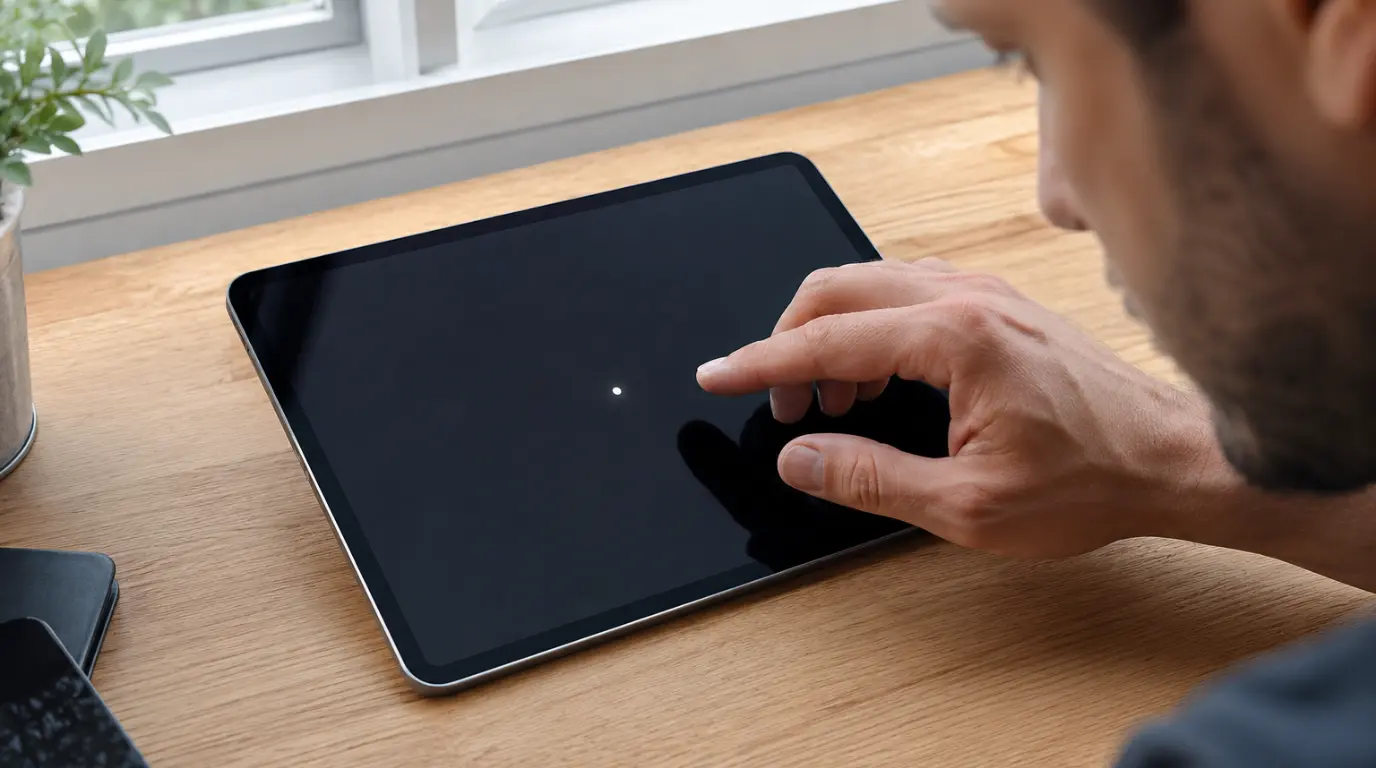
White Dots on Your iPad? Here’s What’s Really Happening
White dots on an iPad screen are usually caused by stuck pixels, pressure damage, backlight issues, screen protector air pockets, AssistiveTouch settings, or software glitches.
Before considering a repair, try a force restart and check whether AssistiveTouch is enabled. Both fixes take less than two minutes and solve the problem for many users.
Why White Dots Appear on iPad Screens
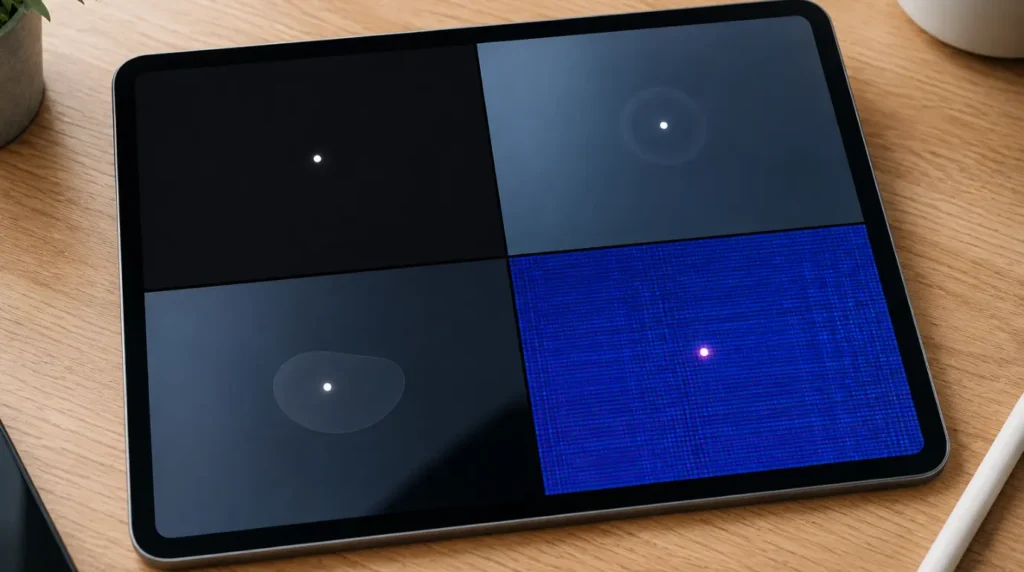
A white dot on your iPad doesn’t always mean the display is damaged. Several different issues can create similar symptoms, and identifying the correct cause is the key to finding the right fix.
Stuck Pixel
Every iPad display contains millions of pixels. When one pixel becomes stuck in an active state, it appears as a tiny bright white dot.
Common signs:
- Single pinpoint-sized dot
- Stays in the exact same location
- Visible across multiple apps
- Often fixable using software tools
Pressure Damage
Pressure applied to the screen can damage the LCD layers underneath the glass.
Common causes include:
- Carrying the iPad in an overfilled backpack
- Heavy objects placed on the device
- Accidental impact
Signs of pressure damage:
- Cloudy white patch
- Irregular shape
- Larger than a single pixel
- Usually requires screen replacement
Software or Display Driver Glitch
Occasionally, iPadOS updates can introduce temporary display rendering issues.
Signs include:
- Dot appeared after an update
- No physical damage present
- Issue disappears after restart
- Other users report similar problems
Screen Protector Air Bubble
A trapped air pocket or dust particle beneath a screen protector can look surprisingly similar to a screen defect.
Check for:
- Dot near the edge of the protector
- Changes when light pressure is applied
- Recent screen protector installation
AssistiveTouch Enabled
Many users mistake AssistiveTouch for a screen problem.
To check:
Settings → Accessibility → Touch → AssistiveTouch
If enabled, the floating white button is normal system behavior and not a display defect.
Battery Swelling (Important)
If the white area is growing larger and the iPad feels unusually warm, battery swelling may be pushing against the display from inside.
Warning Signs
- Screen lifting from the frame
- Growing white spot
- Excessive heat
- Battery draining unusually fast
Stop using the device and have it inspected immediately.
White Dot Symptoms and Their Most Likely Causes
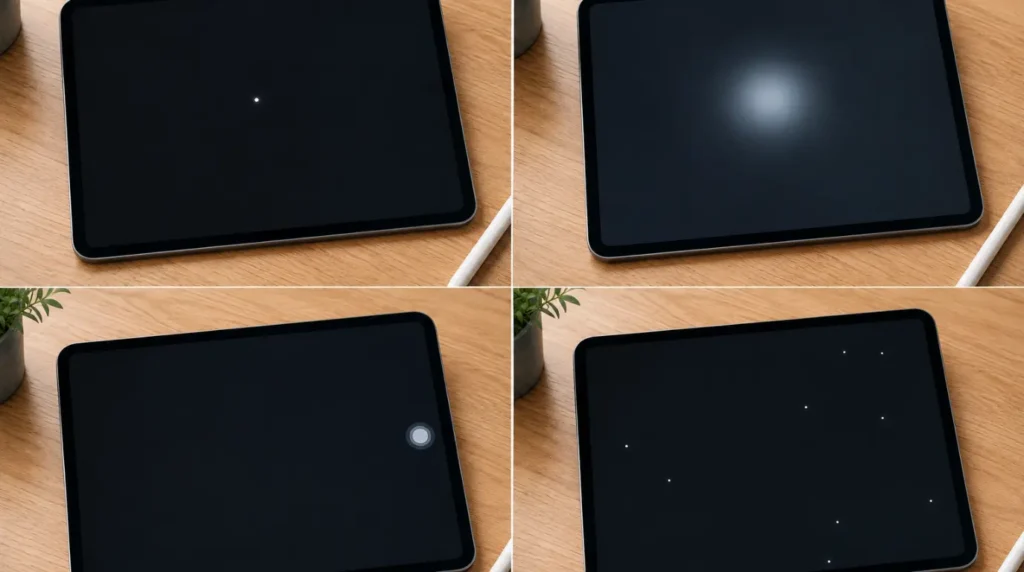
| Symptom | Most Likely Cause | Software Fixable? |
| Single bright dot | Stuck pixel | Often |
| Cloudy white patch | Pressure damage | No |
| Floating white circle | AssistiveTouch | Yes |
| Dot near screen edge | Air pocket | Yes |
| Growing pale area | Battery swelling | No |
| Dot after update | Software glitch | Usually |
How to Identify the Real Cause

Before attempting any repair, perform these quick checks.
Check the Dot Size
- Tiny pinpoint = usually a stuck pixel
- Large cloudy area = usually physical damage
Think About When It Appeared
- After a drop = likely hardware damage
- After an update = likely software-related
Test Touch Response
Gently tap near the affected area.
If the shape changes or shifts, the issue may be an air bubble or screen protector defect.
Use a Black Background Test
Open a solid black image.
A stuck pixel remains visible against black backgrounds and often disappears against white backgrounds.
Check AssistiveTouch
Navigate to:
Settings → Accessibility → Touch → AssistiveTouch
Disable it if enabled.
Free Fixes to Try First

Turn Off AssistiveTouch
Time Required: 10 Seconds
- Open Settings
- Tap Accessibility
- Select Touch
- Tap AssistiveTouch
- Toggle Off
If the white circle disappears immediately, the issue is solved.
Force Restart Your iPad
Time Required: 2 Minutes
Face ID Models
- Press Volume Up
- Press Volume Down
- Hold the Top button
- Release when the Apple logo appears
Home Button Models
Hold the Home button and Top button together until the Apple logo appears.
Run a Pixel Recovery Tool
Time Required: 20–30 Minutes
Pixel recovery tools rapidly cycle colors to help free stuck pixels.
Best used when:
- Only one pixel is affected
- The dot remains fixed in place
- No physical damage exists
Update iPadOS
Navigate to:
Settings → General → Software Update
Install any available update.
Many display-related software issues are fixed through routine updates.
Reset All Settings
Time Required: 5 Minutes
Go to:
Settings → General → Transfer or Reset iPad → Reset → Reset All Settings
This resets display-related settings without deleting personal data.
Troubleshooting Checklist
Before paying for a repair, confirm:
- AssistiveTouch is disabled
- Screen protector has been removed and inspected
- Force restart completed
- iPadOS fully updated
- Pixel recovery attempted
- Reset All Settings completed
- No signs of battery swelling
When Professional Repair Is Needed
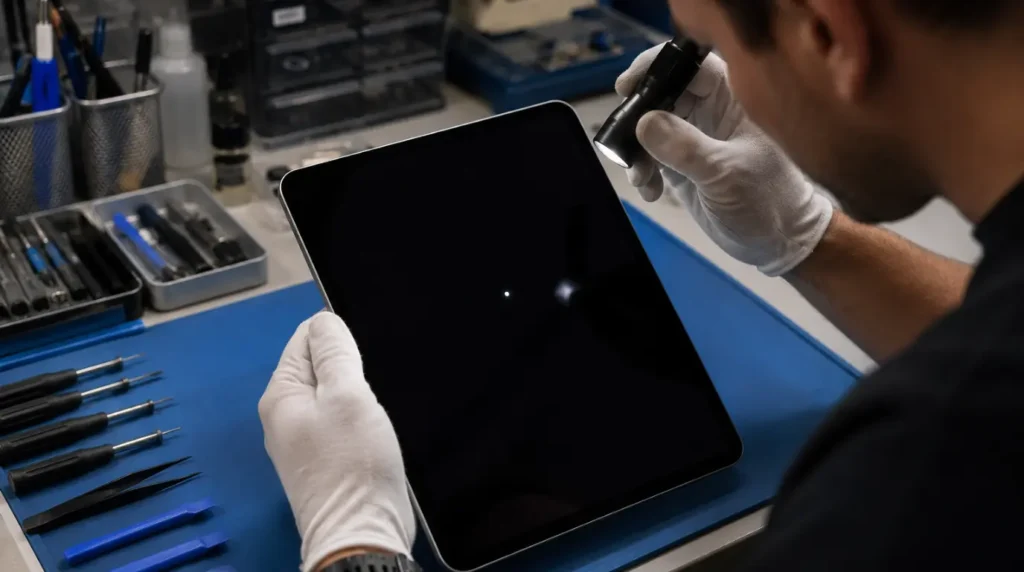
A repair is usually necessary when:
The White Spot Is Growing
Physical damage rarely improves on its own.
Multiple White Dots Appear
Clusters often indicate panel damage.
A White Haze Covers Part of the Screen
This typically points to LCD or backlight layer failure.
Estimated Repair Costs (2026)
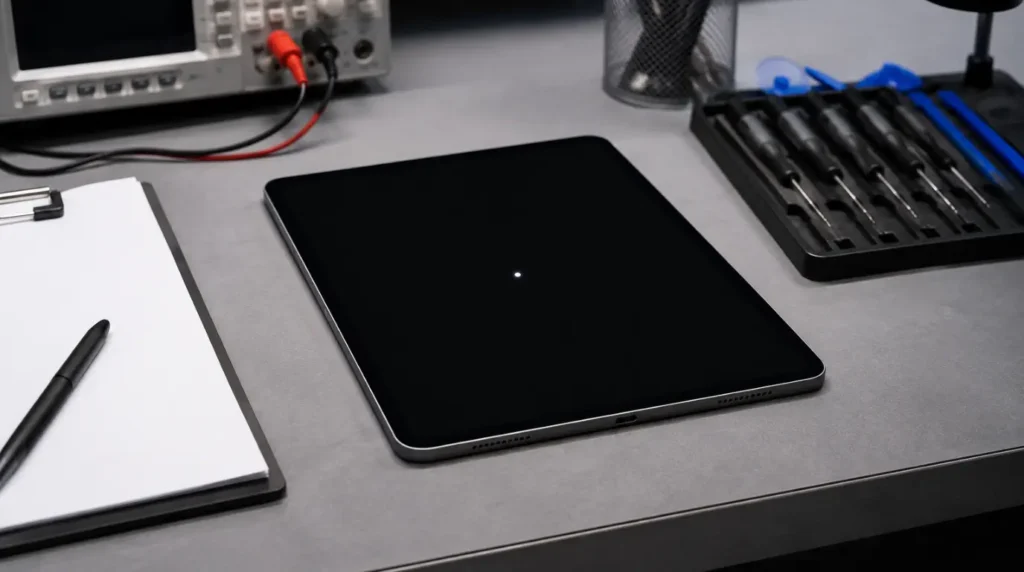
| Repair Option | Estimated Cost |
| Warranty-covered defect | Free |
| AppleCare+ screen repair | Around $49 |
| Standard iPad repair | $229–$269 |
| iPad Pro OLED repair | $499–$599 |
| Independent repair shop | $120–$350 |
Costs vary by region and model.
How to Prevent White Dots in the Future
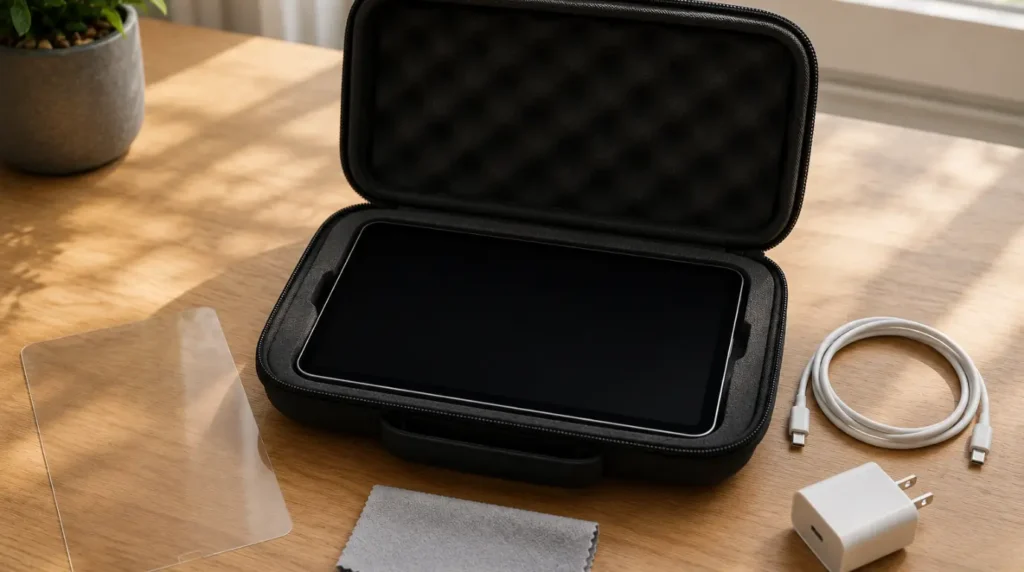
Follow these simple habits:
- Use a hard-shell protective case
- Avoid placing heavy objects on the iPad
- Keep the device away from excessive heat
- Install screen protectors in a dust-free environment
- Monitor battery health on older devices
- Perform occasional dead-pixel checks
Frequently Asked Questions

Can a screen protector cause a white dot?
Yes. Dust particles and trapped air bubbles often create white spots that look like display defects.
Why is the white dot only visible on dark backgrounds?
This is a classic sign of a stuck pixel. The contrast makes it more noticeable on darker colors.
Can charging cause white spots?
Yes. Excess heat from a failing battery can create display pressure and visible bright areas.
Will water damage cause white dots?
Yes. Moisture can damage display connectors and LCD layers, creating permanent white spots or bright patches.
Final Verdict
Most iPad white dots are caused by stuck pixels, AssistiveTouch, software glitches, or screen protector issues rather than permanent display failure.
Start with the free fixes first:
- Disable AssistiveTouch
- Force restart the iPad
- Remove the screen protector
- Run a pixel recovery tool
- Update iPadOS
If the white spot grows, spreads, or is accompanied by screen lifting or heat, seek professional repair immediately because battery swelling or physical display damage may be involved.
Editor’s Note
This article was reviewed for technical accuracy by the screen.fix.com editorial team and updated for current iPad models and iPadOS versions. Repair pricing and service options reflect typical market rates at the time of publication and may vary by location, device model, and service provider.
Our goal is to provide practical, free troubleshooting steps before recommending paid repairs. Whenever possible, solutions are tested against real-world user reports and verified device behavior.
If new software fixes or hardware-related issues become widely confirmed, this guide will be updated accordingly.
About the Author
James Founder, screen.fix.com
James has more than 10 years of hands-on experience diagnosing display, battery, and hardware issues across smartphones, tablets, laptops, and desktop monitors from all major manufacturers.
Every guide published on screen.fix.com is based on direct troubleshooting experience, device testing, manufacturer documentation, and extensive community research. The focus is always on helping readers identify the real cause of a problem and try the safest, lowest-cost solutions first.
When a repair is necessary, recommendations prioritize reliability, safety, and long-term device performance rather than unnecessary replacement costs.