
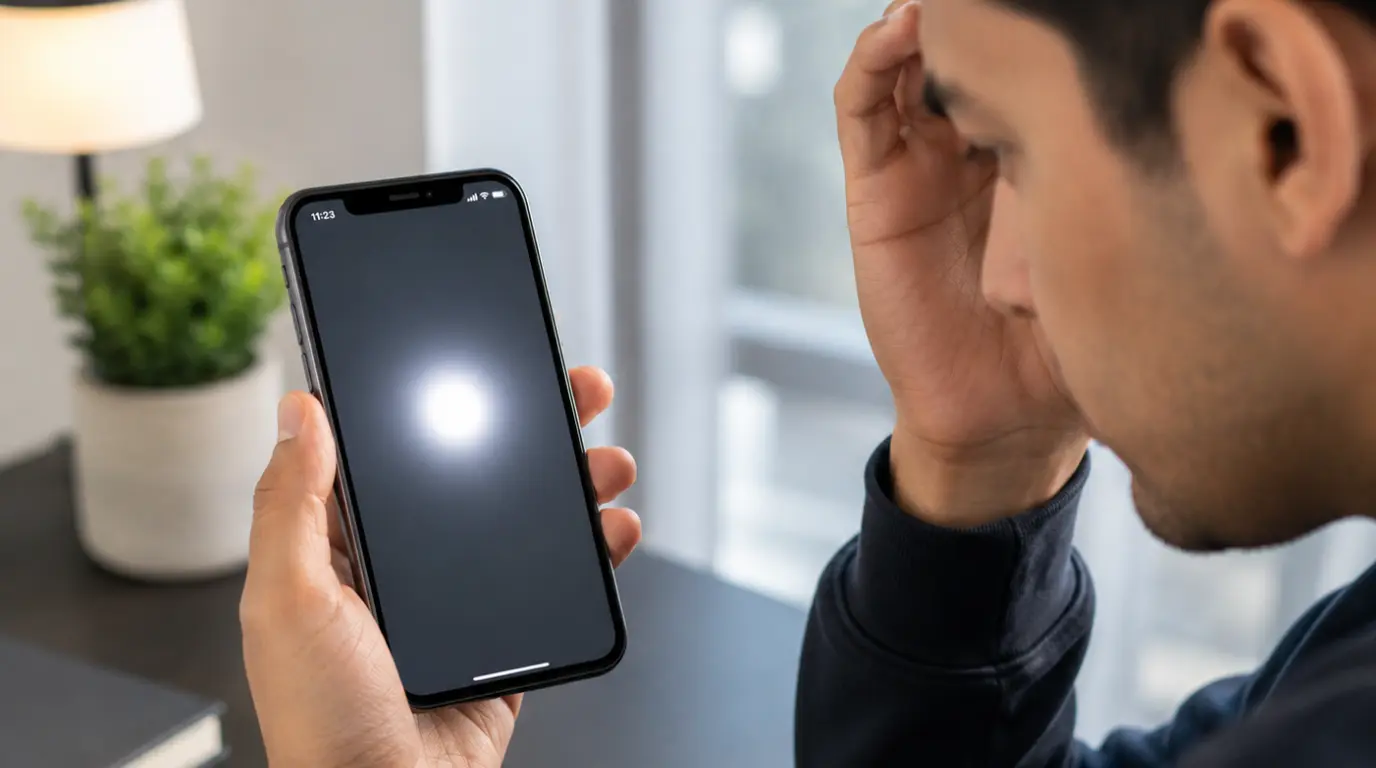
White Spot on iPhone Screen: What It Means and How to Fix It
A white spot on an iPhone screen is usually caused by AssistiveTouch, a stuck pixel, display pressure damage, impact-related screen failure, or moisture exposure. Start by checking whether the spot is a floating white button, then run a few simple tests to determine whether the issue is software-related or physical screen damage.
A surprising number of users assume the screen is permanently broken when the fix takes less than a minute. The key is identifying exactly what type of white spot you are seeing before spending money on a repair.
When customers bring an iPhone into a repair shop with a white mark on the display, the first question is not “How much is the repair?” It is “What kind of white spot is it?” The answer often changes everything.
Why Is There a White Spot on Your iPhone Screen?
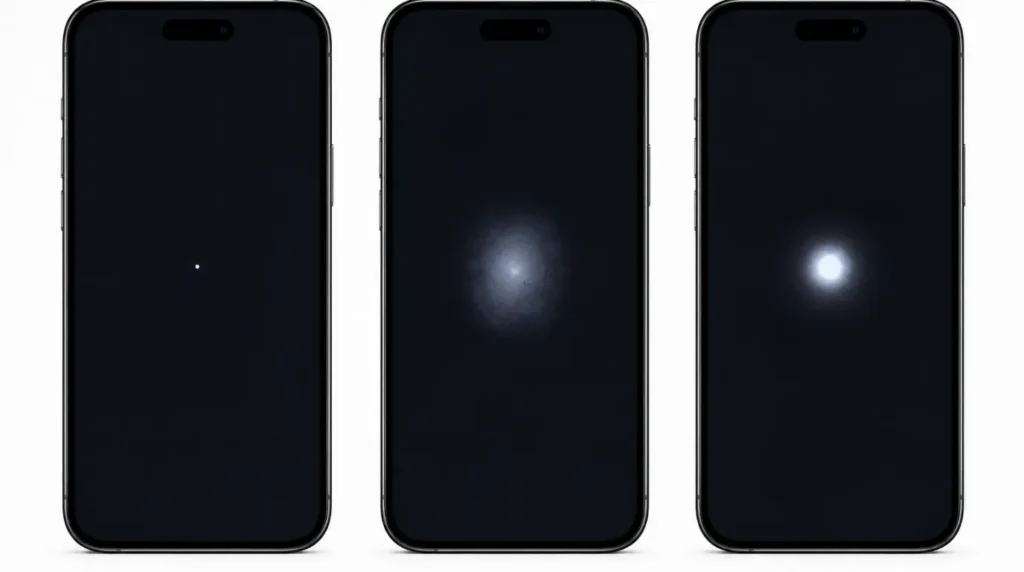
Not every white spot comes from the same problem. The appearance, size, and behavior of the spot usually reveal the real cause.
AssistiveTouch Floating Button
The most common cause is AssistiveTouch, Apple’s accessibility feature that places a movable white button on the screen.
Many users accidentally enable it while adjusting accessibility settings or after a software update.
Common signs:
- The white dot moves when dragged.
- It appears on every screen.
- It remains visible after opening apps.
Screen Pressure Damage
Pressure damage is common on older LCD-based iPhones.
Keeping a phone in a tight pocket, sitting on it, or storing it under heavy objects can damage internal display layers and create a cloudy white patch.
Common signs:
- Milky or foggy appearance.
- Usually near the center of the screen.
- Does not move or disappear.
Stuck Pixel
A stuck pixel remains illuminated continuously and can appear white, green, red, or blue.
Unlike pressure damage, the affected area is extremely small and usually looks like a tiny bright dot.
Common signs:
- Pinpoint-sized spot.
- Visible on most backgrounds.
- Remains in the exact same location.
Hidden Impact Damage
The outer glass can survive a drop while internal display layers crack underneath.
Repair technicians regularly see phones with no visible external damage but obvious bright spots developing days after a fall.
Common signs:
- Spot appeared after a drop.
- The area slowly grows larger.
- Additional flickering may develop.
Moisture Exposure
Water damage is often overlooked because symptoms may appear several days later.
Steam from bathrooms, accidental spills, or prolonged humidity exposure can affect display components.
Common signs:
- White patch gradually expands.
- Screen brightness becomes uneven.
- Touch responsiveness may worsen.
Identify the Problem Before Attempting Repairs
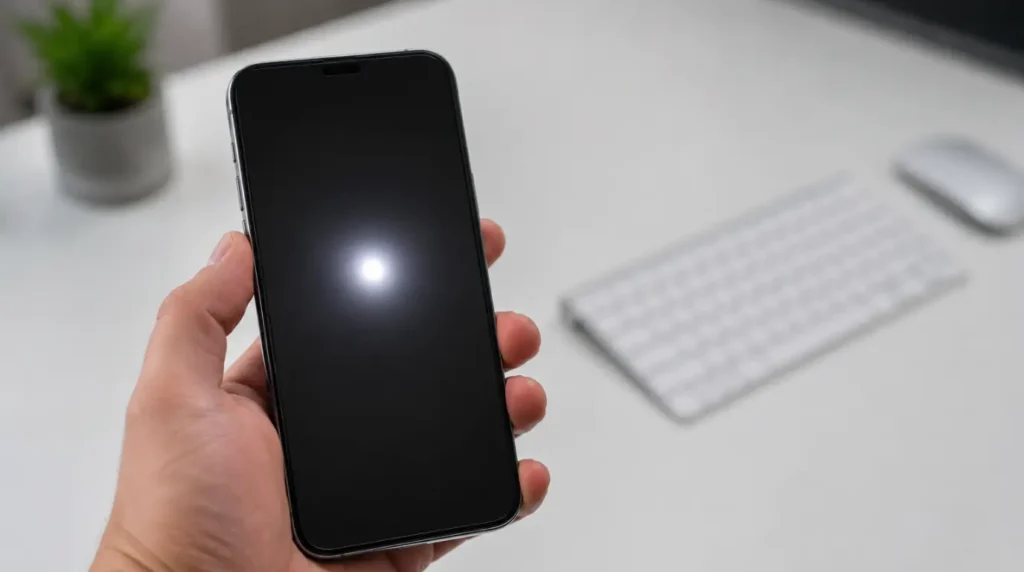
A few quick checks can prevent unnecessary repairs.
Take a Screenshot
Capture a screenshot and view it in Photos.
If the white spot appears in the screenshot, the issue is software-related.
If it does not appear, the display hardware is responsible.
Increase and Reduce Brightness
Move the brightness slider from minimum to maximum.
If the spot becomes more noticeable as brightness increases, physical screen damage is more likely.
Check Dark Backgrounds
Open a completely black image or dark mode screen.
Backlight-related problems and pressure damage become much easier to identify against dark backgrounds.
Observe the Shape
The shape often provides the answer.
- Perfect circle → AssistiveTouch.
- Tiny dot → Stuck pixel.
- Cloudy patch → Pressure damage.
- Irregular bright area → Internal screen damage.
Think About Recent Events
Many users discover the cause simply by reviewing what happened before the issue appeared.
Ask yourself:
- Did the phone fall recently?
- Was it exposed to water?
- Was it stored under pressure?
- Did the issue appear after an update?
Step-by-Step Fixes to Try First
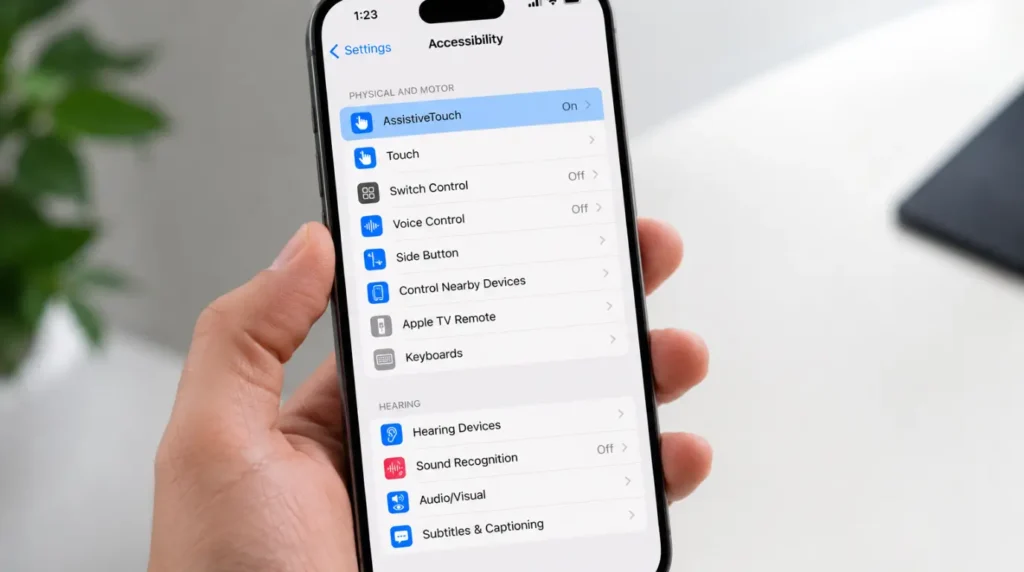
Start with the easiest and safest solutions.
Fix 1: Disable AssistiveTouch
Cost: Free
- Open Settings.
- Tap Accessibility.
- Select Touch.
- Tap AssistiveTouch.
- Turn it off.
If the white spot disappears immediately, the issue is solved.
Fix 2: Restart the iPhone
Cost: Free
A standard restart can remove temporary display glitches.
- Power off the iPhone.
- Wait 30 seconds.
- Turn it back on.
Some users report the white spot vanishing after a reboot, especially after software updates.
Fix 3: Force Restart
Cost: Free
A force restart refreshes deeper system processes.
For iPhone 8 and newer:
- Press Volume Up.
- Press Volume Down.
- Hold the Side button until the Apple logo appears.
No data is erased during this process.
Fix 4: Install iOS Updates
Cost: Free
Software bugs occasionally create display anomalies that resemble hardware failures.
- Open Settings.
- Tap General.
- Select Software Update.
- Install available updates.
Several users have reported display issues disappearing after updating iOS and restarting.
Fix 5: Test for a Stuck Pixel
Cost: Free
If the white spot is extremely small, it may be a stuck pixel.
Run a pixel-flashing tool for 20–30 minutes and monitor changes.
Repair technicians occasionally see stubborn pixels recover after extended color cycling.
Fix 6: Reset All Settings
Cost: Free
This resets system settings without deleting personal files.
- Open Settings.
- Tap General.
- Select Transfer or Reset iPhone.
- Tap Reset.
- Choose Reset All Settings.
This can resolve display behavior linked to accessibility settings or software corruption.
Signs the Problem Is Physical Damage
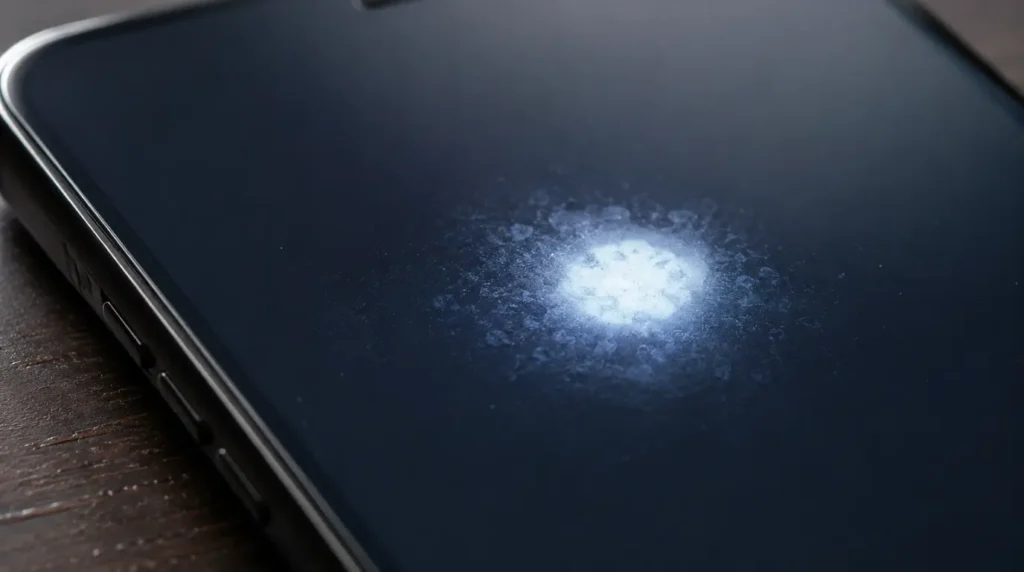
Some symptoms indicate that software fixes will not help.
The Spot Is Growing
A spreading white area usually means internal screen damage.
This often occurs after drops, pressure damage, or liquid exposure.
The Display Flickers
Flickering combined with a white spot typically points to hardware failure inside the display assembly.
The issue usually worsens over time.
Touch Stops Responding
When touch problems develop alongside a white patch, display replacement becomes much more likely.
Brightness Looks Uneven
Uneven brightness often indicates damaged display layers or backlight problems.
This is particularly common on older LCD models.
When Professional Repair Makes Sense
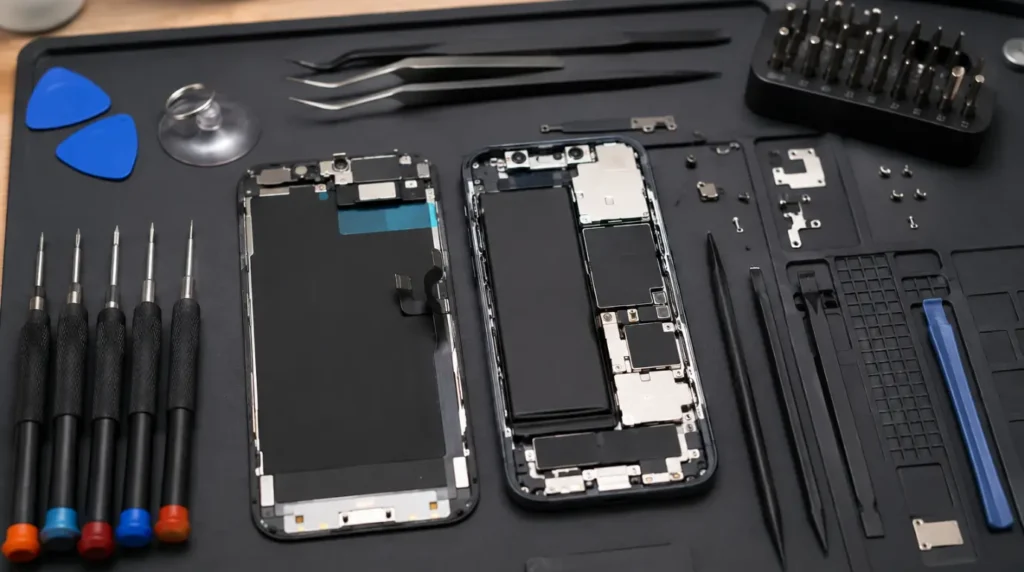
Once physical damage is confirmed, further troubleshooting rarely helps.
Repair shops frequently see users spend days trying software fixes for a display that already requires replacement.
Professional assistance is recommended when:
- The white area is expanding.
- The phone was recently dropped.
- Water exposure occurred.
- Touch functionality is affected.
- The screen flickers or flashes.
If the device is still under warranty and there are no signs of accidental damage, contact Apple support before paying for repairs.
Typical Repair Costs
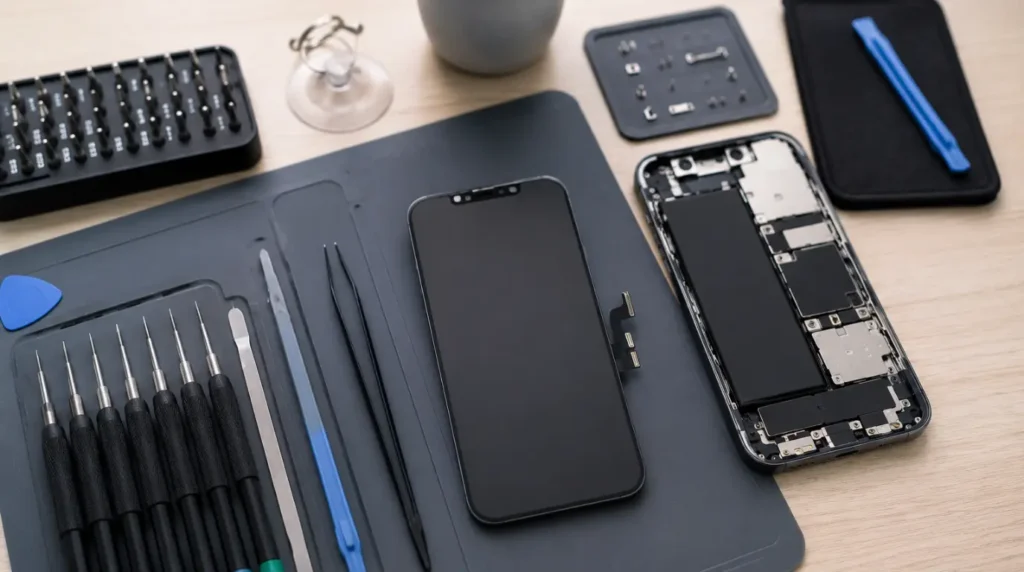
Repair pricing varies by model and location.
General ranges include:
- Warranty-covered manufacturing defect: Often free.
- AppleCare+ screen service: Usually lower-cost than full replacement.
- Third-party repair shops: Often cheaper than manufacturer pricing.
- Premium Pro and Pro Max models: Higher repair costs due to advanced display technology.
Always request a diagnostic inspection before approving repairs.
How to Prevent White Spots from Returning
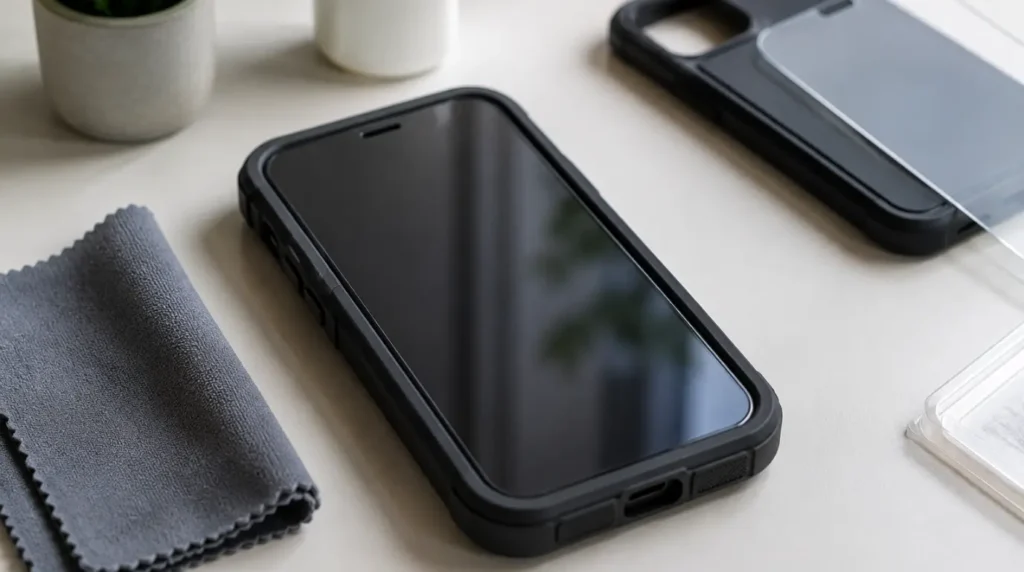
Small habits can dramatically reduce the risk of display damage.
- Use a quality protective case.
- Install a tempered glass protector.
- Avoid keeping the phone in a back pocket.
- Never place heavy objects on top of the device.
- Keep the phone away from excessive heat.
- Clean the display with a microfiber cloth only.
- Avoid exposing the device to steam for long periods.
- Do not leave the phone inside a hot vehicle.
These precautions are particularly important for users who travel frequently or use their phones heavily throughout the day.
Frequently Asked Questions
Can a white spot on an iPhone disappear by itself?
A stuck pixel may occasionally recover on its own. Physical screen damage, pressure bruising, and moisture-related issues generally do not improve without repair.
Is a white spot dangerous?
Most white spots are not dangerous. However, if the phone becomes unusually warm or the affected area continues expanding, professional inspection is recommended.
Why did the spot appear after charging?
Heat generated during charging can make existing screen damage more noticeable. The charger itself is rarely the direct cause.
Can screen protectors cause white spots?
Screen protectors do not usually create white spots. In rare cases, trapped air bubbles or adhesive issues can create marks that resemble display defects.
Expert Verdict
Most iPhone white spots fall into one of two categories: a harmless AssistiveTouch button or genuine display damage. Check the software-related causes first, then move through the diagnostic steps carefully.
If the spot is growing, changing shape, or appearing alongside flickering and touch problems, stop troubleshooting and arrange a professional screen inspection. Acting early often prevents a small display issue from turning into a much more expensive repair.
Editor Note screen.fix.com
Reviewed for technical accuracy by the screen.fix.com editorial team.
All fixes verified against current software and firmware versions.
Pricing reflects current market rates and may vary by region.
This article will be updated when new fixes are confirmed.
For unresolved issues visit the Contact page on screen.fix.com.
About the Author James, Founder of screen.fix.com
Over 10 years of experience diagnosing display hardware and software issues across all major device brands.
All content is written from direct technical experience and hands-on research conducted by the screen.fix.com team.
Free fixes are always recommended before any paid repair option.