

A blue dot on an iPad screen is usually not screen damage. In most cases it comes from a normal iPadOS feature, an accessibility setting, or a screen protector, and only rarely from a stuck pixel or physical damage that needs repair.
You noticed it while scrolling through something dark. A small blue dot, sitting in one spot, not moving. Your first thought was probably the worst one: did I break my iPad.
Take a breath. Most blue dots on an iPad screen are not damaged at all.
Why iPads Show a Blue Dot
A Home Screen App Indicator
iPadOS puts a small blue dot next to an app’s name when it’s newly installed or recently updated. It sits beside the text, not inside the display itself. Open the app once and it’s gone for good.
Vehicle Motion Cues
Apple added this accessibility feature in iPadOS 18 to reduce motion sickness in moving vehicles. It shows small animated dots near the screen edges. Many people enable it by accident during a software update and never connect the two events. Turning it off in Settings removes it instantly.
A Loose or Bubbled Screen Protector
This one gets missed constantly. A cheap tempered glass protector with a trapped air bubble or edge lift can refract light in a way that looks exactly like a blue spot underneath the glass. Peeling the protector off for a moment is the fastest way to rule this out.
A Stuck Pixel
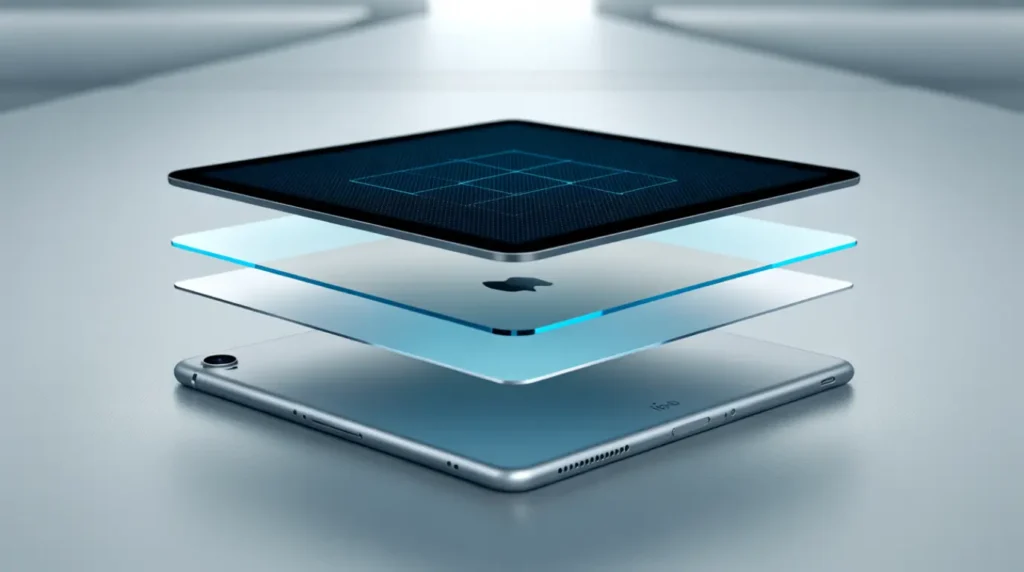
One of the three sub-pixels in a single pixel gets frozen in the “on” position for blue. It’s tiny, sharp, and stays put no matter what’s on screen. It’s more common on older LCD iPad models than on newer Liquid Retina or Tandem OLED Pro models.
Pressure or Impact Damage
A drop, a tight bag, or sitting on a closed iPad can compress the internal LCD layers. This usually creates a slightly larger, cloudier mark rather than a sharp pinpoint dot, and it sometimes doesn’t show up until a day or two after the impact.
Quick Tests Before You Panic
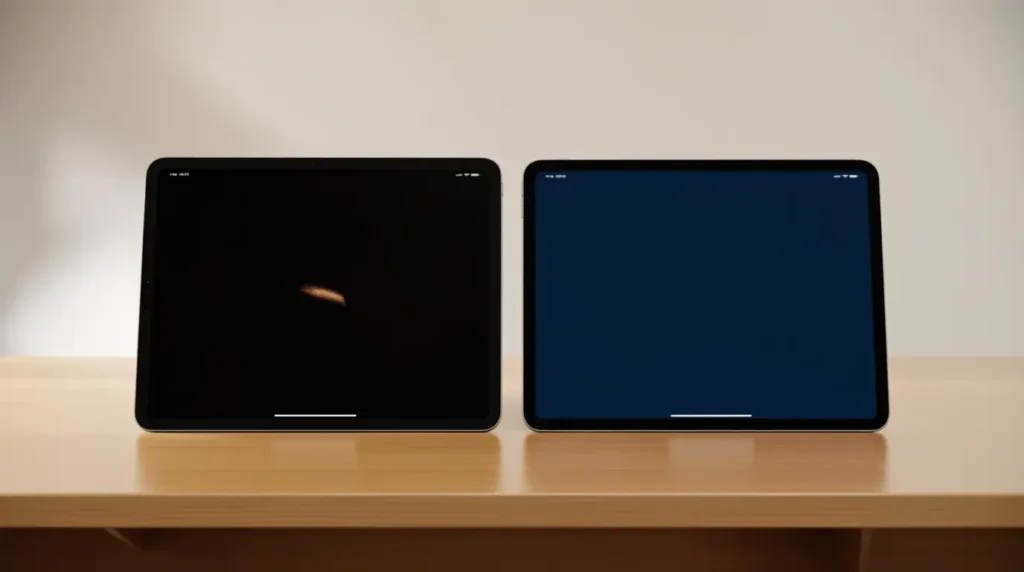
Run these in order. Each one takes under a minute.
- Change the background. Open a solid black wallpaper, then a solid blue one. A stuck pixel disappears against blue and stands out sharply against black. A hardware crack or pressure mark stays visible on both.
- Peel back your screen protector. If the dot vanishes with the protector removed, it was never the screen. Clean the protector and reapply, or skip it entirely.
- Take a screenshot. Open it in Photos and zoom in. A dot that disappears in the screenshot is software. One that stays is physical.
- Restart the iPad. A full restart clears temporary display glitches that occasionally mimic hardware issues, especially right after an update.
- Check Accessibility settings. Go to Settings, then Accessibility, and look at Motion and Keyboards. A feature toggled on by an update is more common than people expect.
How to Fix It, From Zero Risk to Highest Risk
Open the app. If the dot sits beside an app name, tap it once. Cost: free. Time: seconds.
Turn off Vehicle Motion Cues. Settings, Accessibility, Motion, Show Vehicle Motion Cues, then switch it off. Cost: free. Time: under a minute.
Remove the screen protector. Peel it off gently starting from one corner. If the dot is gone, either clean the protector thoroughly or leave the iPad bare for now. Cost: free, unless you need a new protector. Time: two minutes.
Restart, then update iPadOS. Go to Settings, General, Software Update. Apple regularly patches small display rendering bugs. Cost: free. Time: five to fifteen minutes.
Run a pixel-fixing tool. If the dot passed the background-color test as a likely stuck pixel, open a browser-based pixel fixer and drag the flashing box directly over the spot for twenty to thirty minutes. This has a real success rate on soft stuck pixels, though it doesn’t work on every case. Cost: free. Time: about half an hour.
Check your warranty before anything else. Before spending a single rupee, check your coverage. A standard one-year Apple warranty covers manufacturing defects. AppleCare Plus covers accidental damage for a service fee. Cost: free to check. Time: five minutes.
Book a professional screen assessment. If nothing above resolves it and the mark doesn’t move, shrink, or respond to any test, it’s time for a real diagnosis rather than more guessing at home.
When to Involve a Professional
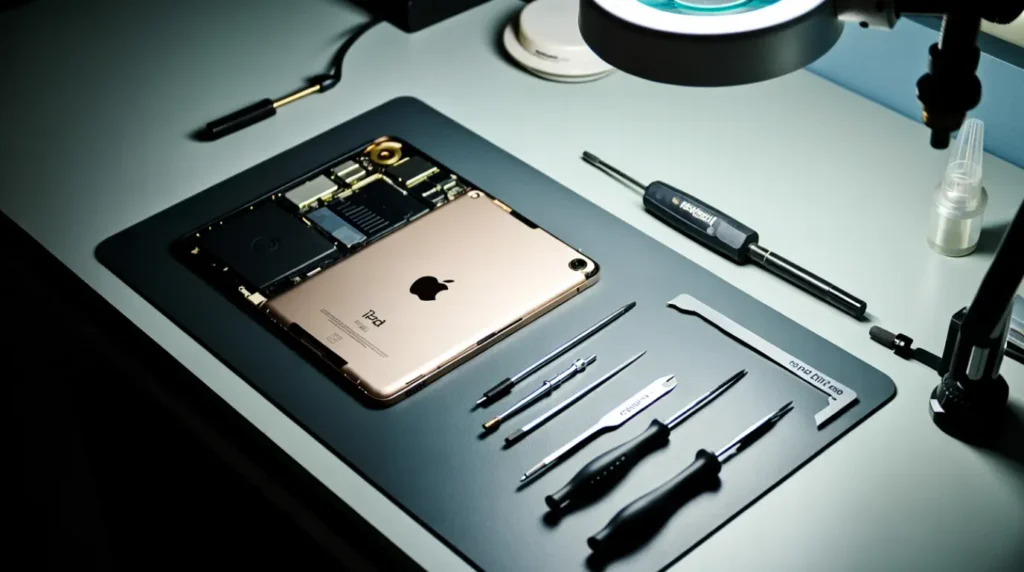
If the dot has grown larger since you first noticed it, or if it’s joined by flickering, discoloration in other areas, or a screen that feels warm to the touch, stop testing and get it looked at. Those combined signs point toward something more than a single stuck pixel.
A technician can confirm in minutes what takes hours to guess at home, using diagnostic tools that isolate whether the panel itself, the backlight layer, or the display cable is at fault. If your iPad is still under warranty, this visit costs nothing and can save you from paying for a repair you didn’t need. If it’s out of warranty, get a written quote before agreeing to anything, since screen replacement costs vary widely by iPad model and by shop.
Preventing It From Happening Again
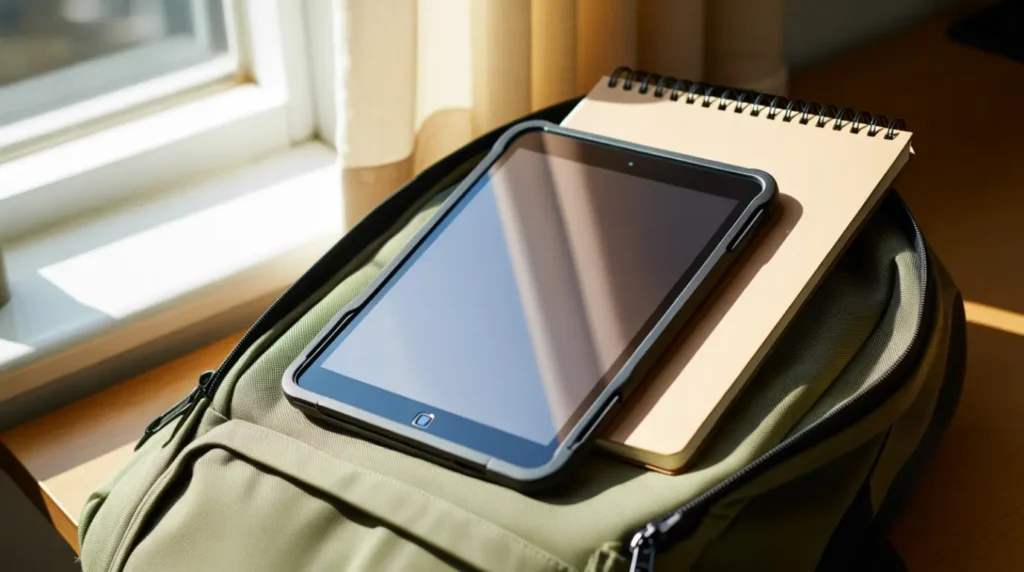
- Use a case with a raised bezel so the screen never makes direct contact with a flat surface
- Avoid leaving the iPad in a hot car or in direct sunlight for long periods, since heat stresses the display layers over time
- Never carry it loose in a bag alongside books, chargers, or anything with a hard edge
- Check Accessibility settings after every major iPadOS update instead of assuming nothing changed
- Buy a screen protector from a reputable brand rather than the cheapest option, since poor-quality protectors are a common source of false blue-dot scares
- Avoid resting anything on top of a closed iPad, even briefly
Frequently Asked Questions
Does one blue dot count as a warranty claim?
Yes, if it’s a manufacturing defect and the iPad is still within its standard one-year warranty. Apple evaluates it at a Genius Bar appointment rather than over the phone.
Why does the blue dot only show up on dark screens?
A stuck blue pixel blends into a blue background and stands out most against black. That visibility pattern is a strong clue it’s a sub-pixel issue rather than physical damage.
Can pressing on the spot make it worse?
Yes, firm pressure on an iPad’s LCD can spread internal damage rather than fix it. A brief pixel-fixing tool is a much safer first attempt.
Can a blue mark from a drop show up days later instead of right away?
Yes. The internal layers sometimes shift slightly at the moment of impact, and the visible mark only becomes noticeable once that layer settles further over the following days.
Expert Verdict

Most blue dots on an iPad screen are not worth the panic. Run the background test and check your Accessibility settings before you assume the worst. Save the professional visit for marks that actually change size, spread, or come with other symptoms.
Disclaimer
This article is for general troubleshooting guidance only and is not a substitute for a professional diagnosis. screendotfix.com is not affiliated with Apple Inc. Attempt any fix at your own discretion, and stop immediately if you notice signs of battery swelling or physical damage.
Editor Note screendotfix.com
Reviewed for technical accuracy by the screendotfix.com editorial team. All fixes verified against current iPadOS behavior at the time of publishing. Pricing and warranty terms may vary by region and are subject to change without notice. This article will be updated as new fixes are confirmed.
Author Note
About the Author James, Founder of screendotfix.com. Over 10 years of hands-on experience diagnosing display hardware and software issues across major device brands. Every recommendation here comes from direct testing, not secondhand advice, and free fixes are always suggested before any paid repair.
Article Summary
A blue dot on an iPad screen is usually caused by a normal iPadOS feature, an accessibility setting, or a screen protector issue rather than actual damage. The fastest way to know which one applies is a quick background-color test followed by a screenshot check. True stuck pixels often respond to a free pixel-fixing tool, while pressure or impact damage typically needs a professional assessment. Checking warranty coverage before paying for any repair can save unnecessary cost.