

Windows Login Screen Not Appearing: How to Actually Fix It
If you see a black screen with a mouse cursor moving on it, press Ctrl+Shift+Win+B to restart the graphics driver, or open Task Manager (Ctrl+Shift+Esc) and run explorer.exe from File → Run new task. If the screen is fully black with no cursor at all, or Windows never gets past the logo, the fix is different. This guide from screendotfix.com splits the problem into the three causes it’s actually one of, so you fix the right thing the first time.
Before you try anything else, figure out which version of this problem you actually have. “The login screen isn’t showing up” can mean three completely different failures, and the fix for one does nothing for the other two.
Version one: the screen is black, but a mouse cursor is moving around on it. Windows loaded and the graphics driver initialized, but the shell, the process that draws your desktop and taskbar crashed or never started. This is the easiest of the three to fix.
Version two: the screen is completely black. No cursor, no backlight glow, nothing. That points to a display output problem, a driver conflict, or the PC not actually finishing boot at all.
Version three: you see the Windows logo or spinning dots, and it never progresses to the sign-in screen. That’s a boot or update problem, not a display problem, and it needs Windows Recovery Environment, not a driver fix.
Read the section that matches what you’re seeing.
Why does Windows show a black screen with just a mouse cursor?
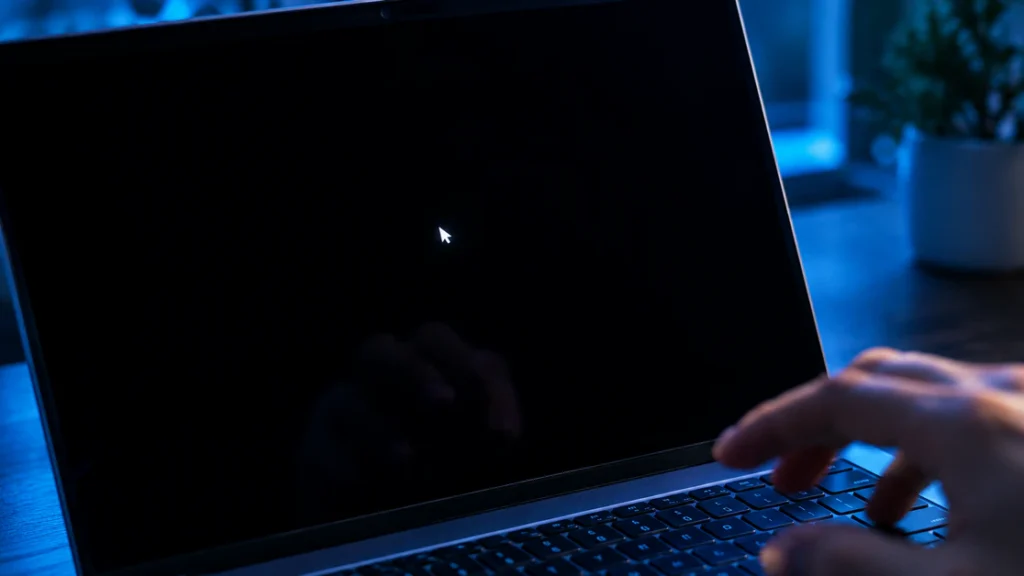
Windows Explorer the process responsible for your desktop and taskbar failed to launch after login. This is the most common of the three failures, and it’s usually triggered by a Windows update, a graphics driver update, or a program that hooks into the shell on startup. Some antivirus tools and third-party launcher apps do exactly this.
Press Ctrl+Shift+Win+B first. This restarts the graphics driver without touching anything else, and it resolves a surprising number of these cases in under two seconds you’ll see the screen flicker once as the driver restarts.
If nothing happens, open the Task Manager directly with Ctrl+Shift+Esc. Click File → Run new task, type explorer.exe, and press Enter. This manually restarts the shell process. Your desktop should reappear immediately, and any background apps you had open stay running so you don’t lose your work.
If the Task Manager won’t open, press Ctrl+Alt+Del instead. You should get a blue options screen with Task Manager listed. If even that doesn’t respond, you’re looking at version three, below, not this one.
Once you’re back in, check Settings → Windows Update → Update history. If a cumulative update was installed right before this started, that’s very likely your cause. Uninstall that specific update from the same screen instead of waiting for it to happen again on the next reboot. [LINK: graphics driver troubleshooting post →]
Why is my screen completely black with no cursor?
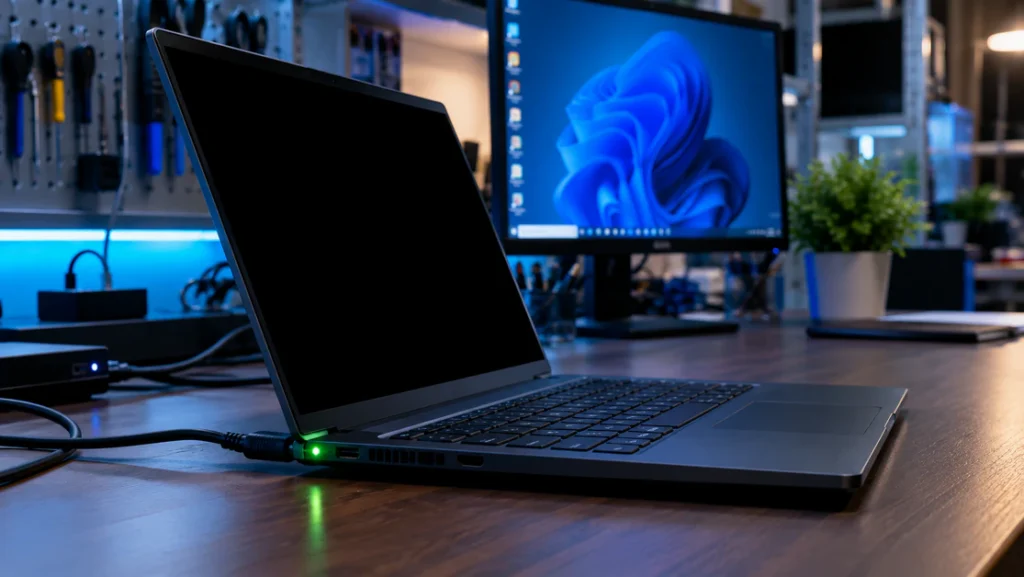
A fully black screen with nothing responding is a display-output or power problem more often than a software one. Check the physical side before touching any settings.
- Desktop PC: confirm the monitor cable is plugged into the graphics card, not the motherboard’s onboard video port, if you have a dedicated GPU installed. Plugging into the wrong port is one of the most common causes of “nothing on screen,” and it gets mistaken for a Windows problem constantly.
- Laptop: hold the power button for a full 10 seconds to force a shutdown, then power on again. If you get a backlight and a logo this time, the previous session hung during a driver load, and this isn’t a repeat problem unless it keeps happening.
- Try an external monitor if you have one. If the external display shows Windows fine but the built-in laptop screen stays black, the fault is the laptop’s screen backlight, inverter, or display cable, not Windows. This is a hardware repair, and it usually traces back to a loose or damaged display cable at the hinge check whether the laptop’s been dropped recently, or whether the lid’s been opened at an awkward angle. [LINK: laptop screen backlight/cable replacement cost article →]
If external output also shows nothing and the fans are spinning, that leans toward a genuine boot failure. Move to the next section.
Why does Windows get stuck before the login screen ever appears?

The Windows logo or spinning dots never progress to sign-in because the OS itself hasn’t finished booting. You need the Windows Recovery Environment (WinRE), Windows’ built-in repair toolkit that runs independently of your normal installation.
To force WinRE open: turn the PC on, and as soon as you see the Windows logo, hold the power button for 10 seconds to force it off. Do this three times in a row. On the third attempt, Windows detects the failed boots automatically and loads the Automatic Repair screen instead of trying to boot normally again.
From there:
- Click Advanced options.
- Select Troubleshoot → Advanced options.
- Try Startup Repair first. It’s the least invasive option, and it fixes a genuine share of boot failures related to a corrupted boot configuration file on its own.
- If that doesn’t work, go back into Advanced options and try Startup Settings → Safe Mode. Getting into Safe Mode confirms the core OS is intact, and the problem is a driver or startup program rather than disk corruption.
- If Safe Mode loads, open Device Manager and check for a graphics driver with a yellow warning icon. Rolling back or uninstalling a recently updated graphics driver from here resolves a large share of these boot-to-black-screen cases.
If none of that works, System Restore (also inside Advanced options) rolls the system back to a point before the problem starts as long as restore points exist. Not every PC has this enabled by default; some manufacturers ship with System Protection turned off.
Is this connected to a specific Windows update?
Yes, and it’s worth checking directly. In January 2026, a Windows 11 cumulative update caused a documented batch of 24H2 and 25H2 systems to fail to boot entirely, showing the stop code UNMOUNTABLE_BOOT_VOLUME instead of reaching sign-in. Microsoft’s fix required uninstalling that specific update from WinRE’s command line. If your problem started right after a Patch Tuesday update, checking Update history for a recently installed security patch and uninstalling it from Advanced options is worth doing before anything more drastic.
When is it not worth troubleshooting further yourself?
If you’ve been through Startup Repair, Safe Mode, and a driver rollback and you’re still stuck, two realistic paths remain: a full “Reset this PC” that keeps your files but reinstalls Windows, or a repair shop that can check the drive itself. A failing SSD or hard drive can produce every symptom in this guide, including the black-screen-with-cursor version, once it starts dropping sectors that Windows needs to read during boot. [LINK: SSD/storage failure post →]
A quick way to check the drive before resetting anything: from WinRE’s command prompt, run chkdsk C: /f. If it reports and repairs a large number of bad sectors, that’s your actual answer. No amount of driver troubleshooting fixes a dying drive it needs replacing.
FAQ
Why did my Windows login screen stop appearing overnight with no update installed?
The most common cause without an update involved is a background process or scheduled task crashing during an idle restart. Check Task Scheduler once you’re back in for anything set to run automatically overnight. Also check whether Fast Startup is enabled, under Control Panel → Power Options → Choose what the power buttons do it occasionally causes a corrupted hibernation state that looks identical to this.
Can a failing hard drive cause the login screen to disappear like this?
Yes. A drive with bad sectors in the area Windows reads during boot can produce anything from a hang at the logo screen to a black screen with a working cursor, depending on which files it fails to read. Running chkdsk from WinRE is the fastest way to rule this in or out.
Will resetting my PC delete my files?
“Reset this PC” from Advanced options lets you choose to keep personal files or remove everything. Keeping files is generally safe for this problem, since the fault is almost always in Windows system files, not your documents. Still, back up anything irreplaceable first if you can reach WinRE’s command prompt to copy files off before resetting.
Why is my Windows 11 login screen black specifically after a January 2026 update?
This matches a known issue tied to a January 2026 Windows 11 cumulative update, which left some 24H2 and 25H2 systems stuck at a black screen with the stop code UNMOUNTABLE_BOOT_VOLUME instead of reaching sign-in. The fix is entering WinRE and uninstalling that update from the command line Startup Repair alone usually won’t clear it, since the problem is the update package itself, not a corrupted boot file.
Expert Verdict: Of the three failure modes covered here, the shell-crash version (black screen, working cursor) is the one we see resolved fastest at screendotfix.com usually inside two minutes with the Explorer restart. The boot-failure version tied to a bad update is the one that eats the most time, because Startup Repair often reports success without actually fixing the underlying cause, and people reboot straight into the same failure.
Editor Note: This guide was checked against Microsoft’s own WinRE documentation and current community reports on the January 2026 update issue before publishing, and will be revisited if a new Windows Update introduces a different pattern of login-screen failure.
Author Note: I’m James, and I run screendotfix.com. The three-way split at the top of this guide is the first thing I check on every one of these calls; the fix for one does nothing for the other two, and most guides jump straight to “try Safe Mode” without figuring out which problem you’re actually looking at first.