
Laptop On But Screen Black? Do the Flashlight Test First
A laptop that is on with a black screen usually has a failed backlight, a loose display cable, or a crashed graphics driver. James at screendotfix.com separates these three in about a minute using a flashlight and an external monitor.
A faint image under a flashlight means the backlight failed. A working external monitor means the laptop is healthy and the built-in panel or cable is the problem. No picture on either screen points to software, RAM, or the motherboard.
The 30-Second Flashlight Test That Splits This Problem in Two

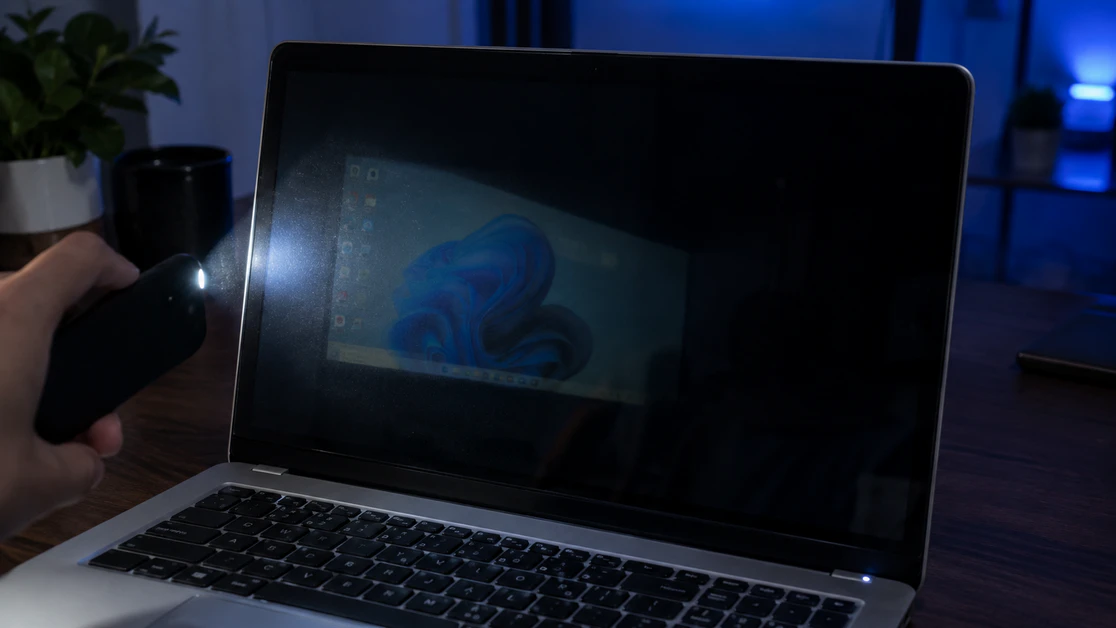
The flashlight test tells you whether your laptop is producing a picture at all. Dim the room and boot the laptop.
Wait until the fans settle, then hold a phone flashlight at a sharp angle close to the glass. If you can see a ghost of the login screen or desktop, the panel works and the backlight is dead.
Pure black under the light means the laptop is not sending a picture, or the panel itself has failed. Either way, the table below tells you where to go next.
| What you see | Most likely cause | Start with |
| Faint image under flashlight | Backlight or backlight power fault | Fix 4, then professional repair |
| Laptop screen black, external monitor works | Display cable, panel, or graphics driver | Fixes 2, 4, and 6 |
| Picture returns after Windows + Ctrl + Shift + B | Graphics driver crash | Fix 2 |
| No picture on any screen, fans spinning | Stuck power state, RAM contact, GPU, or motherboard | Fixes 3 and 5 |
| Black screen with a moving mouse cursor | Windows profile or system file problem | Windows section below |
Why Is My Laptop Screen Black but the Fan Is Running?
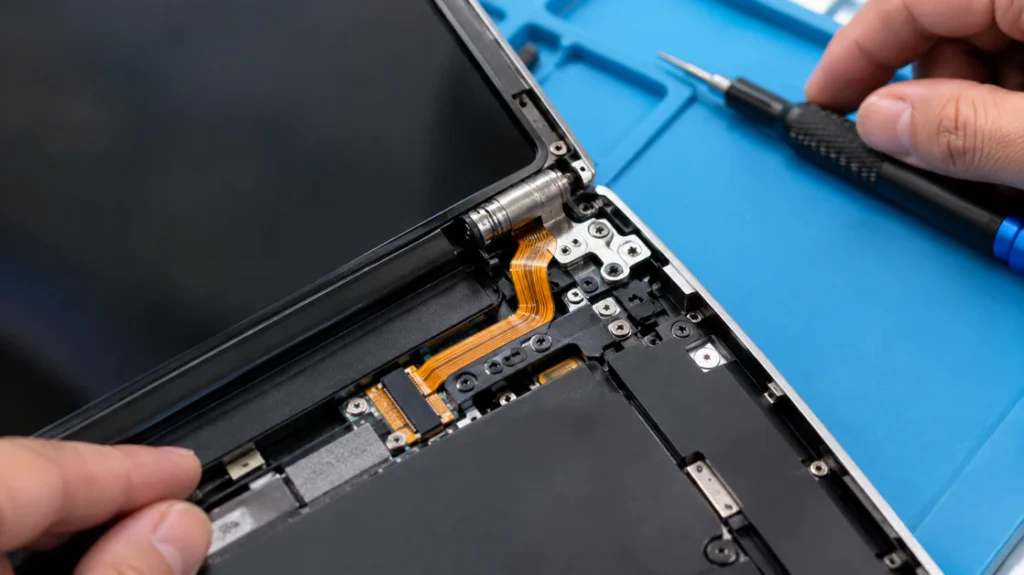
A running fan only proves the motherboard has power, not that the display chain works. The picture travels from the GPU (graphics processor) through a display cable and the panel, and the backlight lights it from behind.
Any one broken link gives you a black screen and a laptop that sounds perfectly alive. Here are the five links that fail most often.
Failed Backlight
A failed backlight leaves a working image that is simply too dark to see. The flashlight test exposes it every time.
On most modern laptops the backlight is built into the panel. That usually turns the repair into a panel replacement rather than a small part swap.
Loose or Worn Display Cable
A worn display cable (the thin ribbon that carries video and backlight power through the hinge) causes black screens that come and go with lid movement. The ribbon flexes every time you open the laptop.
If the screen flashes back to life when you tilt the lid, suspect the cable first. The same hinge ribbon also causes a laptop screen half white problem when it only partly disconnects.
Crashed Graphics Driver
A graphics driver crash leaves Windows running while the display shows nothing. It often appears right after a Windows Update or a wake from sleep.
The giveaway is timing. The screen was fine yesterday, an update installed overnight, and the black screen showed up this morning.
Stuck Power State or RAM Contact Problem
A laptop can hold leftover charge in its board and refuse to start the display properly. A hard reset drains that charge and clears it.
Poorly seated RAM causes a similar picture. The fans spin, the lights come on, and nothing ever appears on screen.
GPU or Motherboard Fault
A failing GPU or motherboard is the least common cause and the one to rule out last. If nothing shows on the laptop screen or an external monitor, this cause moves up the list.
Machines with a separate graphics chip and a history of overheating are the usual suspects. Repair cost here often exceeds what an older laptop is worth.
How Do I Fix a Laptop That Is On With a Black Screen?
Work through these six fixes in order, because each one is free or cheap and rules out a whole category. Stop as soon as the picture returns.
Fix 1: Rule Out the Boring Stuff (2 Minutes)
Check brightness, sleep mode, and the display output before anything else. In a bright room, a screen at minimum brightness looks exactly like a dead one.
Press the brightness-up key several times. Press the display-toggle key too, usually Fn plus F4 or F8, since some laptops send the picture only to an attached external screen.
Unplug anything connected to the laptop first. Then tap the power button once in case the machine simply went to sleep.
Fix 2: Reset the Graphics Driver With a Keyboard Shortcut (30 Seconds)
Press Windows + Ctrl + Shift + B together to restart the Windows graphics driver. The screen may flicker and you may hear one short beep.
This only helps if Windows is actually running behind the black screen. It costs nothing and resolves many post-update black screens, so it earns second place.
Fix 3: Drain Stuck Power With a Hard Reset (5 Minutes)
A hard reset clears leftover charge that can stop the display from initializing. Unplug the charger, remove the battery if yours is removable, and hold the power button for 30 seconds.
Wait a minute, then connect the charger only and power on. If the picture returns, shut down, reinsert the battery, and restart.
Fix 4: Test With an External Monitor and Reinstall the Driver (10 to 15 Minutes)
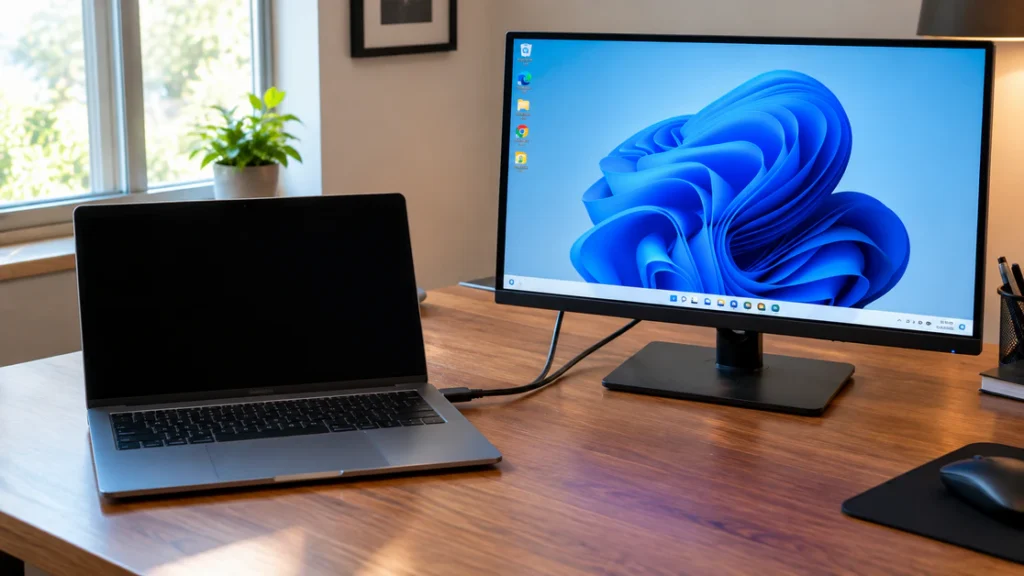
Connecting an external monitor is the single most useful test in this guide. Use HDMI or DisplayPort, choose the right input on the monitor, and boot the laptop.
If the external screen shows your desktop, the laptop is producing video. Press Windows + P and choose Duplicate to see if the built-in screen wakes up.
Then reinstall the driver from the external screen. Open Device Manager, expand Display adapters, right-click your graphics adapter, and choose Uninstall device.
Restart and let Windows reinstall it. If the black screen starts after an update, open the same adapter’s Properties, click the Driver tab, and select Roll Back Driver instead.
Fix 5: Reseat the RAM (15 to 20 Minutes)
Reseating the RAM fixes black screens where fans spin and nothing else happens. Shut down fully, unplug the charger, and remove the RAM cover on the underside.
Press each module out of its slot and push it back until it clicks. Many thin laptops solder the RAM to the board, so check your model’s service manual first.
Skip this fix if the back panel is glued or you have no access without heavy disassembly. A wrong move here costs more than the fix is worth.
Fix 6: Check the Hinge Cable With the Flex Test (5 Minutes)
Slowly open and close the lid while the laptop is on and watch for any flash of a picture. A flicker at a particular angle confirms a worn cable or a loose connector.
Do not press or squeeze the screen during this test. If the picture appears at one angle only, stop using the lid as a handle and book a repair.
Is Windows Actually Running Behind the Black Screen?
Yes, in many cases Windows runs perfectly and only the display path fails. You can check without seeing anything.
Press the Caps Lock key and watch its light. If it toggles, the keyboard is talking to a working system.
Press Ctrl + Alt + Del and wait about two minutes. If a menu or sound response follows, Windows loaded and the display driver is the likely problem.
A black screen with a working mouse cursor is a different case. That usually points to a corrupted user profile or system files rather than the screen.
If nothing responds and the fans roar without ever settling, the laptop is probably not completing startup. That points back toward RAM or the motherboard.
Why Did My Laptop Screen Go Black After Sleep or a Windows Update?
A laptop screen that goes black after an update almost always means the new graphics driver failed to load properly. The machine wakes, Windows runs, and the display never reconnects.
Try Fix 2 first, then Fix 4 with the roll-back option. If the black screen keeps returning after sleep specifically, download the driver from your laptop maker’s support page rather than a third-party tool.
A driver fix that lasts a day and then fails again suggests the cable or panel is the real problem. From what we see at screendotfix.com, this pattern is a common trap.
Does This Work on a MacBook?
A MacBook with a black screen needs different steps, so do not use Windows shortcuts on it. On Apple Silicon, hold the power button until startup options appear, then choose an option to boot.
Run the same flashlight test and the same external monitor test, since both work on any laptop. Before paying for a repair, check your warranty status at Apple’s coverage checker, because display faults are sometimes covered.
Is Repair Actually Worth It?
Repairing a laptop black screen is worth it when the fix costs well under the price of a comparable replacement. The number that matters is what the fault turns out to be.
| Repair | Typical US cost | Is it worth it? |
| Display cable replacement | About $30 to $80 | Usually yes |
| Backlight repair (professional) | About $100 to $200 | Often yes on newer laptops |
| Screen replacement, installed | About $180 to $240 in many shops | Yes if the laptop is under 4 or 5 years old |
| Broad range for panels on our earlier guides | $100 to $400 | Depends on model and touch panel |
| Motherboard or GPU repair | Often close to a new laptop’s price | Rarely on older machines |
An older laptop that would sell for less than the quote is usually better replaced. Keep the old one as a desktop by attaching an external monitor.
If dots or lines appeared before the screen went black, our laptop green dots fix guide covers the panel checks that separate a driver problem from a cable problem.
What Mistakes Make a Black Screen Worse?
Most of the damage I see comes from people trying too hard in the first ten minutes.
- Pressing hard on the screen or bezel to “wake” the display, which cracks panels and loosens connectors.
- Prying the bezel open before running the external monitor test.
- Reinstalling Windows when the external monitor would have proved the screen was the problem.
- Ordering a replacement panel without checking the exact model and resolution.
- Assuming the data is gone. A black screen almost never means the drive is damaged.
How Do I Prevent This From Happening Again?
Small habits protect the hinge cable and driver more than any repair does.
- Open and close the lid from the center, not one corner.
- Do not carry the laptop by the screen edge.
- Let the laptop cool for a few minutes after gaming before shutting the lid.
- Install graphics drivers from the laptop maker, not a third-party updater.
- Keep vents clear on a hard, flat surface.
- Restart fully once a week instead of using only sleep.
Expert Verdict
Most black-screen-but-powered laptops turn out to be a display-side fault, not a dead computer. In our testing at screendotfix.com, the flashlight test and the external monitor test together separate the cause in a few minutes.
James’s finding at screendotfix.com is simple: the answer lies in whether an image exists anywhere. If it does, your laptop is likely fine and the repair is small.
FAQ
Why is my laptop on but the screen is black?
A laptop that is on with a black screen most often has a failed backlight, a loose display cable, or a crashed graphics driver. The flashlight test and an external monitor tell you which one within minutes.
Why is there no display on my laptop but the fan and lights work?
No display with a running fan means the motherboard has power but the display chain is broken somewhere. Start with a hard reset, then test an external monitor.
Will I lose my files if my laptop screen stays black?
Your files are almost always safe, because a black screen is usually a display fault and the storage drive is separate. You can copy them using an external monitor or by connecting the drive to another computer.
Can a laptop screen go black from a Windows update?
A Windows update can turn the screen black by installing a graphics driver that fails to load. Press Windows + Ctrl + Shift + B, then roll back the driver from Device Manager if it persists.
How much does it cost to fix a laptop that turns on but has no display?
Fixing a laptop with no display usually costs about $30 to $80 for a cable and $100 to $240 for a backlight or panel repair. The exact price depends on the model and where you get it fixed.
Run the flashlight test first, and let the result decide everything that follows. If you see any image at all, whether faint on the built-in screen or clear on an external monitor, the laptop itself is very likely fine and the repair is small.
Disclaimer: This guide is for general troubleshooting. Opening a laptop can void warranty coverage, so check your terms before any hardware step.
Editor Note: Costs are typical ranges and vary by model, region, and shop.
Author Note: James is the founder of screendotfix.com, a free repair guide site for phone, laptop, and monitor screens. He writes from years of hands-on display repair work.
Article Summary: A laptop that is on with a black screen usually has a failed backlight, a loose display cable, or a crashed graphics driver. A flashlight test and an external monitor test separate these causes in minutes. Cable repairs cost about $30 to $80, and backlight or panel work about $100 to $240.