
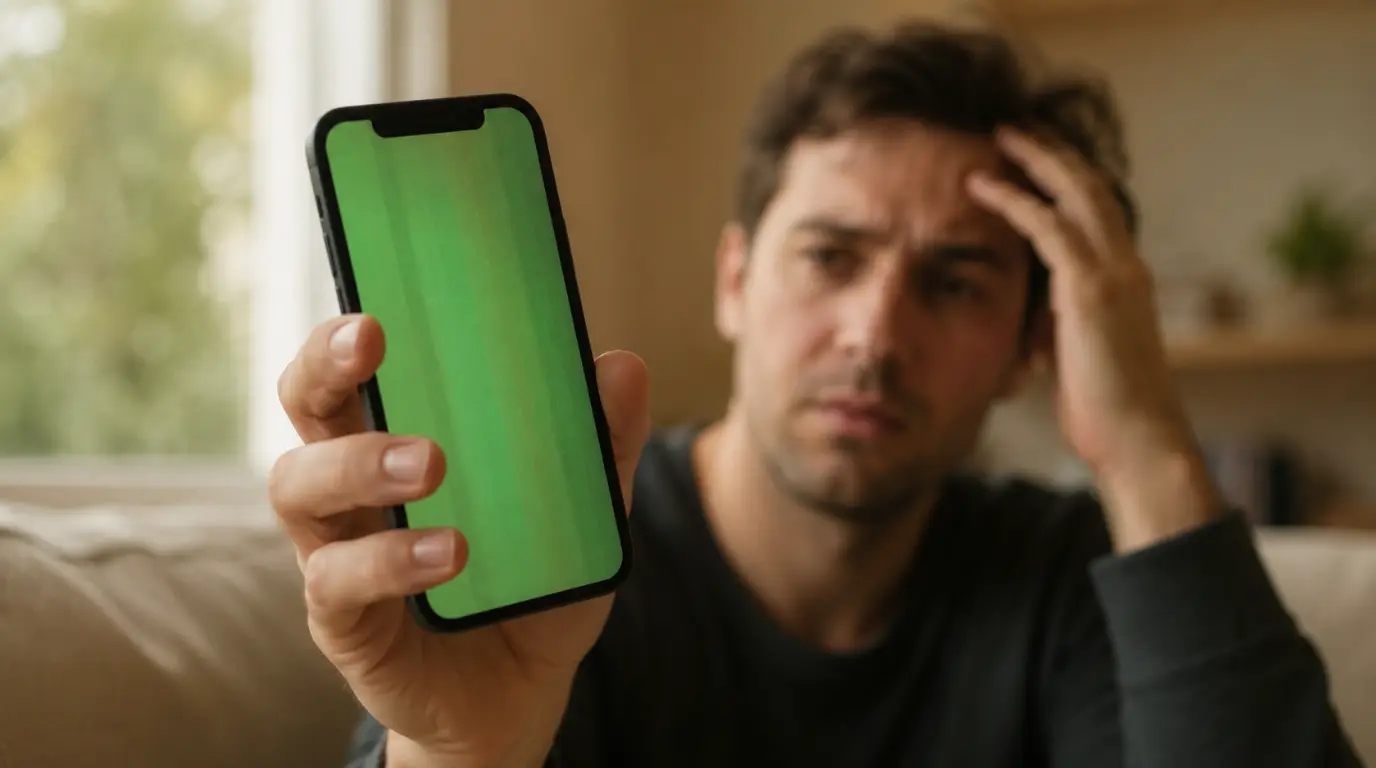
iPhone Green Screen: Real Fixes From Repair Techs
Quick Answer: An iPhone green screen is usually a software rendering bug that clears after a force restart or iOS update. If the screen stays green after Recovery Mode, the cause is almost always OLED panel damage or a loose display connector.
Repair techs see a green iPhone screen almost every week, and most cases resolve in under ten minutes without any paid repair. The alarming look rarely matches how minor the actual cause turns out to be, and understanding which type you have saves both time and money.
Which iPhone Models Are Most Affected
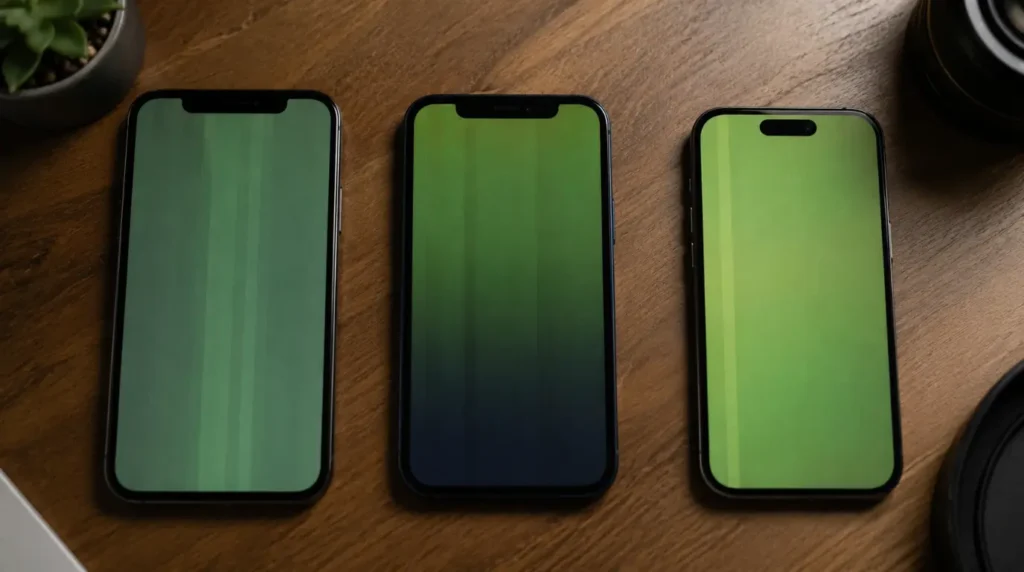
This is not a random glitch. Specific models have been tied to specific software versions in real user reports.
The iPhone 11 and 11 Pro saw a wave of green tint complaints tied to iOS 13.4 and 13.4.1, where the screen flashed green briefly after unlocking following idle periods. The iPhone 12 series had its own display defect reports, with users describing patches of green and gray glowing in dark scenes, especially at brightness below 90 percent. The iPhone 13 and 13 Pro Max were hit hardest during iOS 15.4, 15.5, and 15.6, with entire Apple Community threads full of users whose screens turned solid green with no warning. More recent reports point to iPhone 14 and 15 users after iOS 17 and 18 point updates, and even iOS 26 has generated fresh complaints on Reddit and Apple’s own discussion boards.
The pattern across all of these cases is the same. A software update changes how the OLED display driver behaves, and the screen renders green instead of the correct colors until Apple patches it or the user forces a reset.
Why Your iPhone Screen Actually Turns Green
Several distinct faults produce the same green tint, and each one leaves a different clue behind. Matching your symptom to the right cause saves you from paying for a repair you do not need.
iOS Rendering Bug (Most Common)
A flawed iOS update can misfire the color pipeline on OLED-equipped iPhones, painting part or all of the screen with a green cast. This version shows up clearly in screenshots and almost always disappears once Apple ships a point release update. This has been the leading cause across every iPhone generation with an OLED screen, from the iPhone X onward.
OLED Panel Damage From a Drop
iPhones from the iPhone X onward use OLED panels, which are more sensitive to physical shock than the older LCD screens. A hard drop can fracture the organic layer inside the panel or damage internal wiring without cracking the outer glass. The green patch in this case stays fixed in one area, worsens over time, and never appears in a screenshot.
GPU Thermal Panic
Overheating or poor battery health can trigger what is effectively a graphics panic, briefly corrupting the display output. This is confirmed by checking Battery Health for a note that says performance management has been applied. It is one of the least discussed causes online, but repair technicians report it regularly, especially on older devices with degraded batteries.
Loose or Damaged Display Connector
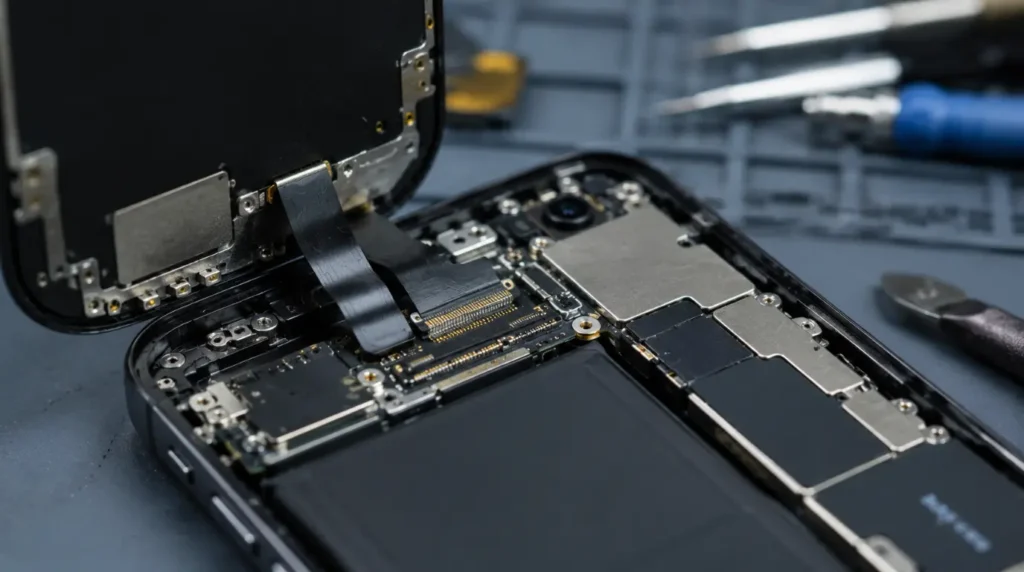
Inside the phone, the OLED panel connects to the logic board through a small ribbon cable. A drop, repeated thermal expansion, or manufacturing stress can shift this connector just enough to cause a green tint or green lines. This is confirmed when the tint changes as you gently press or flex the phone near the screen edge.
Water or Moisture Exposure
Even though modern iPhones carry water resistance ratings, that protection weakens with age. Moisture reaching the display connector can cause a green discoloration that develops gradually or shows up suddenly after a liquid exposure event, often getting worse over following weeks as corrosion sets in.
Uncertified Replacement Screen
A non-Apple screen installed during an earlier repair can conflict with the phone’s display driver software. This cause is almost never covered in generic troubleshooting guides, but repair shops report it constantly among customers who had a previous cheap screen swap.
How to Confirm What You Are Dealing With
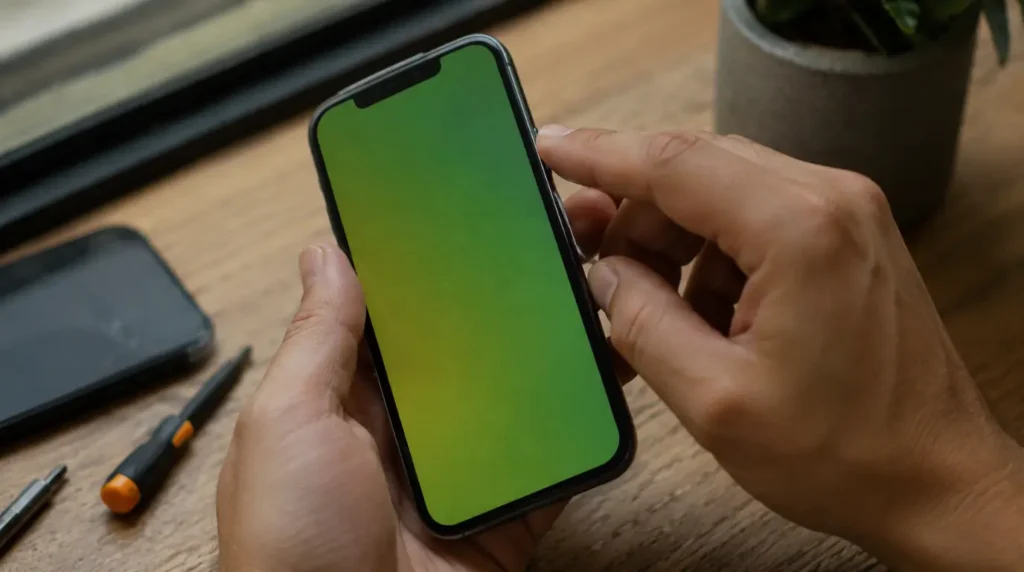
- Take a screenshot using Side button plus Volume Up. Open it on another device. If the green tint appears in the screenshot, the cause is software, not hardware.
- Open Settings, then Battery, then Battery Health and Charging. A note about performance management applied points toward overheating or an aging battery as a contributing cause.
- Gently press near the top and bottom edges of the screen while it is green. A visible shift in the tint points to a loose display connector.
- Try Recovery Mode. A screen that clears completely after a full iOS reinstall confirms the problem is software, not hardware.
- Ask yourself, or the previous owner, if the screen was ever replaced by a third party. Aftermarket panels are a frequently overlooked cause.
Fixing the Green Screen: Start Here
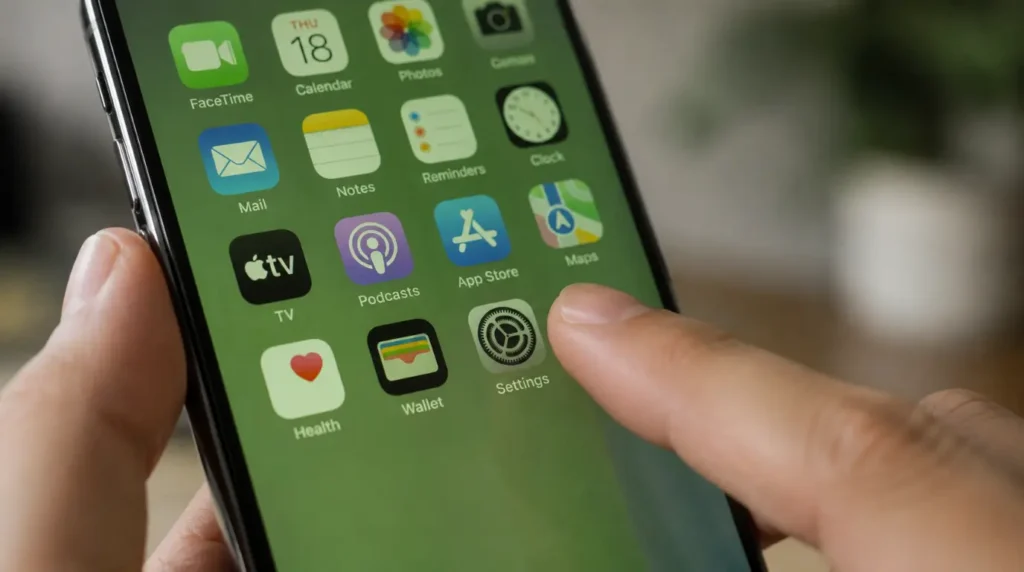
Work through these fixes in order, starting with the one that takes the least effort. Stop as soon as the green tint clears and stays away.
1. Force Restart Free, 2 minutes
On iPhone 8 and later: press and release Volume Up, press and release Volume Down, then hold the Side button until the Apple logo appears. On iPhone 7: hold Volume Down and the Side button together. On iPhone 6s and earlier: hold Home and the Side button together. This single step clears more green screen cases than any other fix.
2. Turn Off True Tone and Night Shift Free, 1 minute
Go to Settings, then Display and Brightness, and toggle True Tone off. Check that Night Shift is also disabled. A corrupted display calibration profile can produce a green or warm tint that mimics a hardware fault.
3. Check Accessibility Color Settings Free, 1 minute
Go to Settings, then Accessibility, then Display and Text Size. Confirm Color Filters is off, and that Reduce White Point and Color Tint are not enabled. These settings can produce a persistent green cast that looks identical to a real display problem.
4. Update iOS Free, 10 to 20 minutes
Go to Settings, then General, then Software Update, and install any pending version. Apple has a consistent track record of patching display rendering bugs within one or two point releases, as it did following the iOS 13.4, 15.6, and 16.6 issues.
5. Reset All Settings Free, 5 minutes
Go to Settings, then General, then Transfer or Reset iPhone, then Reset, then Reset All Settings. This clears corrupted display and accessibility settings without deleting any photos, messages, or apps.
6. Let the Phone Cool and Check Battery Health Free
Remove the case and let the phone rest for fifteen minutes before testing again. If Battery Health shows performance management applied, plan for a battery replacement to stop the issue from recurring.
7. Restore Through Recovery Mode Free, 20 to 40 minutes
Connect the iPhone to a computer, open Finder or iTunes, and enter Recovery Mode using your model’s button sequence. Choose Update first, since this reinstalls iOS without erasing data. Restore is the final option and does erase everything.
8. Screen Replacement Paid, 1 to 3 hours
If the screen still shows green after Recovery Mode, the OLED panel or its connector needs physical replacement. Apple’s out-of-warranty pricing runs roughly $229 to $379 depending on the model, while AppleCare Plus covers accidental display damage for a flat service fee. Certified third-party shops typically charge 30 to 50 percent less than Apple. Always confirm your coverage at checkcoverage.apple.com before paying anything.
When to See a Professional
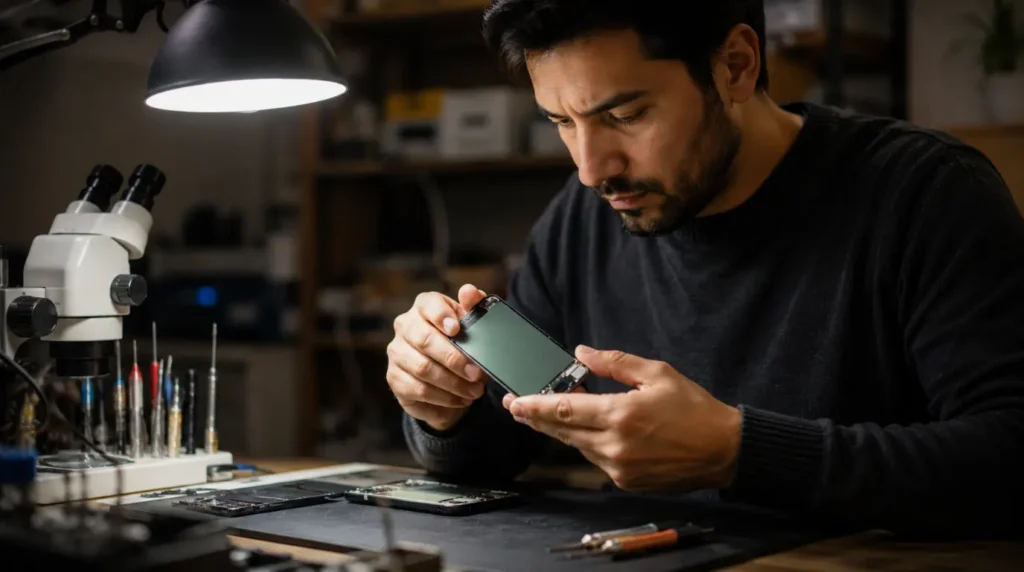
Repair shops report that most customers walking in with a green screen have already tried a restart with no luck. If pressing the screen edge changes the tint, or if Recovery Mode makes no difference at all, the fault sits in the hardware and no software step will fix it.
The standard one-year Apple warranty covers manufacturing defects, and Apple has publicly acknowledged green screen issues on specific iPhone 12, 13, and 14 batches tied to known iOS bugs, resolving many cases through free screen replacements even outside AppleCare. Ask any independent repair shop directly whether they use genuine Apple panels, since uncertified replacement glass is the single most common cause of a green screen returning after a paid repair.
Preventing Green Screen Issues
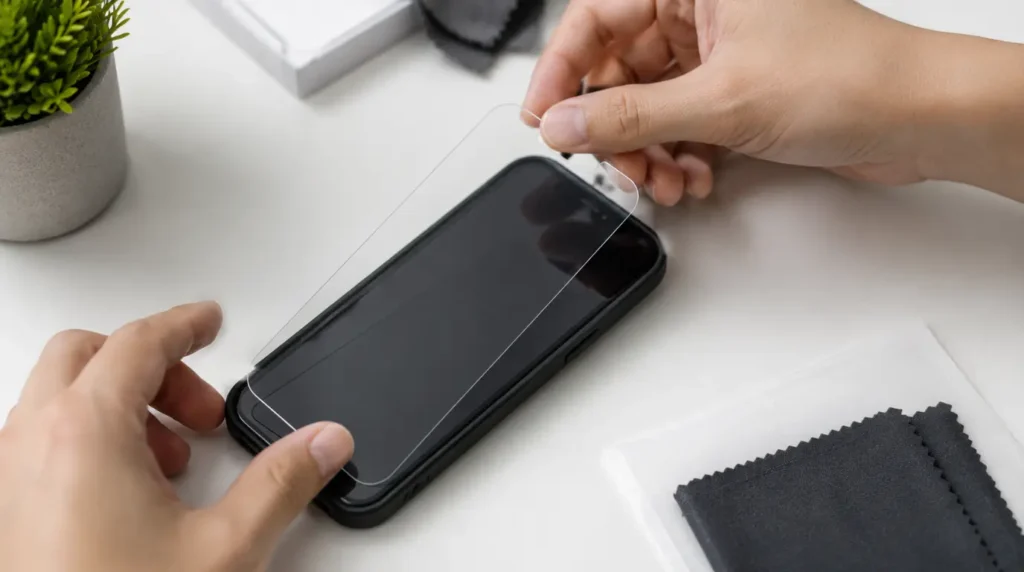
- Install iOS updates within one to two weeks of release, since Apple typically patches display bugs quickly once enough reports come in.
- Use a case with raised bezels to keep direct impact away from the OLED panel during drops.
- Apply a tempered glass screen protector to absorb minor impact forces before they reach the panel.
- Only allow certified technicians to replace a cracked screen with a genuine Apple display.
- Check Battery Health every few months and address performance management warnings before they affect the display.
- Avoid installing an iOS update while the phone is hot or actively charging, since heat can interact poorly with the display driver during the update process.
Frequently Asked Questions
Why did my iPhone screen turn green suddenly?
A sudden green screen is almost always a software glitch, particularly if it appeared right after an iOS update or restart. Force restart the phone first, and only suspect hardware damage if it appeared after a drop or liquid exposure.
Is the iPhone green screen covered under warranty?
Yes, if it results from a manufacturing defect or a known iOS bug that Apple has acknowledged, as it did with iPhone 13 and 14 models. AppleCare Plus covers accidental display damage for a flat service fee, and you can verify your exact coverage at checkcoverage.apple.com.
Can the green screen come back after being fixed?
If it was fixed through a software update or reset, it can return if the underlying iOS bug resurfaces in a later version. If fixed with a genuine Apple screen replacement, it will not return from that specific cause, but an uncertified replacement screen is a common reason it comes back after a cheap repair.
Why does my iPhone 13 keep getting a green screen?
The iPhone 13 series was disproportionately affected by iOS 15.4 and 15.6 bugs. If you are still on an older iOS version, update immediately. If the problem continues on the latest iOS, book a free diagnostic at an Apple Store if the device is still under warranty.
Expert Verdict
A green iPhone screen looks like a disaster but resolves without a repair bill in the majority of cases. Run the screenshot test first, work through the software fixes in order, and only book a hardware repair once Recovery Mode fails to clear it completely.
Editor Note Reviewed for technical accuracy by the screendotfix.com editorial team. Pricing reflects current market rates and may vary by region and model.
About the Author James, Founder of screendotfix.com, has spent over 10 years diagnosing display hardware and software issues across major device brands.