
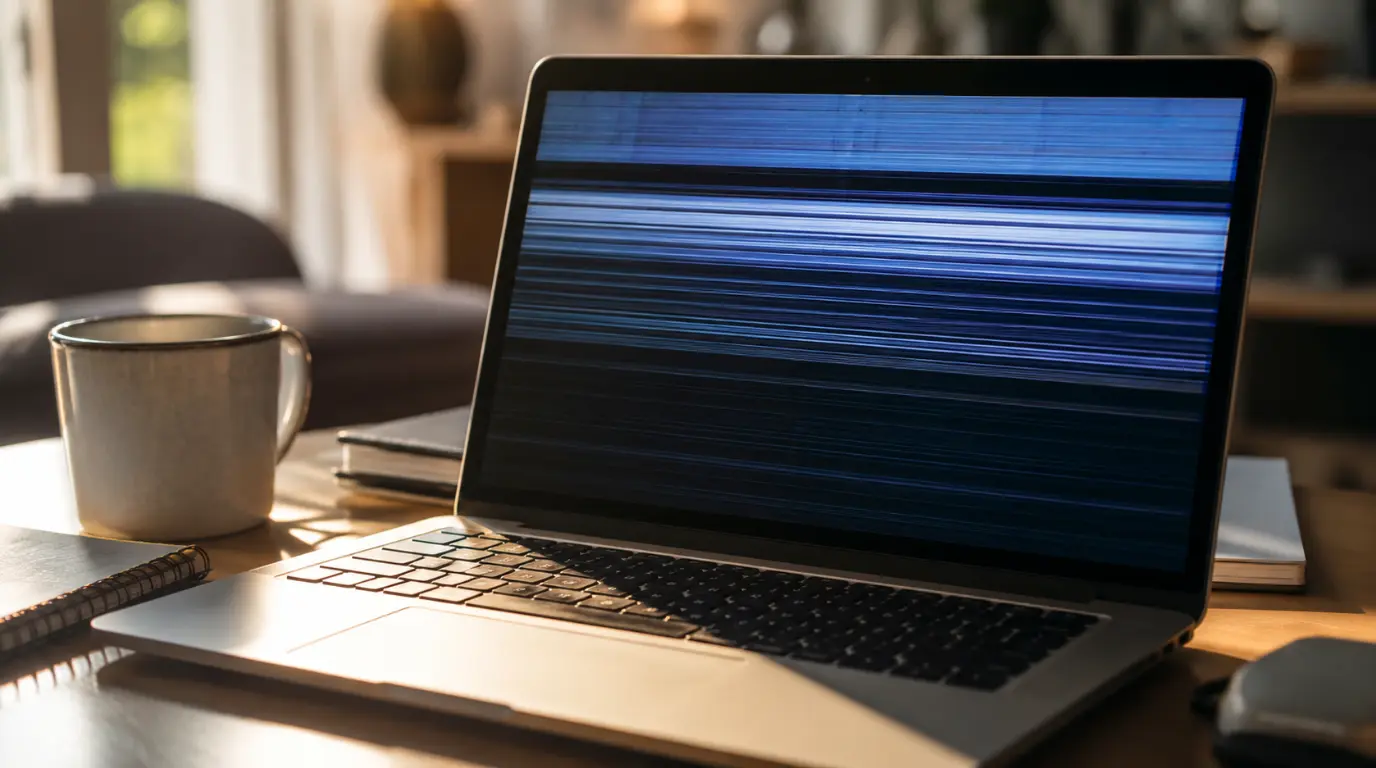
Acer Laptop Screen Flickering: The Real Fix Guide
Acer laptop screen flickering usually traces back to five causes. These are an outdated GPU driver, a worn hinge cable, a refresh rate mismatch, low brightness PWM, or a failing backlight. Match your flicker to when it happens and you can identify the cause in under two minutes.
The flicker on your Acer started small. It was easy to ignore at first.
Now it shows up almost every time you open a video or plug in the charger. It feels like it is getting worse, not better.
A restart used to fix it for a while. That trick stopped working, and that change is actually the most useful clue you have.
Why Your Acer Screen Actually Starts Flickering
Most Acer flickering falls into one of five simple categories. Each one leaves a different clue you can spot without opening the laptop.
1. An Outdated or Corrupted GPU Driver
The GPU driver is the small program that tells your screen how to display everything. A Windows update can leave that driver out of sync with your display hardware.
This mismatch is the single most common trigger for Acer screen flickering. It is also the easiest one to fix, since it needs no tools and no cost.
Confirming symptom: Task Manager flickers along with everything else on the desktop.
2. A Worn Flex Cable at the Hinge
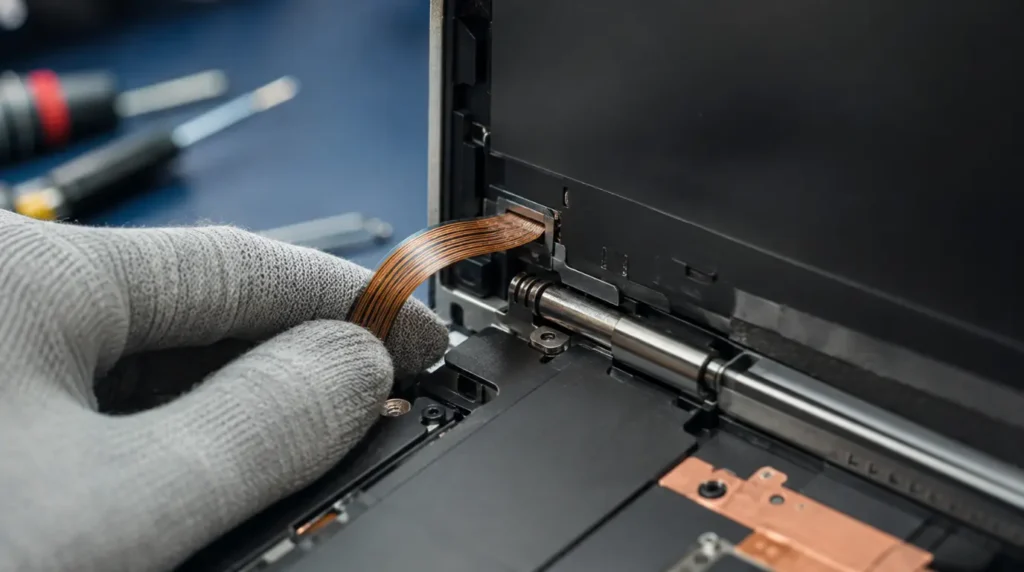
A thin ribbon cable runs from the motherboard, through the hinge, and up to the screen. Every time you open or close the lid, that cable flexes a little.
Do that thousands of times and the cable can fray or come loose. This is a hardware problem, not a software one, so drivers will not fix it.
Confirming symptom: black and white static lines appear or worsen when you move the lid.
3. A Recent Keyboard or Palm Rest Repair
Opening the laptop case for a keyboard or palm rest swap means working right next to the display cable connector. It is easy for a technician to bump that connector without meaning to.
Owners often notice flickering that starts right after this kind of repair. It rarely clears up on its own, because the connector never got fully reseated.
Confirming symptom: the flicker began within days of a repair, not gradually on its own.
4. A Refresh Rate Mismatch
Refresh rate is how many times your screen redraws the image each second. Acer gaming models like the Nitro 5 support fast 144Hz and 165Hz panels.
Windows sometimes defaults to a slower 60Hz setting anyway. That mismatch between what Windows expects and what the panel can do shows up as flicker.
Confirming symptom: flickering is worse in fullscreen games or videos and calmer on the desktop.
5. Low Brightness PWM Flicker
Many Acer backlights dim the screen by switching the light on and off very fast, a method called PWM. Your eyes cannot see the switching directly, but they can sense the effect.
At low brightness that fast cycling becomes noticeable as a faint, steady flicker. It usually calms down once you turn the brightness up.
Confirming symptom: the flicker fades or disappears once you raise the brightness above 50 percent.
| Cause | Confirming Symptom | Fix Difficulty |
| Outdated GPU driver | Task Manager also flickers | Easy |
| Worn hinge flex cable | Static lines change with lid angle | Moderate to Hard |
| Recent keyboard or palm rest repair | Started right after service | Moderate |
| Refresh rate mismatch | Worse in games or fullscreen video | Easy |
| Low brightness PWM | Fades above 50 percent brightness | Easy |
Three Checks That Tell You Exactly What Is Wrong
Run these three checks in order. Each one rules out an entire category before you move to the next.
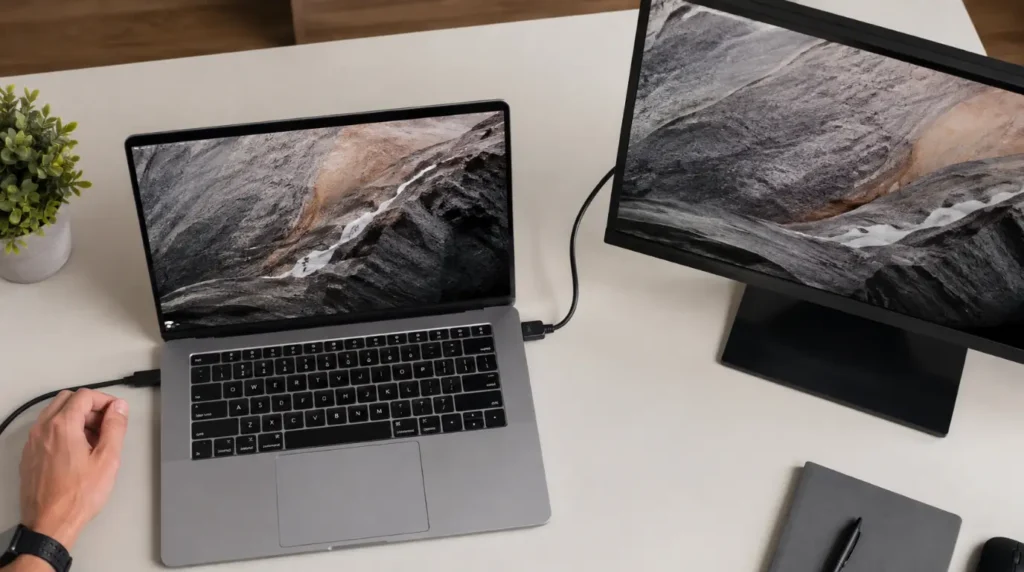
- External display check. Connect the Acer to an external monitor or TV using an HDMI cable. A clean, steady image on that external screen points to the internal panel or its cable, while a flickering external image points to the GPU driver instead.
- Lid movement check. While the flicker is happening, slowly tilt the lid back and forth. Static or flicker that changes as you move the lid confirms a hinge cable issue rather than a software one.
- Charging behavior check. Start a game or a video, then unplug the charger while it plays. Flicker that stops the instant the charger comes out points to power management, not hardware damage.
Fixes Ordered From Free to Paid
Work through these fixes in order, starting with fix one. Most Acer owners solve the problem before ever reaching fix three.
1. Update or Reinstall the GPU Driver
Cost: Free Time: 10 minutes Success Rate: High for driver related cases
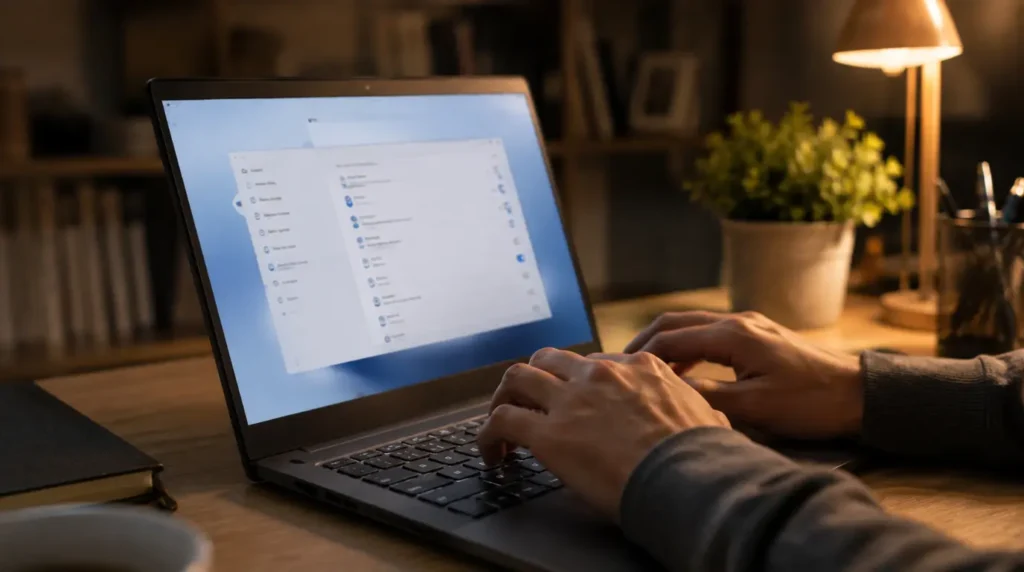
- Open Device Manager and expand Display Adapters.
- Right click your GPU, choose Uninstall Device, then restart the laptop.
- Download the latest driver directly from NVIDIA, AMD, or Intel rather than relying on Windows Update alone.
Technician note: a clean reinstall clears driver corruption that an in-place update often misses.
2. Set the Correct Refresh Rate
Cost: Free Time: 2 minutes Success Rate: High for refresh rate mismatch cases
- Right click the desktop and open Display Settings.
- Open Advanced Display and set the refresh rate to your panel’s native value.
Technician note: check your model’s spec sheet first, since some Nitro panels run at 165Hz rather than 144Hz.
3. Turn Off Hardware Acceleration in the Affected App
Cost: Free Time: 5 minutes Success Rate: Moderate, works only for app specific flicker
- Open the browser or app settings menu.
- Disable hardware acceleration and relaunch the app.
Technician note: if the flicker only ever shows up in one app, this fix alone usually resolves it.
4. Adjust Power Management Settings
Cost: Free Time: 5 minutes Success Rate: High for charging triggered flicker
- Open Power Options and select Change Plan Settings, then Change Advanced Power Settings.
- Set PCI Express Link State Power Management to Off.
Technician note: this stops the abrupt GPU power state switch that causes tearing when you plug in mid game.
5. Reseat or Replace the Hinge Flex Cable
Cost: 30 to 80 dollars Time: 30 to 45 minutes at a shop Success Rate: High once a cable fault is confirmed
- Confirm the fault with the lid movement check first.
- Have a technician open the hinge area and reseat or replace the cable.
Technician note: this is the fix that follows a keyboard or palm rest repair, since the connector is easy to bump during that service.
6. Check Your Acer Warranty Before Paying
Cost: Free Time: 5 minutes Success Rate: Not applicable, this is a coverage check
- Go to support.acer.com and enter your serial number.
- Flickering without physical damage usually qualifies as a manufacturing defect under standard coverage.
Technician note: get this confirmed before you approve any paid repair, including a cable swap.
When to Stop DIY and Call a Technician
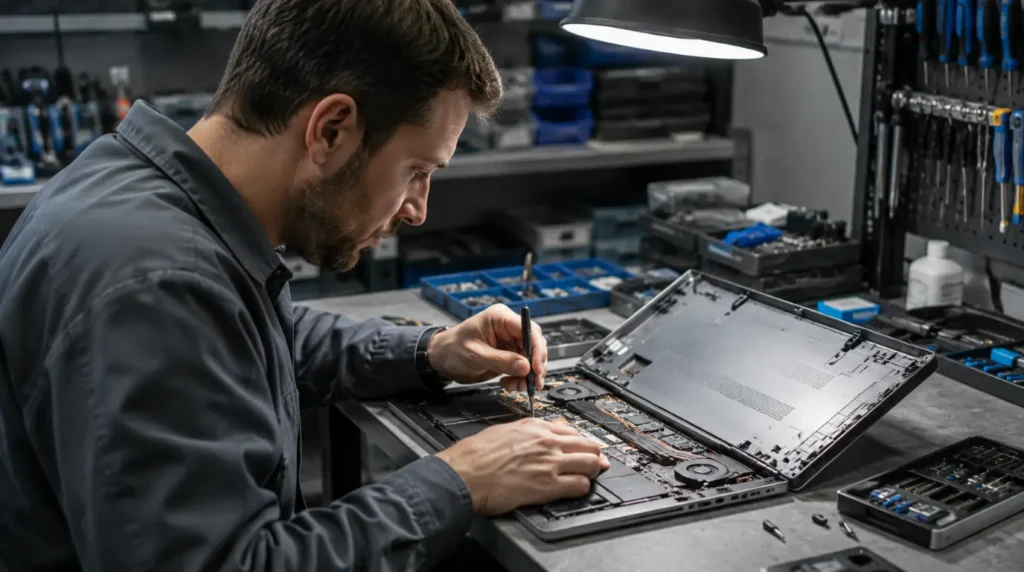
Stop troubleshooting on your own once the lid movement check confirms a cable fault. Opening the hinge assembly on modern Acer models risks the antenna wiring that runs alongside the display cable.
A repair shop can also tell you honestly whether the panel itself needs replacing. That distinction matters, since a full panel swap costs far more than a simple cable repair.
If your warranty is still active, contact Acer support before letting a third party open the unit. Doing so protects your coverage and helps you avoid paying twice for the same fix.
Stopping It From Coming Back
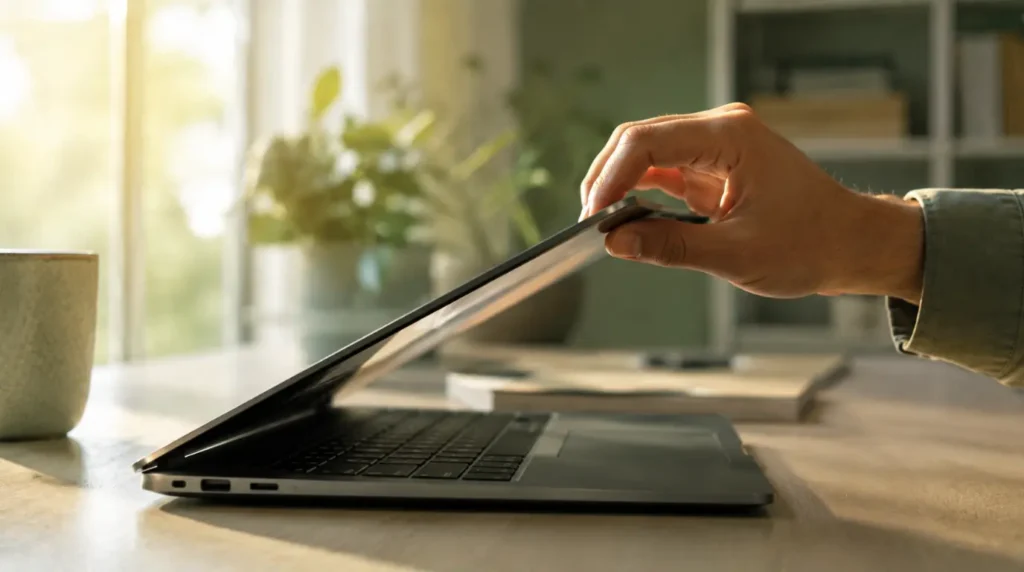
A few simple habits can stop the flicker from returning once you fix it.
- Update the GPU driver directly from NVIDIA, AMD, or Intel every few months instead of waiting on Windows Update, since manufacturer sites push fixes sooner.
- Open and close the lid with one hand near the center of the screen, not by the corner, to reduce stress on the hinge cable over time.
- Set your native refresh rate the first week you own the laptop, before you forget it ever defaulted to a slower 60Hz.
- Ask any repair shop to photograph the cable connector before and after a keyboard or palm rest service, so you have proof if flicker starts later.
- Create a system restore point before installing a new GPU driver so you can roll back instantly if the new driver causes flicker.
- Keep brightness above 50 percent when possible if your panel shows PWM related flicker at low settings, since higher brightness reduces the effect.
Common Questions About Acer Screen Flickering

Why does my screen tear and flicker only when gaming with the charger plugged in?
Plugging in mid game forces the GPU to switch power states abruptly, and that sudden switch is what you see as tearing. Turning off PCI Express Link State Power Management in Advanced Power Settings usually stops it.
Does opening my Acer to check the cable void the warranty?
It can, depending on your coverage terms and how your model is built. Check your status at support.acer.com first, and let an authorized shop handle it if coverage is still active.
My screen started flickering right after a keyboard replacement, is that normal?
It is a known side effect, not something you should just live with. The display cable connector sits close to the keyboard assembly and is easy to disturb during that repair.
Why does my screen show white static and go black only at certain angles?
That pattern almost always points to a damaged or loosely seated flex cable rather than a driver issue. The lid movement check described earlier will confirm it in under a minute.
Final Verdict

Most Acer screen flickering is free to fix and rarely means you need a whole new panel. Run the three checks first, since they point you straight to the right fix instead of leaving you guessing.
If the lid movement check confirms a cable fault, get it looked at before the connector wears further. A cable repair now is always cheaper than a full display replacement later, and it usually takes less than an hour.
Related Reading
Internal Link: Laptop Display Half Screen White: Causes and Fixes (place in Professional Repair section, backlight failure progresses to partial white screen)
Internal Link: How to Test a Laptop Screen for Hardware Failure (place in Diagnosis section, readers confirming a hardware vs software cause)
Internal Link: Acer Warranty Guide: What Is Actually Covered (place in Fix section, fix six warranty check)
Disclaimer
This guide is provided for general troubleshooting purposes only. Screen.fix.com is not affiliated with Acer, and results may vary by model, region, and laptop condition.
Editor Note
Editor Note, screendotfix.com. Reviewed for technical accuracy by the screendotfix.com editorial team.
All fixes verified against current software and firmware versions. Pricing reflects current market rates and may vary by region.
This article will be updated when new fixes are confirmed. For unresolved issues visit the Contact page on screendotfix.com.
Author Note
About the Author, James, Founder of screendotfix.com.
Over 10 years of experience diagnosing display hardware and software issues across major device brands. All content is written from direct technical experience and hands-on research conducted by the screendotfix.com team.
Free fixes are always recommended before any paid repair option.
Article Summary
- Acer screen flickering has five common causes: GPU driver, hinge cable, recent chassis repair, refresh rate mismatch, or low brightness PWM.
- Three checks (external monitor, lid movement, charging behavior) identify the cause in under two minutes.
- Software fixes are free and solve most cases; a cable repair runs 30 to 80 dollars.
- Check Acer warranty coverage before paying for any repair.