
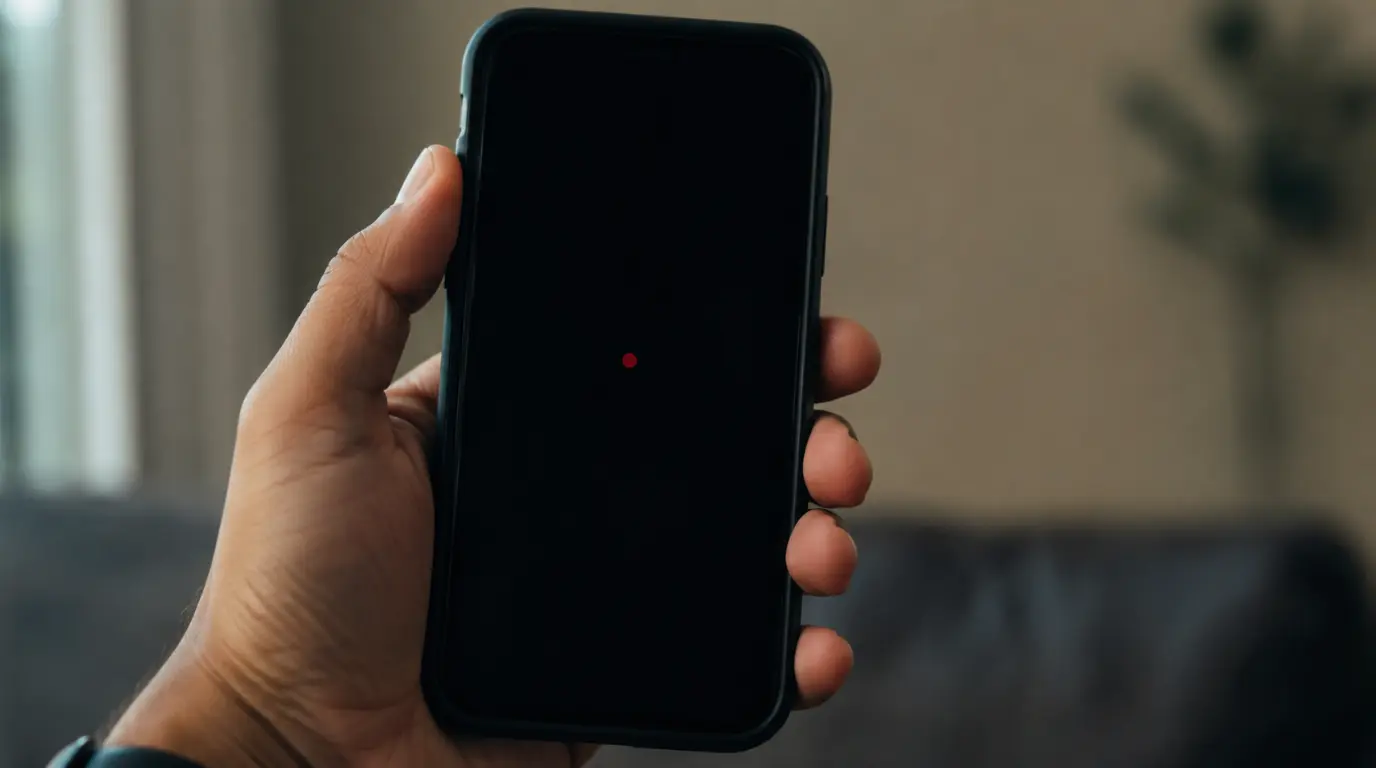
Snapchat Camera Black Screen: Why It Happens and the Real Fix Order
A snapchat camera black screen almost always means another app is still holding the camera session, or Snapchat’s camera permission was silently reset. Force-closing every camera app and reopening Snapchat clears this in most cases within seconds. If the screen stays black, clearing the Snapchat cache, checking your VPN, or reinstalling the app fixes the rest.
A phone comes across the repair bench with one complaint. Snapchat opens to a solid black square while every other camera app works fine.
Nine times out of ten the hardware is completely healthy. The camera session is just stuck, and the fix depends on catching the exact cause instead of guessing.
Why Your Snapchat Camera Turns Black
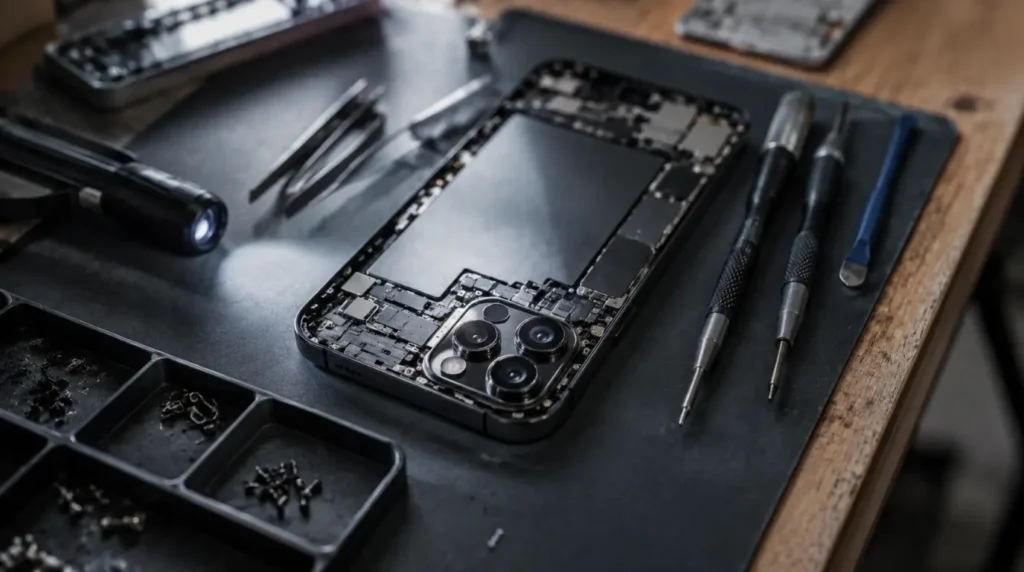
Snapchat runs its own camera engine instead of your phone’s built-in camera app. That is exactly why it can fail while every other app keeps working normally.
Another App Never Released the Camera Session
Switching straight from FaceTime, Zoom, or a video call app into Snapchat is the most common trigger on the bench. Your phone’s camera hardware only serves one app at a time, so Snapchat opens to a black viewfinder while it waits.
Confirming symptom: the black screen only happens right after using another camera app.
A Silent Permission Reset After a Phone Update
A major iOS or Android update can quietly reset per-app permissions, including camera access. Snapchat does not show an error for this; it simply renders nothing.
Confirming symptom: the problem started the same day your phone finished updating.
A Bloated Lens Cache Blocking Camera Startup
Snapchat caches every lens, filter, and story preview you touch. Once that cache grows too large or becomes corrupted, the camera module can fail to initialize on launch.
Confirming symptom: the issue appeared gradually after days of heavy lens switching.
A Camera2 API Conflict After an Android System Update
This one rarely gets covered. When Android updates its Camera2 API behavior, Snapchat’s proprietary camera code can conflict with it until Snapchat ships a patch.
Confirming symptom: it started after an Android system update, not a Snapchat update, and mainly affects custom skins like One UI, MIUI, or HyperOS.
A VPN or Firewall Blocking the Camera Handshake
Snapchat’s camera needs a live handshake with its own servers even before you record anything. Some VPN configurations and school or office firewalls quietly block that connection.
Confirming symptom: the camera works fine the moment you turn the VPN off or switch networks.
| Cause | Fast Symptom Check |
| Camera session locked by another app | Happens right after a video call app |
| Permissions reset | Started right after an OS update |
| Corrupted lens cache | Built up gradually over heavy use |
| Camera2 API conflict | Started after an Android system update |
| VPN or firewall block | Fixes itself when VPN is off |
Diagnose It Before You Touch Anything
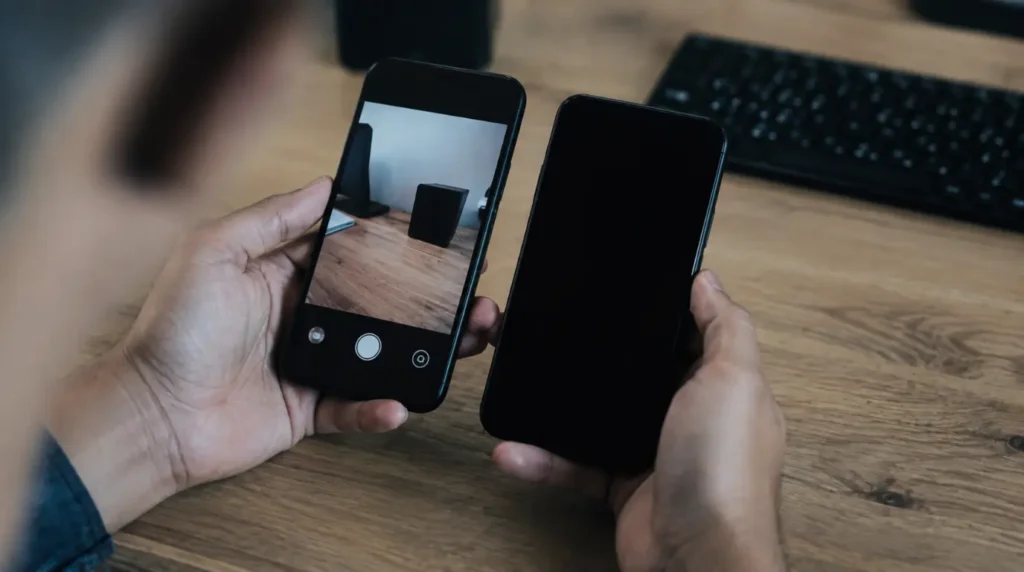
Two minutes of checking now saves you from a factory reset later. Work through these in order.
- Open your phone’s native camera app. If it is also black, this is a hardware issue, not Snapchat.
- Open Instagram or TikTok’s camera. If those work, the fault is isolated to Snapchat.
- Check Snapchat’s camera and microphone permission toggles in your phone settings.
- Turn off any active VPN and try again before changing anything else.
- Check downdetector.com/status/snapchat for a live outage before you reinstall anything.
Fix Order: Easiest to Hardest
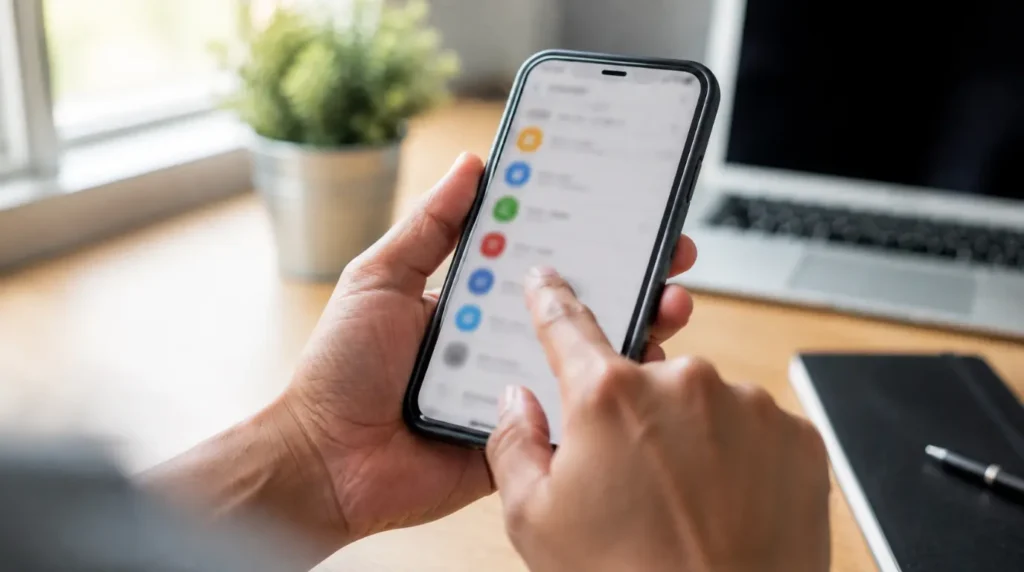
Work through these in sequence. Each one takes under five minutes and costs nothing.
1. Force-Close Every Camera App
Cost: Free | Time: 30 seconds | Success Rate: High
- Open your app switcher and swipe away every recent camera or video app.
- Wait 10 full seconds before reopening Snapchat so the hardware releases the session.
Technician note: a quick tap-back into Snapchat without this pause is the single biggest reason this fix seems to fail.
2. Reset Camera and Microphone Permissions
Cost: Free | Time: 1 minute | Success Rate: High
- iPhone: go to Settings, find Snapchat, toggle Camera off, wait five seconds, then back on.
- Android: go to Settings, Apps, Snapchat, Permissions, and set Camera to Allow.
- Fully force-close Snapchat after changing the permission, then reopen it.
Technician note: the permission change will not apply until the app fully restarts, which is a known iOS and Android behavior.
3. Clear Snapchat’s Cache
Cost: Free | Time: 2 minutes | Success Rate: Medium to High
- Open Snapchat, tap your profile icon, then the gear icon for Settings.
- Scroll to Clear Cache and confirm Clear All.
- Force-close the app completely and reopen it fresh.
Technician note: this does not touch your Memories or chat history, only local lens and preview data.
4. Turn Off Your VPN and Retry
Cost: Free | Time: 30 seconds | Success Rate: Medium
- Disable any active VPN app or profile.
- Switch off any content or ad-blocking DNS profile and reopen Snapchat.
Technician note: this is the fix competitors almost never mention, and it explains most of the black screen on Wi-Fi only reports.
5. Update or Fully Reinstall Snapchat
Cost: Free | Time: 3 to 5 minutes | Success Rate: High
- Check the App Store or Play Store for a pending Snapchat update and install it.
- If already current, uninstall Snapchat, restart your phone, then reinstall it fresh.
Technician note: confirm Memories are backed up to Snapchat’s cloud before uninstalling.
6. Check for a Snapchat Server Outage
Cost: Free | Time: 1 minute | Success Rate: Situational
- Visit downdetector.com/status/snapchat and check for a spike in the last two hours.
- If an outage is confirmed, wait; reinstalling during an outage will not help.
| Fix | Cost | Time | Success Rate |
| Force-close camera apps | Free | 30 sec | High |
| Reset camera permissions | Free | 1 min | High |
| Clear Snapchat cache | Free | 2 min | Medium-High |
| Disable VPN | Free | 30 sec | Medium |
| Update or reinstall | Free | 3-5 min | High |
| Check server outage | Free | 1 min | Situational |
When It Is Not Snapchat: Professional Repair Guidance
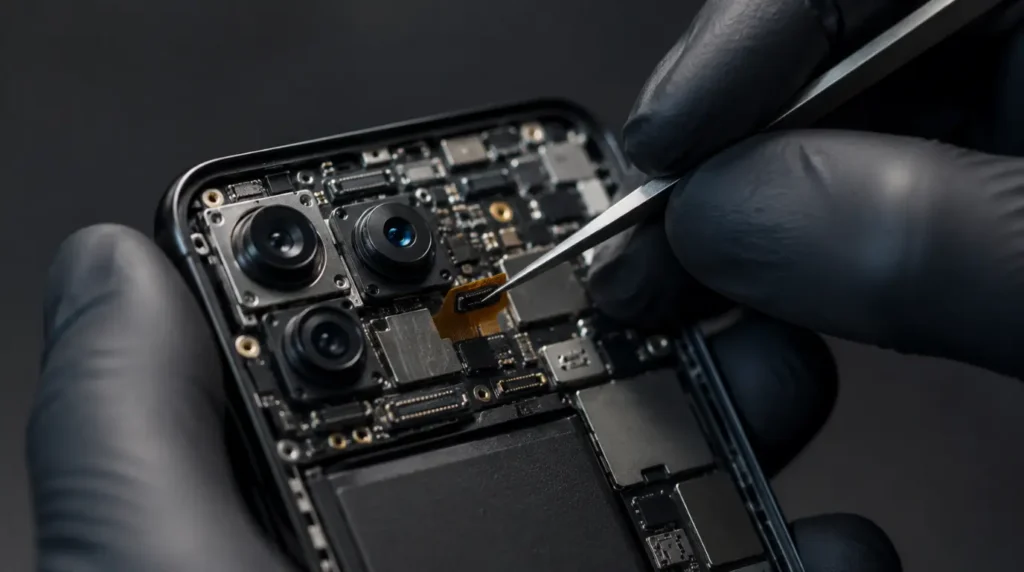
If every fix above fails and your native camera app also shows black, the fault is hardware, not software. A failing camera module or a damaged flex cable needs a certified technician, not another reinstall.
Some devices with older GPU drivers or heavy custom Android skins have known compatibility gaps with Snapchat’s camera engine specifically. In that case, Snapchat Support can flag your exact device model for their engineering team.
Always contact your manufacturer first if the phone is still under warranty. An unauthorized repair shop before that call can void hardware coverage that would otherwise fix this for free.
Prevention Tips

- Fully close video call apps like FaceTime or Zoom before opening Snapchat.
- Keep Snapchat set to update automatically so known camera bugs get patched fast.
- Clear the Snapchat cache weekly if you switch lenses heavily.
- Avoid modded or third-party Snapchat clients; they are a common hidden cause of camera failures.
- Pause your VPN before opening Snapchat, since some configurations silently block the camera handshake.
- Restart your phone weekly to clear any camera session Snapchat may still be holding in the background.
Frequently Asked Questions

Why does my Snapchat camera stay black even after restarting my phone?
A restart clears temporary glitches but does not fix a revoked camera permission or a corrupted cache. Check your permission toggle first, then clear the cache if the camera is still black.
I cleared the cache and reinstalled, and it is still black. What is left?
Turn off any VPN or firewall profile next, since that step gets skipped constantly. If it is still black after that, check for a live Snapchat outage before assuming it is your device.
Why is my Snapchat camera black only on Wi-Fi but fine on mobile data?
This points to a VPN, router firewall, or DNS filter blocking Snapchat’s camera server handshake on that network. Switch off any VPN or content filter and reconnect to Wi-Fi to confirm.
Can a factory reset permanently fix a Snapchat black screen?
A factory reset can clear a deep software conflict, but it is a last resort, not a first step. Try every fix above first, since most black screens never need a reset at all.
Expert Verdict
Most Snapchat black screens are a stuck camera session or a quiet permission reset, not a broken phone. Work through the fixes in order, and do not skip the VPN check; it solves more cases than people expect.
Disclaimer
This guide is based on general troubleshooting patterns and does not replace official support from Snapchat or your device manufacturer. Results can vary by device model, operating system version, and region.
Editor Note screendotfix.com
Reviewed for technical accuracy by the screendotfix.com editorial team. All fixes are verified against current software and firmware versions.
Pricing reflects current market rates and may vary by region. This article will be updated when new fixes are confirmed. For unresolved issues, visit the Contact page on screendotfix.com.
About the Author James, Founder of screendotfix.com
James has over 10 years of experience diagnosing display hardware and software issues across all major device brands. All content is written from direct technical experience and hands-on research conducted by the screendotfix.com team.
Free fixes are always recommended before any paid repair option.
Article Summary
- A black Snapchat camera is usually a stuck session, a reset permission, or a blocked VPN handshake.
- Force-closing camera apps and resetting permissions solves most cases in under two minutes.
- A blocked VPN connection is an overlooked cause worth checking before reinstalling anything.
- A black screen in your native camera app too means hardware, not Snapchat, and needs a technician.