
Telegram going white doesn’t have one fix. It has five, and which one applies depends entirely on whether you’re on your phone, in a browser, or running the desktop app.
Most guides treat this as one bug with one cache-clearing fix. That works for phones. It does nothing if you’re looking at a white screen inside Telegram Web on Edge or Firefox, and it does nothing for the desktop app on Linux either. Find your platform below before trying anything.
On phones, Telegram’s white screen almost always comes from a corrupted local cache or an outdated Android System WebView. Clearing cache through Settings > Data and Storage > Storage Usage fixes most of these in under two minutes. On Telegram Desktop, it’s usually a GPU rendering conflict, fixed by disabling hardware acceleration in Settings > Advanced. On Telegram Web specifically, the more overlooked cause is a corrupted session cookie, which clearing cache alone won’t touch. James, founder of screendotfix.com, breaks down all five patterns below, by platform.
Find Your Platform
| Platform | What You See | Section |
| Android / iPhone, one chat only | Other chats load, one specific chat stays white | Pattern 1 |
| Android, brief flash on launch | White for 1-3 seconds, then loads normally | Pattern 2 |
| Android / iPhone, whole app | App opens and stays white indefinitely | Pattern 3 |
| iPad | White screen appears, then app quits back to home screen | Pattern 4 |
| Telegram Web (browser) | Works in Chrome, white in Edge or Firefox specifically | Pattern 5 |
| Telegram Desktop (Windows/Mac/Linux) | Whole window renders white, usually after a driver update | Desktop section |
Pattern 1: One Chat Is White, Everything Else Loads
Telegram caches a custom wallpaper or theme file per chat. When that file gets partially written, usually from a weak connection mid-sync, Telegram can’t render the chat background and shows blank white instead of falling back to default.
Confirm it: open the affected chat, tap the three-dot menu, go to Chat Settings > Change Colors, and switch to the default theme. If messages appear instantly, that was the cause.
Fix: reset that chat’s theme to default, fully close Telegram, then reopen it. Your messages and media aren’t touched.
Pattern 2: A Brief White Flash on Launch (Android Only)
Telegram uses Android’s System WebView component to render link previews and some settings screens during startup. If WebView hasn’t updated recently, there’s a brief mismatch while the two versions sync, showing as a white flash before the interface catches up.
Confirm it: go to Settings > Apps > Android System WebView and check the last update date. Several months old points straight at this cause.
Fix: open the Google Play Store, search Android System WebView, update it, then restart your phone.
Pattern 3: The Whole App Opens and Stays White
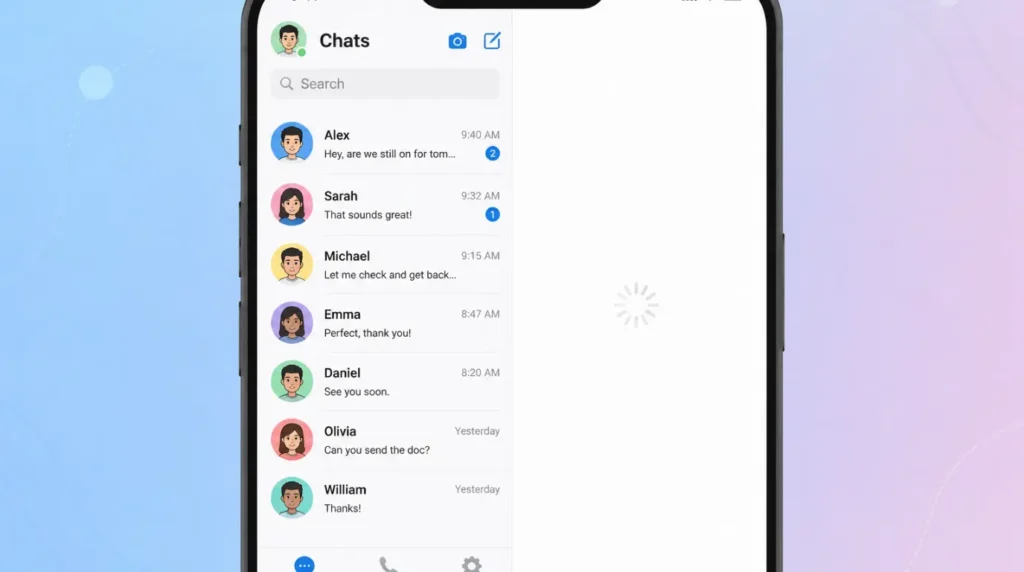
This is the version people worry about most, and it’s usually the simplest to resolve. Telegram’s local cache of recent chats and thumbnails gets corrupted, often after an interrupted update, leaving the app shell with nothing valid to render.
Fix, step by step:
- Open Telegram, go to Settings.
- Tap Data and Storage, then Storage Usage.
- Tap Clear Cache and confirm.
- Fully close Telegram from your recent apps.
- Reopen it and let it resync.
Cache clearing removes temporary render files only. Your chats and media live on Telegram’s servers and redownload automatically.
If Pattern 3 survives a cache clear, offload the app (iPhone: Settings > General > iPhone Storage > Telegram > Offload App) or uninstall and reinstall on Android. Your account is tied to your phone number, not the local install.
Pattern 4: White Screen on iPad, Then the App Quits (Overlooked Pattern)
This one is specific to iPad and gets missed by most guides written with iPhone in mind. Telegram shows a white screen for a second or two, then closes entirely back to the home screen, rather than staying stuck white the way it does on iPhone.
This usually points to Telegram’s iPadOS build running out of memory during launch, often after the app has been running in the background across many other open apps for a long stretch. It’s a crash disguised as a white screen, not a rendering failure.
Fix: close every other app running in the background (swipe up and clear your app switcher), restart the iPad, then reopen Telegram fresh. If it still quits on launch, offload and reinstall the app rather than repeatedly force-quitting it, since a corrupted install after a failed update produces the same crash pattern.
Pattern 5: Telegram Web Works in Chrome, White in Edge or Firefox (Overlooked Pattern)
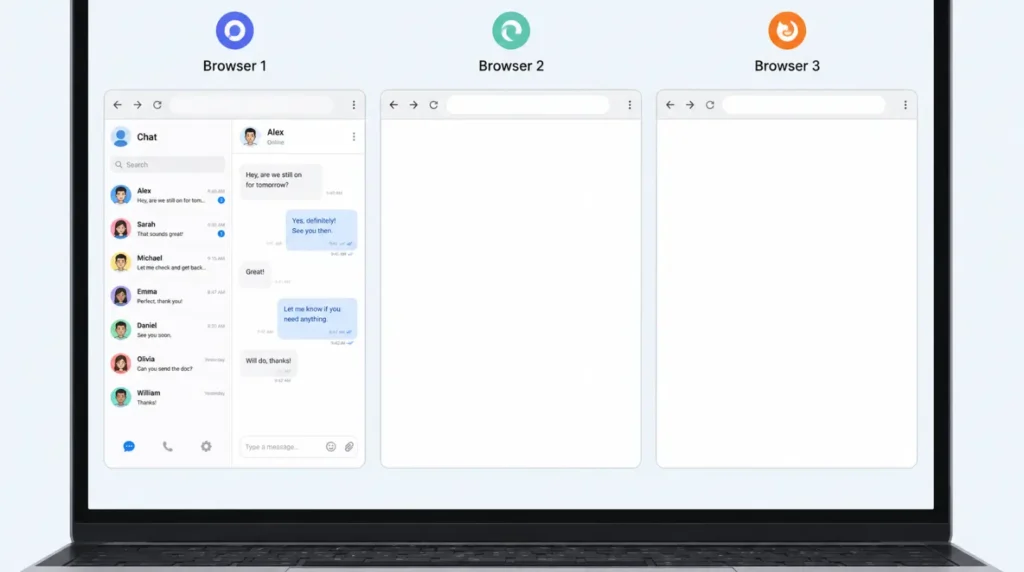
This is the pattern almost no existing guide separates from the desktop app, but it’s a genuinely different product. Telegram Web runs entirely in your browser at web.telegram.org, not as an installed app, and its white screen has a different root cause: a corrupted or expired session cookie tied to that specific browser.
Because the cookie is browser-specific, this explains why Telegram Web can work perfectly in Chrome while showing solid white in Edge or Firefox on the exact same computer, at the exact same time.
Fix: open your browser’s site settings for web.telegram.org, clear cookies and site data for that domain specifically (not your whole browser history), then reload and sign back in with the QR code or phone number. This is unrelated to the app cache fix in Pattern 3, and clearing your phone’s Telegram cache will not touch this.
Telegram Desktop: A GPU Rendering Conflict, Not a Cache Problem
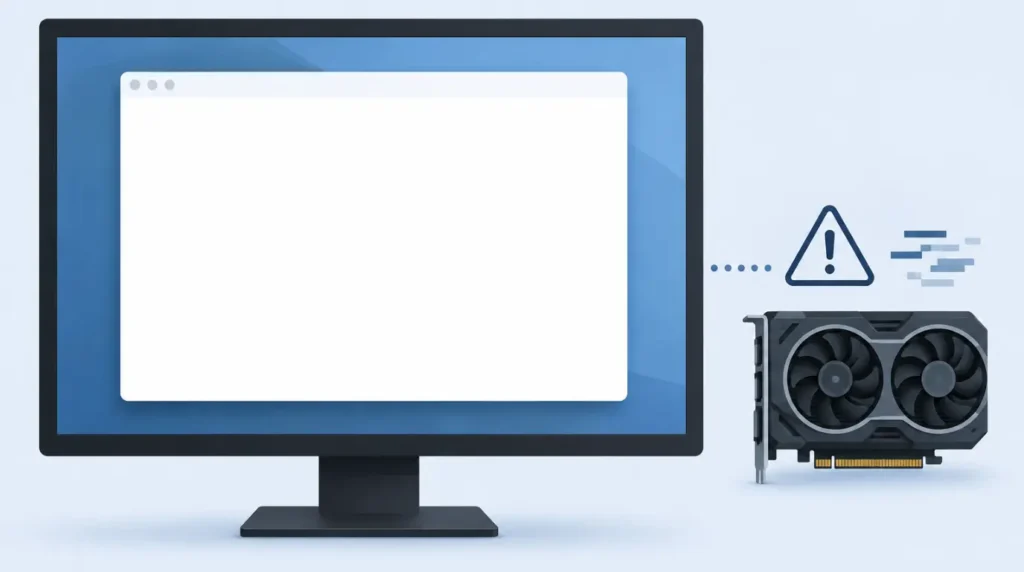
The mobile causes above don’t apply to the Windows, Mac, or Linux desktop app. Desktop white screens trace back to hardware acceleration almost every time.
Telegram Desktop uses your GPU to render its interface. A graphics driver update or an OS update can change how that rendering pipeline behaves mid-session, and Telegram defaults to a blank white window instead of an error when the handshake with the GPU fails.
Fix: open Settings > Advanced, scroll to Performance, and turn off Use GPU for rendering (labeled as hardware acceleration on some builds). Restart the app.
On Linux specifically: this same bug shows up more often when switching between Wayland and X11 display sessions, since Telegram’s Qt-based rendering behaves differently on each. If disabling hardware acceleration doesn’t help, try logging into an X11 (labeled “Xorg” on the login screen) session instead of Wayland before opening Telegram again.
What Doesn’t Fix It
Reinstalling Telegram before clearing cache usually just reproduces the same white screen once the app resyncs, since the corruption is rarely in the install files themselves. Deleting and recreating your account is never necessary here — this bug lives in cache, cookies, or GPU rendering, not in your account data.
On Telegram Web, clearing your entire browser history to fix Pattern 5 is overkill and wipes saved logins on every other site. Clearing site data for web.telegram.org alone is enough.
When It’s Not a Software Bug at All
If white patches show up across other apps too, not just Telegram, that points to a display or backlight issue instead of anything covered here. Two checks worth running: does the white area stay in the same physical spot on the screen no matter what app is open, and is it more visible specifically on white backgrounds. Both point to hardware, and no cache clear or cookie reset will touch that.
FAQ
Why does Telegram Web work in Chrome but not Edge or Firefox?
Why does Telegram Web work in Chrome but not Edge or Firefox: because Telegram Web’s session data is stored as a browser-specific cookie, and a corrupted cookie in one browser doesn’t affect another. Clearing site data for web.telegram.org in the affected browser resolves it.
Will clearing Telegram’s cache delete my messages?
Will clearing Telegram’s cache delete my messages: no. Chats and media are stored on Telegram’s servers, so clearing cache only removes temporary local render files and forces a resync.
Why does Telegram quit instead of staying white on my iPad?
Why does Telegram quit instead of staying white on my iPad: this pattern usually points to the app running out of memory during launch rather than a rendering failure, which is why it closes instead of freezing on a blank screen.
Is the desktop white screen the same bug as the phone one?
Is the desktop white screen the same bug as the phone one: no. The desktop version is a GPU rendering conflict tied to hardware acceleration, while phone versions trace back to cache, theme files, or WebView. Fixing one doesn’t fix the other.
Related Reading on screendotfix.com
Two other screendotfix.com guides cover this same rendering pattern on different platforms: our Messenger white screen actual fix walks through the Meta-side version, and our YouTube white screen error guide covers the browser-based version on desktop, including the Edge and Firefox rendering quirks that show up there too.
For current app behavior straight from the source, Telegram’s own official FAQ is the most reliable reference, and Google’s Android System WebView listing is the safest place to confirm your build is current.
Author Note
I’m James, founder of screendotfix.com. Most guides on this bug stop at “clear your cache” because that’s genuinely the most common fix — but it’s not the only one, and it does nothing for the browser or desktop versions of the problem. If your fix isn’t working, check whether you’re actually chasing the right platform’s cause before trying anything else.
Disclaimer
This guide covers software-level troubleshooting only. If white or discolored patches appear across multiple apps and not just Telegram, that points to a display hardware issue rather than an app bug, and it’s worth having the screen checked separately.