
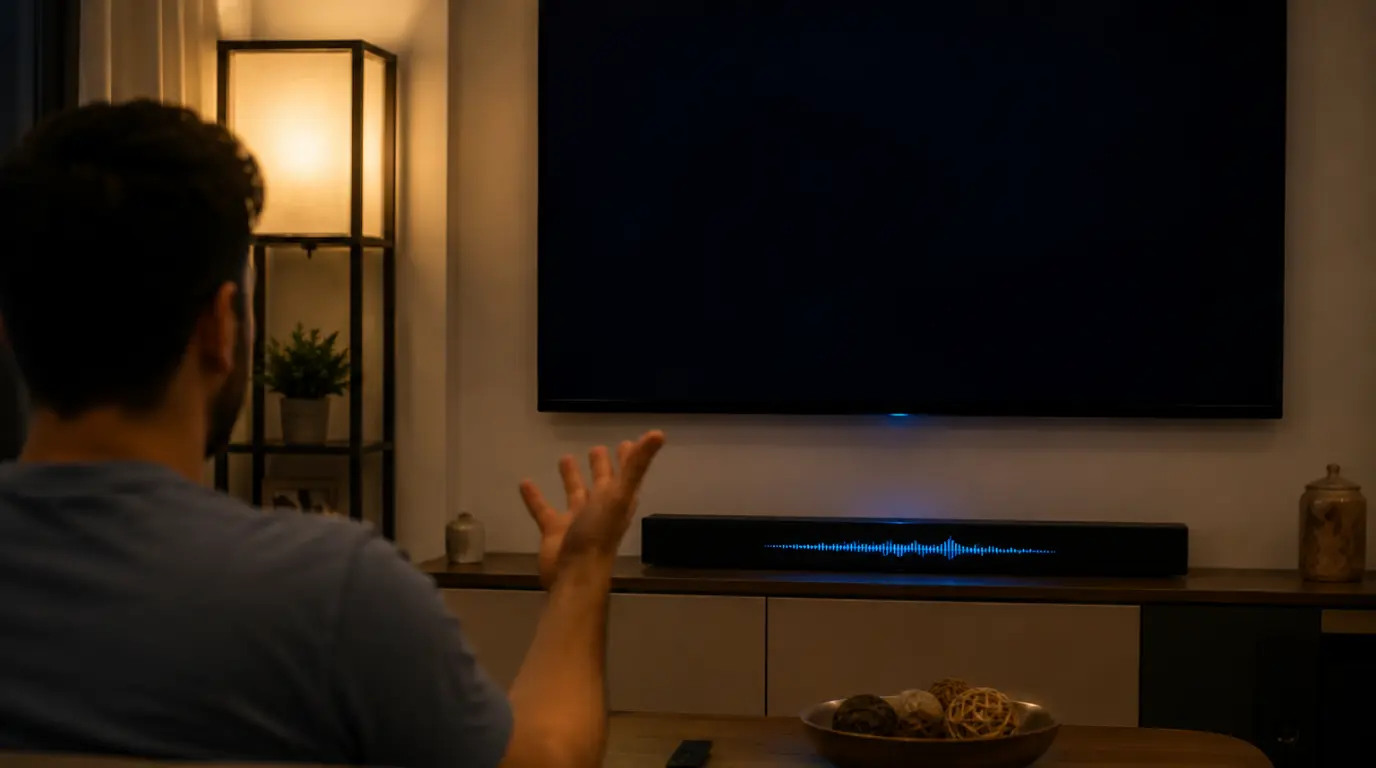
If Netflix plays sound with no picture, the problem is almost never your screen. It’s a broken HDCP handshake between your device and your display, a stuck Netflix app cache, or (less often) a failing HDMI cable. screendotfix.com has traced this exact fault pattern across Roku sticks, Samsung and LG TVs, Fire TV boxes, and laptops connected to external monitors, and the fix is usually a five-minute one no technician needed.
Test This First 60 Seconds
Before you touch any settings, run these two checks. They tell you which half of this guide actually applies to you.
Check 1 Open a different app. Load YouTube, Disney+, or your device’s home screen. If the picture shows up fine there, your screen and cable are working. The fault is inside Netflix, not your hardware.
Check 2 Try a different HDMI input or port. If you’re on a TV, laptop, or monitor with more than one HDMI port, switch to a second one and reopen Netflix. If the picture returns on the new port, the original port or cable is the problem.
If neither check restores the picture, keep reading the cause is almost always what comes next.
Why This Happens: The Real Cause
Netflix plays audio and video through two separate paths inside the app, and that’s the reason sound survives while picture doesn’t. Audio decodes and plays with almost no restriction. Video, by contrast, has to pass a copy-protection check called HDCP (High-bandwidth Digital Content Protection) before your screen is allowed to display it at all.
When that check fails, Netflix still has full permission to play sound. It just isn’t allowed to hand video to a screen it can’t verify as secure. From what we’ve seen on real devices at screendotfix.com, that HDCP failure accounts for the majority of “audio but no picture” reports on TVs, streaming sticks, and laptops plugged into external monitors. A stuck Netflix app cache and a failing DRM (digital rights management) component inside the app are the two next most common causes, and they show up mostly on phones and tablets rather than HDMI setups.
Causes Summary Table
| Cause | Where It Usually Shows Up | Typical Fix Time | DIY Difficulty |
| HDCP handshake failure | TVs, streaming sticks, HDMI-connected laptops | 2–5 minutes | Easy |
| Stuck Netflix app cache | Phones, tablets, smart TV apps | 1–2 minutes | Easy |
| Failing or non-HDCP HDMI cable | Any HDMI setup, especially older or budget cables | 5 minutes to test, cable cost $8–20 | Easy |
| Outdated Netflix app or firmware | Older Roku, Fire TV, and smart TV models | 5–15 minutes | Easy |
| Faulty HDMI port on the TV or laptop | TVs over 4–5 years old, laptops with heavy port use | Diagnostic only port repair needed | Hard, professional repair |
| DRM licensing gap on specific titles | Any device, but only on certain shows or movies | Not user-fixable | N/A wait for Netflix to resolve |
If You’re on a Smart TV (Samsung, LG, Roku TV, Sony)
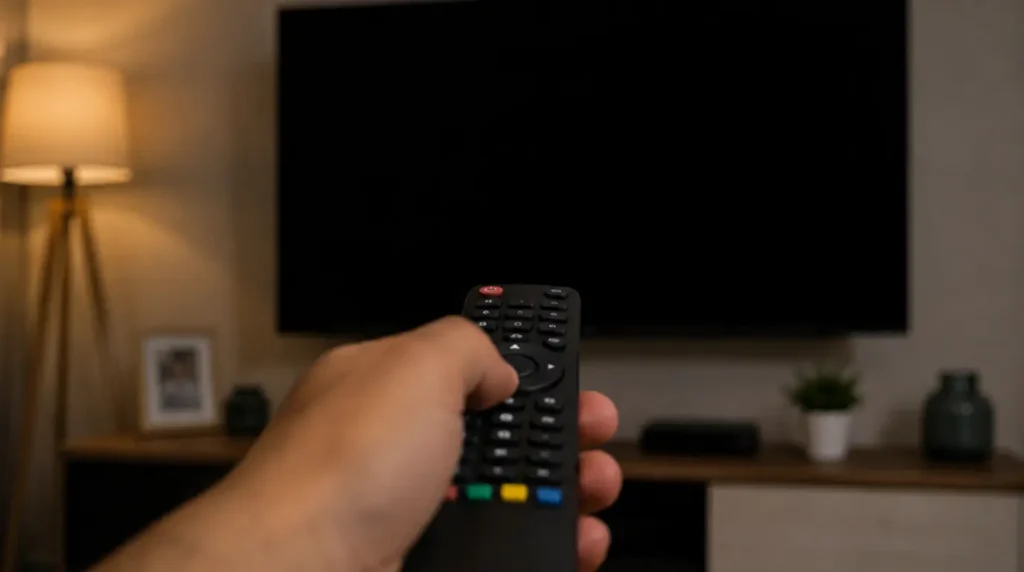
Power off the TV completely at the wall, not just with the remote, and leave it unplugged for 60 seconds. This clears the HDCP handshake state stored in the TV’s HDMI controller, which a simple app restart doesn’t touch.
Once it’s back on, open Netflix again before opening anything else. If the screen is still black with sound playing, go to Settings > Apps > Netflix > Clear Cache on Samsung TVs, or Settings > System > Apps > Netflix on LG’s webOS menu, and clear the app’s stored data. This forces Netflix to rebuild its DRM license from scratch on the next launch.
If a picture-quality or color-correction feature is turned on Samsung’s “Eye Comfort Shield” is a known trigger for this exact symptom, turn it off and reopen Netflix. It interferes with the same HDCP negotiation the video feed depends on.
If You’re on a Streaming Stick or Box (Roku, Fire TV, Chromecast, Apple TV)
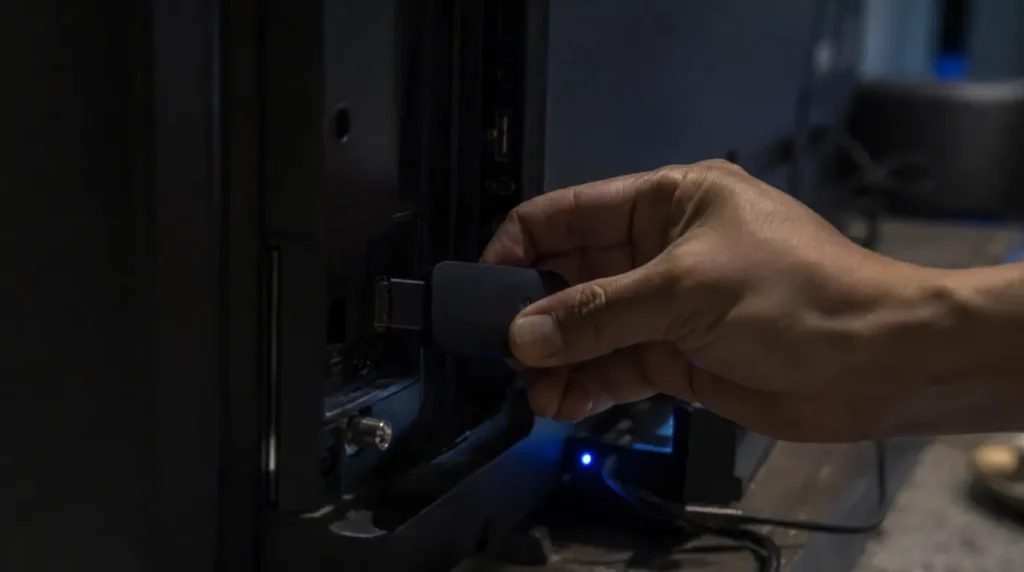
Unplug the streaming device itself from the HDMI port, not just the power cable, and wait 30 seconds before reconnecting it. Streaming sticks lose their HDCP handshake more easily than built-in smart TV apps because the connection has to be renegotiated through two devices: the stick and the TV instead of one.
Next, check for a pending firmware update. On Roku, go to Settings > System > System update. On Fire TV, go to Settings > My Fire TV > About > Check for System Update. Older Roku and Fire TV Stick models sometimes can’t process newer DRM licensing calls that Netflix pushes in app updates, and a firmware update is what fixes that gap.
If the black screen only started after you added an HDMI splitter, switch, or AV receiver into the chain, remove it and plug the streaming device directly into the TV. Splitters and receivers are one of the most common places an HDCP handshake breaks down, even when every other app works fine through them.
If You’re Watching on a Laptop Through an External Monitor
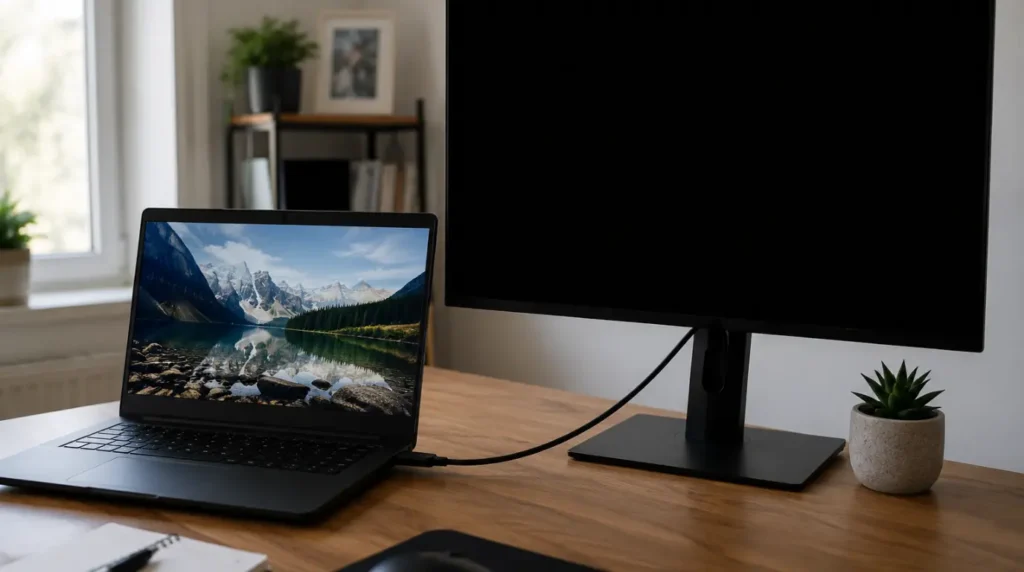
This is where a bad HDMI cable is most likely to be the actual cause rather than a settings issue. Netflix plays fine on the laptop’s built-in screen but goes black sound intact the moment you switch to the external display through HDMI.
Try a second HDMI cable if you have one, ideally one rated HDCP 2.2 or higher if you’re streaming in 4K. Cheap or older cables frequently pass audio signals fine while failing to carry the encrypted video handshake correctly, which produces exactly this symptom.
If you’re using a USB-C to HDMI adapter or a docking station, that’s a second common failure point. Docks and generic adapters aren’t always certified for HDCP, and Netflix will block video through an uncertified link even though the adapter itself “works” for every other display purpose. Plug the laptop directly into the monitor’s HDMI port without the dock to test this.
Also check your browser if you’re watching through a browser tab rather than the desktop app. Go to your browser’s settings and turn off hardware acceleration, then restart the browser. Hardware acceleration conflicts with Netflix’s video decoding path on some GPU driver versions and can produce a black frame while audio continues normally.
If You’re on a Phone or Tablet
Force-close the Netflix app completely rather than just backgrounding it, then reopen it. If that doesn’t restore the picture, clear the app’s cache under your device’s app settings on Android, that’s Settings > Apps > Netflix > Storage > Clear Cache, without clearing data, which would sign you out.
This same audio-without-video pattern shows up in other streaming and messaging apps for nearly identical reasons. If you’ve also run into a related YouTube video loading error, the underlying cause of an app-level rendering or DRM component that needs a fresh cache is usually the same fix.
If clearing cache doesn’t work, uninstall and reinstall the Netflix app rather than just updating it. A partial or interrupted update is a frequent cause of the app’s DRM component getting stuck in a bad state on both iOS and Android.
Why Did This Happen Overnight or After an Update?
Netflix pushes app updates that occasionally change how the app negotiates DRM licensing with your device, and older hardware doesn’t always keep up. If this started right after your TV, streaming stick, or the Netflix app itself updated, that update is almost certainly the trigger, not a coincidence.
This isn’t unique to Netflix. Update-triggered white or black screen bugs turn up across streaming and messaging apps whenever a DRM or rendering library changes; a stuck-loading white screen bug after an app update follows the same pattern for a completely different reason: the rendering layer, not the account or the network.
If your streaming device is more than four or five years old and this keeps recurring after every Netflix update, that’s usually the hardware telling you it’s reaching the end of what it can reliably decode, not a one-time bug.
Is It My TV, or Is It My Netflix Account?
Log into Netflix on a completely different device on the same network as your phone, for instance. If video plays normally there, your account and your internet connection are both fine, and the problem is fully isolated to the original device’s display path.
If you want Netflix’s own current troubleshooting reference alongside this guide, their official black screen with sound help page covers the same account-level checks device by device.
When This Actually Needs a Repair, Not a Setting
If you’ve tested a second HDMI port, a second cable, and a full app reinstall, and the screen is still black with sound only, the fault is likely the HDMI input circuitry on the TV or the display output on the laptop itself not anything software can fix. A failing HDMI port typically shows the same black-screen-with-audio pattern on every app, not just Netflix, once it gets bad enough, so re-run Check 1 from the top of this guide before assuming it’s hardware.
Professional diagnostic time for a suspected HDMI port fault usually runs $40–80 depending on the shop, and that’s before any parts. On a TV more than five or six years old, a failing HDMI board or port often costs more to repair than a new mid-range TV, so get the diagnostic quote before committing to the repair.
Prevention Tips
- Buy HDMI cables rated for HDCP 2.2 or higher if you stream in 4K, even for short cable runs
- Avoid HDMI splitters and cheap AV switches for any device you use to stream protected content
- Keep streaming sticks and smart TV firmware on auto-update rather than manually deferring updates
- Plug laptops directly into a monitor when troubleshooting, then reintroduce docks and adapters one at a time
FAQ
Can a black screen with audio fix itself?
Yes, sometimes a single HDCP handshake glitch can clear on its own after a power cycle. If it comes back within the same session or reappears the next time you open Netflix, treat it as an app or cable issue rather than a one-off.
Why does the screen stay black only on certain shows or movies?
If picture works on most titles but fails on a specific show or movie while the rest of the app functions normally, that’s a DRM licensing gap tied to that title’s content protection, not your device. It’s not something you can fix locally; it typically resolves on Netflix’s end within a few days.
Does restarting the router fix a Netflix black screen with sound?
Rarely. Since audio is still streaming successfully, your internet connection and Netflix servers are already reaching your device. A router restart won’t touch an HDCP handshake or app cache problem, so it’s not worth prioritizing over the device-specific steps above.
Is this the same issue as a white screen on other apps?
The visible symptom is different, but the underlying mechanism is often close to an app-level rendering or licensing component getting stuck rather than a hardware failure. That’s the same root cause behind the YouTube and Messenger white-screen bugs linked above.
Expert Verdict
In the vast majority of cases we’ve walked through at screendotfix.com, “Netflix screen black but audio works” traces back to an HDCP handshake failure or a stuck app cache both fixable in under five minutes without opening the device or replacing anything. Cable and port hardware failures are real but come a distant third, and they’re worth ruling out with a second cable before you assume the worst.
Author Note
I’m James, founder of screendotfix.com. This guide comes out of repeated troubleshooting sessions on exactly this symptom Roku sticks that lost picture after a firmware push, a Samsung TV where “Eye Comfort Shield” was quietly blocking the handshake, and more than one laptop where the actual fault was a $9 HDMI cable, not the monitor everyone assumed was broken. If your setup doesn’t match anything above, the device-by-device breakdown here should still narrow it down fast.