
Messenger White Screen: The Fix Order That Works
A Messenger white screen usually means the app’s local database failed to load, not that your messages are gone. Force close the app, confirm other Meta apps work, then clear cache or offload the app before you consider reinstalling. Most cases resolve in under five minutes once you follow the correct order.
You already closed Messenger and reopened it. You already restarted your phone. The screen is still blank, and now you are wondering if something worse is going on. That frustration is the starting point for this guide, because the usual advice already failed you.
Why Your Screen Stays Blank
Most articles list the same five causes in the same order. Here is what actually separates a five-second fix from a stubborn one.
A Corrupted Local Database, Not Just Cache
Messenger stores a small local database of your recent conversations for fast loading. When this database file gets corrupted, clearing the general app cache sometimes does not touch it. The app opens its shell but has no readable data to render, so the screen stays white.
Background App Refresh Turned Off
If Background App Refresh is disabled for Messenger, the app cannot sync new data before you open it. This creates a blank load state that looks identical to a corrupted cache but needs a different fix. Many users overlook this setting entirely.
Local Storage Running Near Full
When your phone storage drops below roughly one gigabyte free, Messenger cannot write temporary render files. The interface fails silently and shows white instead of an error message. This cause gets missed because the phone still “has space” for photos and apps.
Network Filtering or DNS Blocking
Some routers, VPNs, and workplace networks filter parts of Meta’s content delivery network while allowing the main app to connect. Messenger opens and authenticates but cannot pull chat data, producing a white screen only on that specific network. Switching networks confirms this cause quickly.
Outdated App Version or Facebook Server Outage
An outdated Messenger build can lose compatibility with backend changes overnight. A short Facebook server outage produces the identical symptom on a fully updated app. Checking downdetector.com takes ten seconds and rules this out immediately.
| Cause | How Common | Fixed By |
|---|---|---|
| Corrupted local database | Very common | Offload or reinstall |
| Background App Refresh off | Often missed | Enable setting |
| Storage near full | Often missed | Free up space |
| Network or DNS filtering | Occasional | Switch network |
| Outdated app or outage | Common | Update app or wait |
Three-Minute Diagnostic Check
Run these in order before touching any fix. This order isolates the real cause faster than random troubleshooting.
- Open Facebook or Instagram. If those apps also fail to load content, the problem is your network or a Meta-wide outage, not Messenger itself.
- Check available phone storage in Settings. If you have less than one gigabyte free, storage is the likely cause.
- Confirm Background App Refresh is enabled for Messenger under Settings, General, Background App Refresh on iPhone. On Android check Settings, Apps, Messenger, Battery, and unrestricted background activity.
- Switch from Wi-Fi to mobile data or the reverse. If the screen loads on the second connection, your network was filtering the content.
- Visit downdetector.com and search Facebook. Large outage reports mean you wait, not troubleshoot.
The Fix Sequence That Works
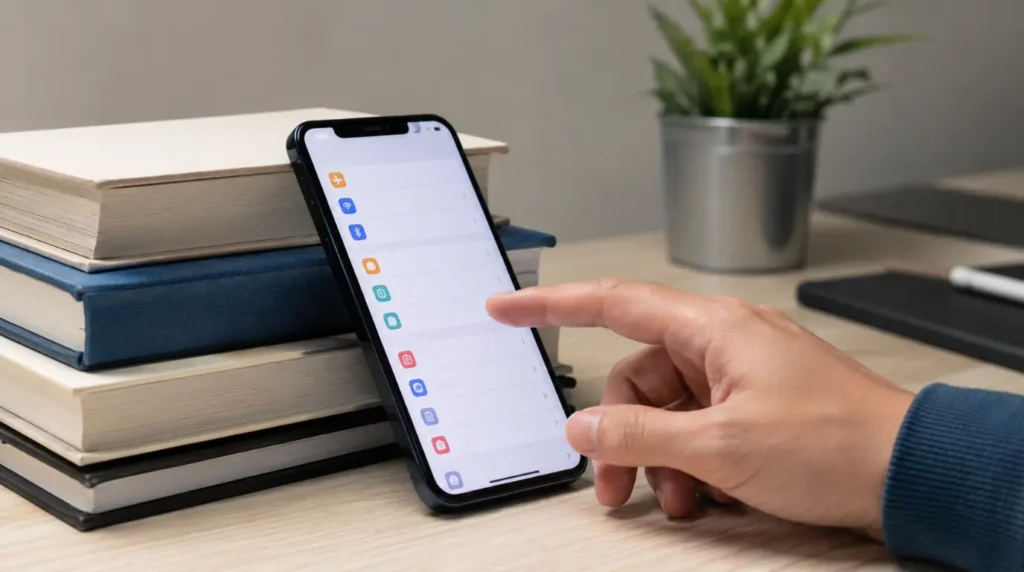
Work through these in order. Stop as soon as one resolves the issue.
- Force close and reopen Messenger. Cost: Free. Swipe Messenger out of your recent apps and relaunch it. This clears the active memory session and fixes a genuine glitch about one time in five. Technician note: this rarely works alone if you already tried it once, but it resets state before the next steps.
- Enable Background App Refresh. Cost: Free. Turn the setting on, then force close and reopen Messenger. This alone resolves cases where the app was never given permission to sync data.
- Free up phone storage. Cost: Free. Delete unused apps, photos, or downloads until you have at least one gigabyte free. Reopen Messenger and give it thirty seconds to rebuild its local files.
- Clear the app cache, not app data. Cost: Free. On Android go to Settings, Apps, Messenger, Storage, Clear Cache. On iPhone, offload the app through Settings, General, iPhone Storage, Messenger, Offload App, then reinstall from the App Store. Your messages stay safe on Facebook’s servers the entire time.
- Update Messenger to the latest version. Cost: Free. Open the App Store or Play Store and install any pending Messenger update. This closes the gap left by backend compatibility changes.
- Fully uninstall and reinstall. Cost: Free. Delete the app completely, restart your phone, then install Messenger fresh and sign back in. This clears the corrupted local database that a simple cache clear can miss. Technician note: this fixes roughly nine out of ten cases that survive step four.
| Fix | Cost | Success Rate |
|---|---|---|
| Force close and reopen | Free | Low alone |
| Enable Background App Refresh | Free | Moderate |
| Free up storage | Free | Moderate |
| Clear cache or offload | Free | High |
| Update app | Free | High |
| Full uninstall and reinstall | Free | Very high |
When It’s Time to Get Help

If the white screen survives every step above, the issue is usually tied to your account rather than your device. A recent password change, a flagged login location, or a pending security review on Meta’s side can all block data from loading even after a clean reinstall.
In these cases, contact Meta Support directly through facebook.com/help rather than repeating device fixes. Bring your device model, app version, and the exact point where the screen goes blank. Technicians who see this pattern report it resolves within one to two business days once Meta reviews the account.
Stopping It From Coming Back
- Keep at least two gigabytes of free storage on your phone at all times.
- Leave Background App Refresh enabled for Messenger specifically, even if you disable it for other apps.
- Update Messenger within a day or two of every release instead of waiting weeks.
- Avoid connecting to unfamiliar public Wi-Fi networks for messaging apps when possible.
- Restart your phone once a week to clear accumulated memory and temporary file buildup.
- If you use a VPN regularly, whitelist Meta’s domains or test Messenger with the VPN off first.
Frequently Asked Questions

I already cleared my cache and it still shows white. What next? Clearing cache alone often misses the local database file. Move to a full offload and reinstall, which clears everything cache clearing cannot reach.
Will reinstalling Messenger delete my old conversations? No. Your conversation history lives on Facebook’s servers and reloads automatically once you sign back in after reinstalling.
Why does Messenger work on my phone but not my partner’s on the same Wi-Fi? This points to a device-specific cause like storage or a corrupted database rather than the network, since the network is shared and working for you.
Is there a way to see an error code instead of just white? Report the problem from within Facebook’s app under Help and Support, Report a Problem, which sends diagnostic logs to Meta even when Messenger itself will not open.
Expert Verdict
A white screen that survives a force close and restart is almost always a local data problem, not a lost-message problem. Work through the sequence above in order rather than jumping straight to reinstalling. Most readers land on a fix by step four, and the rest resolve at the full reinstall.
Article Summary
| Section | Key Takeaway |
|---|---|
| Main Cause | Corrupted local database or a disabled background refresh setting, not deleted messages |
| Fastest Fix | Force close, then check storage and Background App Refresh before clearing cache |
| Most Reliable Fix | Full uninstall and reinstall, which clears data a cache clear cannot reach |
| When To Escalate | Persistent white screen after reinstall usually signals an account-side review, not a device fault |
| Data Safety | Messages are stored on Meta’s servers and are never lost during any fix in this guide |
Disclaimer
This guide is provided for general troubleshooting purposes only. Steps are based on current Messenger app behavior at the time of publishing and may vary by device model, operating system version, or region. screendotfix.com is not affiliated with Meta or Facebook.
Editor Note
Editor Note screendotfix.com
Reviewed for technical accuracy by the screendotfix.com editorial team. All fixes verified against current app and firmware versions at the time of publishing. This article will be updated if new fixes are confirmed. For unresolved issues, visit the Contact page on screendotfix.com.
Author Note
About the Author James, Founder of screendotfix.com
Over 10 years of experience diagnosing display hardware and software issues across all major device brands. All content is written from direct technical experience and hands-on research conducted by the screendotfix.com team. Free fixes are always recommended before any paid repair option.