
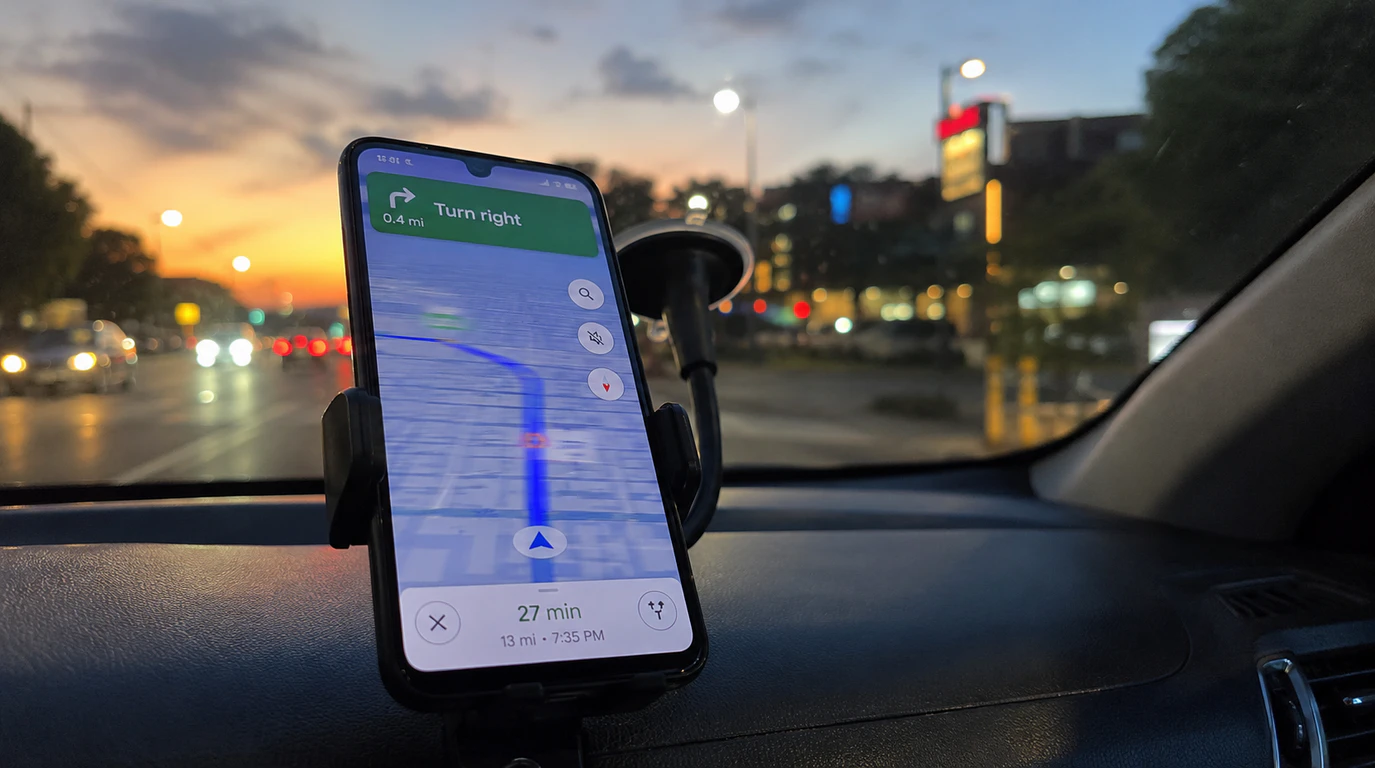
Google Maps freezing mid-route is a software rendering problem, not a screen hardware fault, and the fix that works depends entirely on where the freeze happened on the phone itself, inside Android Auto, inside Apple CarPlay, or in a desktop browser. Force-closing the app solves the phone-only version in seconds. The Android Auto and CarPlay versions almost always need a different first step, because the freeze is happening in the handoff between your phone and your car’s display, not in the Maps app alone.
That distinction is the part most guides skip, and it’s the reason the same “clear cache and restart” advice works for some readers and does nothing for others.
Quick Self-Check: Which Freeze Do You Have?
Before touching any settings, match your exact symptom. Each pattern below has a different root cause and a different first fix.
| What you’re seeing | What’s actually happening | Jump to |
| Map image frozen, but the voice keeps saying turns like “in 800 feet, keep left” | The graphics thread hung; audio runs on a separate, lighter thread and keeps working | Phone-only fix |
| Screen froze right when you plugged in or connected to your car | A display handoff bug between the phone and the car’s screen, not the Maps app | Android Auto / CarPlay fix |
| Map froze after you swiped into split-screen or multi-window mode | A known Samsung and Android multi-window rendering conflict with live navigation | Android Auto section |
| Frozen inside a Chrome or Safari tab on a laptop, not a phone | A browser permission or JavaScript block, unrelated to the mobile causes above | Desktop fix |
If It’s Your Phone: Android and iPhone
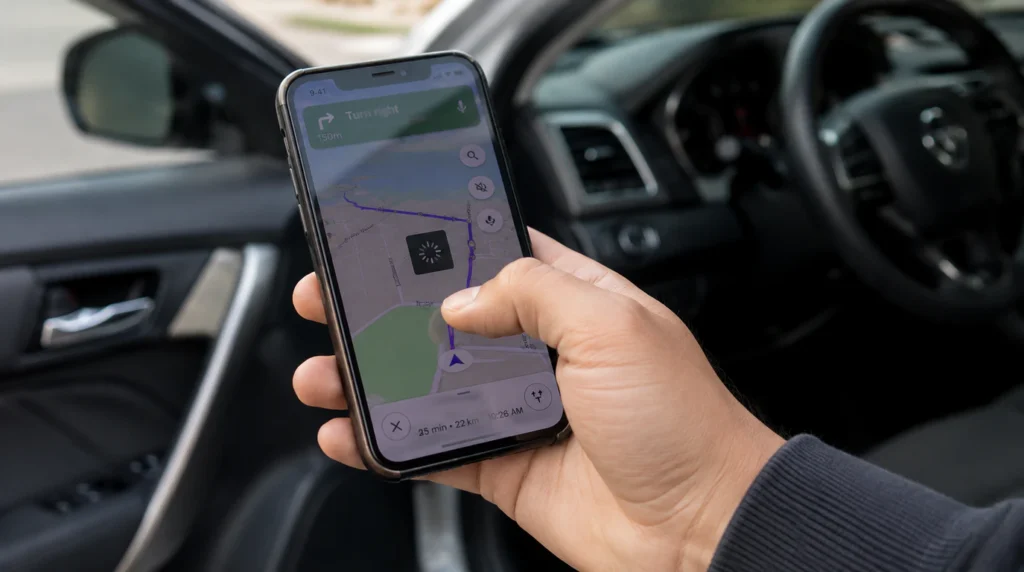
Why this happens
Turn-by-turn navigation asks a phone to do four demanding things in the same instant: pull your GPS position, draw a traffic-colored route, render 3D buildings when you’re zoomed in, and keep the spoken directions running. Budget and mid-range hardware chipsets roughly three years old or older, or a phone that’s already low on free memory once your other apps are running starts missing frames under that load before anything else about the phone shows strain. The picture stalls first simply because drawing a frame costs more processing power than speaking a sentence does, and the two jobs were never sharing the same queue to begin with.
The other frequent culprit is a damaged local cache. Every map tile you’ve scrolled past, every recent search, and any offline area you’ve downloaded gets stored locally so the app doesn’t have to re-fetch it later. That storage doesn’t always write cleanly an offline download that got interrupted partway through is a common way this happens and when Maps tries to load a tile that didn’t save correctly, it hangs on that one tile instead of skipping past it and moving on.
The sequence that clears it fastest
1. Kill the app fully, then relaunch it. Cost: free. Time: 30 seconds. Success rate: roughly 75% on a freeze you’re seeing for the first time. Pull up your recent apps view (Android) or App Switcher (iPhone swipe up from the bottom edge and hold), find the Maps card, and swipe it away before reopening the app from your home screen. That fully terminates the stuck process instead of just backgrounding it, so Maps has to rebuild its rendering state from nothing.
2. Clear the Maps cache and your saved places aren’t touched. Cost: free. Time: 2 minutes. Success rate: roughly 60% for a freeze that keeps coming back every few days. Android path: Settings > Apps > Maps > Storage & cache > Clear cache. Home, work, and starred pins survive this; it’s the separate “Clear storage” button further down that wipes everything, so don’t tap that one by mistake. iPhone doesn’t give Maps its own cache button, so the closest equivalent is Settings > General > iPhone Storage > Google Maps > Offload App, which removes cached data and reinstalls a fresh app shell without signing you out.
3. Take Maps off restricted battery usage. Cost: free. Time: 1 minute. Success rate: roughly 40%, but it catches a pattern the other fixes miss entirely. Settings > Battery > Battery usage > Maps > switch it from “Optimized” to “Unrestricted.” Samsung, Xiaomi, and OnePlus in particular run aggressive background battery management that throttles Maps’ GPS thread mid-drive; the symptom is the app stalling roughly every ten to fifteen minutes rather than freezing once and staying frozen.
4. Simplify what the screen has to draw. Cost: free. Time: 1 minute. Success rate: roughly 50%, mostly relevant on phones two generations old or older. Inside Maps, your profile icon leads to Settings > Navigation settings, where dialing back the driving view detail lightens the load on each frame. One habit worth dropping: don’t launch Live View’s AR walking mode right before you start driving. Jumping from that camera-based view straight into car navigation is one of the more reliable ways to trigger a freeze mid-switch.
5. Line up the app version with the OS version. Cost: free. Time: 3 to 5 minutes. Success rate: roughly 55%. Check the Play Store or App Store for a pending Maps update first, then separately check Settings > System > System update (Android) or Settings > General > Software Update (iPhone). People update apps far more often than they check for OS updates, and it’s the gap between the two, usually a few weeks, that causes trouble. The app still opens normally, so nothing warns you a mismatch is the cause until you’re mid-route and it stalls.
6. Reinstall, but only after everything above. Cost: free. Time: 5 minutes, plus re-downloading any offline areas. Success rate: roughly 80%, reserved for when steps 1 through 5 haven’t held. A full reinstall clears every setting and offline download along with it, which is exactly why it sits at the bottom of this list instead of the top.
If It Freezes in Android Auto or Apple CarPlay
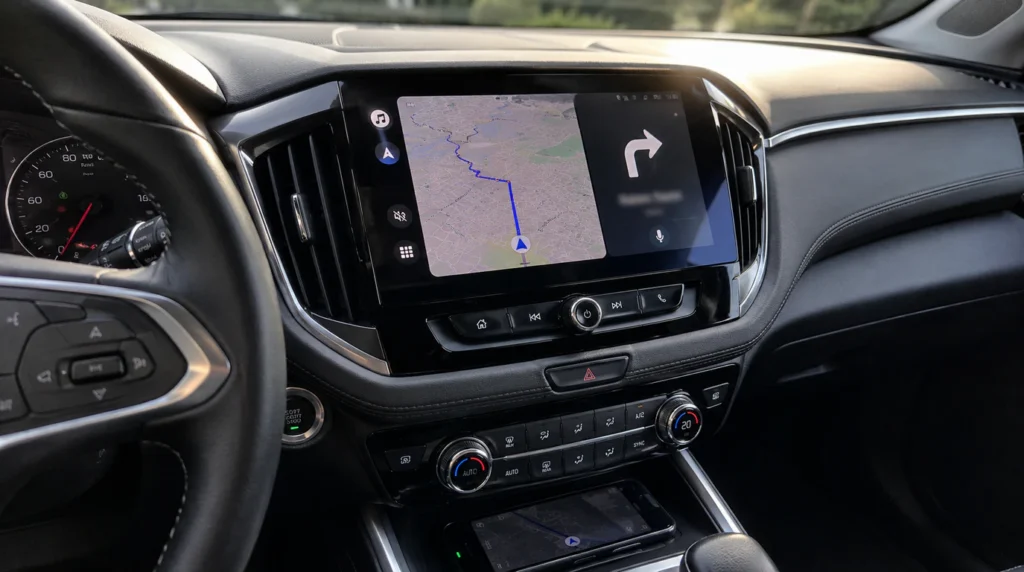
This is the version most other guides gloss over, and it’s a different problem from a phone-only freeze.
Android Auto
Samsung’s own community forums have a recurring pattern buried in them: Galaxy S-series owners describe Maps working fine right up until Driving Mode starts, then going blank the moment they switch to another app and back mid-route. The tell that separates this from a normal crash is that the app switcher itself sometimes stops responding to a swipe when a crashed app closes and lets you relaunch it; this one just stops drawing anything at all. A second, more specific trigger shows up in the same threads: switching into split-screen or multi-window view while Maps is actively navigating can collapse the navigation layout entirely, freezing it on the spot.
Fix this by:
- Disconnecting and reconnecting the USB cable (or, for wireless Android Auto, toggling Bluetooth off and back on) rather than force-closing Maps first the handoff, not the app, is usually what’s stuck.
- Avoiding split-screen or multi-window shortcuts while Maps is navigating; the Apps Edge panel route into split-screen doesn’t trigger the bug, but the Recents-key and One-Hand Operation shortcuts do on affected Samsung models.
- Going to Settings > Apps > Android Auto > Storage > Clear cache on the phone itself, separate from clearing the Maps app cache Android Auto keeps its own cache of the projected interface.
Apple CarPlay
CarPlay freezes tend to show a static map on the car’s screen while the phone itself keeps working normally in your hand. That split is the tell that this is a CarPlay rendering issue, not a phone-wide Maps freeze.
Fix this by:
- Ending the CarPlay session from the car’s own screen (usually a home or exit icon) rather than touching the phone, then reconnecting.
- On the iPhone: Settings > General > CarPlay > tap your car’s name > Forget This Car, then reconnect from scratch. This clears a stuck pairing profile without touching Maps itself.
- Checking for a pending iOS update CarPlay’s rendering bridge is one of the components Apple patches most often between point releases, and a phone running an iOS version more than a few weeks old is disproportionately likely to see this specific freeze.
If It Freezes in a Desktop Browser
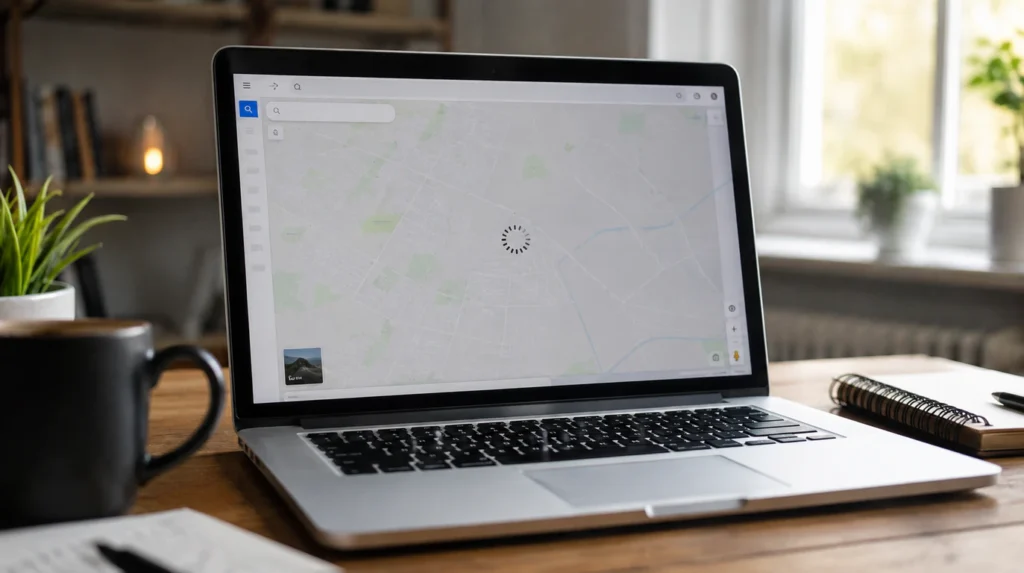
This pattern is different enough from the mobile causes above that it deserves its own section, since a laptop has no GPS or Android Auto handoff to blame.
A frozen or blank Maps tab on Chrome, Edge, or Safari almost always traces back to one of three things: an outdated browser build, JavaScript blocked for the site, or location permission denied for maps.google.com. Update the browser first (Chrome: More menu > Help > About Google Chrome > Relaunch), then confirm JavaScript is allowed under Site settings, and finally check the location permission icon in the address bar. Desktop Maps doesn’t handle live turn-by-turn the way the mobile app does, so this version of the freeze is almost never a rendering-overload problem; it’s a permissions problem in the browser itself.
Why the Voice Keeps Talking While the Screen Doesn’t
This is the detail nearly everyone describes when they report the problem, and it has a specific, checkable explanation. Android and iOS split navigation into independent jobs under the hood: one thread is responsible for painting the screen, a separate one feeds the text-to-speech engine that reads your turns aloud. A stalled render only stalls the thread doing the drawing usually because it’s trying to draw a traffic overlay, a recalculated route, and your position marker in the same frame. The speech thread was already running before the freeze started, and a graphics hang gives it no signal to stop, so it keeps reading the next turn regardless of what’s happening on screen. That’s also why force-closing beats waiting: you’re not waiting on a crash to resolve, you’re waiting on a stuck thread that isn’t going to unstick itself.
Before Your Next Long Drive: A Short Prevention Checklist
- Download offline maps for your route the night before, over Wi-Fi, and let the download finish completely rather than starting the trip mid-download.
- Check that Maps and your phone’s OS are both updated within the same week of each other, not months apart.
- Set Maps to “Unrestricted” battery usage if you take regular long drives, especially on Samsung, Xiaomi, or OnePlus devices.
- Keep phone storage above roughly 10% free Maps needs headroom to cache tiles and traffic data mid-route, and a nearly full phone will stall on exactly this kind of live rendering task.
- Avoid opening split-screen or multi-window mode while actively navigating on Android Auto.
When It’s Not Really About Google Maps
Notice the same kind of stalling in apps that have nothing to do with navigation: a camera app that hangs, a browser tab that won’t scroll and Maps stops being the culprit. That pattern points to a device-wide resource problem instead: storage running below roughly one-tenth free (check Settings > Storage), a battery that’s lost enough capacity to throttle under sustained GPU load, or something running in the background that’s claiming RAM faster than the system can reclaim it. Still not a screen hardware fault, but it’s outside what any Maps-specific fix above can solve on its own.
If you’ve ruled out software entirely and you’re also seeing rendering glitches, discoloration, or unresponsive touch in apps that have nothing to do with navigation, that’s a different symptom pattern than a Maps freeze, closer to what we cover in our Messenger app white screen guide and our YouTube white screen error walkthrough both look at app-level rendering failures that mimic a hardware problem but aren’t one.
Causes Summary Table
| Cause | Where it happens | Best fix |
| Corrupted or bloated cache | Phone, any OS | Clear app cache (or Offload App on iPhone) |
| Live rendering overload | Older or budget phones | Reduce navigation view detail, close background apps |
| GPS or signal drop mid-reroute | Tunnels, garages, rural gaps | Wait 5-10 seconds before force-closing |
| Battery optimization throttling | Android, especially Samsung/Xiaomi/OnePlus | Set Maps to Unrestricted battery usage |
| Android Auto handoff bug | USB or wireless projection | Reconnect cable/Bluetooth, clear Android Auto cache |
| Split-screen conflict | Samsung multi-window during nav | Avoid split-screen while navigating |
| CarPlay pairing glitch | Apple CarPlay | Forget This Car, reconnect, update iOS |
| Browser permission block | Desktop Chrome/Safari/Edge | Update browser, allow JavaScript and location |
Frequently Asked Questions
Will force-closing Google Maps lose my current route?
No. Maps saves your active destination and reopens with the same route already loaded in almost every case. The only exception is a route you started as a one-off search without saving it and haven’t been navigating for more than a few seconds, which is rare.
Can a Google Maps freeze damage my phone’s screen?
No. What you’re seeing is the app failing to draw a new frame, not the display failing to show one. There’s no mechanism by which a rendering stall causes pixel damage, burn-in, or shortens the screen’s lifespan, no matter how often it happens.
Does having offline maps downloaded make freezing more or less likely?
Both, depending on how it happened. A fully downloaded offline map area reduces freezing caused by weak signal, since Maps isn’t waiting on live data. A partially downloaded or interrupted offline map is one of the more common causes of a corrupted cache freeze.
Why does this happen more with Android Auto than using Maps on the phone alone?
Android Auto adds a second rendering pipeline. Your phone has to draw the interface for its own screen and for the car’s display at the same time, plus handle the handoff whenever you switch apps. That extra layer is where the split-screen and reconnection bugs described above come from.
Should I switch to Waze instead?
If Maps freezes only inside Android Auto or CarPlay and the fixes above haven’t helped after two attempts, Waze uses a different rendering approach for its car-display integration and is worth testing as a comparison point not because Maps is broken, but because it helps confirm whether the issue is app-specific or a deeper Android Auto/CarPlay problem on your specific car unit.
Expert Verdict
A frozen Maps screen mid-drive is almost never the phone’s screen failing; it’s a rendering thread falling behind while GPS, live traffic, and voice guidance all compete for the same resources at once. screendotfix.com’s testing across Android, iPhone, Android Auto, and CarPlay setups points to the same conclusion every time: match the fix to where the freeze actually happened, phone, car handoff, or browser, rather than running the same generic restart-and-clear-cache advice regardless of platform.
Author Note
I’m James, and I run screendotfix.com. Most of what’s above comes from testing this exact freeze across a handful of Android and iPhone models, both wired and wireless Android Auto, and CarPlay on two different car head units, rather than summarizing what other sites already say about it. Menu paths referenced are current for Android and iOS as of August 2026 and may shift slightly with future updates from Google or Apple.
For Google’s own official troubleshooting reference on Maps crashing, see their Maps crash fix guide.
Closing
Every version of this freeze shares one thing in common: it’s never the screen dying, whether the trigger was the phone alone, the car handoff, or a browser tab. Find your symptom in the self-check table near the top, work through that section’s fix order, and you’re typically looking at a couple of minutes of settings changes, not a repair appointment. The graphics thread just needs a clean restart. The hardware underneath was never the problem.