
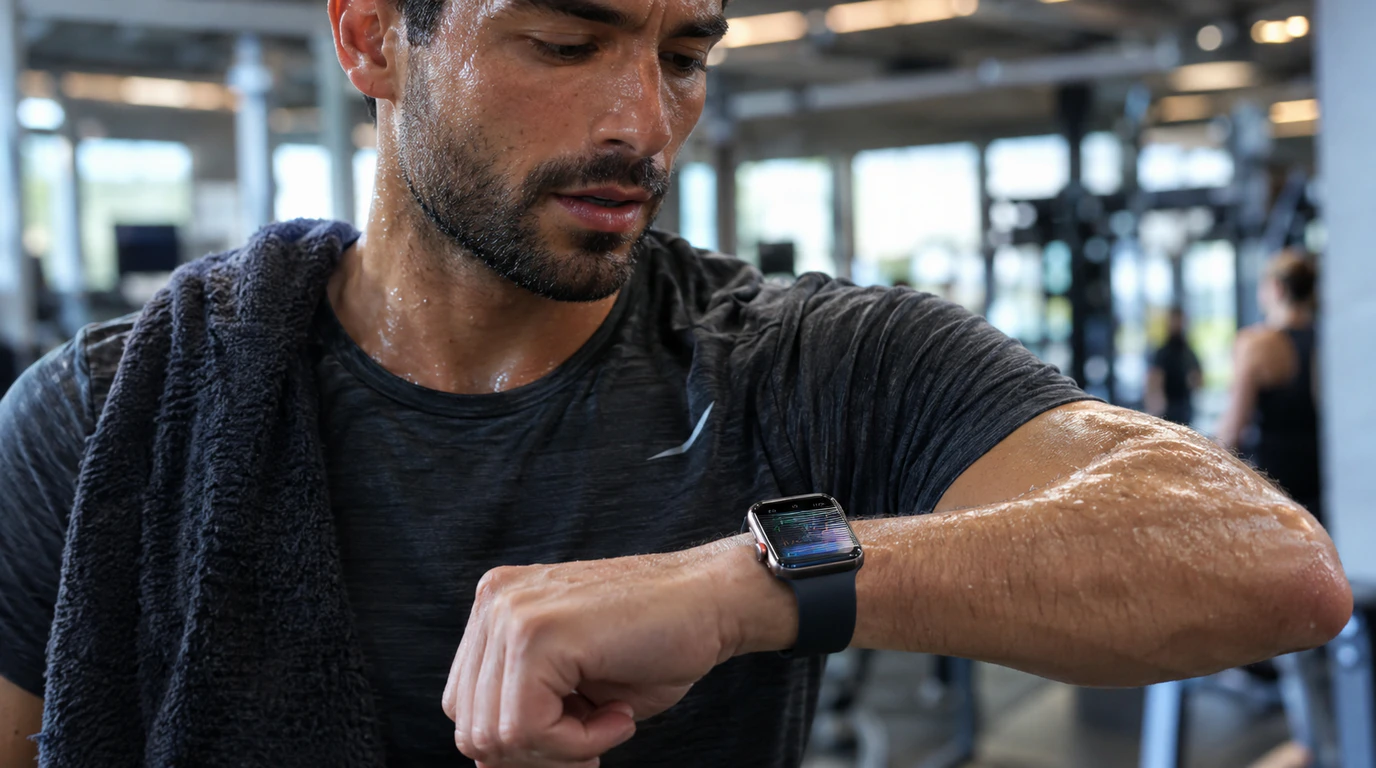
Most Apple Watch flickering during exercise is not a cracked or dying screen, it’s the display fighting sweat-triggered false touches, an Always-On Display bug that Apple itself acknowledged on Series 9 and Ultra 2, or a loose band letting the case bounce against your wrist. A cracked or pressure-damaged panel is a smaller share of cases, and you can usually tell the difference in under five minutes.
I’ve had this exact complaint come across my bench more times than I can count, always from someone mid-training block who’s convinced they just paid $400+ for a watch that’s already dying. Most of the time it isn’t. Let me walk through why.
A Real Case Apple Had to Admit To
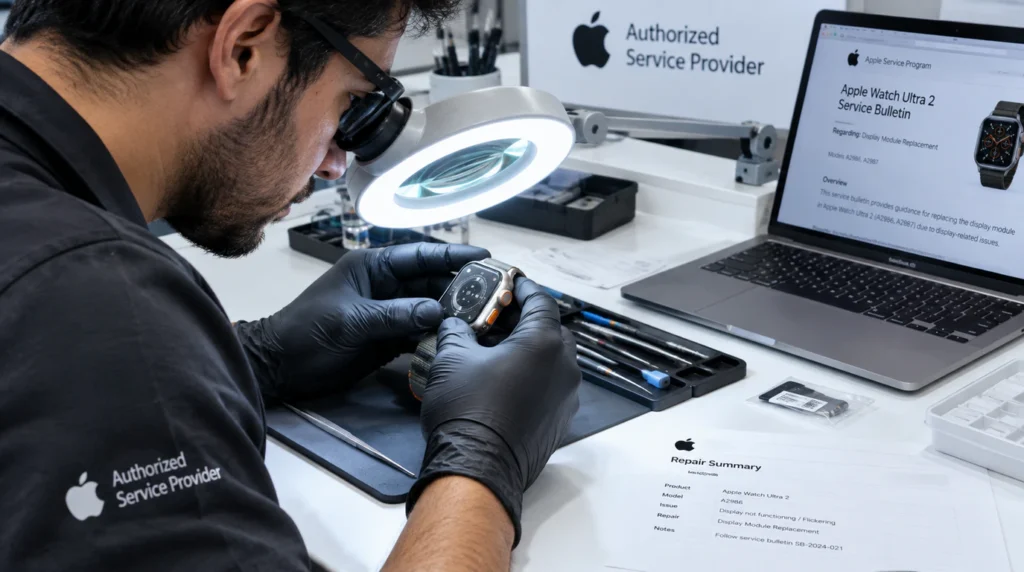
In late 2023, Apple quietly told its Authorized Service Providers not to perform any hardware repairs for flickering displays on the Apple Watch Series 9 and Apple Watch Ultra 2. The cause wasn’t a bad batch of screens, it was a watchOS 10 bug tied specifically to the Always-On Display feature, and Apple’s own workaround at the time was to turn Always-On Display off in Settings > Display & Brightness until a software patch shipped.
I bring this up first because it’s the single most useful thing I can tell you: on two of Apple’s most recent watch lines, a flickering screen was, for a stretch of months, a confirmed software defect not a hardware failure and technicians were told directly not to open the case over it. If you’re on a Series 9 or Ultra 2 and you never updated past watchOS 10.0, that’s the first thing to rule out, and it costs you nothing to check.
Why the Screen Actually Flickers Mid-Workout
Sweat is triggering false touches on the digitizer. The Apple Watch’s touch layer reads any conductive contact, and sweat is conductive. During a hard set or a run, sweat beading against the glass can register as phantom taps, which the display interprets as rapid input and responds to with a flicker or a jumpy refresh as it tries to redraw the screen.
A loose band is letting the case knock against your wrist or a barbell. This one gets missed constantly. If the band has stretched or you sized it for comfort instead of a snug workout fit, the watch face can lift and re-contact your skin repeatedly during movement, which produces a flicker that looks electrical but is actually a wrist-detection and re-lock cycle firing over and over.
Always-On Display is struggling to keep up with brightness changes. Outdoor workouts move you between shade and direct sun constantly. Combine that with AOD trying to dim and re-brighten the OLED panel in real time, and on affected units particularly Series 9, Series 10, and Ultra 2 you get a visible stutter that reads as flickering rather than a smooth transition.
The screen has actual pressure damage from an impact. A watch that’s been knocked against a squat rack, a dumbbell, or a doorframe can develop a hairline separation between the OLED panel and the digitizer layer. This kind of flicker tends to be worse when you press lightly on the glass and often comes with a faint discoloration band near one edge.
Low battery combined with high brightness. Below roughly 10% charge, some Apple Watch models throttle display refresh to save power, and if you also have brightness cranked up for outdoor visibility, that throttling can look like a flicker rather than a smooth dim.
Software or Hardware? Tell the Difference in Five Minutes
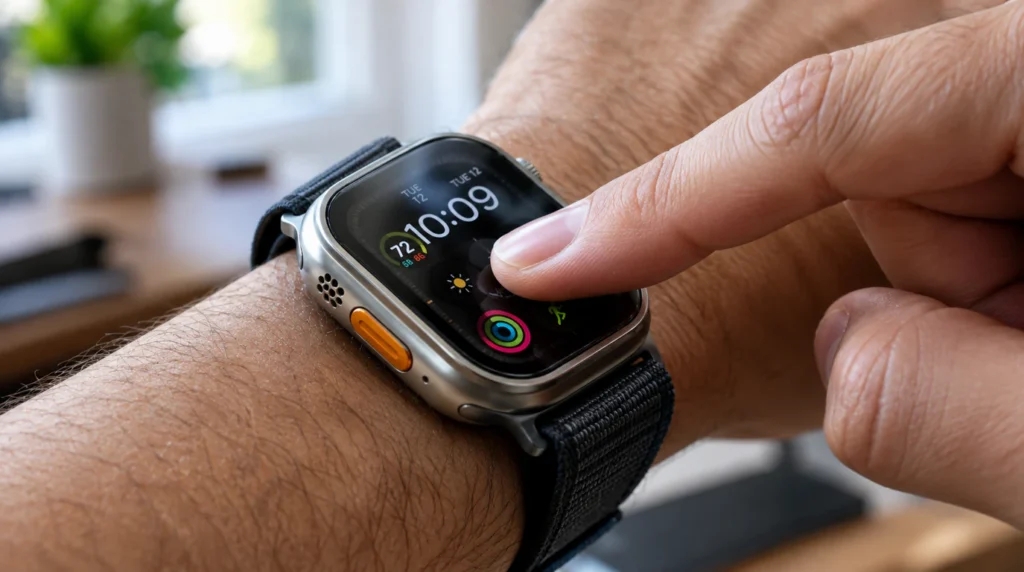
Press firmly on the display and hold for two full seconds, then release. On watchOS, this opens the Workout screen lock if the flicker briefly stops while locked and returns the moment you unlock and touch the screen again, you’re looking at a false-touch or software issue, not a cracked panel.
Next, check the flicker outside of a workout. Sit still indoors, screen unlocked, for two minutes. If it doesn’t flicker at rest but flickers the moment you start moving or sweating, that points strongly toward sweat contact or band looseness rather than hardware.
Finally, look at the edges of the glass under good light. A visible gap, a slightly raised corner, or a faint color band near one edge is a hardware sign of pressure damage or a lifted digitizer and no software fix will resolve it.
Fixes That Actually Work, In Order

- Update watchOS first. Open the Watch app on your iPhone, go to General > Software Update, and install anything available. Apple has shipped multiple AOD-related display fixes since the original Series 9/Ultra 2 bug, and an outdated build is the most common preventable cause I still see.
- Turn off Always-On Display during workouts. Settings > Display & Brightness > toggle Always On off. This was Apple’s own official workaround and it eliminates the flicker instantly on affected units, even if it’s not a permanent fix you want to leave on all the time.
- Use Water Lock or the screen lock gesture before you start. Firmly press the display and tap Lock, or turn on Water Lock from the Control Center. This stops sweat and clothing contact from registering as touch input for the entire session.
- Tighten the band by one notch for workouts specifically. The watch should sit snug enough that it can’t rotate or lift off your wrist when you swing your arm. Loosen it again afterward if that’s more comfortable day to day.
- Wipe the sensor housing and glass dry before and mid-workout. A microfiber cloth takes ten seconds and removes the sweat film that’s causing false contact in the first place.
- Force restart if the flicker persists after all of the above. Press and hold the side button and the Digital Crown together for about 10 seconds until the Apple logo appears. This clears a stuck display driver process without erasing anything.
- If none of that changes anything, check for physical damage under bright light and stop using the watch for workouts until it’s inspected. A digitizer that’s already separating from the OLED panel can worsen with continued flexing and sweat exposure.
What Repair Actually Costs If It Is Hardware
If you’ve ruled out software and band fit and the flicker is tied to a visible edge gap or worsens with light pressure, you’re likely looking at a display repair rather than a setting.
| Coverage | Typical Cost | Notes |
| AppleCare+ accidental damage | $69 (Series/SE) | Apple’s published service fee for a covered incident |
| AppleCare+ accidental damage | $79 (Ultra/Hermès) | Slightly higher fee tier for Ultra models |
| Apple Store, out of warranty | $299 (Series/SE) | Apple’s standard out-of-warranty screen estimate |
| Apple Store, out of warranty | $499 (Ultra 2) | Higher due to sapphire crystal and larger panel |
| Independent repair shop | $199–$399 | Price depends on model and parts quality |
If your watch is a Series 6 or older, get a real quote before booking anything. On older models, an out-of-warranty screen repair can run close to half the price of a new SE, and at that point replacing the watch is usually the better financial call.
Prevention Tips
- Update watchOS before every training block, not just when something breaks
- Turn off Always-On Display for workouts if you own a Series 9, Series 10, or Ultra 2
- Size your band snug for training, looser for daily wear
- Wipe the case and sensor housing dry between sets, not just after the workout
- Enable Water Lock or the screen-lock gesture before high-sweat sessions, not after the flickering starts
Common Mistakes People Make
- Assuming a flickering screen automatically means a cracked panel and booking a paid repair before checking for a watchOS update
- Leaving Always-On Display on for outdoor workouts on a model known to have the AOD flicker bug
- Buying a third-party band that’s too rigid to sit snug, which lets the case shift constantly during movement
- Continuing hard training sessions with a watch that shows edge discoloration, which can turn a small digitizer separation into a full panel failure
FAQ
Why does my Apple Watch screen flicker only when I’m sweating?
Sweat is conductive enough to register as touch input on the digitizer, and the watch responds to what it reads as rapid, overlapping taps by redrawing the display repeatedly, which shows up as a flicker.
Can a watchOS update actually fix screen flickering?
Yes Apple shipped several watchOS updates addressing the Always-On Display flicker bug that affected Series 9 and Ultra 2 units in 2023 and 2024, and staying current is the single easiest fix to rule out first.
Does Apple replace a flickering screen for free?
Only if it’s still within Apple’s standard one-year warranty and Apple determines the fault is a manufacturing defect rather than accidental damage; AppleCare+ covers accidental damage at a reduced service fee instead of free.
Is it safe to keep working out with a flickering screen?
It’s safe if the cause is software or sweat-related, but if you’ve confirmed a visible gap or discoloration at the edge of the glass, continued sweat exposure and pressure during exercise can worsen a hardware separation.
Expert Verdict
Nine times out of ten on the cases I see, an Apple Watch flickering during a workout is Always-On Display fighting sweat and motion, not a dying screen and turning AOD off, updating watchOS, and locking the screen before a session resolves it without spending a cent. Genuine panel damage is real but far less common, and it announces itself with a visible edge gap rather than a flicker that comes and goes with your heart rate. That’s the diagnostic order screendotfix.com uses on every unit that comes through with this exact complaint.
Author Note
I’m James, founder of screendotfix.com. This guide is built from direct bench time diagnosing display faults on Apple Watch, iPhone, and Mac hardware, cross-checked against Apple’s own published service fees and its 2023 internal guidance to Authorized Service Providers on the Series 9/Ultra 2 flicker issue. Repair costs above reflect Apple’s current published estimates and independent shop ranges at the time this article was updated.
For deeper reading, Apple’s own workout screen-lock instructions are here: Use the Workout app on your Apple Watch. For a full model-by-model cost breakdown beyond Apple Watch, iFixit maintains a running screen repair cost wiki. If you’re dealing with a different display fault on another device, screendotfix.com’s full troubleshooting library is at screendotfix.com.