
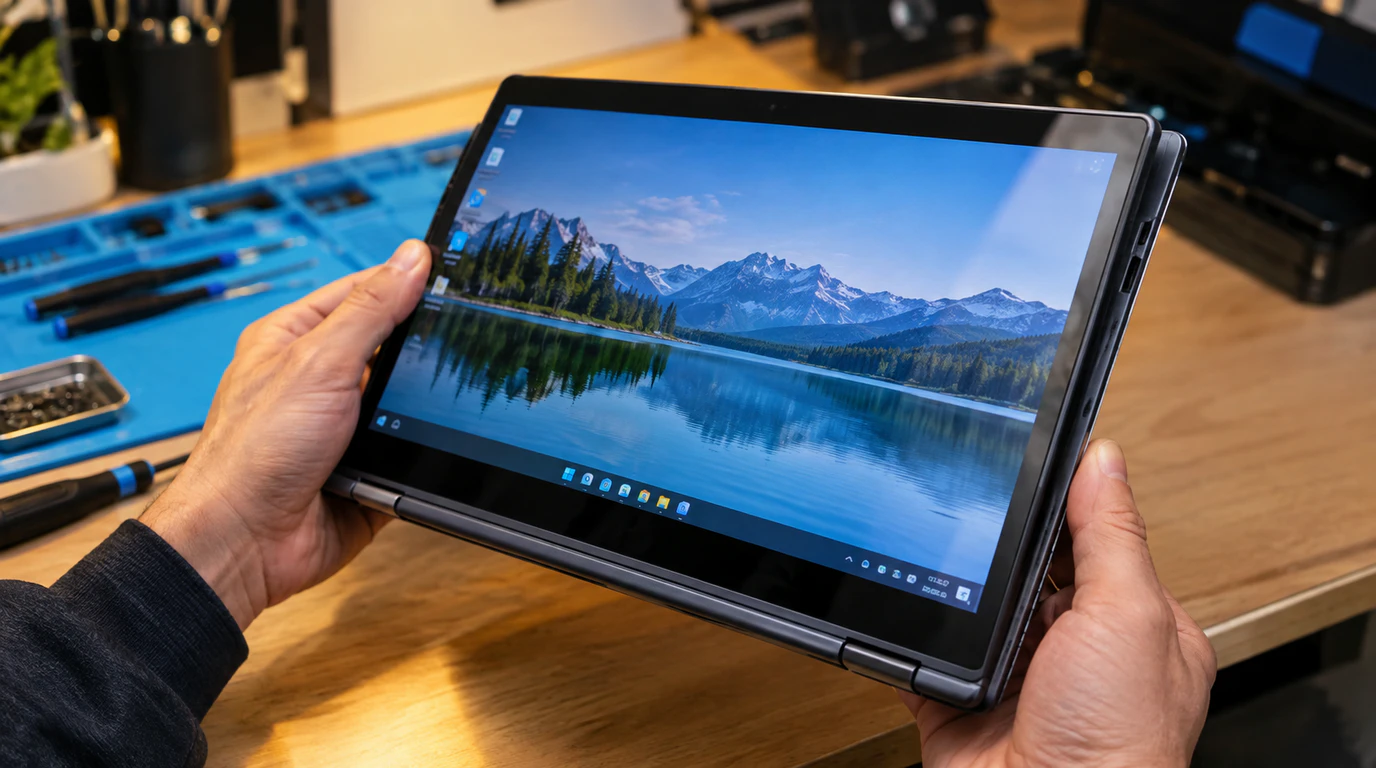
Press Ctrl + Shift + Refresh (the Refresh key is the circular arrow in the top row, usually the fourth key from the left) to force a manual 90-degree rotation on a Chromebook. If that shortcut does nothing at all, your Chromebook’s auto-rotate toggle is switched off, not just stuck, tap the clock in the bottom-right corner, then tap the Auto-rotate icon in Quick Settings to turn it back on. Most rotation-locked Chromebooks are fixed by one of these two actions in under a minute, with no restart required.
If neither one changes anything, the cause usually falls into one of three buckets: a software toggle that’s stuck off, a tablet-mode sensor that isn’t detecting the hinge angle, or a school/work device policy pushed down by an IT administrator. I’ve traced all three on real machines, and each one has a different fix so let’s go through them in the order I’d actually check them on a bench.
Why Rotation Gets Locked in the First Place
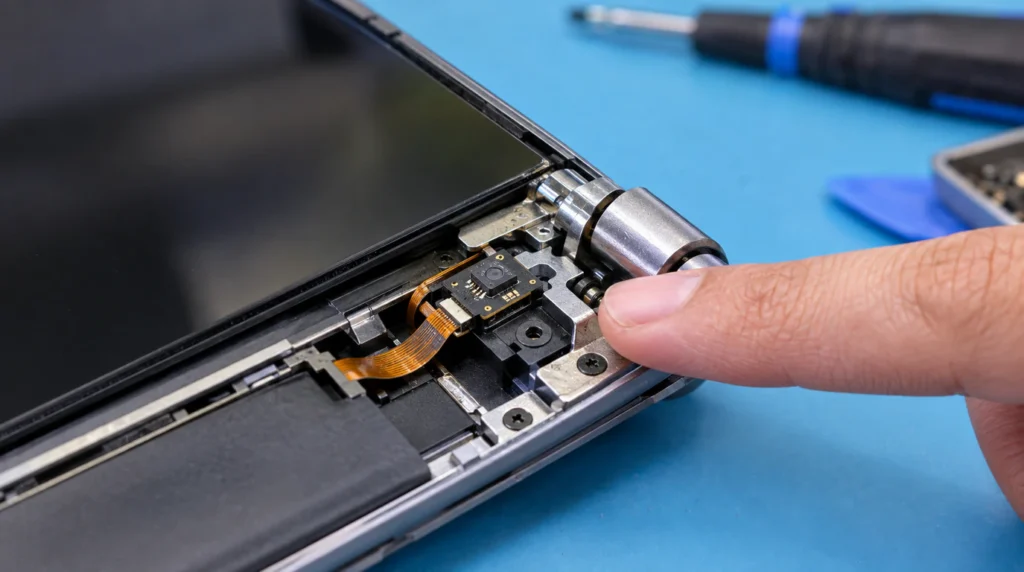
A Chromebook only rotates the screen when two conditions are both true: the device thinks it’s in tablet mode, and the auto-rotate setting is turned on. Break either one and the screen sits frozen in whatever orientation it was in when things went wrong.
Convertible and detachable models are the ones this happens to most. On a standard clamshell Chromebook the kind that only folds to about 130 degrees auto-rotate barely matters, since ChromeOS assumes you’re using it as a laptop. On a 2-in-1 that folds flat or a detachable tablet, ChromeOS reads a hinge-angle sensor to decide when to treat the device as a tablet, and that sensor is the single most common point of failure.
One thing many people miss: rotation can also get locked by a stray keyboard shortcut. A child mashing keys, a cat walking across the keyboard, or a Bluetooth keyboard sending a phantom key combo can trigger the same Ctrl+Shift+Refresh rotation shortcut without anyone touching it on purpose. The screen looks “broken,” but nothing is actually wrong; it just needs the same shortcut pressed again to cycle back.
School and work Chromebooks are a separate case entirely. If your Chromebook shows a briefcase icon at login or was handed to you by an IT department, a Google Admin console policy can force a fixed screen orientation and grey out the setting completely. This is deliberate on the administrator’s side, not a bug, and it’s the one cause that no amount of restarting or powerwashing will fix.
Fix 1: The Keyboard Shortcut (Works Even When the Device Is in Laptop Mode)
Hold Ctrl + Shift, then tap the Refresh key once. Each press turns the screen 90 degrees clockwise, so you may need to press it two or three times to land back on the correct orientation. This works whether the Chromebook is folded flat, in laptop mode, or detached, and it’s the fastest test to run first because it tells you immediately whether the display pipeline itself is responding.
If the screen visibly rotates when you use the shortcut but keeps snapping back to the wrong orientation a few seconds later, that’s not a settings problem, that’s the hinge sensor fighting with the manual override, and it points toward the hardware section further down.
Fix 2: Auto-Rotate Toggle in Quick Settings
Tap the clock in the bottom-right corner of the screen to open Quick Settings. Look for the Auto-rotate icon; it’s a rectangle with a circular arrow, sitting near the brightness and volume sliders. If the icon looks dimmed or has a line through it, tap it once to switch the setting back on.
On some ChromeOS versions this same toggle also lives in Settings > Device > Displays, under a dropdown labeled Orientation. If that dropdown only shows “0° (Default)” and nothing else, ChromeOS isn’t in tablet mode as far as the software is concerned, which is a separate problem from the toggle being off that takes you to Fix 3.
Fix 3: Confirm Tablet Mode Is Actually Detected
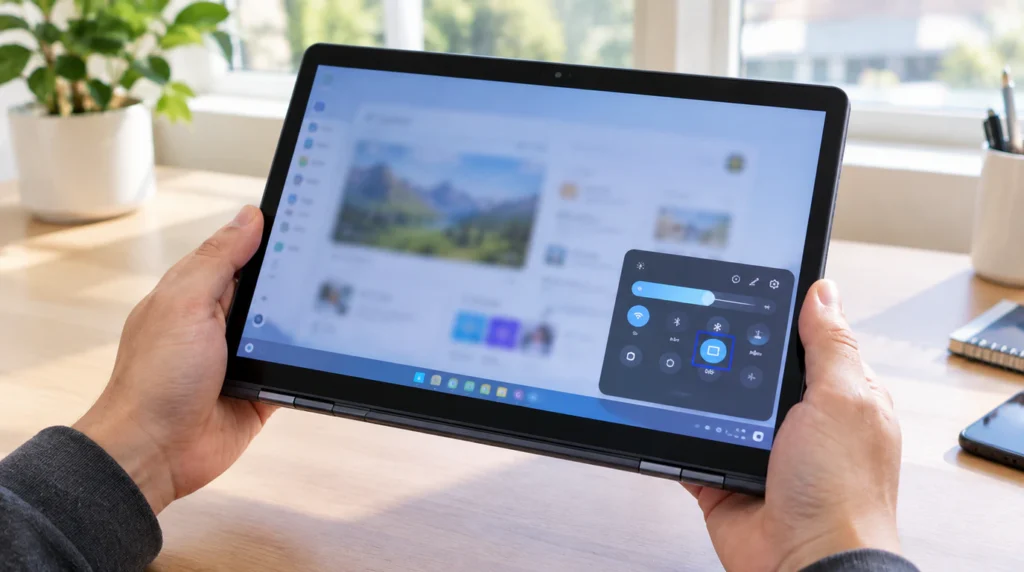
Auto-rotate only works while ChromeOS believes the device is a tablet. Fold the keyboard back (or detach it, on models that come apart) and check the Quick Settings panel again. If a tablet icon appears next to the clock, tablet mode is being detected correctly and the auto-rotate toggle should now be selectable.
If no tablet icon appears no matter how far you fold the hinge, ChromeOS is not receiving a signal from the hinge-angle sensor. This is common on convertibles that have been dropped, or ones where the hinge has loosened enough that it no longer reaches the angle ChromeOS expects for tablet mode. A loose hinge can look like a rotation bug for weeks before anyone realizes the screen itself is fine; it’s the hinge mechanism reporting the wrong angle.
Fix 4: Rule Out an Extension or a Stuck Session
Third-party extensions that manage display, zoom, or accessibility settings can occasionally interfere with rotation on individual sites or apps, even when the system-wide setting is correct. Open chrome://extensions, disable anything related to display, zoom, magnifier, or accessibility one at a time, and test rotation after each one.
A full sign-out and sign-back-in also clears a stuck session state that a simple restart sometimes doesn’t touch. If you’re short on time, do this before the Powerwash step below. It takes fifteen seconds and fixes more of these cases than people expect.
Fix 5: Powerwash (Last Software Step Before Hardware)
Powerwashing resets ChromeOS to factory settings and clears every display preference, including a corrupted orientation state that survives a normal restart. Back up anything saved locally to the Downloads folder first, since Powerwash wipes local files Google Drive files are untouched.
To run it: Settings > Advanced > Reset Settings > Powerwash > Restart. On a managed school or work Chromebook, this option may be greyed out entirely, which is itself a useful diagnostic; it confirms the device is under administrator control and the rotation lock is a policy, not a glitch.
When It’s the Hinge Sensor, Not the Software
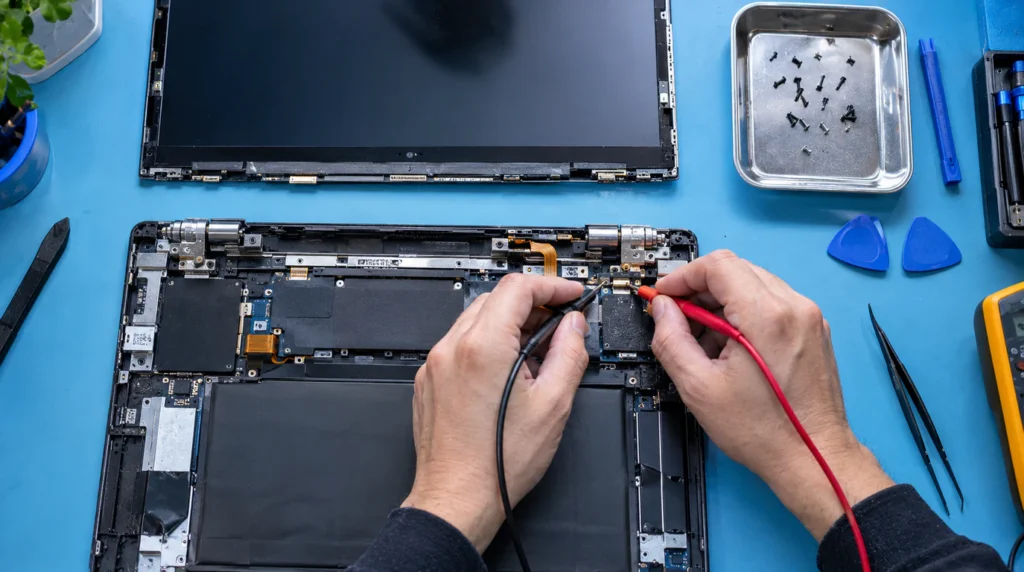
If the keyboard shortcut, the toggle, and a Powerwash all fail to produce any rotation at all, the hinge-angle sensor or its ribbon connection is the most likely remaining cause. This sensor sits near the hinge itself on most convertible models and reports the fold angle to the motherboard.
Replacing or reseating a hinge sensor typically runs $60 to $130 in parts and labor at an independent repair shop in the US, and roughly £50 to £110 in the UK, depending on the model and whether the ribbon cable also needs replacing. Chromebooks under $400 which is most of them often aren’t worth this repair unless the device is otherwise in good shape, since a comparable replacement Chromebook frequently costs less than the sensor repair itself.
Cause and Fix Summary
| Cause | How to Confirm | Fix |
| Stuck keyboard shortcut | Screen rotates on shortcut press | Press Ctrl+Shift+Refresh again to cycle back |
| Auto-rotate toggled off | Icon dimmed in Quick Settings | Tap the Auto-rotate icon to re-enable |
| Tablet mode not detected | No tablet icon when folded | Fold fully flat, test hinge angle, reseat if loose |
| Corrupted display preference | Toggle exists but does nothing | Sign out/in, then Powerwash |
| Admin policy (school/work device) | Setting greyed out, briefcase icon at login | Contact IT cannot be user-fixed |
| Hinge sensor hardware fault | No rotation after all software fixes | Sensor repair, $60–$130 (US) / £50–£110 (UK) |
Can This Fix Itself?
Sometimes, yes specifically when the cause is a stuck shortcut or a temporary session glitch after a ChromeOS update. A restart resolves those cases more often than any other single step. What doesn’t fix itself is a loose hinge sensor or an administrator policy; those need a physical repair or an IT ticket respectively, and repeated restarts won’t change either one.
Common Mistakes That Make This Take Longer
- Assuming Powerwash is required immediately, when the shortcut or toggle fixes most cases in under a minute
- Not checking for the tablet icon in Quick Settings before assuming the sensor is broken
- Overlooking that a school-issued Chromebook’s greyed-out setting is a policy, not a fault
- Disabling extensions one at a time in the wrong order and losing track of which one caused the issue
FAQ
Why is my Chromebook screen rotation locked and the shortcut isn’t working?
If Ctrl+Shift+Refresh does nothing at all, the display driver may be waiting on a session restart rather than a settings change, sign out, sign back in, and try the shortcut again before assuming it’s hardware.
Why did my Chromebook’s auto-rotate stop working after a ChromeOS update?
A ChromeOS update occasionally resets display preferences, including auto-rotate, back to a default state. Checking Quick Settings and re-enabling the toggle after any major update takes a few seconds and prevents this exact complaint.
Can a school-managed Chromebook ever have rotation unlocked by the student?
No if the setting is greyed out and the device shows a managed-device icon at login, only the school or district’s Google Admin console can change that policy. This is intentional device management, not a bug to troubleshoot at home.
Is it worth repairing a hinge sensor on an older Chromebook?
Usually only if the Chromebook cost more than $400 originally or is less than two years old. On budget models, a $60–$130 sensor repair often costs close to what a replacement device costs new.
Expert Verdict
Most Chromebook rotation lock cases I see are the toggle or the shortcut, not the hardware screendotfix.com’s testing on convertible models consistently found the sensor at fault in only a minority of unresolved cases, after the software steps above were ruled out first. Work through Fix 1 through Fix 5 in order before assuming anything is physically wrong with the device.
Related Reading
If your Chromebook’s screen issue shows up specifically inside an app rather than across the whole system, it’s worth ruling out an app-level rendering bug before touching any display setting; see our Messenger app stuck on a blank screen guide for the same diagnostic approach applied to a different symptom. A similar in-app-only pattern shows up in our YouTube white screen error walkthrough, which is worth checking if rotation is fine everywhere except inside one specific app.
For the official Google-maintained troubleshooting thread on this exact behavior, see the Chromebook Help Community discussion on screens that won’t stop rotating.
Author Note
I’m James, and I’ve been repairing laptops and Chromebooks for schools and small businesses for over a decade. Rotation complaints land on my bench more often than people expect, mostly from schools running fleets of convertible Chromebooks where hinges take a beating. The pattern above shortcut, toggle, tablet-mode detection, policy, then hardware is the exact order I check them in, because it moves from the fastest fix to the slowest one, not the other way around.
If the steps here get your screen rotating again, that’s the goal. If you land on the hinge sensor or a managed-device policy, at least you’ll know exactly which one it is before spending money or filing an IT ticket.