
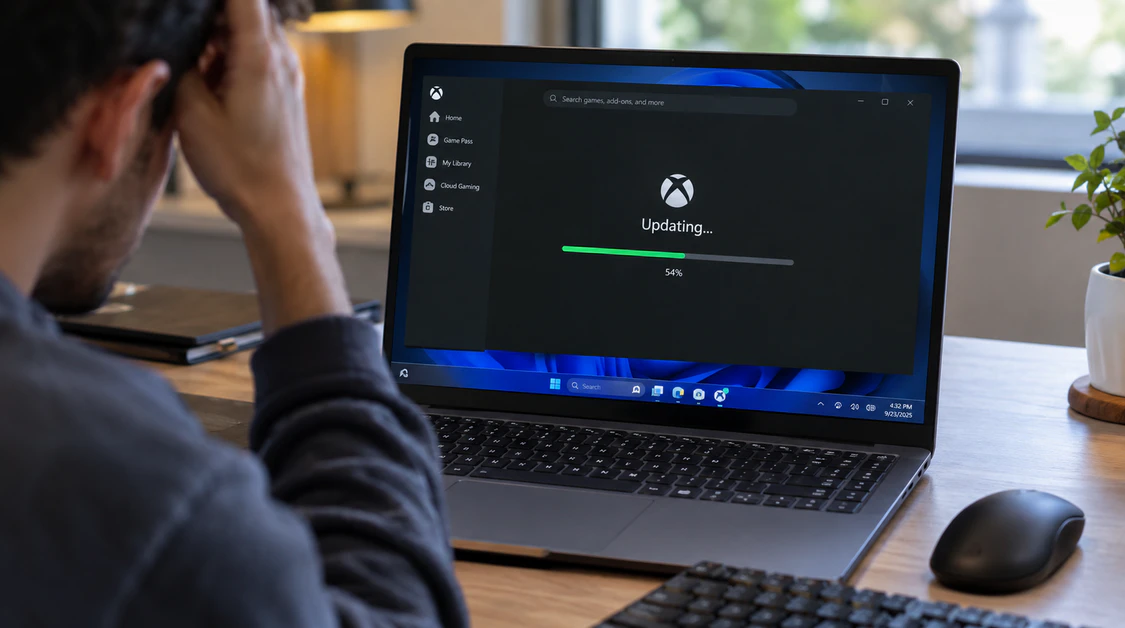
Xbox App Stuck on Updating? Use the 15-Minute Rule
Give the Xbox app 15 minutes on its Updating screen. After that, waiting stops helping and fixing starts.
One poster on Microsoft’s Q&A forum left a Windows PC running for two days on this exact loop.
The update never finished. Time rarely unsticks it, but order does, because each fix below clears a different blocker.
Why is the Xbox app stuck on updating?
The Xbox app gets stuck on updating when Gaming Services, the Microsoft Store cache, or a half-finished Windows update blocks the install. James, founder of screendotfix.com, works through the fixes in this order: restart, update through Microsoft Store, repair the Xbox app, then reinstall Gaming Services.
Every fix on this page is free. Each one takes roughly three to ten minutes.
Is the Xbox app frozen, or is my screen frozen?
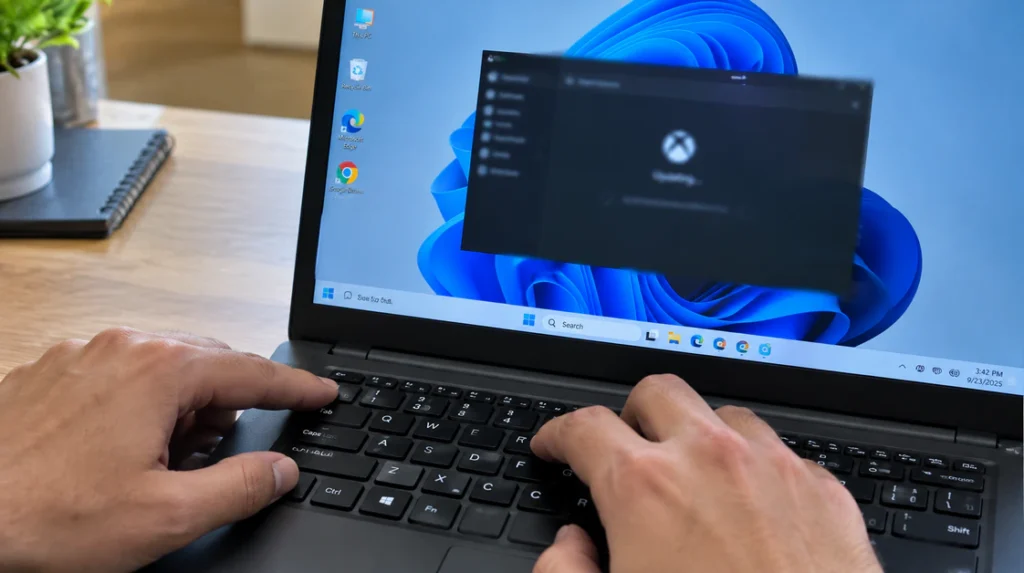
The Xbox app is frozen, not your display, if the mouse pointer still moves and other windows still respond. Press Ctrl + Shift + Esc to check.
If the Task Manager opens, your display driver and panel are fine. Only one app window has stalled.
Apps that hang on a loading screen while Windows stays responsive follow the same pattern as our Pinterest stuck splash screen guide. The cause is software, not hardware.
If the pointer freezes too, stop reading this guide. That points to a graphics driver or display connection fault, which is a different repair.
What does the stuck screen tell me?
The exact wording and behavior of the stuck screen points to the cause before you change a single setting. Use this table to pick your starting fix.
| What you see | Most likely cause | Start at |
| “Xbox needs an update. We’re getting Xbox ready for you.” never ends | Gaming Services or Store update stalled | Fix 2 |
| Progress bar frozen at 0% | Microsoft Store cache or Install Service | Fix 3 |
| Update “finishes,” then the prompt returns | Broken Gaming Services package | Fix 5 |
| Error 0x80073D26 or 0x8007139F | Gaming Services install failure | Fix 5 |
| Bar creeps forward very slowly | Slow download, not a stall | Wait, then check your network |
If your symptom is not listed, start at Fix 1 and work down.
Why does the Xbox app get stuck on updating?
Four causes show up again and again in Microsoft’s forums and repair guides. Knowing which one you have saves you from repeating fixes that cannot work.
Gaming Services is corrupted or half-installed
Gaming Services is the Windows component that handles download management and license checks for Game Pass and Microsoft Store games. When it breaks, the Xbox app cannot finish updating and may loop forever.
A Windows update that only partly finishes can break it. So can a Store update that corrupts the package, or installing and removing many Store apps at once.
The Microsoft Store cache or Install Service is jammed
The Microsoft Store and the Xbox app share one download pipeline, so a jammed Store cache freezes both. A progress bar stuck at 0% usually points here.
The same pattern of one stuck local file blocking everything shows up in our Messenger white screen fix. Different app, same logic.
A Windows update landed in the middle of the install
When Windows Update runs while the Xbox app is updating, one process can lock files the other needs. This can happen right after Patch Tuesday, the second Tuesday of each month.
Restarting the PC before you open Xbox, after any large Windows update, avoids most of these collisions.
Your Windows version is too old
Xbox Support states that some Xbox app and Game Bar features need Windows 10 version 22H2 or newer. Check yours at Settings > System > About > Windows specifications > Version.
Microsoft also documented in 2021 that Windows 10 builds 19041, 19042, and 19043 could throw error 0x80073D26 or 0x8007139F during Gaming Services installs. Update KB5004476 fixed that, so a fully updated PC should not hit it.
How do I fix the Xbox app stuck on updating?
Work through these seven fixes in order and test the Xbox app after each one. Stop the moment the Updating screen clears.
Restart Windows the right way (3 minutes)
Click Start > Power > Restart. Do not choose to shut down.
On many PCs, Shut down uses Fast Startup, which keeps part of the last session alive. Restart forces a clean load of every service.
Update Windows and the Store library (10 minutes)
Updating Windows and the Store library first gives Gaming Services a healthy base to install onto.
- Open Settings > Windows Update > Check for updates and install everything offered.
- Restart if Windows asks.
- Open Microsoft Store > Library > Get updates.
- Leave both windows open until the Xbox app and Gaming Services finish.
Restart the Store Install Service and clear the Store cache (5 minutes)
Restarting the Microsoft Store Install Service and running wsreset clears the jam that freezes a 0% progress bar.
- Press Win + S, type services.msc, and press Enter.
- Double-click Microsoft Store Install Service.
- If the status is Running, right-click it and choose Restart. If it is Disabled, set Startup type to Automatic, click Start, then OK.
- Press Win + R, type wsreset.exe, and press Enter.
- A blank Command Prompt window opens. After about ten seconds it closes and the Microsoft Store opens by itself.
Repair, then reset Xbox, Microsoft Store, and Game Bar (10 minutes)
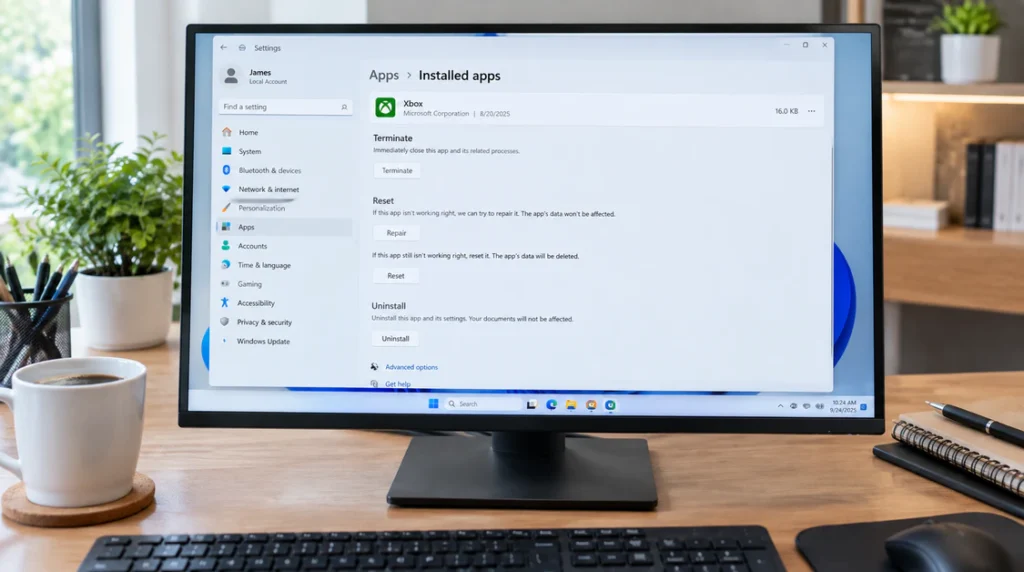
Windows can repair the Xbox app without deleting your data, and Repair should always come before Reset.
- Open Settings > Apps > Installed apps and find Xbox.
- Click the three-dot menu > Advanced options > Repair, then test the app.
- If it is still stuck, return and click Reset. Have your Microsoft account password ready, because Reset usually signs you out.
- Repeat Repair and Reset for Microsoft Store.
- On Windows 11, open Settings > System > System components, find Game Bar, and repeat Repair then Reset.
Reinstall Gaming Services (10 minutes)
Reinstalling Gaming Services is the fix that community repair guides credit with solving the most stalled Xbox updates.
- Right-click Start and open Terminal (Admin) or Windows PowerShell (Admin).
- Paste this command and press Enter: get-appxpackage *gamingservices* | remove-appxpackage -allusers
- Paste this command and press Enter: start ms-windows-store://pdp/?productid=9MWPM2CQNLHN
- On the Gaming Services page that opens in the Store, click Get or Install.
- Restart Windows, then open the Xbox app.
If PowerShell feels risky, Xbox Support hosts an official Gaming Services Repair Tool built for exactly these install and update failures.
Re-register the Microsoft Store (10 minutes)
Re-registering the Microsoft Store rebuilds its app package registration when the Store itself is damaged.
- Open Terminal (Admin) or Windows PowerShell (Admin).
- Paste this command and press Enter: Get-AppXPackage *WindowsStore* -AllUsers | Foreach {Add-AppxPackage -DisableDevelopmentMode -Register “$($_.InstallLocation)\AppXManifest.xml”}
- Wait until the prompt returns.
- Restart Windows, open the Store, then open the Xbox app.
Test with a second Windows account (10 minutes)
Testing the Xbox app under a second Windows account shows whether your original user profile holds the corrupted data.
- Open Settings > Accounts > Other users > Add account.
- Sign in to the new account and open the Xbox app.
- If it updates there, the problem lives in your old profile, so move your files to the new one.
Why is my Xbox app stuck on updating after a Windows update?
A Xbox app stuck on updating after a Windows update usually means Windows left Gaming Services and the Store with mismatched files. Start at Fix 5, then return to Fix 3 if the bar still sits at 0%.
If Windows Update itself also hangs, fix that first. Community reports link both stalls to the same Store cache problem, so Fix 3 often helps both.
When is resetting Windows worth it for an Xbox app problem?
Resetting Windows is worth it only when Fix 6 fails and other Microsoft Store apps also refuse to update. In that case the fault lies in Windows, not in Xbox.
Doing it yourself costs $0. Open Settings > System > Recovery > Reset this PC and choose Keep my files.
That option removes your installed apps, so back up first. I could not verify a current shop price for a Windows reinstall, so I will not quote one.
If Xbox is the only broken app, resetting Windows costs more time than it saves. Try cloud gaming in a browser instead, if your Game Pass tier includes it.
Common mistakes that keep the Xbox app stuck
- Leaving the PC on for days. The Q&A poster above tried this for two days with no change.
- Reinstalling only the Xbox app. The same poster reinstalled it twice, and Gaming Services stayed broken underneath.
- Downloading unofficial repair tools. Community-built Xbox repair tools state plainly that Microsoft does not support them.
- Deleting the WindowsApps folder. This can break every Store app, not only Xbox.
- Mistaking a slow download for a stall. A slow bar still moves, and a true stall does not.
Prevention tips
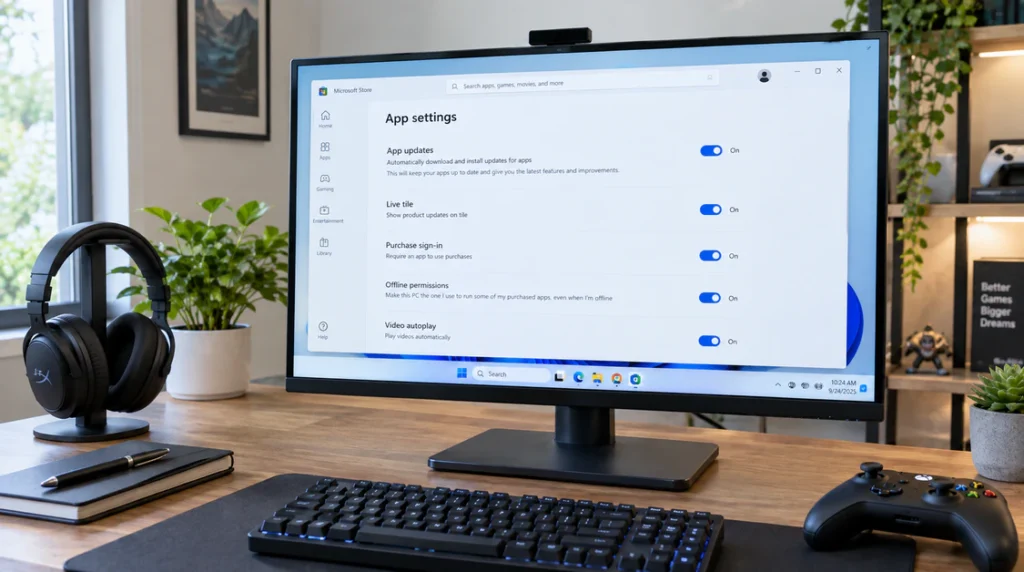
- Keep automatic app updates on in Microsoft Store > your profile picture > App settings.
- Let Windows Update and Store updates finish before you shut down.
- Avoid installing or removing several Store apps at once.
- Restart after big Windows updates before opening Xbox.
- Keep Windows 10 on version 22H2 or newer.
Expert Verdict
Gaming Services is the first suspect, the Store cache is the second, and Windows itself is the last. That ordering is the working method screendotfix.com recommends, because it avoids the Windows reset most people reach for far too early.
Key takeaway from screendotfix.com: after 15 minutes, stop waiting, run Fix 3 and Fix 5, and leave the Windows reset for last.
FAQ
Why is my Xbox app stuck on updating and won’t finish?
Your Xbox app is stuck on updating because Gaming Services, the Store cache, or a partial Windows update is blocking the install. Reinstalling Gaming Services (Fix 5) is the most commonly successful fix.
How long should an Xbox app update take on Windows?
An Xbox app update on Windows should finish in a few minutes on a normal connection. If the screen has not changed after 15 minutes, treat it as a stall and start fixing.
Will fixing the Xbox app stuck on updating delete my games?
Repairing or resetting the Xbox app does not delete your Microsoft account or Game Pass purchases. Reinstalling Gaming Services can make some installed games ask for a repair or re-download, so confirm your cloud saves sync first.
Does the Xbox mobile app get stuck on updating too?
The Xbox mobile app can stall on an update, but the cause is different because Gaming Services only exists on Windows. Update or reinstall it from the App Store or Google Play. The newest iOS build I could confirm is 2607.1.1 from July 2026, and it needs iOS 15 or later.
Is the Xbox app stuck on updating a screen or graphics problem?
The Xbox app stuck on updating is a software problem, not a display fault, when your mouse pointer and other windows still respond. If the whole screen freezes, check your graphics driver and display connection instead.
The last thing to remember
A stuck Xbox update feels like a hardware failure because the screen simply stops changing. It is almost always one broken software layer.
Wait 15 minutes, work down the seven fixes in order, and you will usually reach the one that clears it before a Windows reset becomes necessary. If the loop survives all seven, the problem is Windows itself, and that is the only time a reset earns its place.
About the Author
James is the founder of screendotfix.com. He writes free troubleshooting guides on screen, display, and app-freeze problems for readers in the US, UK, and Australia.
Sources checked, September 2026: Xbox Support (Gaming Services Repair Tool and PC troubleshooting pages), Microsoft KB5004327, Microsoft Q&A threads on Xbox app update and startup loops, and current community repair guides.