
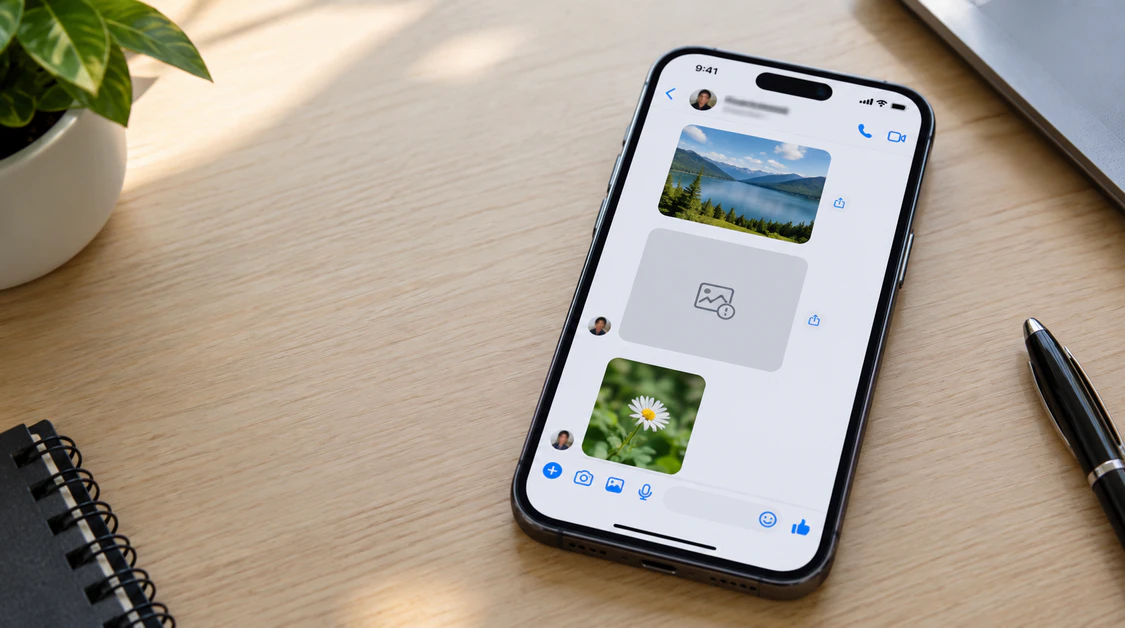
Can’t See Shared Photos on Messenger? 5 Practical Fixes That Actually Help
Having trouble viewing photos on Messenger can be frustrating, especially when the message itself appears normally but the image stays blank, turns black, or shows an error.
The good news is that a missing Messenger photo does not automatically mean your phone screen is damaged. In many cases, the problem is caused by the Messenger app, network connection, permissions, storage, or encrypted-chat restoration.
The right solution depends on what happens when you try to open the photo. Instead of changing random settings, start with the symptom that matches your problem.
Messenger Shows a Grey or Blank Box Instead of the Photo
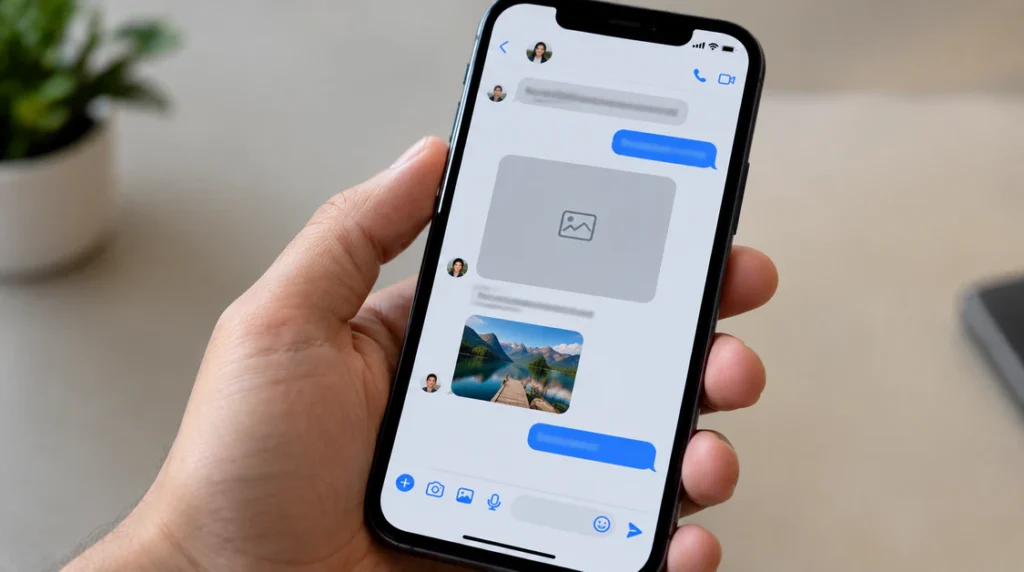
A grey or empty image box usually means Messenger received the message but failed to download or display the actual image.
This can happen because of a poor connection, Data Saver restrictions, limited storage, a stuck cache, or a temporary Messenger problem. Older photos may be affected first because they may need to be downloaded again.
Try These Fixes in Order
1. Check whether Messenger is experiencing an outage
Search for current Messenger outage reports on Downdetector. If a large number of users are reporting problems at the same time, the issue may be on Messenger’s side. In that situation, waiting and trying again later may be the simplest solution.
2. Switch your internet connection
Turn Wi-Fi off and try opening the photo using mobile data. If that does not work, switch back to Wi-Fi.
If the photo works on one connection but not the other, the problem may involve your router, network restrictions, carrier connection, or another network filter.
3. Disable VPN or Private DNS temporarily
If you use a VPN or Private DNS, turn it off temporarily and test Messenger again.
On many Android phones, Private DNS can be found under:
Settings → Network & internet → Private DNS
The exact menu can vary by phone manufacturer and Android version.
4. Turn off Data Saver
Data Saver can sometimes restrict how apps download media.
Open Messenger settings and look for the Data Saver option. If the menu has moved in your version of Messenger, use the settings search to find it.
5. Check your available storage
Very limited phone storage can interfere with temporary files and media downloads.
If your phone is nearly full, remove unnecessary large videos, downloads, or unused apps and then try opening the photo again.
6. Clear Messenger’s cache
A corrupted or stuck cache can sometimes prevent images from loading correctly.
Android: Clear Messenger Cache
Go to:
Settings → Apps → Messenger → Storage → Clear Cache
Clearing the cache does not delete your personal photo library.
iPhone: Offload Messenger
On an iPhone, you can try:
Settings → General → iPhone Storage → Messenger → Offload App
Then reinstall Messenger.
Offloading is different from simply deleting the app because it is designed to retain the app’s documents and data. If you use encrypted chats, however, make sure your message-storage method is configured before removing or reinstalling the app.
Try the Media Section
Open the affected conversation, tap the chat name, and look for the Media section.
Sometimes a photo that refuses to load inside the conversation can still appear through the shared-media view.
The Messenger Photo Opens as a Black Screen
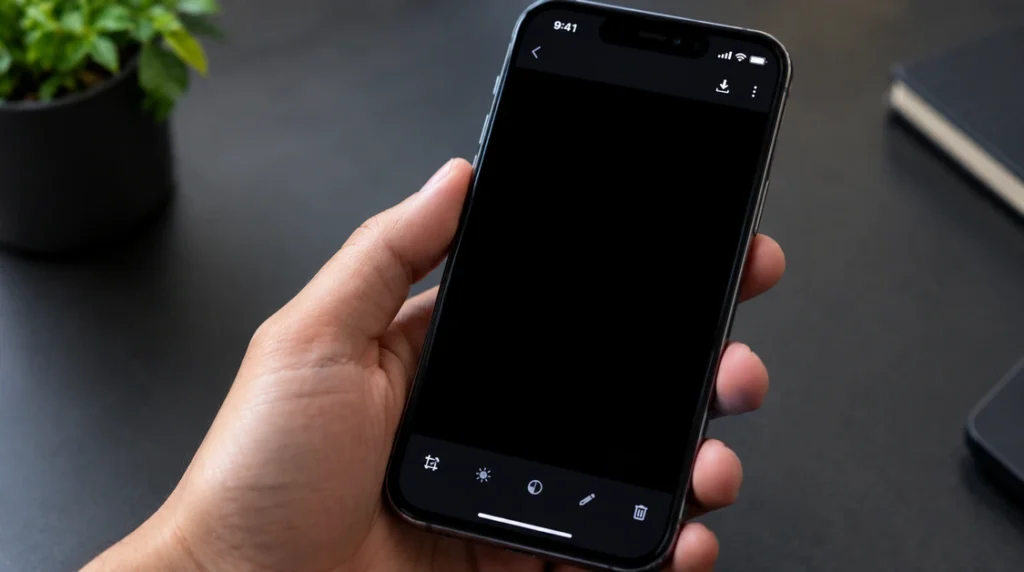
A different problem occurs when the thumbnail is visible, but tapping it opens a completely black viewer.
If the viewer still shows options such as editing or downloading, the problem may be related to Messenger’s image-rendering process rather than your phone’s physical display.
Some Samsung users have reported similar behavior, including reports involving Galaxy S24 Ultra, S25, and S25 Plus devices.
Try These Steps
1. Update Messenger
Open the Google Play Store or App Store and install any available Messenger update.
If the problem is caused by a software bug, a newer app version may contain the fix.
2. Check Messenger permissions
On Android or Samsung devices, open:
Settings → Apps → Messenger → Permissions
Make sure Messenger has the appropriate access to photos and media.
Then reopen Messenger and try the image again.
3. Force stop Messenger
On Android:
Settings → Apps → Messenger → Force Stop
Open Messenger again and test the affected photo.
This can temporarily resolve an app process that has become stuck.
4. Report the problem to Messenger
If photos remain black after updating the app, checking permissions, and restarting Messenger, report the issue through Messenger’s feedback tools.
If the problem is caused by an app-level bug, troubleshooting on your phone may not permanently solve it until Meta releases a fix.
What About iPhone Photo Permissions?
iPhone users can control how much access an app has to their photos.
Depending on the iOS version and app permissions, Messenger may have limited or full access to your photo library.
Remember that permission to save photos and permission to browse your photo library are not necessarily the same thing.
What Does “This Media Is No Longer Available” Mean?
If Messenger displays “This media is no longer available,” the app cannot retrieve the original file.
There are several possible reasons. The app may have encountered a problem, the original media may no longer be available, or the photo may have been sent using a disappearing-message feature.
Before assuming the photo is permanently gone, perform a simple test.
Check the Conversation on Another Device
Open the same conversation on another phone or through Messenger on the web using the same account.
If the photo appears on the other device, the problem is probably limited to your Messenger app or phone.
If the photo is missing everywhere, the original file may no longer be available.
In that situation, ask the sender whether they still have the photo and can send it again.
For group conversations, also check the conversation’s Media section. Shared photos can sometimes be easier to find there than by scrolling through the chat.
Be Careful With Disappearing Photos
Disappearing messages are designed to remove their content after the relevant viewing or expiration conditions are met.
If a photo was deliberately sent as disappearing media and has already disappeared, normal troubleshooting cannot restore it.
There is also no reason to trust websites that claim Messenger automatically deletes every photo after a specific number of days unless they can provide an official source for that claim.
Your Messenger Photos Disappeared After Getting a New Phone
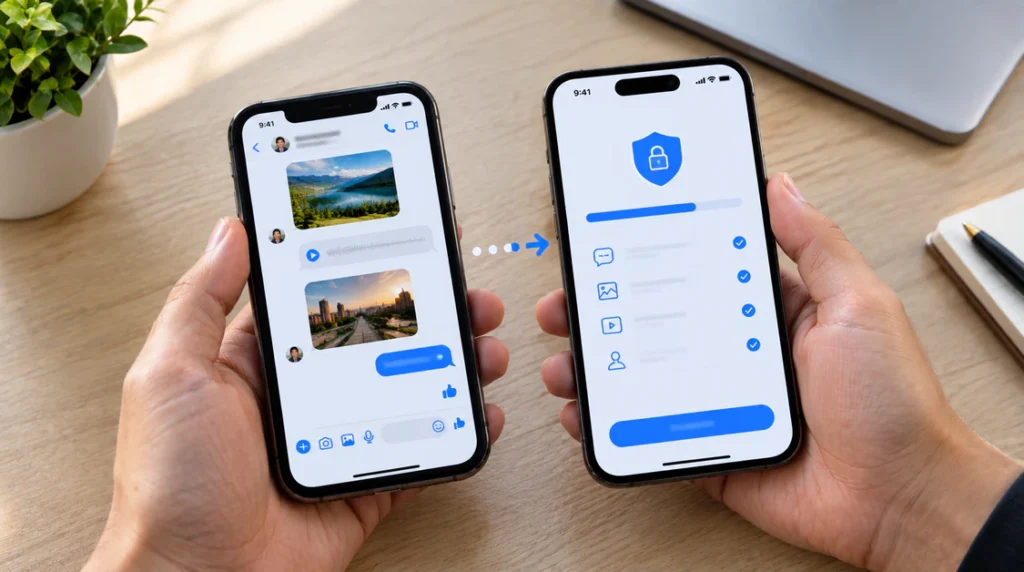
Changing phones can create a different kind of Messenger problem.
If older conversations and photos are missing after moving to a new device, the issue may involve end-to-end encrypted chat history.
Encrypted chats may require you to restore your message history using the security method that was previously configured.
If you see “End-to-end encrypted” beneath a contact’s name, your conversation is using encrypted messaging.
How to Restore Your Chats
On the new phone:
- Sign in to Messenger using the same account.
- Look for the Restore now option if Messenger displays it.
- Choose the security method you previously configured.
- Depending on your setup, this may involve Google or Apple sign-in, a PIN, or a 40-character recovery code.
Your exact options can vary depending on how Messenger’s encrypted message storage was configured.
Check the Old Phone Before Removing Anything
If you still have your previous phone, check the Messenger message-storage settings before deleting the app or resetting the device.
On Android, look under:
Messenger → Menu → Settings → Privacy & safety → End-to-end encrypted chats → Message storage
On iPhone, follow the same general path and check whether your message-storage key is saved through iCloud Drive.
Important: Don’t Wipe the Old Phone Too Quickly
If your old phone still contains the missing conversation history, don’t reset or wipe it until you have confirmed that your encrypted-chat backup or security method is properly configured.
Losing access to the required recovery method can make older encrypted chat history difficult or impossible to restore.
Is Your Phone Screen Broken or Is Messenger the Problem?
A Messenger image problem can sometimes look like a display problem, particularly when you see a dark, grey, or distorted area.
The easiest way to separate the two is to test other apps.
Open your phone’s Gallery or Photos app and view several images.
Then open a bright webpage and a dark image at high brightness.
If Everything Looks Normal Outside Messenger
If photos look completely normal in your Gallery and other apps, your physical display is probably not the reason Messenger photos are failing to load.
In that situation, focus on Messenger, its permissions, cache, network connection, or account-related issues.
If the Same Problem Appears Everywhere
A genuine display problem usually follows the screen rather than the app.
For example, if you see the same:
- Vertical line
- Permanent color tint
- Bright or dark patch
- Flickering area
- Discolored section
in your Gallery, browser, settings, and other apps, the issue may be related to the display panel, connector, or physical damage.
OLED screens can also make dark grey areas appear unusual at low brightness, so increase the brightness before deciding that the panel is damaged.
Don’t pay for a screen replacement simply because one Messenger photo appears black. First determine whether the problem occurs outside Messenger.
Common Messenger Photo Troubleshooting Mistakes
A few mistakes can make the situation more complicated than it needs to be.
Reinstalling Messenger Too Early
If your encrypted chats have not been properly backed up or configured for restoration, don’t rush to uninstall Messenger.
Check your message-storage settings first.
Assuming a Black Photo Means a Broken Screen
A black image viewer inside Messenger can be caused by an app or permission problem. Test your Gallery and other apps before considering a screen repair.
Believing Every Missing Photo Has an Expiration Date
Messenger has different types of media and messaging features. Don’t assume that every older photo disappears after a fixed number of days.
How to Prevent Messenger Photos From Disappearing
A few simple habits can make important photos easier to keep.
- Save important Messenger photos to your camera roll when appropriate.
- Set up a secure message-storage method before switching phones.
- Keep Messenger updated.
- Keep your phone’s operating system reasonably up to date.
- Avoid letting your phone’s storage become completely full.
- If a photo is especially important, keep an additional copy outside Messenger.
Frequently Asked Questions
Why do Messenger photos work on Wi-Fi but not mobile data?
The problem may be related to Data Saver, a weak mobile connection, VPN or Private DNS settings, or carrier/network restrictions.
Try switching between Wi-Fi and mobile data and temporarily disabling Data Saver and VPN or Private DNS settings.
Can a blocked or restricted account cause missing photos?
Changes to an account or communication restrictions can affect what content you can access. If you suspect the issue is specific to one person’s messages, ask the sender to resend the photo or check whether they can still access it.
Why are “View Once” photos gone?
View Once photos are designed to disappear after they have been viewed. Once the content has disappeared, normal Messenger troubleshooting cannot restore it.
The practical solution is to ask the sender to send the image again as a regular photo.
Will reinstalling Messenger delete my chat history?
Regular Messenger conversations normally return when you sign back into the same account, but encrypted chats require more care.
Before reinstalling Messenger, make sure your encrypted message history has an appropriate recovery or storage method configured.
Why does a Messenger photo turn black when I tap it on a Samsung phone?
A black full-screen viewer can be related to Messenger’s rendering process or permissions.
Start by updating Messenger, checking its photo and media permissions, and force-stopping the app before trying more drastic solutions.
Final Takeaway
When a Messenger photo refuses to load, don’t immediately assume that your phone screen is damaged.
Start by identifying where the problem occurs.
If only Messenger is affected, investigate the app, network, permissions, cache, and storage.
If photos disappeared after moving to a new phone, check your encrypted-chat restoration settings before deleting anything from the old device.
And if the same visual defect appears across Gallery, websites, settings, and other apps, then the phone’s display hardware deserves closer attention.
The safest approach is simple: test the problem first, change one thing at a time, and protect your encrypted chat history before reinstalling or resetting anything.
Author Note: I’m James, founder of screendotfix.com. I write practical troubleshooting guides based on repair work involving phones, laptops, and monitors, with a focus on identifying whether a problem is caused by software or hardware.
Disclaimer: screendotfix.com is not affiliated with Meta Platforms, Facebook, or Messenger. Messenger menus and settings can change between app versions and devices, so the names or locations of individual options may differ.