
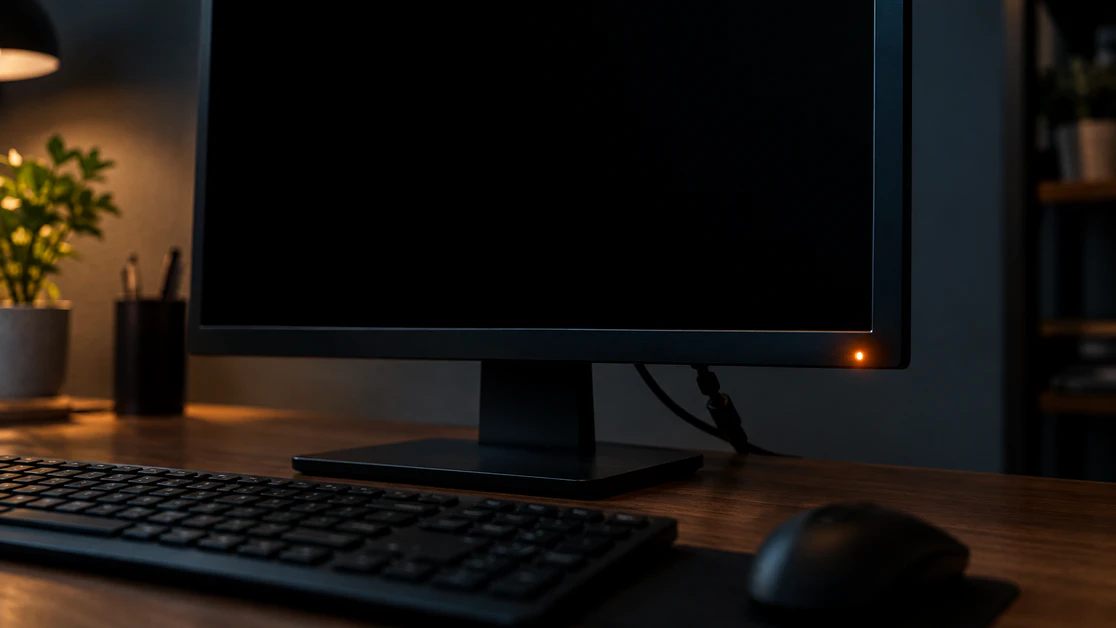
Monitor Power Light Blinking? Read the Blink First
What a Blinking Monitor Power Light Means
A blinking monitor power light usually means the monitor is powered on but sees no video signal from the computer.
Dell’s support pages read a blinking amber, orange, or white light the same way. They class it as a computer or cable problem, not a monitor fault.
The exception is a light that flashes in a fast loop while every button does nothing. James, founder of screendotfix.com, treats that pattern as a suspect power board inside the monitor.
What makes this guide different: most pages list light colors and stop. This one gives you a 60-second test that separates a monitor fault from a PC fault, a fix order that runs from free to paid, and a repair-or-replace rule.
Unplug every video cable, then press a menu button. A menu that opens clears the monitor. A dead menu points at the monitor.
Jump to:
- What each blink pattern means
- The 60-second test
- Blinking while the PC is running
- Fix order
- Repair or replace
What Does Each Blink Pattern Mean?
A monitor power light blinks slowly when it waits for a signal, and it blinks in a rapid loop when its own power circuit struggles. Colors and rhythms vary by brand, so treat this table as a field guide, not a manufacturer spec.
| What you see | Most likely meaning | Check first |
| Slow blink, black screen, menu opens | Monitor is healthy and waiting for a signal | Video cable, port, input source |
| Blink for a few seconds, then solid after a mouse move | The PC was asleep | Nothing to fix; review sleep timers |
| Amber, orange, or blinking white light plus “No Signal” | No signal on the selected input | Input source, cable, PC output |
| Blink rate changes when you touch the power cord | Loose cord or worn power socket | Different cord, different outlet |
| Fast on-off loop, backlight flashes, buttons dead | Failing internal power board | Cable-off test, then repair math |
| Brand logo flashes, screen goes off, repeats | Boot loop inside the monitor or a bad signal handshake | Cable-off test, then a second source |
| Blinks on DisplayPort, works on HDMI | Handshake or port fault | Different cable, port, or adapter |
The table gives you a suspect. One short test confirms it.
Monitor Light Blinking Blue, Green, or White? Color Cheat Sheet
Color meanings are brand-dependent, and your manual has the final word. These are the readings I see most often.
| Light | Common reading | Note |
| White or amber/orange, blinking | No signal (Dell’s usual meaning) | Input source, cable, PC output |
| Green, blinking | Often signal or power-save related | One Tom’s Hardware thread shows a green blink with no display |
| Blue, blinking | Standby or no signal on some models | Check the manual |
| Red, blinking | Standby or a fault on some models | Run the cable-off test |
| HP screen message: “Waiting for input signal” | No signal, same as above | Input source, cable, PC output |
How Do I Tell a Monitor Fault From a PC Fault in 60 Seconds?
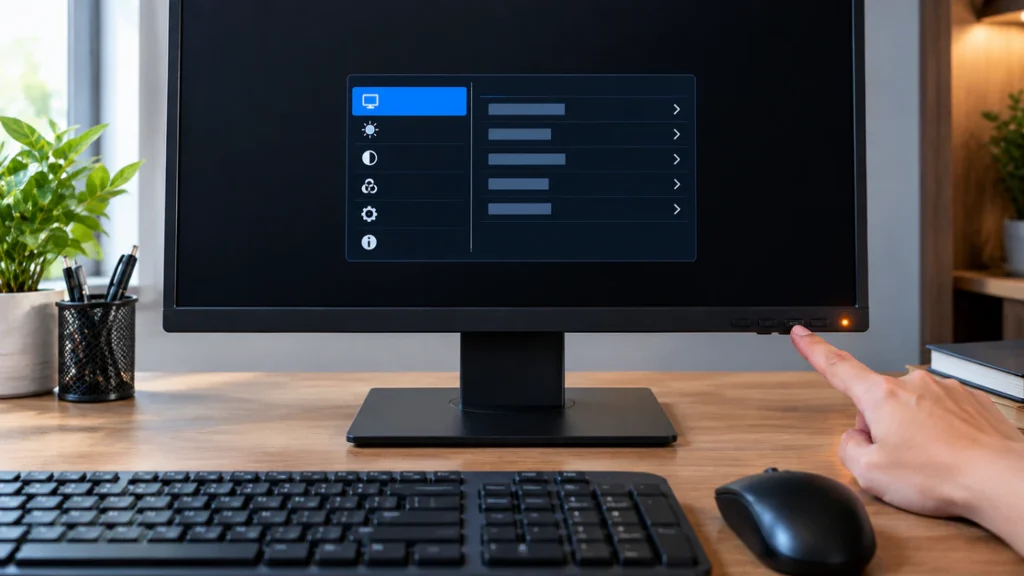
The fastest way to separate a monitor fault from a PC fault is to power the monitor with no video cable attached.
- Turn the monitor off. Unplug the HDMI, DisplayPort, DVI, or VGA cable from the monitor end. Leave the power cord in.
- Turn the monitor on and press any menu button.
- If the menu opens and the buttons respond, the monitor is alive. Dell’s monitor troubleshooting guide uses the same logic and points to the signal path or cable.
- If the menu never appears and the light cycles quickly, skip to the power-loop section below.
Most Dell monitors also include a built-in self-test. Your model’s manual lists the exact button combination.
A monitor that shows its menu but still flickers between “No Signal” and a picture can have a weak input port. Step 3 of the fix order covers that.
Why Is My Monitor Light Blinking When the PC Is Clearly Running?
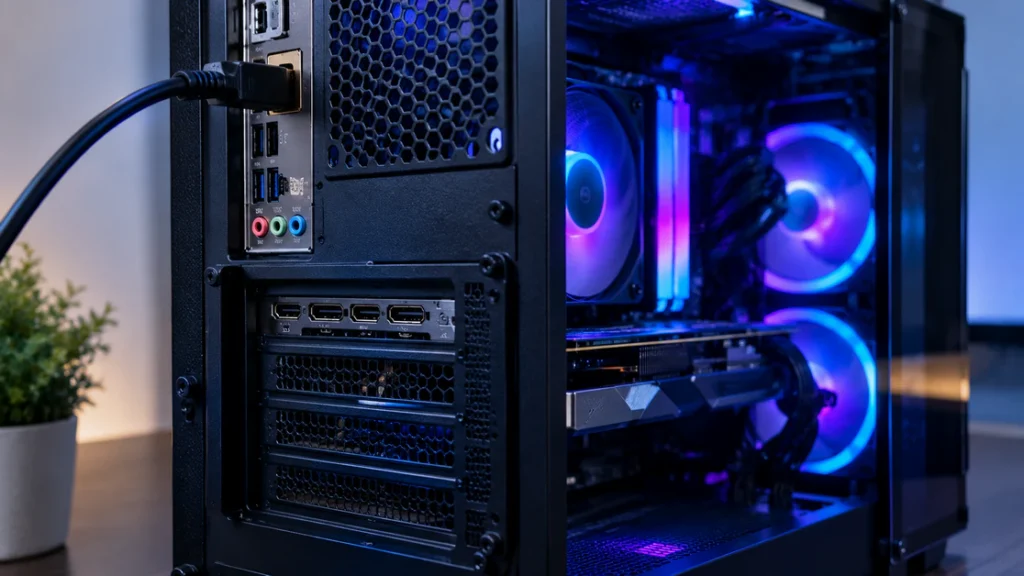
A blinking light on a running PC almost always means the picture never reaches the monitor, even though fans and lights inside the case are on.
The monitor is listening to the wrong input
A monitor set to HDMI 1 while the cable sits in DisplayPort will wait and blink. Press the Input or Source button and match it to your cable.
On many Samsung monitors, turning Auto Source off in the on-screen menu stops the monitor from hopping off the active port. Menu wording varies by model.
The cable is in the wrong port
Plugging a monitor into the motherboard’s video port instead of the graphics card is a common cause of a black screen on desktop PCs, and Dell’s troubleshooting page lists it. Graphics card ports usually sit low on the rear panel. Motherboard ports sit higher, beside the USB ports.
The graphics card is not fully powered
Case fans and RGB lighting can spin up while a graphics card still gets too little power to output video. AMD community users have traced no-signal boots to a loose GPU power connector, or to two PCIe sockets fed from one split cable. Give each socket its own cable.
The PC is running but never finished starting
If fans spin but the PC never reaches the login screen, the monitor has nothing to show. Power down, unplug the PC, and reseat the RAM. Then try booting with one stick at a time. In one Tom’s Hardware thread, removing a RAM stick fixed the boot. On a Mac, or a laptop feeding a monitor over USB-C or Thunderbolt, also try a different cable and port, since one of those links often carries the picture.
The cable, adapter, or dock lost its handshake
A DisplayPort or HDMI link that fails its handshake (the digital negotiation that agrees on resolution and refresh rate) leaves the monitor blinking in standby. A cable that works at 1080p can fail at 144 Hz or 4K, because higher modes need more bandwidth.
In one AMD community thread, a multi-port dock adapter caused repeated no-signal cycles, and a plain passive adapter fixed it. The same swap-and-compare logic appears in our guide on PC screen red lines.
Windows is sending the picture elsewhere
On a laptop set to PC screen only, an external monitor gets nothing and blinks. Press Windows + P and choose Duplicate.
The PC is asleep or the sleep timer misfires
A monitor that blinks briefly after you touch the mouse, then wakes, is behaving normally. If it never wakes, open Settings > System > Power & battery > Screen, sleep, & hibernate timeouts and lengthen the timers.
Why Does My Monitor Light Blink On and Off in a Loop and Ignore the Buttons?
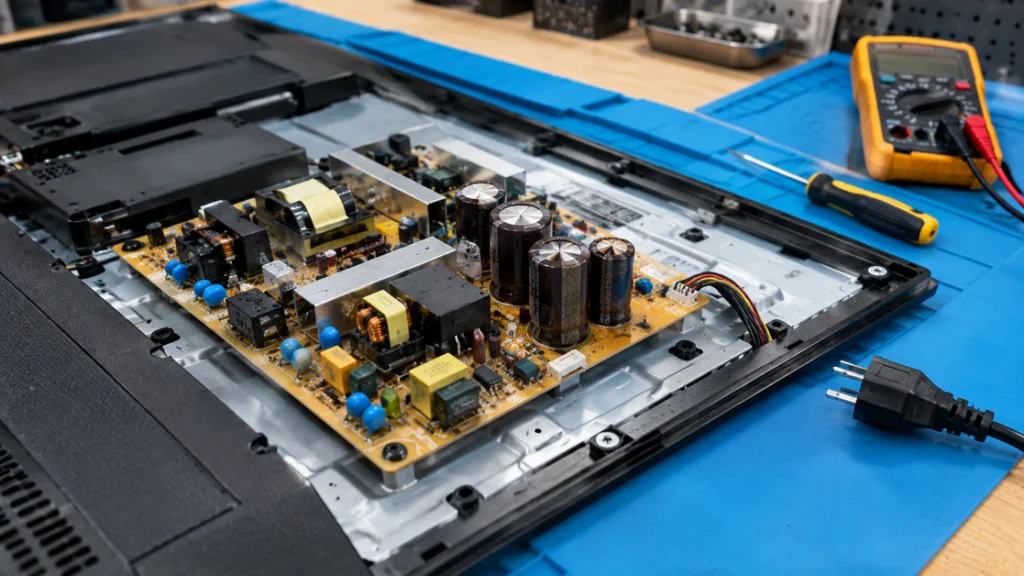
A monitor that flashes its backlight for under a second, clicks, and restarts in a loop usually has a failing internal power supply board.
An iFixit repair thread describes this exact pattern. The monitor lights, a faint click comes from the power board, then it shuts off and retries. A Dell community thread shows the same symptom with buttons dead and no video cable attached. That detail rules out the PC completely.
Test the power cord before blaming the board
Move the power cord gently while the light blinks. If the blink rate changes, try a different cord and a different wall outlet first. Dell’s support page says a monitor that only works when you jiggle the cord may have a damaged power port. That is a monitor repair, not a cord swap.
What usually fails inside
Bulging capacitors on the power board are the classic culprit. Recapping does not always cure it, though. One BenQ owner on iFixit replaced every capacitor and the fault stayed, because an LED driver was overheating. Never open a monitor while it is plugged in, and remember the large capacitors can hold a charge after unplugging.
What Should I Fix First? The Order I Follow
The best fix order runs from free and fast to physical and paid, because most blinking lights clear in the first four steps.
- Wake the PC. Move the mouse, tap a key, and wait five seconds. Cost: free. Time: under a minute.
- Match the input. Set the monitor to the port your cable actually uses. Cost: free. Time: one minute.
- Reseat both ends of the video cable. Try a second graphics card port if you have one. Cost: free. Time: three minutes.
- Test a second source. Connect a laptop or console with a different cable. If the monitor works, the fault sits on the PC side. If your source is a laptop and its own screen misbehaves too, the laptop screen half white guide covers the external monitor test from the other side.
- Check GPU power. Power down, unplug the PC, and reseat every PCIe power cable. Cost: free. Time: ten minutes.
- Restart the graphics driver. Press Windows + Ctrl + Shift + B, then update the driver from the GPU maker’s site. Cost: free. Time: five minutes.
- Reset the monitor. Unplug it, hold the power button for 15 seconds, then plug it back in. On many Samsung monitors, Reset All sits under System or Support in the on-screen menu.
If the monitor works on a second device with a new cable, and still blinks on your PC, the graphics card or motherboard port is next in line. To rule out the panel itself, run our Screen Flicker Test and Dead Pixel Test.
Is Repairing a Blinking Monitor Worth the Money?
Repairing a monitor with a failed power board is worth it only when the quote stays well below the price of a comparable new monitor. Repair prices vary by country and shop, so get a written quote before you decide.
| Repair | Cost | Is it usually worth it? |
| New standard video cable | Cost of the cable | Yes, test this first |
| Capacitor replacement, power board | Mostly labor; parts are cheap | Often, on a pricier monitor |
| Backlight LED strip replacement | Labor plus strip; varies by size | Only on large or premium panels |
| Replacement LCD panel | Often close to a new monitor | Rarely |
My rule of thumb: replace the monitor once the quote passes half the price of a comparable new one. Check warranty first, since Dell’s own guidance is to contact support if the buttons stay dead.
Common Mistakes
- Buying a new monitor before testing the old one on a second device.
- Assuming spinning case fans prove the graphics card works.
- Leaving the cable in the motherboard port after installing a GPU.
- Replacing a single bulged capacitor and skipping the rest of the power board.
- Opening the monitor with the power cord still plugged in.
Prevention Tips
- Keep one known-good, certified HDMI or DisplayPort cable for testing.
- Turn Auto Source off if your monitor keeps hopping between inputs.
- Skip stacked dongles and docks when a direct cable works.
Expert Verdict
A blinking power light is the monitor reporting honestly: it has power and it is waiting. The cable-off menu test tells you within a minute whether the problem lives in the monitor or in the signal path. That is the testing order screendotfix.com recommends before anyone buys a cable, a card, or a new display.
Frequently Asked Questions
Why is my monitor power light blinking but the screen is black?
A monitor power light blinks with a black screen when the monitor has power but no valid video signal. Check the input source and video cable first.
Is a blinking monitor light a sign the monitor is broken?
A blinking monitor light is usually not a sign the monitor is broken. Only a fast on-off loop with dead buttons points inside the monitor.
Why does my monitor power light blink amber or orange?
A monitor power light blinks amber or orange on many Dell monitors when no signal is detected. Brands differ, so confirm the color meaning in your manual.
Can a blinking power light damage my monitor?
A blinking power light caused by a missing signal does not damage a monitor. A failing power board can get worse over time, so don’t ignore a loop.
How much does it cost to fix a monitor with a blinking power light?
Fixing a monitor with a blinking power light costs nothing when the cause is a cable, port, or setting. A power board repair varies by shop and country, so get a written quote and compare it to half the price of a new monitor.
Start with the cable-off menu test, and let what the screen does decide your next move. A menu that opens sends you to the PC and cable. A dead menu sends you to a repair quote or a replacement, and the repair table above tells you which one makes sense.
Author Note: James is the founder of screendotfix.com, which publishes free repair guides for phones, laptops, and monitors. He writes each guide from hands-on display repair experience and checks manufacturer support pages before publishing.
screendotfix.com is not affiliated with Dell, Samsung, HP, or BenQ. Opening a monitor carries electrical risk, so use a qualified technician if you are unsure.