
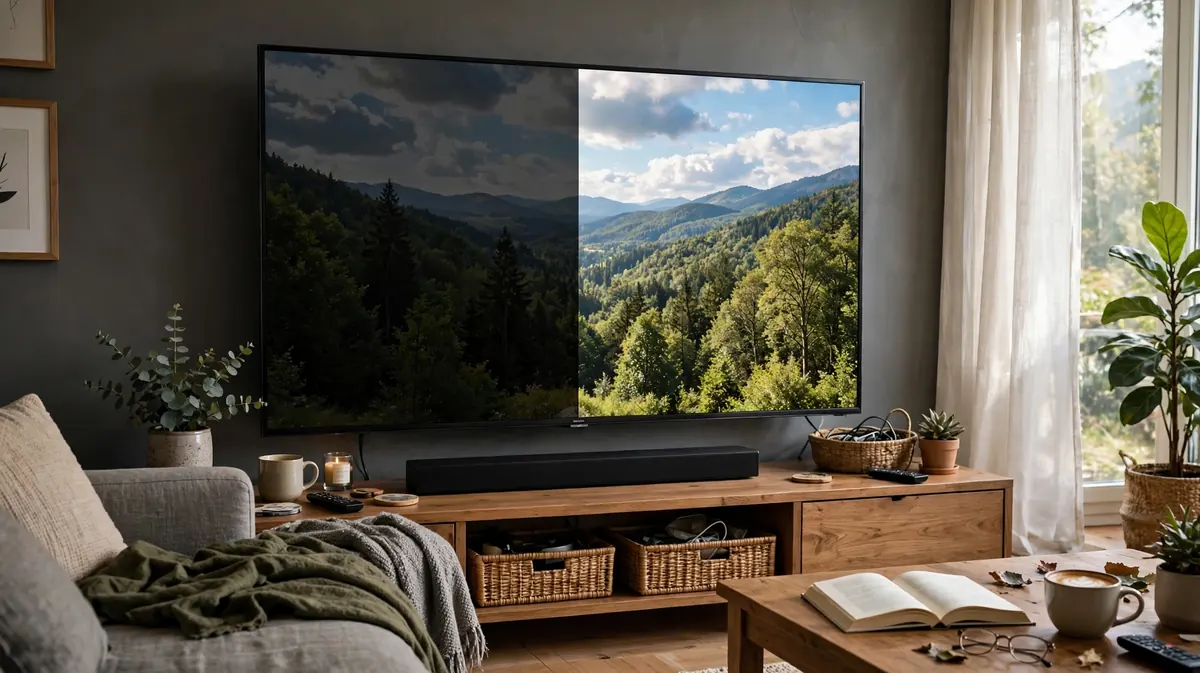
TV Screen Dim on One Side: Causes, Fixes, and When to Repair It
When your TV screen is dim on one side, the picture may look normal in one area but noticeably darker on the left, right, top, or bottom. Sometimes the problem appears as a shadow across half the screen. In other cases, one side looks dull while the other remains bright.
This issue is common on LED and LCD televisions. It can result from incorrect picture settings, an external connection problem, a failing LED backlight, or a fault inside the TV.
Before spending money on a repair, it is worth checking a few things at home. Some problems are caused by settings or connected devices and can be fixed without opening the television. However, if the brightness difference remains across every input and the TV’s own menus, the problem may involve internal hardware.
Why Is My TV Screen Dim on One Side?
The most common reason for uneven screen brightness is a problem with the LED backlight system. LED TVs use lights behind the display to illuminate the picture. If part of that lighting system stops working properly, one section of the screen may appear darker.
However, the backlight is not the only possible cause. Picture settings, power supply problems, loose internal connections, and display panel damage can also create uneven brightness.
Here are the main possibilities.
1. LED Backlight Strips Are Failing
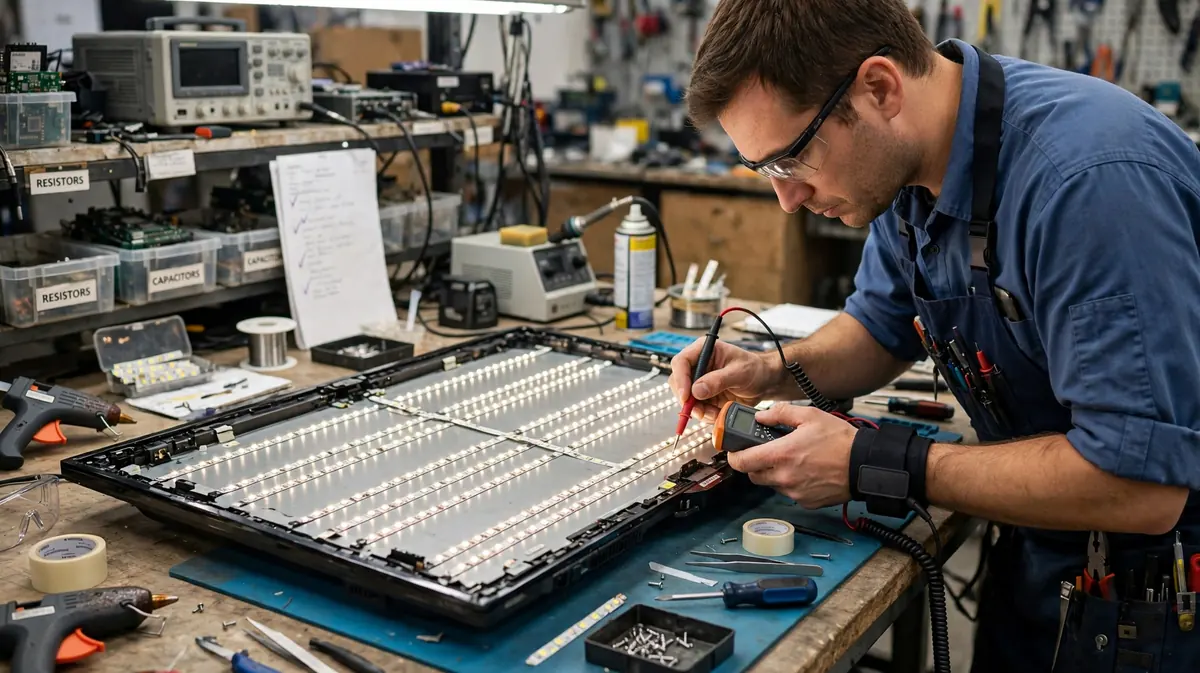
A failing LED backlight is one of the most common causes of a TV screen that looks darker on one side.
Many LED televisions use several strips of small lights behind the LCD panel. These lights work together to provide consistent brightness across the screen. If some LEDs become weak or stop working, the area they illuminate may look darker than the rest.
You might notice:
- One half of the screen looks darker than the other.
- A vertical shadow appears along one side.
- Bright scenes look uneven.
- The dark area becomes more noticeable in white or light-colored scenes.
- The problem gradually becomes worse over time.
Sometimes the backlight problem starts with a small dark patch. As more LEDs weaken, the affected area may become larger.
What can you do?
First, check whether the problem appears on every channel and input. If the same dark area remains visible everywhere, a backlight fault becomes more likely.
A technician may need to test the LED strips and replace the faulty components. Depending on the television’s design, replacing a complete set of backlight strips may be more reliable than replacing only one damaged strip.
2. Incorrect Picture or Energy-Saving Settings
Before assuming that your TV needs a hardware repair, check its picture settings.
Modern televisions include features that automatically adjust brightness according to the content, room lighting, or power-saving preferences. These features can sometimes make the picture look unusually dark.
Look for settings such as:
- Eco Mode
- Energy Saving
- Ambient Light Detection
- Adaptive Brightness
- Local Dimming
- Dynamic Contrast
- Picture Mode
The exact names depend on the TV brand and model.
For example, an energy-saving feature may reduce overall brightness. Local dimming can also change how different screen areas are illuminated. If the settings are behaving incorrectly, the picture may look uneven.
How to check the settings
- Open your TV’s Settings menu.
- Go to Picture or Display Settings.
- Select Standard or another normal picture mode.
- Temporarily turn off Eco Mode and Energy Saving.
- Check whether Adaptive Brightness or automatic light adjustment is enabled.
- Review the Local Dimming setting if your TV has one.
- Compare the picture again.
Avoid changing several advanced settings at once. Test one adjustment at a time so you can identify whether a particular feature is causing the problem.
3. Power Supply or LED Driver Problems
The power supply board provides electrical power to different parts of your television. The LED driver controls the power delivered to the backlight system.
If either component develops a fault, the backlight may not receive the power it needs to operate consistently.
Possible symptoms include:
- One side of the screen appears darker.
- Brightness changes unexpectedly.
- The screen flickers.
- The picture becomes dim after the TV has been running for a while.
- The display occasionally goes dark while sound continues.
A power supply or LED driver problem can look similar to failing backlight strips. These components need proper testing before anyone orders replacement parts.
What should you do?
Restart the television and check whether the problem returns. If the same area remains dark, arrange a professional inspection.
Do not open the TV to inspect its power board yourself unless you have the necessary electronics training. Internal components can retain dangerous electrical charges even after the television has been unplugged.
4. Loose or Damaged Internal Ribbon Cables
Televisions contain delicate internal cables that connect the display panel to its control electronics.
If an internal ribbon cable or connector becomes damaged or develops a poor connection, the screen may show unusual display problems. Depending on the fault, these can include dark areas, lines, flickering, distorted colors, or partial picture loss.
A cable-related issue is more likely when the screen has additional symptoms beyond uneven brightness.
For example, you might see:
- A section of the picture displaying unusual colors.
- Horizontal or vertical lines.
- Parts of the image disappearing.
- Brightness changing unexpectedly.
- Display problems that appear after the TV has been moved.
This type of problem is difficult to diagnose from appearance alone. A technician should inspect the internal connections and determine whether the cable, connector, or another component is responsible.
5. Damaged LCD Panel or Display Layers
Sometimes the problem comes from the display panel itself.
An LCD television contains several layers that work together to create the picture. Damage to the panel or its internal optical layers can cause uneven brightness, dark patches, discoloration, or permanent shadows.
This can happen after:
- The screen receives an impact.
- Something presses against the display.
- The television is handled incorrectly during transportation.
- Moisture enters the screen assembly.
- Internal display layers deteriorate.
Panel damage may look similar to a backlight problem, but the repair is often more complicated.
If the panel itself is damaged, replacing it can be expensive. In some cases, buying another television makes more financial sense than repairing the existing one.
How to Fix a TV Screen That Is Dark on One Side
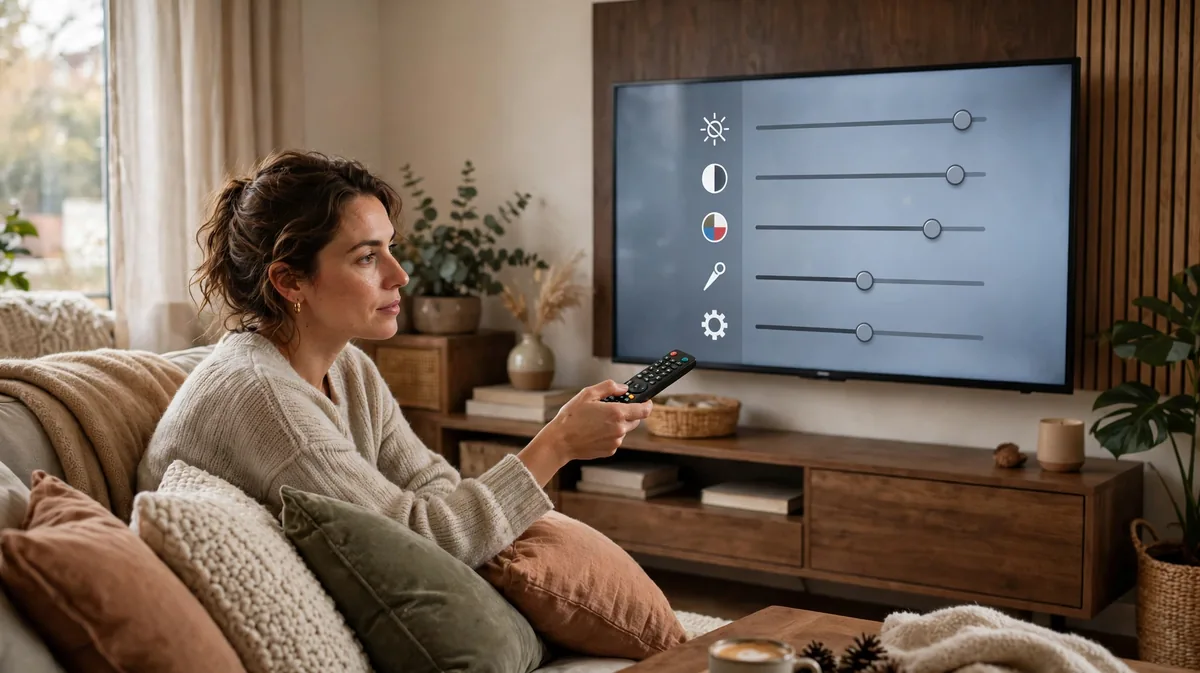
You do not need to assume that your television has a serious hardware problem immediately. Start with basic troubleshooting. These checks can help you rule out settings, connected devices, and temporary software issues.
Step 1: Turn the TV Off and Restart It
A simple restart can sometimes resolve temporary display or software problems.
Follow these steps:
- Turn off your television.
- Unplug its power cable from the wall outlet.
- Wait for about two minutes.
- Plug the cable back in.
- Turn the TV on and check the picture.
If your television has a removable power cable, make sure it is connected securely.
A restart will not repair a damaged LED strip or display panel, but it can help rule out a temporary issue.
Step 2: Check the TV’s Built-In Picture Test
Many modern televisions include a picture test or screen diagnostic feature.
This is one of the most useful checks because it helps you determine whether the problem is coming from the TV itself or an external device.
Open your television’s support, diagnostics, or picture settings menu. Look for an option called Picture Test, Screen Test, or Self Diagnosis. The name and location vary by manufacturer.
Run the test and examine the screen carefully.
- If the same side remains dark during the test, the issue may be inside the television.
- If the test looks normal, an external device, cable, or input source may be responsible.
A normal picture test does not completely rule out an intermittent hardware fault, but it provides a useful starting point.
Step 3: Test Another HDMI Port or Input
If you use a streaming device, gaming console, cable box, or computer, the problem may be related to the connected equipment.
A faulty HDMI cable or device can produce picture abnormalities that may appear to be a television problem.
Try the following:
- Disconnect the current HDMI device.
- Connect another device to the television.
- Try a different HDMI port.
- Replace the HDMI cable if you have another one.
- Check whether the dark area appears on the new input.
You should also open the TV’s home screen or built-in apps. If those look normal but the connected device does not, investigate the external device and its connection first.
Step 4: Adjust the Brightness and Picture Mode
Open the picture settings and check whether the current mode is responsible for the unusual appearance.
Try Standard mode and compare it with the current setting. You can also adjust brightness and backlight levels to see whether the picture changes.
Keep in mind that increasing brightness may make the entire screen brighter without fixing the underlying problem. If one side remains noticeably darker, the issue may not be related to picture settings.
Also, avoid using maximum brightness as a permanent solution. It can make the picture uncomfortable and may increase stress on an already failing backlight system.
Step 5: Check for Software Updates
Outdated software can sometimes cause picture-processing or display-related problems.
Open your TV’s Settings menu and look for Software Update, System Update, or Firmware Update.
If an update is available, follow the manufacturer’s instructions. Keep the television connected to a stable power source during the update.
After updating, restart the TV and check whether the screen looks normal.
Step 6: Perform a Factory Reset if Necessary
If the basic checks do not help, you can consider resetting the television to its original settings.
A factory reset may resolve problems caused by corrupted settings or software configuration. However, it will not repair physical damage or a faulty backlight.
Before resetting, remember that this process may remove:
- Saved Wi-Fi information
- Installed applications and login details
- Customized picture settings
- Other personal preferences
The reset option is usually available under General, System, Support, or Reset settings. The exact menu depends on your model.
How to Tell Whether the TV Backlight Is Faulty
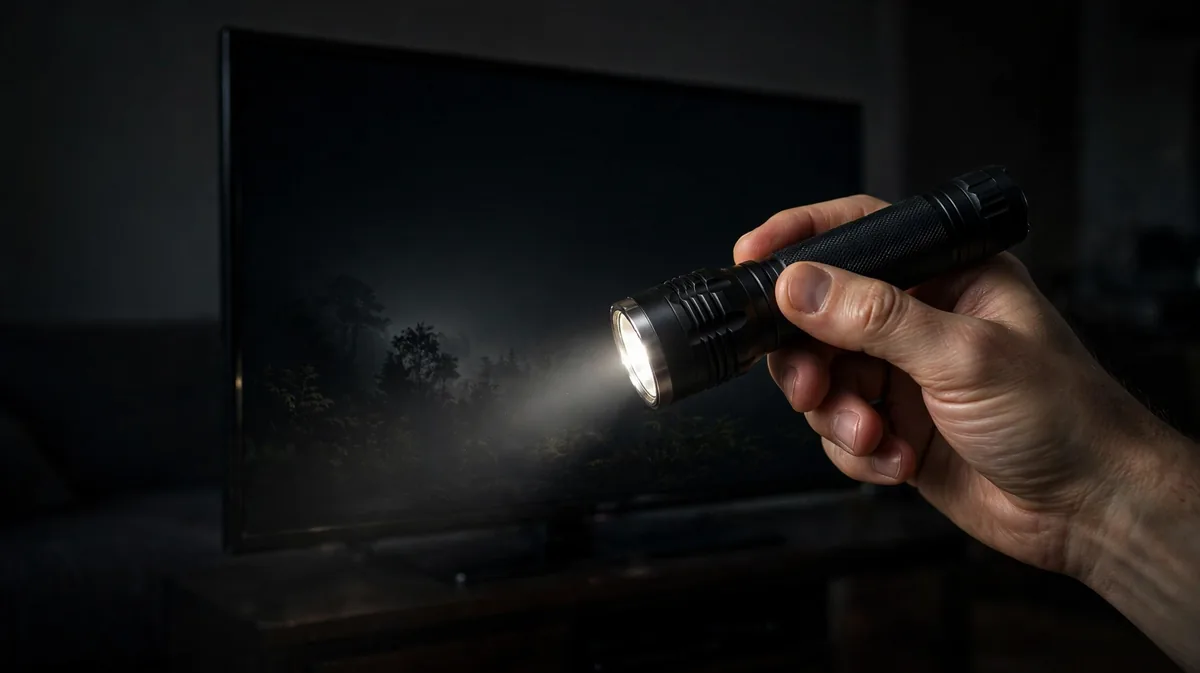
A flashlight test can provide a useful clue when diagnosing an LED or LCD television.
This test is especially helpful when the screen looks very dark but you can still hear sound.
Here is how to perform it:
- Turn on the television.
- Play a video or open a screen with visible picture details.
- Dim the room lighting.
- Hold a flashlight close to the screen.
- Shine it at an angle over the dark section.
- Look carefully for faint images or movement beneath the dark area.
If you can see a faint picture in the dark area, the television may be producing an image without illuminating it properly. This can point toward a backlight-related problem.
However, the flashlight test is not a definitive diagnosis. Some backlight faults behave differently, and other display problems can produce similar symptoms.
If the screen shows lines, colored patches, or distorted images, the fault may involve another component.
Samsung TV Screen Dark on One Side: What Should You Check?
If your Samsung TV has a dark section on the left or right side, begin with its built-in picture settings and diagnostic options.
Samsung televisions have different menus depending on their model and software version, but these checks are useful starting points.
- Check Picture Mode: Open Picture Settings and select Standard mode to compare the brightness.
- Review Intelligent or Eco Features: Look for brightness optimization, energy-saving options, and ambient light adjustments. Temporarily disable them to see whether the picture changes.
- Run Picture Test: Open the Support or Device Care section and look for Self Diagnosis or Picture Test, if available.
- Try Built-In Apps: Open a built-in streaming app instead of using an HDMI device. If the screen remains dark in the same place, the problem may be internal.
If the same side remains dim during the picture test and across different sources, contact Samsung support or a qualified television repair technician.
LG TV Screen Dark on One Side: Possible Causes and Fixes
An LG TV can also develop uneven brightness because of backlight problems, picture settings, or internal display faults.
Start by checking the picture mode and energy-saving features.
On supported models, you may find options such as Energy Saving, AI Brightness, or automatic picture adjustments. Temporarily turn off relevant features and compare the result.
You should also test different sources:
- Open the TV’s home screen.
- Play content through a built-in application.
- Try another HDMI port.
- Connect a different external device.
If the same side stays dark regardless of the source, the issue is less likely to be caused by an HDMI connection.
For persistent uneven brightness, a technician may need to inspect the backlight strips, LED driver, power board, and display assembly.
Why Is Half of My TV Screen Dark?
When exactly half of the screen becomes dark, the location and appearance of the problem can help narrow down the possible cause.
For example, a clean vertical division between a bright half and a dark half may indicate a backlight or internal display-control issue. A dark patch with irregular edges may suggest damage to the lighting system or display layers.
Pay attention to what happens when you change the content.
If half the screen remains dark on the home screen, built-in apps, and HDMI inputs, the problem is probably not limited to one external device.
If you also see colored pixels, lines, or distorted images, the television may have a panel or display-control fault.
Avoid pressing the screen or tapping the dark area to test it. Pressure can make panel damage worse.
TV Screen Dark on One Side but Sound Works: What Does It Mean?
If your television produces sound but the screen is dark on one side, the audio system may be working normally while part of the display system is malfunctioning.
This does not automatically mean the entire TV is broken.
The television has separate systems responsible for audio, image processing, and screen illumination. A fault in the backlight system can affect the picture without stopping sound.
Try these checks:
- Open the TV menu and see whether the dark area is also visible there.
- Switch between built-in apps and HDMI inputs.
- Restart the television.
- Run the available picture diagnostic test.
- Perform the flashlight test if the screen is extremely dark.
If the picture is visible only faintly under a flashlight, ask a technician to check the backlight system.
If there is no visible image, or the screen shows lines and unusual colors, further diagnosis is needed.
How Much Does It Cost to Repair a TV That Is Dark on One Side?
The repair cost depends on the television’s brand, screen size, model, fault, and availability of replacement parts.
A backlight replacement may be less expensive than replacing the complete display panel. However, the cost can vary significantly between models.
Here is a general comparison of repair types:
| Possible problem | What the repair may involve |
|---|---|
| Incorrect settings | Adjusting picture or energy-saving options |
| HDMI connection issue | Replacing a cable or checking an external device |
| LED backlight failure | Testing and replacing faulty LED strips |
| LED driver or power board | Testing and replacing the affected board |
| Internal ribbon connection | Inspecting or repairing the connection |
| Damaged display panel | Panel replacement or television replacement |
Before approving a repair, ask the technician to identify the actual faulty component.
You should also request a complete estimate that includes labor, parts, and any warranty on the repair.
For an older television, compare the repair quote with the price of a replacement model. A costly panel replacement may not be worthwhile if the television is already near the end of its useful life.
Is It Safe to Repair a Dark TV Screen at Home?
You can safely perform basic troubleshooting without opening the television. Checking picture settings, changing HDMI cables, restarting the device, and running diagnostic tests are reasonable first steps.
Internal repairs are different.
Modern televisions contain delicate display panels, electrical components, and high-voltage circuits. Some components can retain an electrical charge after the TV has been unplugged.
Removing the back cover can also expose fragile ribbon connections and other parts that are easy to damage.
For these reasons, avoid attempting internal backlight or power-board repairs unless you have proper electronics training and equipment.
A qualified technician can test the components and determine whether the repair is practical.
When Should You Replace Your TV Instead of Repairing It?
Not every dark-screen problem requires a new television. A faulty cable or incorrect picture setting is usually straightforward to address, while some internal components can also be replaced.
Replacement becomes worth considering when:
- The display panel is physically damaged.
- The repair estimate is close to the price of a comparable new TV.
- Replacement parts are difficult to find.
- The television has several other problems.
- The repair does not come with a reasonable warranty.
Consider the television’s age and original purchase price as well. Spending a large amount on an older model may not offer good long-term value.
Frequently Asked Questions
Why is my TV screen darker on the left side?
A dark left side can be caused by failing LED backlight strips, a power-related fault, incorrect picture settings, or display damage. Check the picture test and different input sources before arranging a repair.
Why is half of my Samsung TV screen dark?
A Samsung TV may show half a dark screen because of a backlight problem, display-control fault, or internal panel issue. Run the built-in Picture Test and compare the screen across different sources.
Can a bad HDMI cable make one side of the TV dark?
A damaged HDMI cable can cause picture problems, but it is not the most likely explanation for a consistent dark area. Try another cable, port, and input source to rule out the connection.
Will a factory reset fix a TV screen that is dim on one side?
A factory reset may help if the problem comes from incorrect software settings. It will not fix damaged LED strips, a faulty power board, or a damaged display panel.
Can I keep using my TV if one side is darker?
You may be able to continue using it if the picture is stable and there are no other warning signs. However, if the dark area is growing, the screen is flickering, or the TV smells unusual or becomes abnormally hot, stop using it and arrange an inspection.
Does a dark section mean my TV screen is broken?
Not necessarily. The issue may involve the backlight, power supply, settings, or an external connection. A technician can determine whether the panel itself is damaged.
Is it worth replacing the LED backlight?
It can be worthwhile when the panel is in good condition and the repair cost is reasonable. Ask for a diagnosis and estimate before deciding.
Get the Right Diagnosis Before Paying for a Repair
A TV screen that is dim on one side does not always mean you need to replace the entire television. Start by checking the picture settings, testing another input, restarting the device, and running its built-in picture test.
If the same section remains dark across every source, a backlight or internal hardware problem becomes more likely. A professional diagnosis can help identify the faulty component and prevent you from spending money on an unnecessary repair.
The most important thing is to identify the cause before replacing parts.