
Black Screen After Windows Update: Here’s How to Actually Fix It
Before anything else, answer one question: can you move your mouse cursor around on that black screen, or is the whole thing frozen solid? That single detail tells you which fix path you’re on, because “black screen” after a Windows update isn’t one problem; it’s at least four different ones wearing the same disguise, and the wrong fix wastes an hour before you even find the right menu.
I run screendotfix.com, and update-related black screens are one of the most common tickets we see after a Patch Tuesday cycle. The good news is that outside of true hardware failure, this is almost always fixable without losing your files. Here’s how to tell which version you have and what actually resolves it.
A black screen after a Windows update almost always comes from a graphics driver that failed to reinitialize during the update, an update itself shipping a display-related bug, or Windows Explorer crashing during first boot after install. Restarting the graphics driver with Windows key + Ctrl + Shift + B, rolling back the display driver, or uninstalling the specific update through Safe Mode resolves the large majority of cases we’ve walked through at screendotfix.com, and none of them require a full reinstall of Windows.
First: Is the Cursor Moving?
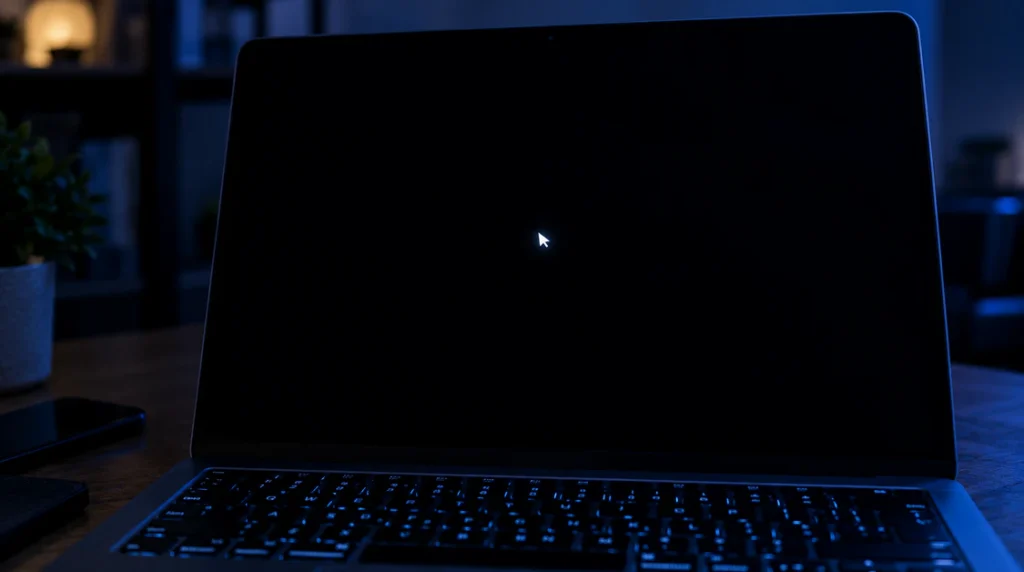
If you can see and move the mouse cursor but everything else is black, Windows itself is running this is a display rendering problem, not a boot failure, and it’s the easiest category to fix.
If the screen is completely frozen with no cursor and no response to any key, you’re either mid-update still finishing installation (wait at least 20 minutes before touching anything) or looking at a failed boot, which needs the recovery steps further down.
If the screen flickers black for a second or two and then returns to normal on its own, repeatedly, that’s a different and much more specific issue skip ahead to the January 2026 update section below.
Reset the Graphics Driver Without Rebooting
This is the fastest thing to try and it fixes a genuine share of post-update black screens because it doesn’t touch anything else on the system.
Press Windows key + Ctrl + Shift + B at the same time. If it works, you’ll hear a short beep or see the screen flicker for a moment as the display driver restarts on its own. Give it 10 to 15 seconds after pressing it before deciding it didn’t work.
While you’re testing shortcuts, also try Windows key + P, which opens the display-output picker even on a black screen. Some updates reset which output Windows is sending the picture to, especially on laptops with a docking station or an external monitor attached. Cycle through PC screen only, Duplicate, Extend, and Second screen only, pausing a few seconds on each.
Restart Windows Explorer Instead of the PC
If the cursor moves but you never see a taskbar or desktop icons, Windows Explorer, the process responsible for drawing your desktop, likely crashed during the post-update first boot without taking the rest of the system down with it.
- Press Ctrl + Shift + Esc to open Task Manager directly, which works even with no visible desktop.
- Click File, then Run new task.
- Type explorer.exe and press Enter.
Your desktop should reappear within a few seconds. This fix works because it targets only the crashed display process instead of restarting the whole machine, and it’s often skipped entirely by generic guides that jump straight to a full reboot.
Roll Back the Display Driver
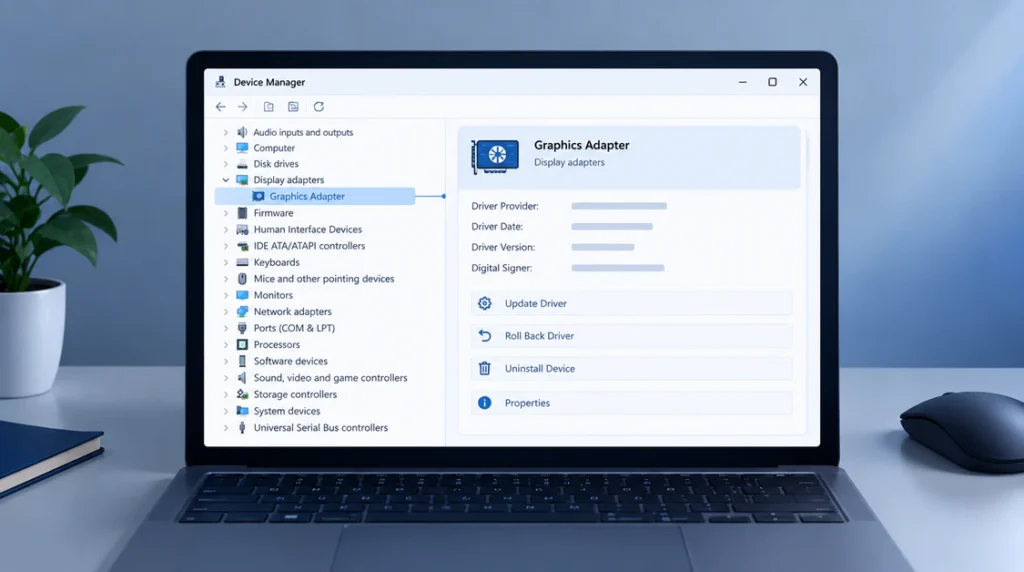
If neither of the above worked and you can get into Safe Mode, this is the next step and it resolves most cases where a driver update installed alongside the Windows update is the actual culprit rather than Windows itself.
- Force restart your PC twice during boot to trigger Automatic Repair, then go to Troubleshoot > Advanced options > Startup Settings > Restart, and press 4 or F4 for Safe Mode.
- Once in Safe Mode, open Device Manager.
- Expand Display adapters.
- Right-click your graphics card and select Properties.
- Go to the Driver tab and click Roll Back Driver.
If Roll Back Driver is grayed out, Windows didn’t keep a copy of the previous driver, and you’ll need to download the last known stable version directly from your GPU manufacturer’s site instead of NVIDIA, AMD, or Intel each host driver archives by model.
Uninstall the Update That Caused It
When the driver isn’t the issue, the update itself is the more likely cause, and removing it is a clean, reversible fix.
- From Safe Mode or a normal boot if you can reach it, go to Settings > Windows Update > Update history.
- Click Uninstall updates.
- Find the most recent entry at the top and click Uninstall next to it.
- Restart normally.
If you can’t reach the desktop at all to get to Settings, use Windows Recovery Environment instead: force restart during boot until Automatic Repair triggers, then go to Troubleshoot > Advanced options > Uninstall Updates, and choose either the latest quality update or the latest feature update depending on which one you installed most recently.
The January 2026 Update Specifically (KB5074109)
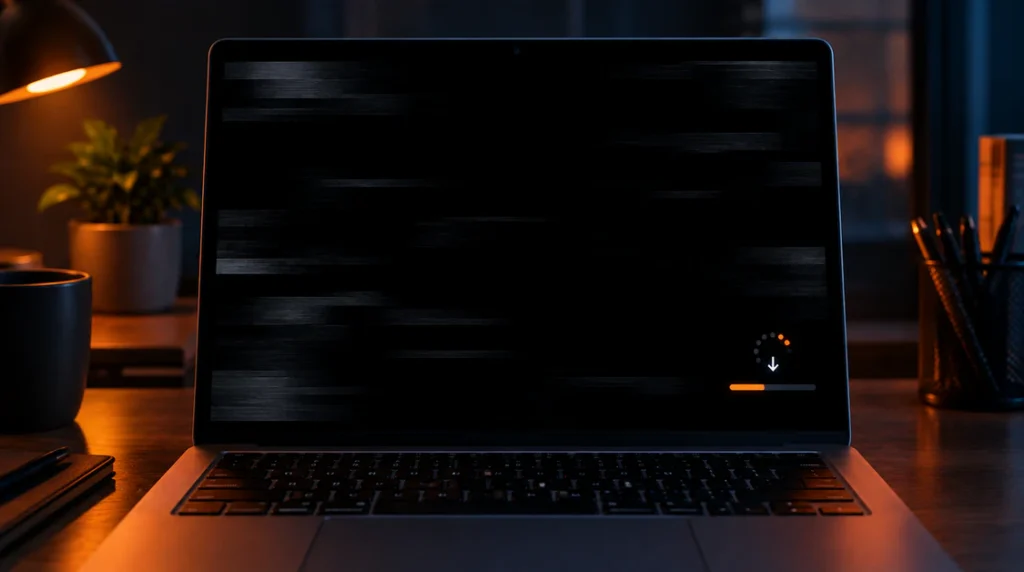
If your black screen started after installing the January 2026 security update (KB5074109) on Windows 11 24H2 or 25H2, you’re not dealing with a random fluke this update shipped with a confirmed, widely reported issue causing brief, intermittent black screens that freeze the desktop for a second or two before recovering, concentrated almost entirely on systems with NVIDIA GPUs. NVIDIA itself published guidance recommending uninstalling the update as the workaround while a permanent fix was developed.
Try uninstalling it through the steps in Fix 4 above. If the uninstall fails with error 0x800f0905, that’s a known follow-on issue tied to this specific update, a servicing-stack conflict that blocks the rollback from completing. In that case, running the built-in System File Checker first clears it in most cases:
- Open Command Prompt as Administrator (search “cmd,” right-click, Run as administrator).
- Type sfc /scannow and press Enter, then let it finish.
- Once it completes, retry uninstalling KB5074109 through Update history.
This is the kind of detail that changes week to week with any given patch, so if you’re reading this well after January 2026, check your Update history for the most recent installed KB number and search it by name the fix pattern (roll back driver, then uninstall the update, then SFC if the uninstall fails) tends to repeat across problematic Windows updates even when the specific KB number is different.
If You Never Reach the Login Screen at All
A black screen before you even see the sign-in prompt, with no cursor and no response, points toward a boot failure rather than a display glitch. Force restart the PC by holding the power button for 10 seconds, then power it back on. If Windows doesn’t load normally, it should trigger Automatic Repair after two or three failed attempts.
From the recovery menu, try System Restore before anything more drastic go to Troubleshoot > Advanced options > System Restore and pick a restore point dated before the update installed. This rolls back system files and settings without touching your personal files, and it’s the single most reliable fix when a boot-blocking update is the cause.
When It’s Actually the Display, Not Windows
If you’ve tried the driver reset, Explorer restart, driver rollback, and update removal and the screen is still black but you can hear startup sounds, see keyboard backlight respond, and the fan is running, check the physical connection before assuming it’s software. Reseat the video cable at both ends, try a different HDMI or DisplayPort cable if you have one, and test with a different monitor if it’s a desktop. A cable or port that was borderline before the update can fail entirely once the display driver reinitializes differently, and no amount of Safe Mode troubleshooting fixes a loose or damaged connection.
Frequently Asked Questions
Will I lose my files if I uninstall the update? No. Uninstalling a Windows update removes the update’s changes but leaves your personal files, apps, and settings intact, since it’s not the same as a reset or reinstall.
Should I just pause Windows Update after this happens? Pausing updates for a few weeks after a known problematic release like KB5074109 is reasonable, but leaving updates paused indefinitely leaves your system without security patches, so re-enable them once Microsoft confirms a fix.
Why does the black screen only affect some PCs and not others? It’s usually tied to a specific hardware combination, most often a particular GPU brand or driver version, which is why an update can cause widespread reports while leaving plenty of identical-looking PCs completely unaffected.
Is this something a driver update alone can fix without touching the Windows update? Sometimes. Check your GPU manufacturer’s site for a driver released after the Windows update’s date. Manufacturers often ship a compatibility patch once they identify a conflict, which can resolve the issue without rolling anything back.
Bottom Line
A black screen after a Windows update is rarely a dead PC; it’s almost always a display driver that didn’t reinitialize cleanly, Explorer crashing on first boot, or the update itself shipping a display bug, and each has a specific, low-risk fix that doesn’t touch your files. Work through them by what you actually see on screen: cursor or no cursor, login screen reached or not, flickering or fully frozen. If every software fix comes up empty and the hardware signs point elsewhere, that’s the point to stop guessing and check the physical display connection instead.