
Instagram White Screen: Here’s How to Actually Fix It
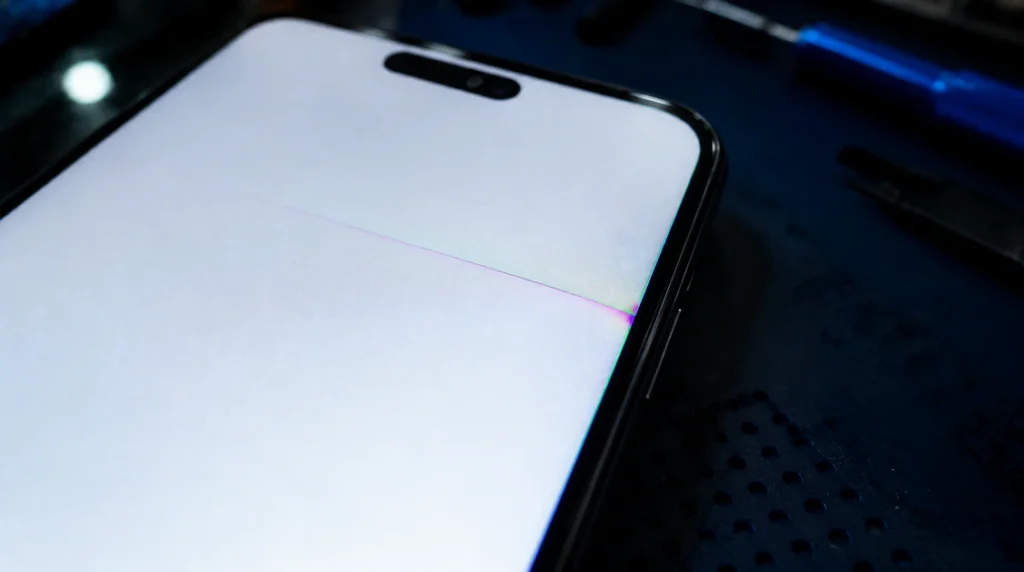
Before you touch a single setting, do this one test. Turn your phone’s brightness all the way up and look at the blank screen closely, from an angle, in a dim room. If you can faintly see the outline of icons or a very slight discoloration under the white, that’s Instagram. If the white is perfectly flat, unnaturally bright, or has a thin colored line running through it, that’s not an app problem; that’s your screen’s backlight or display panel, and no amount of cache-clearing will touch it.
I run screendotfix.com, and most of the display failures I look at come in through those second door people who spent an hour reinstalling apps before realizing the panel itself was damaged. So we’re starting here instead of jumping straight to “clear your cache” like every other guide does.
If your test came back clean, no lines, no bleeding, just Instagram refusing to load, keep reading. This is almost always fixable in under ten minutes, and it doesn’t cost anything.
Instagram shows a white screen because the app crashes mid-render before it finishes drawing the interface, and the most common triggers are a corrupted cache, a mismatch between your phone’s theme and Instagram’s own theme setting, a version that’s fallen out of sync with your OS, or a short outage on Instagram’s servers. Clearing the app’s cache and confirming the outage isn’t server-side resolves this in the majority of cases we’ve walked people through at screendotfix.com without needing a reinstall.
The Theme Mismatch Nobody Checks First
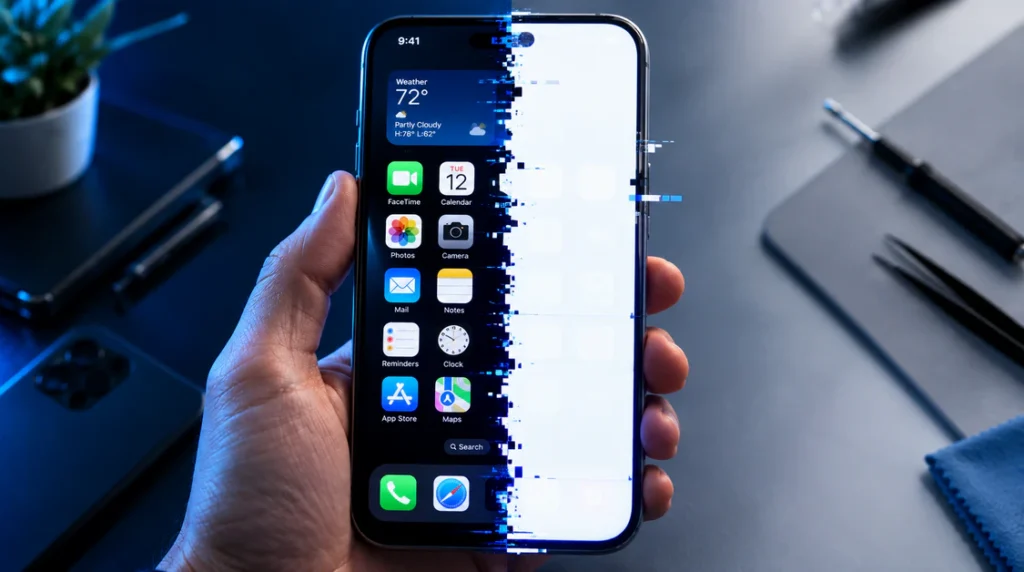
Here’s something we see constantly that almost never gets mentioned: if your phone is set to light mode but Instagram’s in-app appearance is still set to “Match System” while a recent update partially failed to apply, the app can try to render a light-mode layout over broken dark-mode assets. The result is a screen that’s white instead of just glitchy.
Open Instagram, tap your profile picture, go to the menu icon, then Settings and privacy > Accessibility > Appearance. Force it to Light or Dark manually instead of leaving it on “Match System,” fully close the app, and reopen it. This alone fixes the problem for a surprising number of people who never get past clearing cache because the cache wasn’t the issue.
If You’re on Android
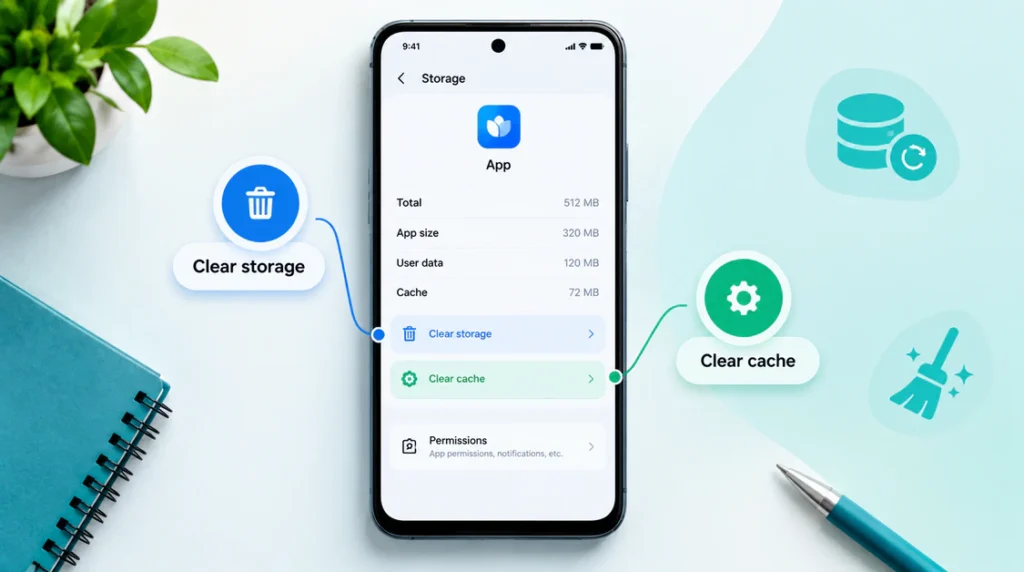
Android gives you the cleanest path because you can wipe the app’s cache without losing your login.
- Open your phone’s Settings, then go to Apps.
- Find and tap Instagram.
- Tap Storage & cache.
- Tap Clear cache first, not Clear storage yet and reopen Instagram.
If the white screen is still there, go back into that same menu and tap Clear storage. This resets the app completely, which means you’ll need to log back in, but it clears out any corrupted local data that a simple cache wipe won’t touch. Restart your phone after this step before opening Instagram again; a fresh boot clears any stuck background processes that were holding onto the crash.
If it’s still white after that, check available storage under Settings > Storage. Instagram needs a reasonable amount of free space to write temporary render files while it loads, and a phone sitting below roughly 500MB free will regularly throw white or blank screens across several apps, not just Instagram.
If You’re on iPhone
iOS doesn’t let you clear an individual app’s cache the way Android does, so the fix path is different.
- Go to Settings > General > iPhone Storage.
- Scroll to Instagram and tap it.
- Tap Offload App. This removes the app but keeps your login data and settings, then reinstalls a clean copy.
- Once it reinstalls, open it and see if the white screen is gone.
If offloading doesn’t fix it, do a full delete instead: long-press the Instagram icon, tap Remove App, then Delete App. Redownload it from the App Store. This is the iOS equivalent of Android’s “Clear storage” and resolves cache corruption that offloading alone sometimes leaves behind.
One iPhone-specific cause worth ruling out: go to Settings > Accessibility > Touch > Full Keyboard Access and make sure it’s off. It’s an unrelated accessibility feature, but when it’s toggled on alongside certain Instagram versions, it can interfere with how the app draws its keyboard-adjacent views and leave the screen blank on launch.
Check If Instagram Is Actually Down
Before you do any more troubleshooting on your end, rule out the server side. Instagram has short outages a few times a year, and during them the app often shows a white or gray screen instead of an error message, which is exactly why people assume it’s their phone. Check a third-party outage tracker like Downdetector’s Instagram page from a browser, not the app itself. If reports are spiking, the fix is simply waiting 15 to 30 minutes. Nothing you do locally will speed that up.
When It Started Right After an Update
If the white screen appeared the same day Instagram or your phone’s OS updated, you’re dealing with a version mismatch rather than corrupted data. This is most common on older devices running an OS version Instagram has stopped fully supporting.
Check your current Instagram version against what’s in the App Store or Play Store under “Updates.” If you’re already current, the app itself likely shipped a bug that happens more often than Meta advertises, and it typically gets patched within a few days. In the meantime, try Instagram Lite (Android only) as a temporary workaround; it’s a separate, lighter build that doesn’t always share the same bug.
White Screen Only on Stories, Reels, or DMs
If the main feed loads fine but the screen goes white specifically when you tap into Stories, a Reel, or a DM thread, the cause is narrower; it’s usually a single corrupted piece of cached media rather than the whole app. Clearing cache (Android) or offloading (iPhone) still fixes this, but you can often skip straight to it without touching your OS or theme settings first, since the rest of the app is clearly functioning.
When to Stop Troubleshooting
If you’ve cleared cache, reinstalled, confirmed Instagram isn’t down, and the white screen still happens on Instagram specifically while every other app on your phone runs normally, that points to something isolated to that one app’s install rather than your device. At that point, contacting Instagram support through the in-app “Report a Problem” flow (which you can usually still access even while the main screen is white, via the Help Center in your phone’s browser) is the next step, since it may be tied to your specific account rather than the app build.
And if you went back to that first test the brightness-and-angle check and saw a line, a tint, or bleeding at the edges instead of a clean flat white, stop troubleshooting Instagram entirely. That’s a panel or backlight issue, and no app-level fix will resolve it. We cover how to tell that apart from a genuine software glitch, and what those repairs typically involve, in more detail across the display-hardware guides here on screendotfix.com.
Frequently Asked Questions
Why is Instagram showing a white screen only for me and not my friends?
It’s usually tied to something specific to your install: a corrupted cache file, a leftover setting from a failed update, or low storage on your device rather than a platform-wide issue, since a true outage affects everyone at once.
Will clearing Instagram’s cache delete my posts or followers?
No. Cache only holds temporary data like preloaded images and videos. Clearing storage on Android does log you out and remove locally saved drafts, but your account, posts, and followers live on Instagram’s servers and aren’t affected.
Can a VPN cause the Instagram white screen?
Yes, occasionally. Some VPN configurations interfere with how Instagram loads media from its content delivery network, and the app can fail to render as a result. Turn off your VPN, force-close Instagram, and reopen it to test.
Does uninstalling and reinstalling always fix it?
It fixes cache and version-mismatch causes reliably, but it won’t do anything for a server-side outage or an actual screen hardware fault, which is why ruling those out first saves you the reinstall.
Bottom Line
Most Instagram white screens trace back to one of four things: a corrupted cache, a theme setting stuck mid-update, an app version that’s fallen behind your OS, or a short outage on Instagram’s end. Work through them in that order and you’ll almost always be back in the app within a few minutes, without needing to touch anything on your actual device. If the fault turns out to be your screen instead of the app, that’s a different repair entirely, and it’s worth knowing the difference before you spend an hour troubleshooting the wrong thing.