
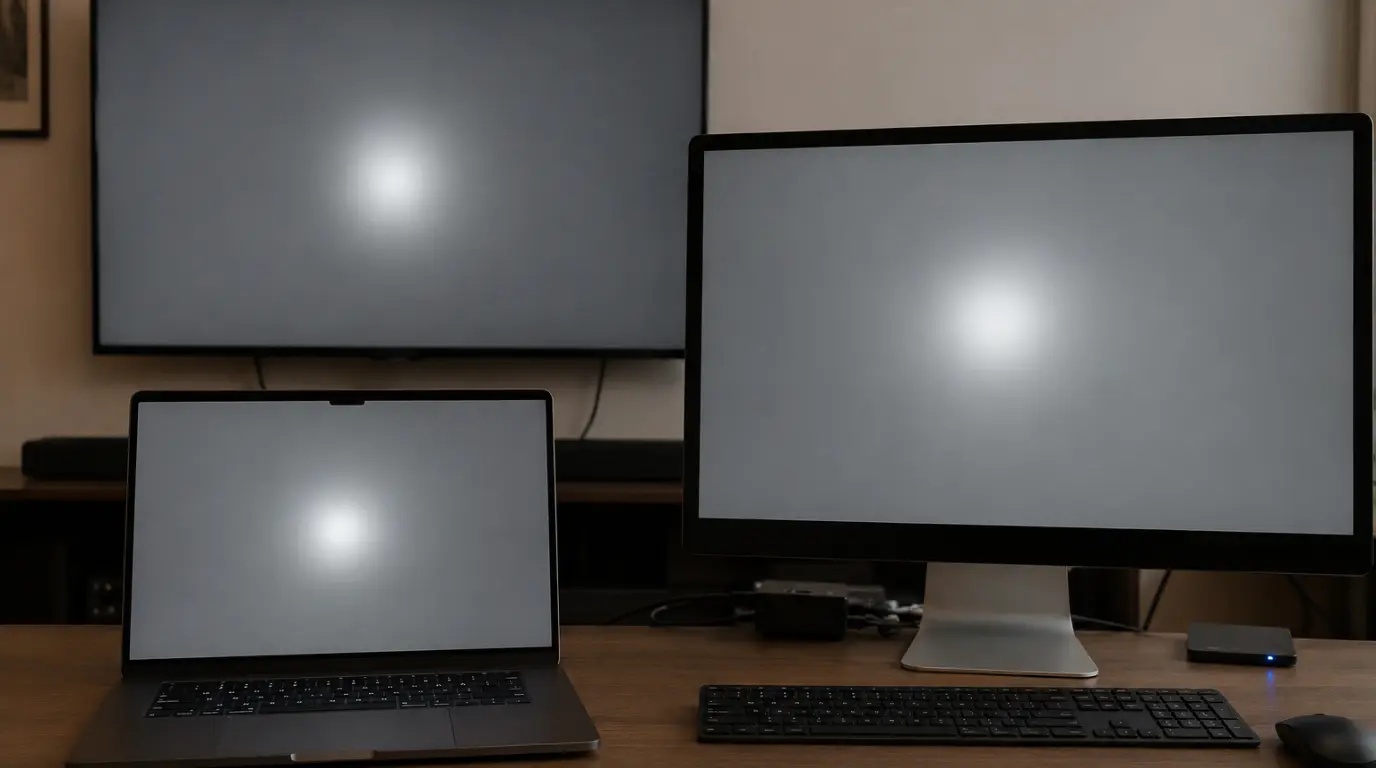
Quick Answer: A white spot on a laptop, monitor, or TV screen is usually pressure damage, a shifted diffuser sheet, a stuck pixel, or a failing backlight LED. Software pixel-fixing tools only help with stuck pixels and take twenty to thirty minutes to work. The diagnosis steps below tell you which one you are actually dealing with before you spend a single dollar.
You close the laptop lid one evening and open it the next morning to a pale patch glowing in the middle of the screen. It was not there the day before, and wiping the glass does nothing. Most owners assume the panel is dying, but in our repair queue a white spot is rarely a death sentence for the display.
Why a White Spot Shows Up in the First Place
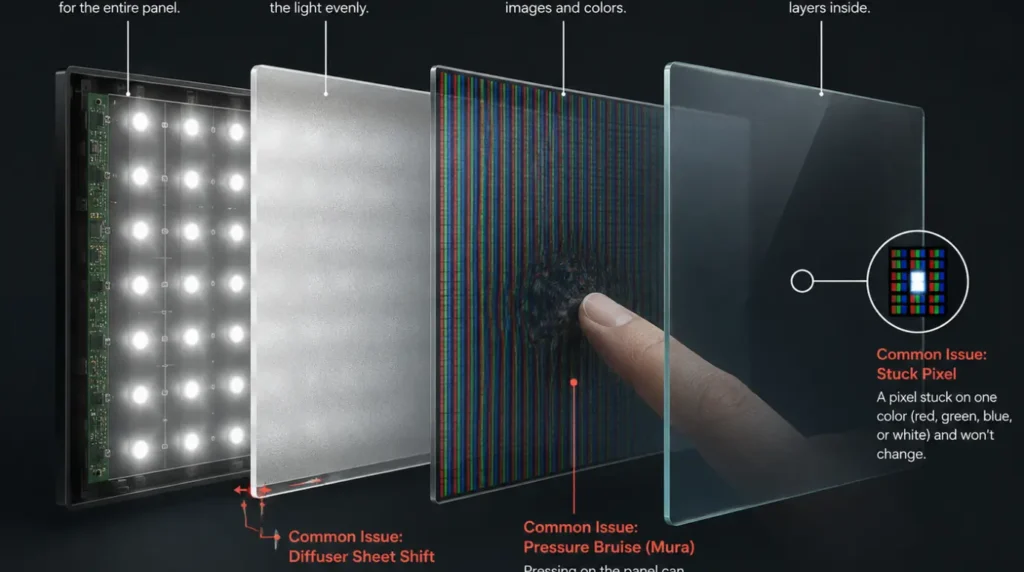
Pressure Bruising From Daily Handling (Probability: High)
Pressing on the screen surface squeezes the liquid crystal layer underneath it. The crystals shift out of alignment and stay that way, leaving a soft, cloudy white patch behind.
Confirming symptom: the spot appeared after the laptop sat in a tightly packed bag, or something was placed on the closed lid.
A Shifted Diffuser Sheet Inside the Panel (Probability: Medium, mostly monitors and TVs)
The diffuser sheet spreads backlight evenly across the screen from behind. A knock during shipping, or years of heating and cooling, can nudge it out of place so light pools unevenly.
Confirming symptom: the spot stays the exact same size and position no matter what is on screen, including a black background.
A Single Stuck Pixel (Probability: Medium)
A stuck pixel is locked on and keeps showing white, red, or green no matter what image is behind it. It almost always looks like a tiny pinpoint rather than a patch.
Confirming symptom: the dot is the exact same color on every background, including pure black.
Trapped Moisture From a Sudden Temperature Change (Probability: Low, often missed)
Carrying a laptop from a cold car into a warm room lets tiny amounts of condensation form between the screen layers. The moisture scatters light and creates a faint bright patch that often fades as the device warms up.
Confirming symptom: the spot appeared right after a hot to cold or cold to hot move, and softened within an hour.
A Failing Backlight LED Behind the Panel (Probability: Low)
Each LED in the backlight lights up a small zone of the screen. When one fails, it leaves a soft, round glow directly above it that becomes more obvious at higher brightness.
Confirming symptom: the patch has a rounded, soft edge rather than a sharp one, and lowering brightness makes it less noticeable.
Three Checks Before You Touch Anything
These checks take about five minutes combined and tell you which category of fix to try next. Go in order and do not skip the third one.
- Switch the display between a solid black image and a solid white image. A spot that only shows on black points to a stuck pixel or backlight bleed, while one that shows on every color points to physical panel damage.
- Take a screenshot of the area and open it on a different device. If the spot is not in the screenshot, the cause is hardware. If it is in the screenshot, you are looking at a software or rendering glitch instead.
- Gently flex the very corners of the lid, away from the spot itself, while watching the patch. If it shifts or changes shape, the diffuser sheet or an internal layer has moved out of place.
Fixing It, Starting With What Costs Nothing
Work through these in order. Most laptop and monitor white spots are solved in the first three steps, long before anyone needs to open the case.
1. Rule Out Software First
Cost: Free Time: 5 minutes Success Rate: 20%
Update the graphics driver, or roll it back if the spot appeared right after an update. Then connect an external display. If the spot does not follow to the external screen, the panel or its cable is the real cause.
2. Run a Pixel-Fixing Tool
Cost: Free Time: 20 to 30 minutes Success Rate: 55%
Tools like JScreenFix cycle colors rapidly over the exact spot to nudge a stuck pixel back into normal operation. This only works on a single pinpoint dot, never on a patch.
Run it for one full cycle, check the result, and repeat up to three times before giving up on this method.
3. Try the Gentle Pressure Technique
Cost: Free Time: 10 minutes Success Rate: 35%
Power the screen off completely. Wrap a fingertip in a soft microfiber cloth and apply very light circular pressure directly over the stuck pixel for ten to fifteen seconds, then power back on.
Only attempt this on a single small dot, never on a cloudy patch or a cracked area. Too much pressure creates a second problem instead of fixing the first one.
4. Reseat the Diffuser Sheet (Monitors and TVs)
Cost: Free, parts only if a clip breaks Time: 1 to 2 hours Success Rate: 50%
Opening the back panel voids most warranties, so only attempt this on a device that is already out of coverage. Locate the diffuser sheet directly behind the LCD layer and reseat it flat within the frame.
Search for a disassembly guide for your exact model before starting. This single step solves a surprising number of large, flat white patches on bigger screens.
5. Replace a Failing Backlight LED
Cost: $10 to $40 / £8 to £32 for parts Time: 2 to 3 hours Success Rate: 70%
This is worth attempting only if check three confirmed a round, soft-edged glow rather than a flat patch. LED strip replacement kits are widely available for popular monitor and TV models.
6. Replace the Panel
Cost: $60 to $450+ / £50 to £370+ depending on device Time: 30 to 90 minutes by a technician Success Rate: 85%
This is the last step, used when the patch is large, the damage is physical, or every earlier fix has failed. A budget laptop panel sits at the low end of the range, while a premium ultrabook or MacBook panel sits near the top.
When to Call a Repair Shop Instead
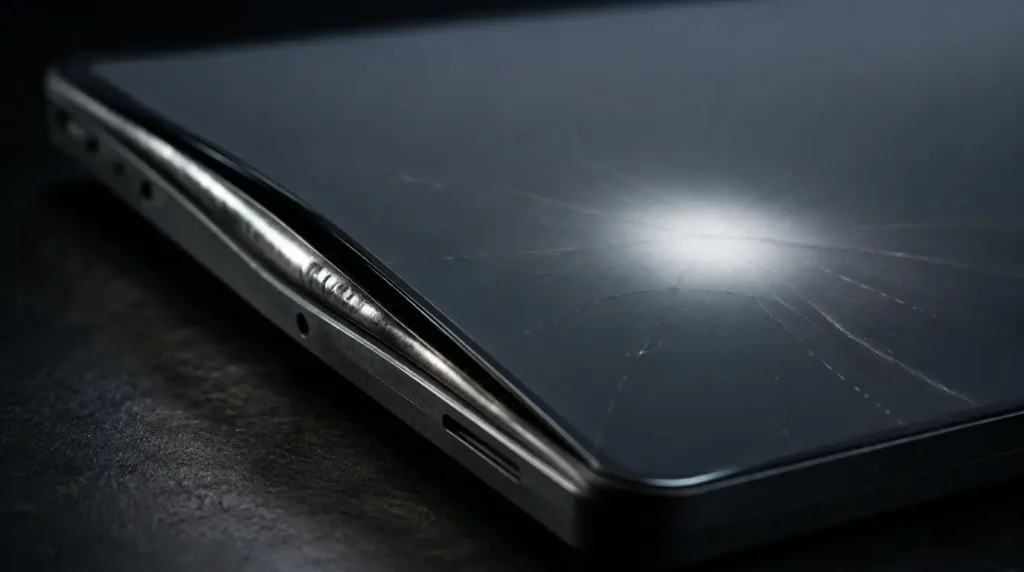
We see the same pattern often. Someone tries every DIY fix on a pressure bruise that was never going to respond to software, and loses a week before bringing it in.
If the spot is growing week over week, if the screen looks like it is bulging slightly at that spot, or if a crack radiates outward from it, stop trying home fixes and get it inspected. A swollen battery pushing against the back of a screen is a safety issue, not just a cosmetic one.
Always check warranty status before paying out of pocket. Manufacturing defects, including a stuck bright pixel present from day one, are usually covered under a standard warranty, while pressure or impact damage is not.
Keeping White Spots From Coming Back
- Use a padded sleeve with a rigid panel whenever the laptop travels in a bag with other items.
- Never set anything on top of a closed laptop lid, even something light.
- Let a cold device sit at room temperature for a few minutes before opening the lid in a warm room.
- Check the pixel defect policy in a monitor’s manual before buying, since some brands replace a panel over a single stuck pixel.
- Keep brightness between 60 and 80 percent for daily use, since maximum brightness ages the backlight faster.
- Avoid leaving a single static image on screen for hours at a time on monitors and TVs.
Common Questions About White Spots
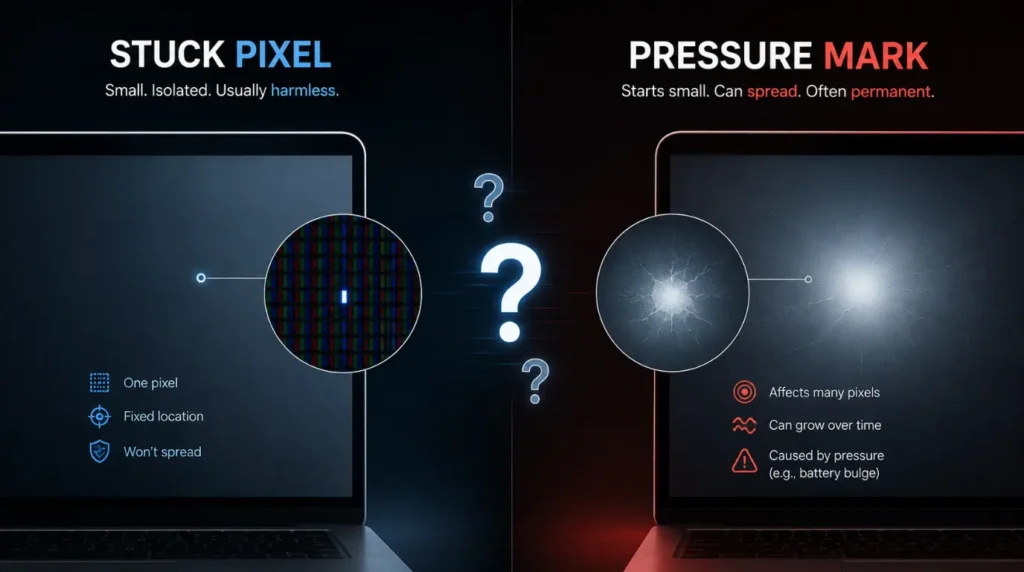
Will the white spot spread to the rest of the screen?
A stuck pixel or a single pressure bruise typically stays the same size indefinitely. A spreading or growing patch usually means ongoing physical stress, such as a cracked layer or a swelling battery underneath it, and should be checked soon.
Can I keep using a screen with a white spot?
A small stuck pixel or minor backlight bleed is safe to keep using. Stop using the device if the area is visibly bulging, growing, or paired with cracks, since that points to a hardware safety issue rather than a cosmetic one.
Does a no dead pixel guarantee cover this?
It depends on the spot type. Most no dead pixel guarantees cover stuck or dead pixels present from new, but they do not cover pressure damage, drops, or anything caused after purchase.
Why did the spot appear right after I cleaned the screen?
Pressing too firmly with a cloth during cleaning can bruise the panel the same way an object left on the lid does. Always clean with a barely damp microfiber cloth and the lightest touch possible.
The Bottom Line
Most white spots are not a reason to panic or to replace the device immediately. Run the three checks first, work through the free fixes in order, and save panel replacement for when everything else has been ruled out.
If you take one thing from this guide, it is that the screenshot test alone saves most people from wasting money. A spot that vanishes in a screenshot is a software problem, and a spot that does not is a hardware one.
Disclaimer screendotfix.com
The content on screendotfix.com is for informational and educational purposes only. All guides and troubleshooting steps are based on general knowledge, hands on research, and field experience, but we do not guarantee the accuracy or completeness of any information here.
Attempting any repair or fix described in this guide is solely at your own risk. screendotfix.com is not responsible for any damage, data loss, or hardware failure that results from following this information, and we recommend consulting a certified technician for serious display issues.
About the Author James, Founder of screendotfix.com
James has spent over a decade diagnosing display hardware and software issues across laptops, monitors, TVs, and mobile devices. Every fix in this guide reflects direct technical experience and hands on testing, and free fixes are always recommended before any paid repair option.
Editor Note screendotfix.com
Reviewed for technical accuracy by the screendotfix.com editorial team. All fixes are checked against current software and firmware versions, and pricing reflects current market rates that may vary by region.
This guide will be updated as new fixes are confirmed. For unresolved issues, visit the Contact page on screendotfix.com.