
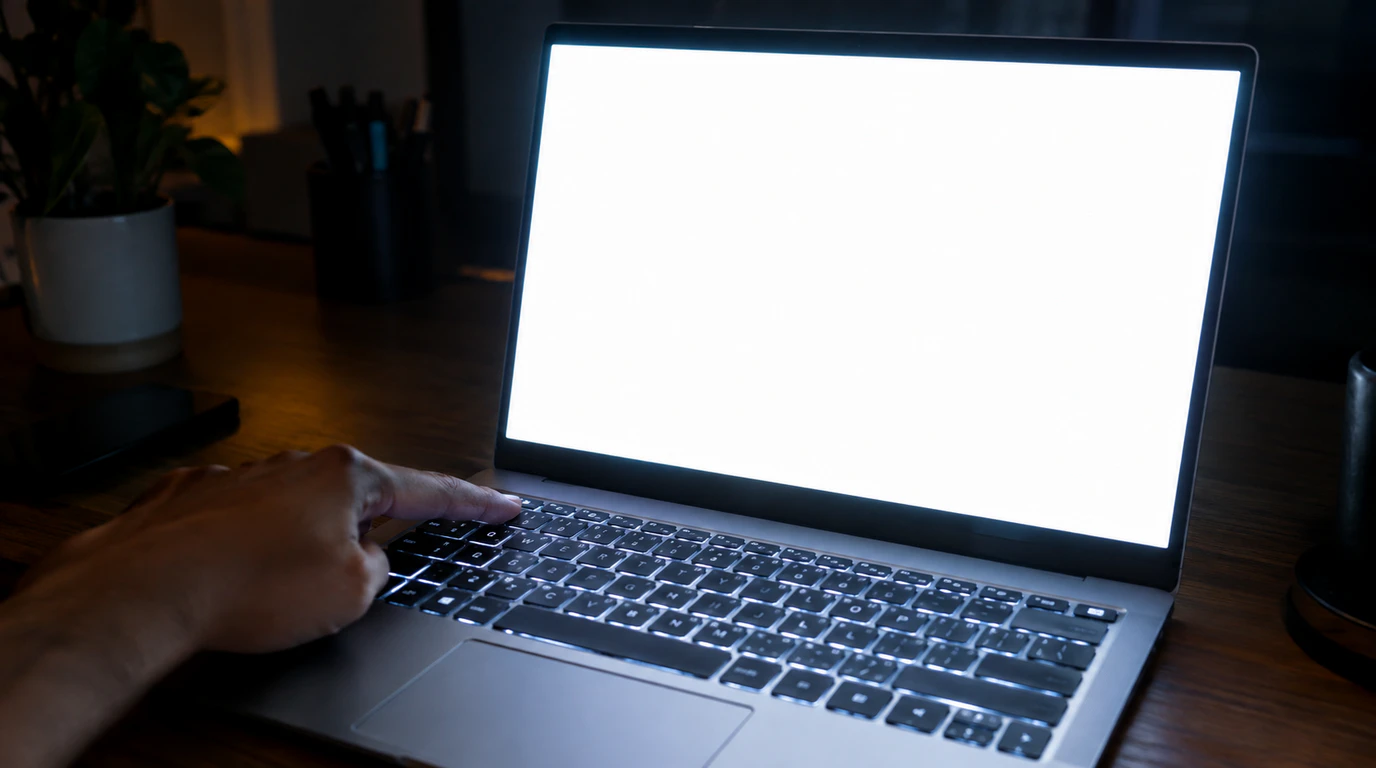
Laptop screen brightness usually gets stuck because of a driver conflict, a Windows adaptive brightness bug, or a Fn Lock setting not a broken screen. Software causes a fix in under ten minutes in most cases. Hardware causes, like a failing ambient light sensor or a loose display cable, show up far less often and usually cost between $40 and $180 to repair.
Last week a customer brought in a two-year-old Dell laptop where the brightness slider moved perfectly fine on screen but the actual panel never got brighter or dimmer. He’d already tried restarting it four times. That gap between the slider responding but the screen ignoring it is the single most common version of this problem, and it points almost every time to software rather than hardware.
I’ve worked on this exact complaint across HP, Dell, Lenovo, and Acer laptops running both Windows 10 and Windows 11, plus a handful of MacBooks with similar symptoms. The fix is different depending on exactly how the brightness is stuck, so the first job is figuring out which version you’re dealing with.
Why Does Laptop Screen Brightness Get Stuck?
Laptop brightness gets stuck when the operating system loses its connection to the display driver that controls the panel’s backlight signal. That connection can break for a handful of specific reasons: a corrupted or outdated graphics driver, Windows’ adaptive brightness feature overriding manual changes, Fn Lock disabling the keyboard shortcuts, or less often a physical fault in the ambient light sensor or the cable that carries the brightness signal to the screen.
On Windows machines, the brightness slider talks to the graphics driver (Intel, AMD, or NVIDIA), and the graphics driver talks to the display panel through the embedded controller. If any link in that chain stalls after a Windows update, a sleep cycle, or a driver crash, the slider keeps working visually while the actual signal to the panel stops getting through.
The Three Ways This Actually Shows Up
Not every “stuck brightness” complaint is the same problem. In the shop, I sort it into three patterns before touching anything.
Brightness Is Stuck at Maximum
The screen is locked at full brightness no matter what you try, and it’s usually uncomfortably bright. This pattern points to adaptive brightness fighting your manual setting, or a display driver that reset itself to default values after a Windows update. It’s almost never hardware.
Brightness Is Stuck at Minimum or Very Dim
The panel stays dark even in Settings with the slider pushed all the way up. This version is more likely to involve the ambient light sensor reading a false “bright room” value, or on older units a failing backlight component. If tilting the lid changes how dark the screen looks, that’s a strong sign the backlight itself is still working and the signal telling it how bright to be is the actual problem.
The Slider Moves But Nothing Happens on Screen
This is the pattern from the Dell laptop I mentioned above, and it’s the most common one I see. The on-screen slider and the percentage number both update normally, but the panel brightness never actually changes. This almost always traces back to a driver that’s still installed but no longer communicating properly with the panel.
Quick Software Fixes to Try First
Try these in order. Most laptops with this complaint are fixed by step two or three.
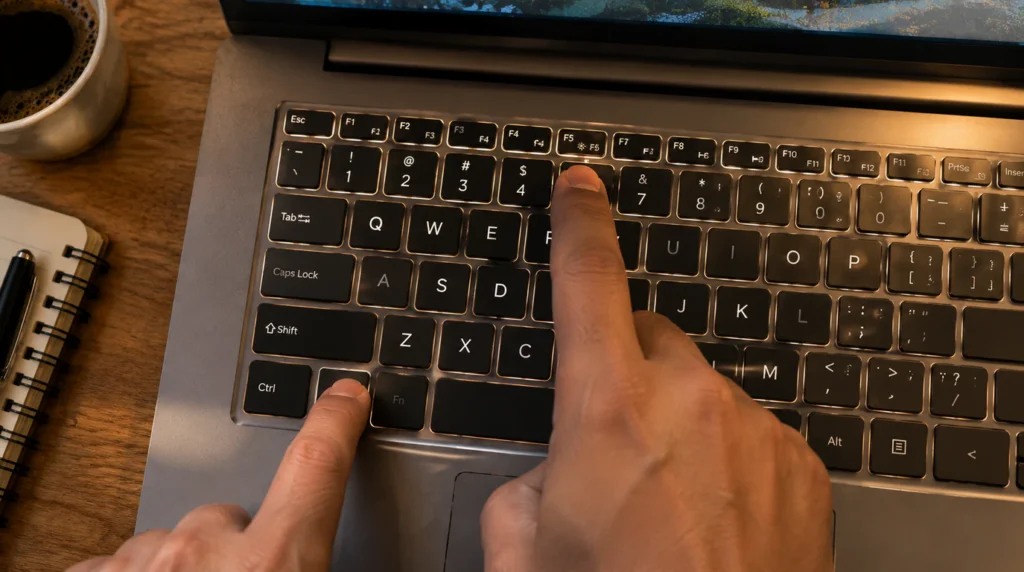
- Check Fn Lock. On many keyboards, the brightness function keys only work when Fn Lock is off. Look for a small light on the Fn key itself, or press Fn plus the brightness key using both combinations to see which one actually moves the screen.
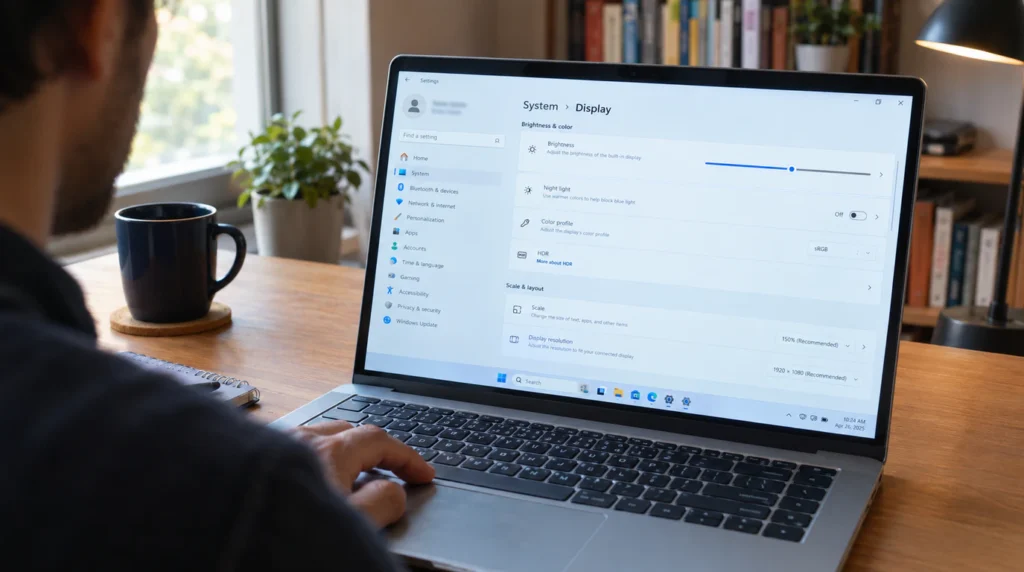
- Turn off adaptive brightness. On Windows 11, go to Settings, then System, then Display, then Brightness & Color, and turn off “Help improve battery by optimizing the content shown and brightness.” On Windows 10, this same toggle sits under Settings, System, Display, as “Change brightness automatically when lighting changes.”
- Update or roll back the graphics driver. Open Device Manager, expand Display Adapters, right-click your graphics card, and choose Update Driver. If the problem started right after a driver update, choose Roll Back Driver instead; this fixes the issue more often than updating does when the symptom appears suddenly.
- Close any screen-dimming software running in the background. Apps like f.lux, Iris, or a monitor calibration tool from a previous external display can override Windows’ own brightness control. Check your system tray for anything with a sun or moon icon you don’t recognize.
- Reset the power plan. Open Command Prompt as administrator and run powercfg -restoredefaultschemes. This resets Windows’ built-in power plans without touching your files, and it clears out brightness settings that got corrupted inside a custom power plan.
If you’re chasing a driver conflict specifically, it’s worth ruling out a graphics card problem entirely. Our guide to green dots on laptop screens covers the same Intel and NVIDIA driver checks in more depth, since GPU-level faults can cause both symptoms on the same machine.
Why Did This Happen Right After a Windows Update?
A Windows update resets your display driver settings back to Microsoft’s generic default, and that default doesn’t always match your laptop manufacturer’s brightness controls correctly. This is the single most common trigger I see for brightness getting stuck at maximum specifically. Manufacturer-specific brightness software, like Dell’s PremierColor or Lenovo’s Vantage brightness controls, sometimes stops talking to the new driver version until it’s reinstalled. If the problem started within a day or two of a Windows update, uninstalling that specific update through Microsoft’s official update removal guide resolves it in a large share of cases while you wait for a corrected driver.
When It’s Actually a Hardware Problem
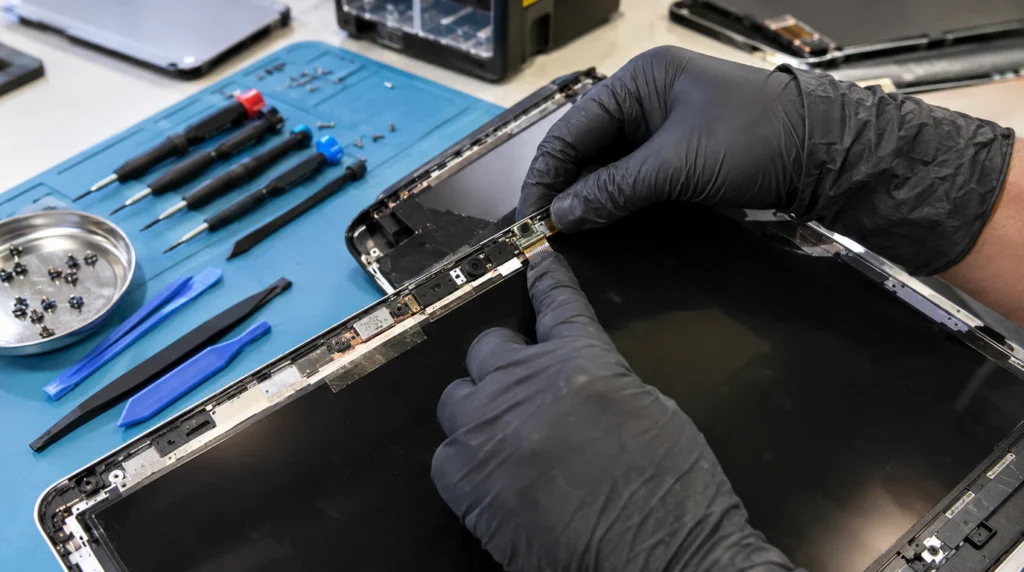
Hardware causes make up a small minority of the “stuck brightness” cases that come through the shop, but they do happen, and they show up differently from software faults.
A failing ambient light sensor sits near the webcam on many laptops and reads the room’s lighting to drive adaptive brightness. When it fails, it can feed the system a constant “dark room” or “bright room” reading, which locks brightness at one extreme even after you disable adaptive brightness in Settings because the sensor data still leaks into the driver’s fallback behavior on some models. Replacing this part typically runs $50 to $120 including labor, since it’s usually bundled with the webcam housing rather than sold alone.
A loose or damaged display cable the thin ribbon connecting the motherboard to the panel can interrupt the specific wire carrying the brightness signal while leaving the video signal intact, so you still see a picture that simply won’t dim or brighten. Reseating this cable is a five-minute job if you’re comfortable opening the base of the laptop; a full cable replacement runs $40 to $90 in parts, or $90 to $150 at a repair shop with labor included.
A panel-level backlight driver failure is the least common cause and the most expensive to fix, since it usually means replacing the panel assembly itself rather than a single component. Expect $120 to $280 depending on screen size and resolution. If your laptop is more than four years old, this is often the point where a replacement laptop makes more financial sense than the repair, especially on budget and mid-range models where a new screen assembly can run close to a third of what the whole machine originally cost.
If you’re also seeing colored lines alongside the brightness problem, that combination points more strongly toward a cable or panel issue than a software one. See our breakdown of red lines on PC screens for how to tell the two apart before you open the case.
Is It Worth Fixing, or Should You Replace the Laptop?
Repair makes financial sense when the fix costs less than 25 to 30 percent of what a comparable replacement laptop costs, and the rest of the machine is in good shape. A $90 cable repair on a laptop that’s still fast enough for daily use is worth doing. A $250 panel replacement on a five-year-old budget laptop with a slowing hard drive usually isn’t that money that goes further toward a new machine.
Common Mistakes People Make With This Problem
- Reinstalling Windows before trying a simple driver rollback, which wastes hours solving a two-minute problem
- Assuming a dim screen means a dying backlight without first checking adaptive brightness settings
- Buying a replacement screen before confirming whether it’s actually a cable connection issue, which costs a fraction as much to fix
- Ignoring Fn Lock entirely because “it worked fine yesterday,” even though a stray keypress can toggle it accidentally
Frequently Asked Questions
Why is my laptop’s brightness stuck even after I restart it?
If brightness stays stuck through a restart, the cause is almost always a setting stored in your power plan or a driver that reinstalls itself in the same broken state. A restart alone doesn’t clear adaptive brightness settings or reload the graphics driver from scratch, which is why the problem survives a reboot but often clears after a driver rollback.
Can a software update fix stuck brightness on its own?
Sometimes, yes manufacturers regularly patch driver conflicts that cause this exact issue, and installing the latest chipset and graphics driver from your laptop maker’s support page (not just Windows Update) resolves it without any further steps in many cases.
Does a stuck brightness screen mean my laptop screen is dying?
Not usually. A screen that’s genuinely failing tends to show other symptoms alongside brightness problems, like flickering, color shifts, or lines. Brightness stuck on its own, with an otherwise clean picture, points to software or the ambient light sensor far more often than a dying panel.
Why does my brightness only work when I unplug the charger?
Some laptops apply a separate brightness profile for battery versus plugged-in power, and a corrupted profile on one side can make brightness appear stuck only in that state. Checking your power plan’s advanced display settings for both “On Battery” and “Plugged In” brightness values usually reveals a mismatch you can fix directly.
Expert Verdict
Nine times out of ten, a laptop with stuck brightness has a driver or settings problem, not a broken screen and that ratio holds up across every brand we’ve tested at screendotfix.com. Start with Fn Lock and adaptive brightness before you assume anything is physically wrong, work through the driver rollback next, and only look at cables or sensors once you’ve ruled out software. That order saves the most time and the most money.
Author Note
I’m James, founder of screendotfix.com. I’ve spent the last decade repairing laptop and monitor displays professionally, and stuck brightness is one of the complaints I see most often precisely because people assume it’s a hardware failure when it almost never is. This guide reflects what I actually check on the bench, in the order I check it, not a generic list pulled from a manual.
If you’ve worked through every fix here and the screen still won’t respond, the next step is a proper diagnostic with the display panel disconnected to test the cable and sensor in isolation, something worth taking to a repair shop rather than guessing at with parts swaps.