
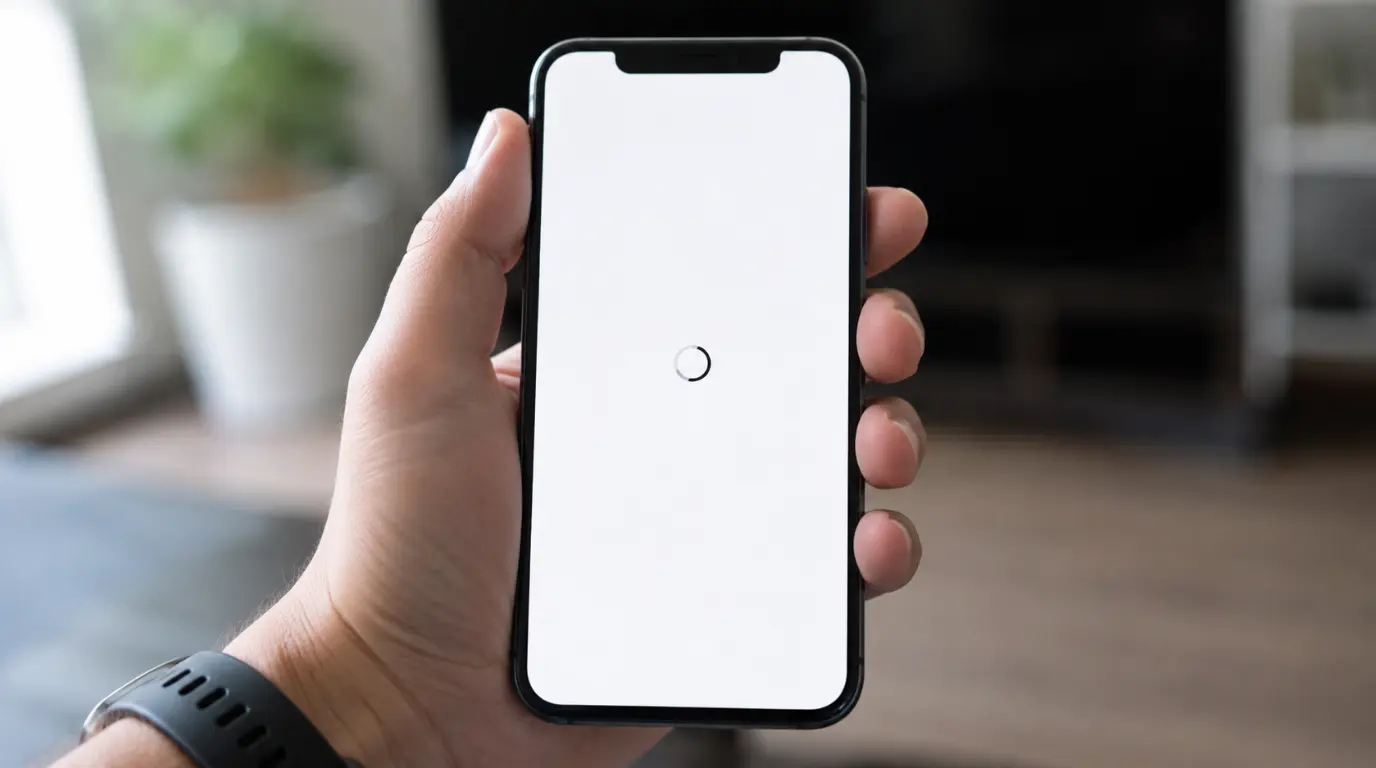
A white screen in Google Photos almost always comes from a broken cache, a stalled sync, or a rendering bug tied to your current app version not from a hardware or screen problem. Clearing the app’s cache, forcing a fresh sync, and updating to the latest build resolves this in the majority of cases we’ve walked people through at screendotfix.com, usually within five to ten minutes.
If you’ve landed here, you’re probably not looking at one single symptom. Google Photos can go white in at least three different ways, and each one points to a slightly different cause. Before you start clearing caches or reinstalling anything, figure out which version of this you’re actually seeing. It saves you from wasting time on fixes that don’t match your problem.
Which White Screen Are You Actually Seeing?
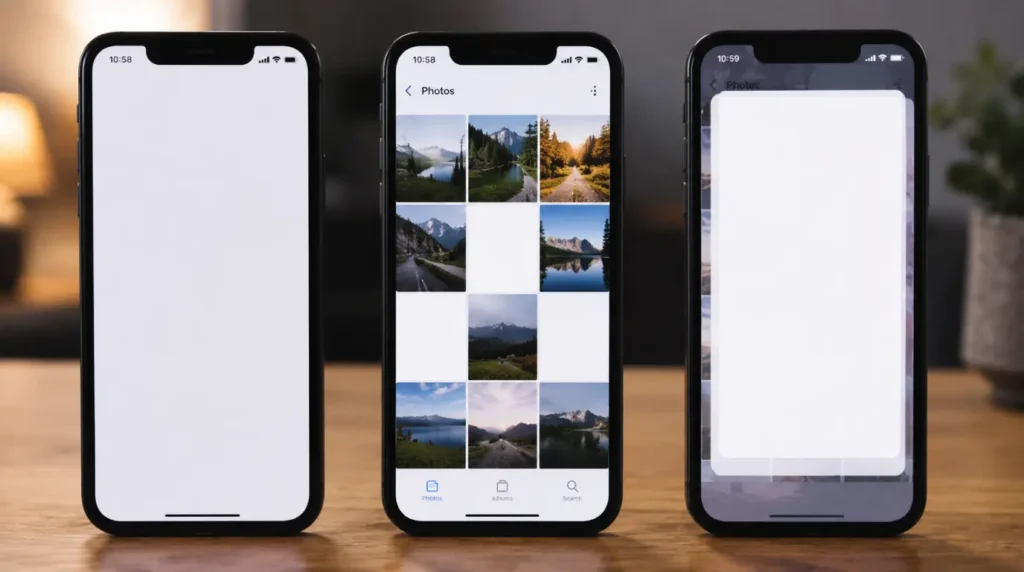
The whole app opens to a blank white screen and never loads. This is almost always a rendering or cache failure on startup. The app launches, the interface tries to draw itself, and something in that process breaks before your photo grid ever appears.
Individual photos or videos show a white or gray box instead of a thumbnail. This is a thumbnail-generation or sync problem, not a full app failure. You can usually still scroll, search, and open other photos normally it’s specific images that won’t render.
The app loads fine, then flashes white and crashes when you open a specific photo, album, or the editor. This points to a corrupted local cache entry for that one file, or a bug in a specific version of the app tied to editing or the Memories feature.
Knowing which one applies to you determines whether you start with a cache clear, a sync fix, or an app reinstall. We’ll cover all three.
Why Google Photos Shows a White Screen
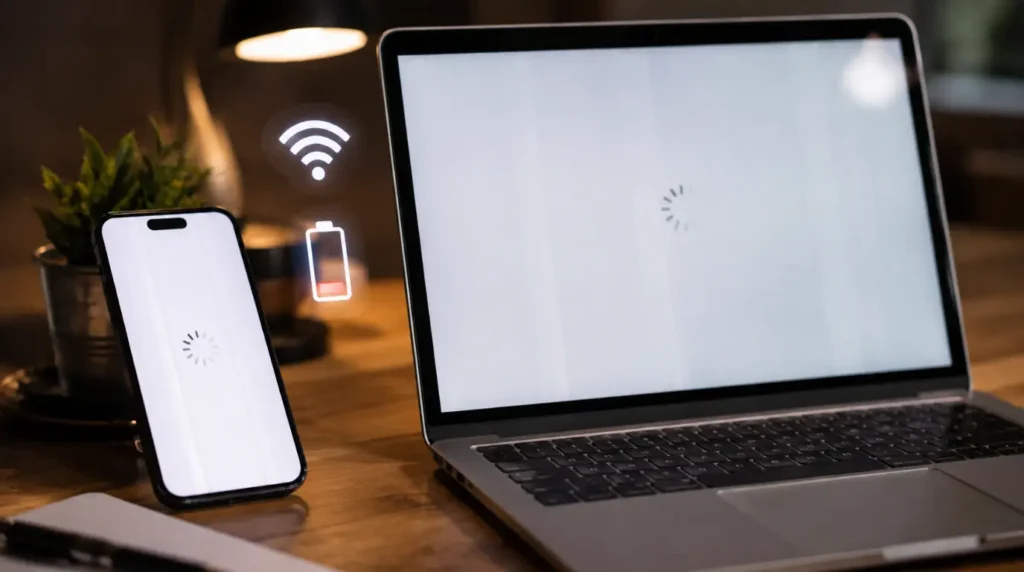
The white screen itself isn’t damaging to your photos or your device. It’s a failure somewhere in the chain between “app requests the image” and “app draws the image on your screen.” From what we’ve seen helping readers troubleshoot this exact error, the cause almost always falls into one of these categories.
Corrupted local cache. Google Photos stores thumbnail and preview data locally so photos load instantly instead of re-downloading every time. When part of that cache gets corrupted often after a low-storage warning, a forced app close, or an interrupted update the app can’t read its own cached data and renders a blank white frame instead of throwing a clear error.
Interrupted or stalled sync. If your upload or backup process gets interrupted mid-sync (weak Wi-Fi, switching networks, low battery shutdown), Google Photos can end up with a partial record for certain images. The app knows the photo exists but can’t retrieve a complete file to display, so it shows white instead of the image.
App version mismatch after an update. This tends to show up right after Google pushes a Google Photos update. A new build changes how the app renders the photo grid or thumbnail layer, and devices still running an older Android System WebView, an outdated OS, or a half-installed update can hit a white-screen rendering conflict until everything catches up.
Low device storage. When your phone’s internal storage runs critically low, Android and iOS both restrict background processes to protect the system. Google Photos loses the memory headroom it needs to decode and render images, and a white screen is one of the more common visible symptoms of that restriction.
Account or permission conflict. Less common, but real: if Google Photos loses its storage permission, or if there’s a conflict between two signed-in Google accounts on the same device, the app can fail to pull image data correctly and default to a blank screen instead of a proper error message.
Browser-based Google Photos (photos.google.com) rendering failure. On desktop, a white screen is usually a browser extension conflict, a corrupted browser cache, or a hardware-acceleration setting fighting with Google’s rendering engine not the same fix path as the mobile app.
Causes at a Glance
| Cause | How Common | Fix Difficulty | Time to Fix |
| Corrupted local cache | Very common | Easy | 2–5 minutes |
| Interrupted sync | Common | Easy | 5–10 minutes |
| App version mismatch | Common after updates | Easy | 5 minutes |
| Low device storage | Common | Moderate | 10–20 minutes |
| Account/permission conflict | Occasional | Easy | 5 minutes |
| Browser rendering conflict (desktop) | Occasional | Easy | 5 minutes |
How to Fix a White Screen in Google Photos (Mobile)
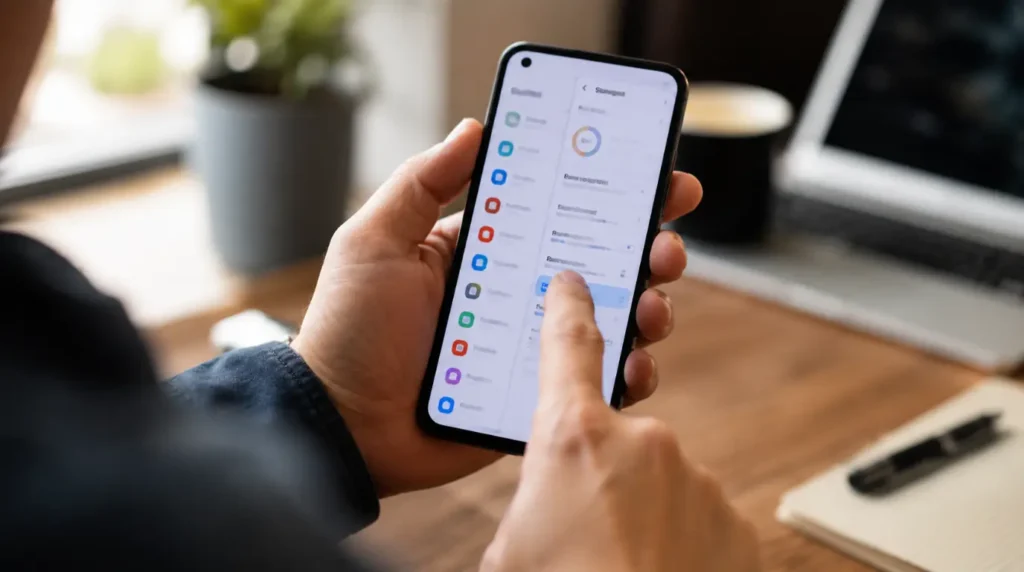
Work through these in order. Most people fix this at step 2 or 3 without needing to go any further.
- Force-close and reopen the app. On Android, open Recent Apps and swipe Google Photos away, then relaunch it. On iPhone, swipe up from the app switcher to close it fully before reopening. This clears a stuck rendering process without touching any data.
- Clear the Google Photos cache. On Android, go to Settings > Apps > Google Photos > Storage > Clear Cache. Do not tap Clear Data that signs you out and resets local settings. Clearing cache alone removes corrupted thumbnail files without affecting your actual photos, since everything is backed up to your Google Account.
- Check your storage space. Go to Settings > Storage and confirm you have at least 1GB of free space. If you’re under that, delete unused apps, clear Downloads, or offload large videos before trying Google Photos again.
- Update the app to the latest version. Open the Google Play Store or App Store, search Google Photos, and tap Update if one is available. Version mismatches after a Google-side rollout are one of the most common causes of a sudden white screen that wasn’t there yesterday.
- Check your internet connection and let sync finish. Switch off Wi-Fi and use mobile data (or the reverse) for a minute, then reopen the app. A stalled sync on a weak connection often resolves itself once the app gets a stable connection to finish pulling image data.
- Sign out and back into your Google Account. In the Photos app, tap your profile photo, select “Manage your Google Account,” sign out, restart your phone, then sign back in. This resets the token the app uses to fetch your library and clears up most permission-related white screens.
- Reinstall the app as a last resort. Uninstalling and reinstalling Google Photos does not delete your photos; everything lives in your Google Account, not on the device. This is the most reliable fix when the white screen survives every step above, because it rebuilds the local cache and app data from scratch.
Fixing a White Screen on Google Photos in a Browser
If you’re seeing this on photos.google.com rather than the mobile app, the fix path is different. Clear your browser’s cache and cookies for google.com specifically, rather than your entire browsing history. Disable browser extensions one at a time ad blockers and privacy extensions are the most frequent cause of a white rendering area on Google’s photo grid. If neither helps, try loading the site in an incognito or private window; if it loads correctly there, an extension or a stored site setting is the culprit, not Google’s servers.
Common Mistakes That Make This Worse
People often tap “Clear Data” instead of “Clear Cache,” assuming they mean the same thing. Clear Data wipes local app settings and signs you out, which doesn’t fix a white screen any faster than Clear Cache but adds an extra sign-in step for no benefit.
Another mistake is uninstalling the app immediately as a first step. Since your photos live in the cloud, reinstalling is safe but it’s also the slowest fix on this list, and most white-screen cases resolve at the cache-clear or update stage without needing it.
Can This Fix Itself Without Doing Anything?
Sometimes, yes if the cause is a temporary Google-side sync hiccup or a server-side rollout still in progress, the white screen can clear on its own within a few hours as Google finishes pushing an update or your account catches up on syncing. If it’s still happening after a full day, it’s worth working through the steps above rather than waiting it out.
Is This a Sign of a Damaged Screen or Device?
No. A white screen limited to one app, especially one that goes away when you close and reopen it, is a software rendering issue inside Google Photos, not a display or hardware fault. If you’re also seeing white or blank areas outside the Photos app on your home screen, in other apps, or across the entire display that’s a different problem, and it points toward a display or GPU issue rather than anything Google Photos-related.
Frequently Asked Questions
Will clearing the cache delete my photos?
No, clearing the cache in Google Photos will not delete your photos. Cache data is just temporary local files the app uses to load images faster; your actual photos and videos remain safely stored in your Google Account and reload automatically once the cache rebuilds.
Why did Google Photos suddenly go white after an update?
Google Photos often goes white right after an update because the new build changes how the app renders thumbnails, and your device’s cached rendering data from the old version briefly conflicts with it until you force-close the app or clear the cache once.
Does a white screen in Google Photos mean I lost my photos?
A white screen does not mean you lost your photos, since Google Photos stores your library in your Google Account rather than only on your device, so the images are still there even while the display fails to render them.
Why is Google Photos white on my phone but works fine on the web?
When Google Photos works on the web but shows white on your phone, the problem is isolated to the mobile app’s local cache or the installed app version, not your account or your photos, since the browser pulls data through a completely separate rendering path.
Related Reading
If white screens are showing up in other apps too, not just Google Photos, these two guides walk through the same troubleshooting logic for those specific cases:
James has also broken down the Messenger white screen fix for anyone seeing the same blank-screen pattern in Messenger, and the YouTube white screen error guide covers the same issue for YouTube’s app and rendering bugs.
Expert Verdict
In nearly every Google Photos white screen case we’ve walked through at screendotfix.com, the fix lived in the first three steps: cache clear, storage check, app update rather than anything more drastic. Treat the reinstall as a fallback, not a first move, and you’ll usually have this sorted in under ten minutes.
Author Note
I’m James, founder of screendotfix.com. I spend most of my time helping people work through exactly this kind of everyday screen and display frustration. Sometimes it’s a hardware problem, and sometimes, like here, it’s an app quietly failing to render what’s already safely stored in your account. Either way, the goal is the same: tell you plainly what’s actually happening and how to fix it without the runaround.
Disclaimer: This guide reflects troubleshooting steps that commonly resolve the Google Photos white screen error at the time of writing. App behavior can change with future Google Photos updates.