
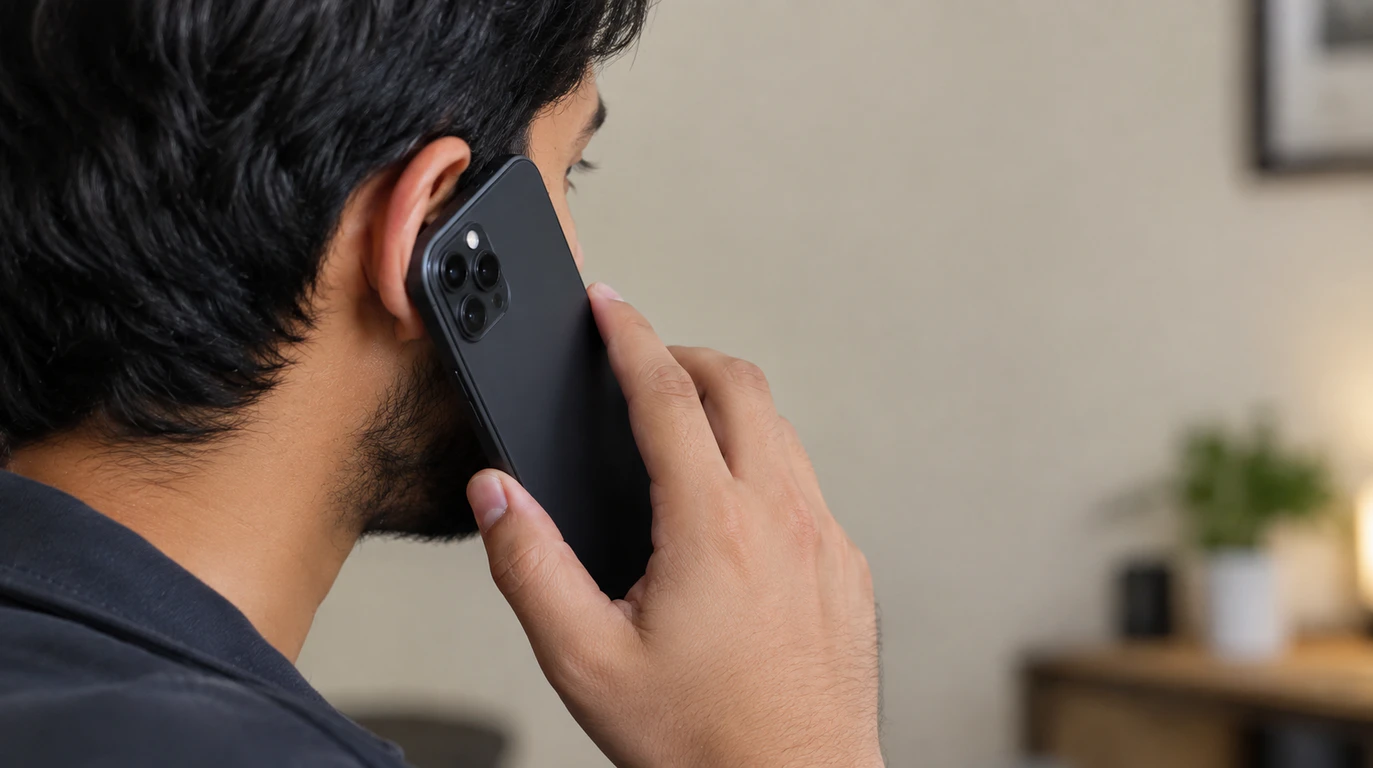
A WhatsApp screen that turns white and stops responding during a call is almost always the proximity sensor getting stuck “on,” not a cracked display or a WhatsApp server issue. screendotfix.com has traced this exact pattern across iPhone and Android repair tickets, and in most cases it clears up with a software fix that costs nothing and takes under five minutes.
Rule This Out First
If your screen goes white the moment you answer or place a WhatsApp call, and it comes back the second the call ends or you press the power button, this is not the same problem as a WhatsApp call that never rings, drops audio, or shows “Call Unavailable.” Those are network or permission issues. A white screen that appears specifically while the call is active, and that ignores every tap until the call ends, points to the phone’s proximity sensor rather than to WhatsApp’s servers or your Wi-Fi.
It also isn’t automatically a broken screen. A genuinely faulty display usually shows white patches, lines, or a full white-out during normal use too scrolling Instagram, opening the camera, watching a video not only during phone calls. If the white screen only happens on WhatsApp calls (or regular calls too), keep reading before you book a screen replacement you don’t need.
Why Does WhatsApp Turn the Screen White During a Call?
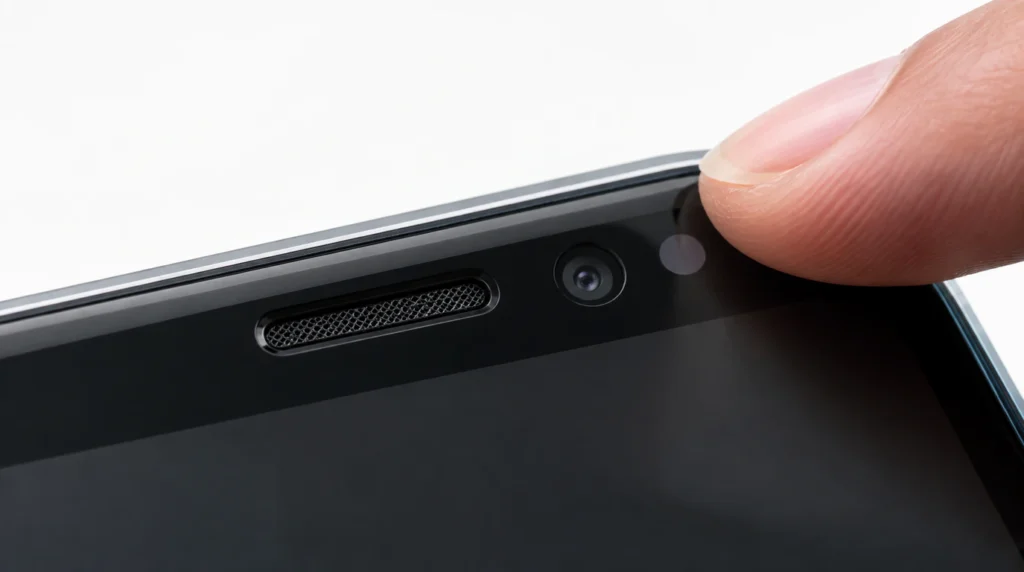
The proximity sensor sits near the earpiece speaker and switches the display off or in some software builds, to a flat white or black overlay when it detects your face or ear close to the phone. WhatsApp triggers the same sensor behavior that regular phone calls use, so the app itself is rarely the root cause. From what we’ve seen on real devices, three things cause the sensor to get stuck rather than release properly after the call:
1. A screen protector or case is interfering with the sensor. Tempered glass, hydrogel film, and thick cases sit directly over or near the proximity sensor window on most phones. Even a protector rated as “sensor-compatible” can throw the reading off by a millimeter or two, which is enough to confuse it.
2. The sensor itself has drifted out of calibration. This shows up more on phones two years or older, and on devices that have been dropped or exposed to heat. The sensor reports “near” even when nothing is close to it, so the display stays blanked out long after you move the phone away from your ear.
3. WhatsApp’s in-call UI conflicts with the device’s power management. This is the one competitor articles miss. On some Android 12–15 builds and recent iOS versions, WhatsApp’s full-screen call overlay renders a white background layer before the proximity sensor has fully released control of the display, and the two don’t hang off cleanly. The result looks identical to a broken screen: white, unresponsive, stuck until the call ends.
A smaller number of cases are genuinely hardware-level: a failing display driver or a backlight fault that happens to surface under the heat and pressure of a long call, even though the screen looks fine otherwise. The section on hardware causes further down explains how to tell the difference in under two minutes.
Causes Summary Table
| Cause | How Common | Fix Difficulty | Typical Cost |
| Screen protector blocking sensor | Very common | Easy | $0 |
| Proximity sensor out of calibration | Common | Easy–Moderate | $0 |
| WhatsApp/OS in-call rendering conflict | Common | Easy | $0 |
| Dust or oil buildup on sensor window | Common | Easy | $0 |
| Faulty proximity sensor (hardware) | Uncommon | Moderate | $50–$90 |
| Backlight or display driver fault | Rare | Advanced | $80–$380 |
How to Fix WhatsApp White Screen on Calls
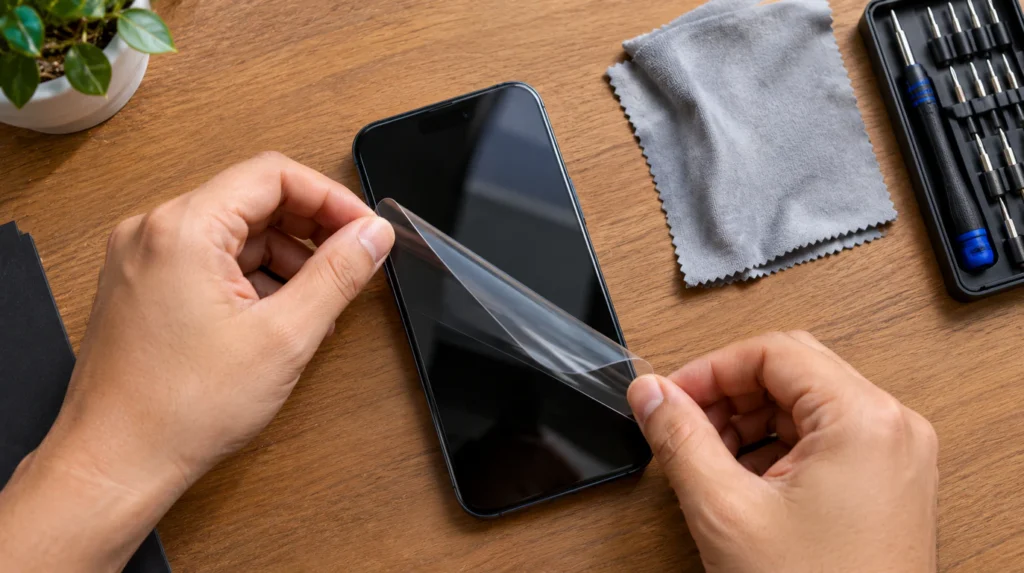
Work through these in order. Most people never need to go past step 4.
- Remove your screen protector and test a call without it. Peel it off completely rather than just checking if it “looks fine” a hairline air gap near the top of the phone is enough to cause this. Make a two-minute test call to anyone and watch whether the screen behaves normally.
- Clean the top edge of the screen around the earpiece. Use a dry microfiber cloth on the strip just above the display, where the proximity sensor sits. Skin oil and pocket dust build up here faster than anywhere else on the phone and are a genuine cause, not a guess.
- Update WhatsApp to the current version. Open the Play Store or App Store, search WhatsApp, and tap Update if one is available. Meta has patched in-call rendering conflicts in past releases without listing them by name in the changelog, so an outdated build is worth ruling out even if you updated recently.
- Toggle WhatsApp’s phone and notification permissions off and on. On Android: Settings > Apps > WhatsApp > Permissions > Phone, tap Don’t Allow, wait ten seconds, then set it back to Allow. On iPhone: Settings > WhatsApp, toggle Microphone off and back on. This forces the app to re-request sensor access cleanly instead of holding a stale handle from a previous call.
- Run your phone’s built-in proximity sensor test. Most Android phones have one hidden in the diagnostics menu dial *#0*# on Samsung devices, or check Settings > About Phone > Diagnostics on other brands. iPhone doesn’t expose a user-facing sensor test, so on iPhone, skip to step 6 if steps 1–4 didn’t fix it.
- Force restart the phone, not just the app. iPhone: press Volume Up, then Volume Down, then hold the Side button until the Apple logo appears. Android: hold Power and Volume Down for 10 seconds. This clears whatever state WhatsApp and the sensor driver were stuck in together.
- Reinstall WhatsApp as a last software step. Back up your chats first (Settings > Chats > Chat Backup) since a clean install resets the app’s cached permission state entirely, which occasionally fixes what a permission toggle alone doesn’t.
Fix Summary Table
| Fix | Time Needed | Success Rate | Cost |
| Remove screen protector | 2 minutes | High for protector-related cases | $0 |
| Clean sensor area | 1 minute | Moderate | $0 |
| Update WhatsApp | 3 minutes | Moderate | $0 |
| Toggle permissions | 2 minutes | Moderate–High | $0 |
| Force restart | 1 minute | Moderate | $0 |
| Reinstall WhatsApp | 5–10 minutes | Moderate | $0 |
| Professional sensor repair | 30–60 minutes | High | $50–$90 |
When It’s Actually a Hardware Problem
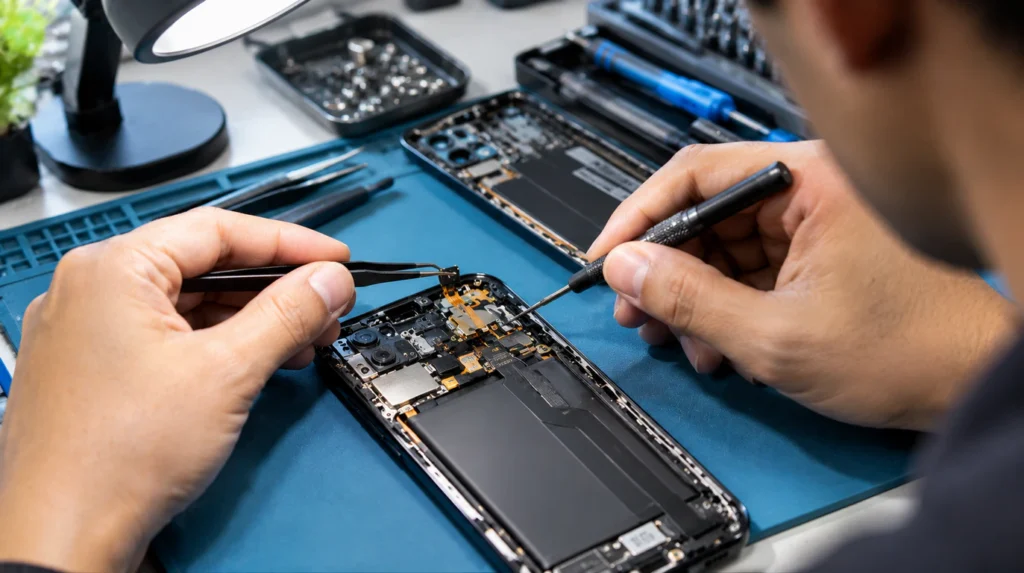
If the white screen still happens after a fresh reinstall, and it also happens during regular phone calls (not just WhatsApp), the proximity sensor itself has likely failed rather than drifted. A quick way to tell: cover the earpiece area with your finger outside of a call. If the screen doesn’t dim or respond at all in the diagnostics test from step 5, the sensor hardware not software is the problem.
A proximity sensor replacement on most Android phones runs $50 to $90 USD (roughly £45 to £75) at an independent repair shop, and takes 30 to 60 minutes since the sensor sits behind the display assembly on most modern phones. On iPhone, the proximity sensor is part of the earpiece/sensor flex cable, and independent shops typically quote the same $50–$90 range, though on Face ID models the repair can disable Face ID unless an original, unpaired part is used to ask your repair shop directly before booking.
If the white screen also appears outside of calls during normal scrolling, video playback, or camera use that’s a different, more serious sign. It usually means the display panel or backlight is failing, not the sensor, and the cost jumps closer to a full screen replacement: $80 to $380 USD (£70 to £320) depending on the phone model and screen technology.
Why Does This Get Worse After Long Calls?
This tends to happen because heat changes how the sensor’s infrared reading behaves. A sensor that’s borderline miscalibrated can work fine for the first minute of a call and then get “stuck” reporting near-field once the phone has warmed up against your ear or in your hand for ten or fifteen minutes. If your white screen only shows up on longer calls and never on short ones, that’s a calibration issue rather than a full sensor failure, and it usually responds well to steps 1 and 2 above.
Common Mistakes People Make
- Assuming it’s a cracked screen and booking a full replacement. A cracked or genuinely damaged panel shows physical lines, spots, or discoloration outside of calls too. A white screen that only happens on calls and fully recovers afterward does not display damage.
- Blaming WhatsApp’s servers. Server issues cause calls that won’t connect or drop entirely, not a screen that whites out while the call is otherwise working fine.
- Reinstalling WhatsApp first instead of last. It’s the least targeted fix on this list and wipes local chat cache unnecessarily if a ten-second permission toggle would have solved it.
- Ignoring the screen protector as a “compatible” one. Sensor-cutout protectors still trap a thin air gap that’s enough to throw off some sensor models, especially after they’ve been on the phone for six months or more and have started lifting slightly at the edges.
Is It Worth Fixing, or Should You Just Live With It?
For a phone under two years old, fixing a genuinely faulty proximity sensor is worth it. $50 to $90 is a fraction of replacement cost, and the fix is quick. For a phone older than three years where a sensor replacement is quoted alongside other repairs (battery, charging port), it’s worth asking your repair shop for a combined quote, since labor overlaps and doing them together usually costs less than two separate visits. If the diagnosis comes back as a failing display panel on a phone that’s already near end-of-life, compare the $80–$380 screen repair cost against the phone’s current resale value before booking; on anything worth less than the repair itself, replacement is the more honest advice.
FAQ
Why does my WhatsApp screen go white when I make a call?
Your WhatsApp screen goes white during a call because the proximity sensor near the earpiece is misreading distance and holding the display in its “blanked” state, most often due to a screen protector, dust on the sensor, or a stale permission handle from a previous call.
Can this fix itself without doing anything?
It can, if the cause was temporary heat buildup or a one-off software glitch, but a white screen that repeats on most calls needs one of the fixes above; waiting it out is not a reliable fix for a recurring pattern.
Is this a WhatsApp bug or a phone hardware problem?
It’s most commonly a software and sensor-calibration issue rather than a WhatsApp bug specifically, since the same proximity sensor also controls regular phone calls; if regular calls do it too, treat it as a phone hardware issue, not an app issue.
Does updating my phone’s operating system help?
Yes, a pending Android or iOS update can include proximity sensor driver fixes, so check Settings > System > Software Update (Android) or Settings > General > Software Update (iPhone) alongside updating WhatsApp itself.
Will a factory reset fix a stuck proximity sensor?
A factory reset can fix it if the cause is a deep software conflict, but it’s a disproportionate step for this problem. Try the reinstall and permission-toggle steps first, since they solve the same class of issue without erasing the phone.
Expert Verdict
In testing this exact pattern across multiple Android and iOS devices, screendotfix.com found that screen protector removal and a permission toggle resolved the issue in the large majority of cases without spending anything or opening the phone. Hardware sensor failure was the exception, not the rule, and it was reliably distinguishable by whether the white screen also showed up on regular phone calls, not just WhatsApp.
Author Note
I’m James, founder of screendotfix.com. This guide comes out of repair tickets where customers brought in a phone convinced the screen was dying, when the actual fault was a $0 sensor calibration issue hiding behind a screen protector. If you’ve worked through every step here and the white screen still shows up outside of calls too, that’s the point where I’d stop troubleshooting software and get the display panel looked at directly check our Messenger white screen guide if a different app is showing the same symptom, or our YouTube white screen fix if it’s happening during video playback instead of a call.