
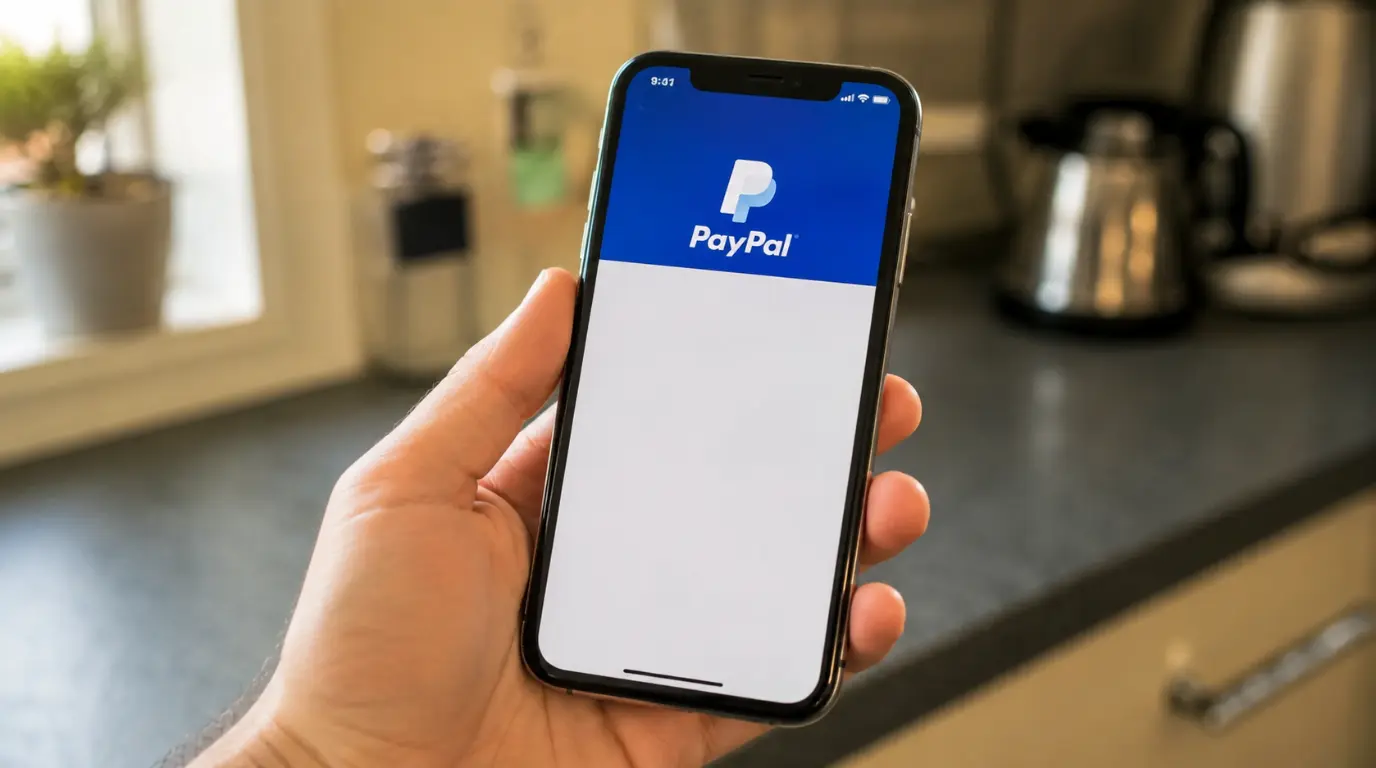
PayPal App Stuck on a Blank Screen: Why It Happens and How to Fix It
You tap “Pay,” the PayPal logo flashes up, and then nothing. No spinner, no error, no login form, just a white or gray rectangle sitting where your checkout screen should be. Wait ten seconds and it’s still there. The force quit and reopened and it’s still there. The transaction hasn’t gone through, and you’re not sure if it’s stuck loading or just dead.
This almost always comes down to a broken handoff between the app and its in-app browser component (the WebView), not a problem with your PayPal balance or account. Clearing the app’s cached data, updating to the latest version, or switching from an embedded checkout window to your regular browser fixes it in most cases within a couple of minutes.
Why the PayPal App Goes Blank Instead of Showing an Error
A blank screen is different from a crash. The app didn’t close, and it’s not asking you to retry it’s just stuck rendering nothing. That points to one specific layer of the app failing quietly instead of the whole thing breaking.
The in-app browser component didn’t finish loading
Most of PayPal’s checkout screens, and a lot of the “Pay with PayPal” buttons inside other apps like eBay or Steam, don’t run as native screens. They load inside a WebView or an embedded browser tab layered on top of the app. If that component fails to fetch the page because of a slow connection, an expired session token, or a script that errors out silently you get a blank frame instead of a visible failure. The app itself is running fine. The web layer inside it isn’t.
A cached checkout session is conflicting with a new one
PayPal stores session data locally so repeat logins go faster. If you back out of a payment halfway through and start a new one, the app sometimes tries to reuse a token tied to the abandoned session. That mismatch doesn’t throw an error message, it just leaves the checkout view empty because the page it’s trying to render no longer matches what the server expects.
The app version is behind the server-side checkout flow
PayPal updates its checkout backend more often than most people update the app itself. When there’s a gap between what your installed app expects and what the server is now sending, older app builds can fail to parse the response and show nothing rather than crashing outright. This shows up most often on phones where auto-update has been turned off.
A firewall, VPN, or content blocker is silently dropping part of the page
If you’re on a work network, a school Wi-Fi network, or a VPN with aggressive filtering, part of PayPal’s checkout script can get blocked while the rest loads. The result looks identical to a normal loading screen that simply never finishes, because visually there’s nothing left to indicate the block happened.
Corrupted local app data from an earlier failed update
Less common, but it happens: an app update that gets interrupted mid-install (low storage, a dropped connection during download) can leave behind a partially overwritten local database. The app opens fine and logs in fine, but any screen that depends on that database checkout being one of them renders blank.
How to Fix a Blank PayPal Screen, in Order of What Actually Works
Go through these in order. Most people never get past step three.
- Force close the app completely, then reopen it. On iPhone, swipe up and hold to see open apps, then swipe PayPal away. On Android, open recent apps and swipe it off. A simple reopen clears a stuck WebView session more often than people expect, and it costs nothing to try first.
- Check for a pending app update. Open the App Store or Google Play, search PayPal, and update if one is available. If the checkout screen was blank because your build was behind the server’s expected version, this alone resolves it.
- Clear the app’s cache (Android) or offload and reinstall (iPhone). On Android: Settings > Apps > PayPal > Storage > Clear Cache. This does not log you out or delete your account data. On iPhone, there’s no separate cache-clear option, so go to Settings > General > iPhone Storage > PayPal > Offload App, then reinstall from the App Store. Offloading keeps your documents and data but removes the app itself, which forces a clean install without losing your saved login.
- Switch off your VPN and try again on standard Wi-Fi or cellular data. If the blank screen only happens on one network, this is your answer. Reconnect to a different network entirely, not just toggling the VPN off within the same restrictive network since some workplace and school networks filter payment scripts by default regardless of VPN status.
- Complete the payment through your mobile browser instead of the app. Open Safari or Chrome, log into paypal.com directly, and finish the transaction there. This bypasses the WebView entirely and works even when the in-app browser component is the specific thing failing. It’s a genuine fix for that specific transaction, not just a workaround, since the browser version pulls the checkout page independently of the app’s cached state.
- Restart your phone. This clears any background processes still holding onto the failed session, which sometimes prevents the app from resetting its own WebView state even after a force close.
- Uninstall and reinstall the app as a last step. Do this after the above, not before it, since it wipes locally cached data completely. Your account itself lives on PayPal’s servers, so a reinstall doesn’t touch your balance, linked cards, or transaction history.
What Won’t Fix It
Logging out and back in rarely helps on its own, since the blank screen usually isn’t an authentication problem; you’re already past login when it happens. Restarting only the app (without a force close first) also tends not to work, because a stuck WebView process can survive a simple app switch. And waiting it out past thirty seconds isn’t worth it: if the page hasn’t been rendered by then, it isn’t going to.
When the Problem Is on PayPal’s End, Not Yours

If the blank screen happens on multiple devices, multiple networks, and after a full reinstall, the issue is very likely on PayPal’s side rather than your phone. Check PayPal’s status through their official support channels, or search briefly for reports from the same day checkout outages tend to affect a lot of users at once and usually resolve within a few hours without any action needed from you.
Frequently Asked Questions
Will a blank PayPal screen cause me to be charged without completing the payment?
No. A blank or frozen checkout screen means the transaction never completed on PayPal’s side, so you won’t be charged for a payment that got stuck mid-load. If you’re unsure whether a specific charge went through, check your PayPal transaction history directly rather than assuming based on what the app displayed.
Why does this happen more often inside other apps, like eBay or Steam, than in the PayPal app itself?
Third-party apps embed PayPal’s checkout as a WebView layered inside their own interface, which adds an extra point of failure compared to opening PayPal directly. If it’s consistently happening through one specific app, finishing that same payment through paypal.com in your browser sidesteps the embedded checkout entirely.
Does clearing the app cache delete my saved cards or login?
No. Clearing cache on Android, or offloading the app on iPhone, removes temporary and cached files only. Your saved payment methods and login stay tied to your account on PayPal’s servers, not stored locally on your phone.
Related reading from screendotfix.com: if you’ve run into a different app freezing with nothing but a white screen, our Messenger white screen troubleshooting guide covers a similar rendering failure with its own set of fixes, and our YouTube white screen error guide walks through the video-specific version of the same problem.
Author Note: I’m James, and I run screendotfix.com. Most of what I write about here is hardware cracked panels, dead pixels, flex cables but app-level rendering failures like this one show up constantly in reader questions, and the troubleshooting logic is the same either way: isolate which layer is actually failing before you start guessing. In this case it’s almost never your phone’s screen and almost never your PayPal balance. It’s a WebView that didn’t finish its job.