
NVIDIA Control Panel Missing? Here’s the 10-Second Check That Tells You Why
Check your GPU driver version before doing anything else. Any driver from version 610.47 onward never installs the classic NVIDIA Control Panel at all; NVIDIA replaced it with the NVIDIA App in May 2026. If you’re on an older driver, the panel is still on your PC somewhere and the fix is almost always a stopped Windows service, not a missing install. I’m James, founder of screendotfix.com, and I’ve walked more than a hundred readers through this exact split over the past few months. Getting the diagnosis right first saves you from reinstalling a driver you didn’t need to touch.
Run This Check Before You Do Anything Else
Open the NVIDIA App or your driver installer and look at the version number. That single number decides which of the two paths below applies to you, so don’t skip it.
Press Windows + R, type dxdiag, and hit Enter. Click the Display tab. The driver version sits under “Driver Model” as a string like 32.0.15.6109 the last four digits, read as 610.9, tell you roughly where you land relative to 610.47.
If that feels fiddly, there’s a faster route: search “NVIDIA App” in the Start menu. If it’s already installed, you’re almost certainly past the cutoff, and Path 1 below is your answer.
Path 1: Your Driver Is 610.47 or Newer
This is the most common reason screendotfix.com readers write about a missing Control Panel, and it isn’t a bug on your end.
What actually happened: NVIDIA discontinued new feature support for the classic Control Panel starting with Game Ready driver 610.47, released as part of the “007 First Light” driver package in May 2026. Every driver installed from that point forward puts the NVIDIA App on your system instead, and the old nvcplui.exe file that powers the classic panel simply never gets copied over.
You can confirm this yourself in under a minute. Open File Explorer and navigate to C:\Program Files\NVIDIA Corporation\Control Panel Client. If that folder is empty or doesn’t exist, your driver install skipped the legacy panel entirely. This isn’t a corrupted install, it’s expected behavior for driver 610.47 and later.
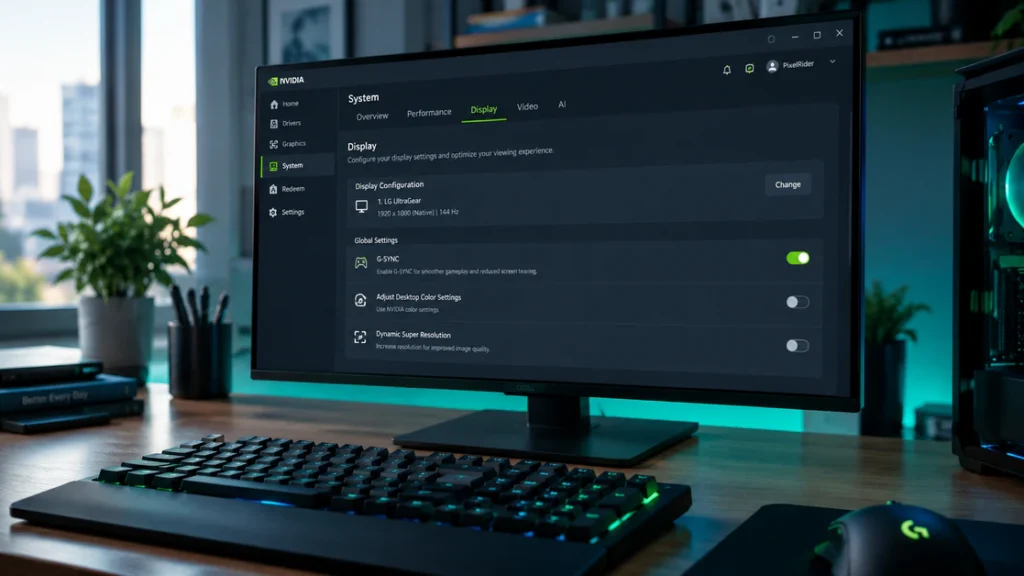
The fix: Stop looking for the old panel and use the NVIDIA App instead. It already has your display settings, color calibration, and 3D game profiles under its System and Display tabs; nothing you relied on in the classic panel is actually gone, it just moved.
- Go to nvidia.com/drivers and select your exact GPU model rather than relying on auto-detect.
- Download the latest Game Ready or Studio driver and run the installer.
- Choose Express Install here the NVIDIA App is bundled automatically either way.
- Open the NVIDIA App from the Start menu once installation finishes and pin it to your taskbar.
Cost: Free | Time: 10 minutes | Works for: Anyone on driver 610.47+
One thing worth knowing: the classic Control Panel isn’t deleted from existing installs, it’s in what NVIDIA calls maintenance mode. It still runs if it was already on your PC before you updated, but it gets no further bug fixes or security patches, so switching now avoids a dead-end later. RTX PRO workstation users are the one group NVIDIA is keeping the classic panel active for, since some professional features haven’t finished moving to the App yet.
If you specifically need the legacy interface anyway some older third-party tools still expect it to search “NVIDIA Control Panel” directly in the Microsoft Store. It installs as a standalone app even on driver 610.47+, though NVIDIA has confirmed it won’t receive further updates.
Path 2: Your Driver Is Older Than 610.47
If dxdiag showed a driver version below 610.47, the classic Control Panel should be installed on your machine. It’s just not showing up, which points to one of four things.
Check the NVIDIA Display Container LS Service First
This is the single most common cause on pre-610.47 drivers, and it’s worth checking before you touch your driver at all.
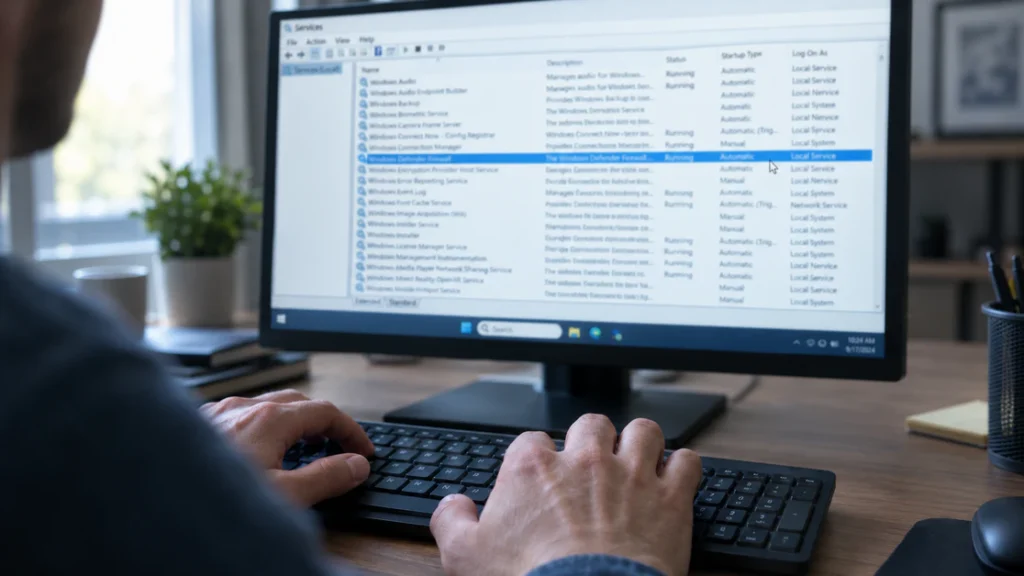
Press Windows + R, type services.msc, and hit Enter. Scroll to NVIDIA Display Container LS. Right-click it and check the Startup type column.
If it reads Manual or Disabled instead of Automatic, that’s your answer. A Windows Update can silently reset this service’s startup type, and when it does, the right-click menu entry and the Display tab both disappear even though every program file is still sitting on your drive.
Double-click the service, set Startup type to Automatic, click Apply, then restart your PC. This fixes the problem for most readers within five minutes.
James’s note: I’ve seen this get blamed on a “corrupted driver” more than anything else on this list. Nine times out of ten it’s just this one service sitting on Manual.
Launch It Directly Through File Explorer
If the service is running and the panel still won’t show up in search or the right-click menu, the shortcut itself may be broken rather than the program.
Navigate to C:\Program Files\NVIDIA Corporation\Control Panel Client and look for nvcplui.exe. Double-click it directly. If the Control Panel opens fine from here, the actual software is intact Windows just lost the shortcut that normally points to it.
Right-click nvcplui.exe, choose Send to > Desktop (create shortcut), and you’ll have a working launch icon again without reinstalling anything.
Fix the Registry Entry Windows Hid
Occasionally a Windows 11 update flips a registry value that controls whether the Control Panel entry shows up in the classic Control Panel window (the old Control Panel > Hardware and Sound list, not the desktop right-click menu).
Press Windows + R, type regedit, and hit Enter. Navigate to:
HKEY_LOCAL_MACHINE\SOFTWARE\NVIDIA Corporation\Global\NVTweak
Look for a value named ShowInControlPanel. If it exists and reads 0, double-click it, change the value data to 1, and restart your PC.
Back up your registry before editing it and export the NVTweak key first through Regedit’s File menu, just in case.
Run an SFC Scan If Nothing Else Explains It
If the service is running, the exe launches fine, and the registry key is already correct, corrupted Windows system files are worth ruling out next.
Right-click the Start button, choose Terminal (Admin), and run sfc /scannow. Let it finish completely; it typically takes ten to fifteen minutes then restart and check again.
Cost: Free | Time: 5 to 20 minutes depending on the step | Works for: Drivers older than 610.47
Your Laptop Has Two GPUs That Changes What You’ll See
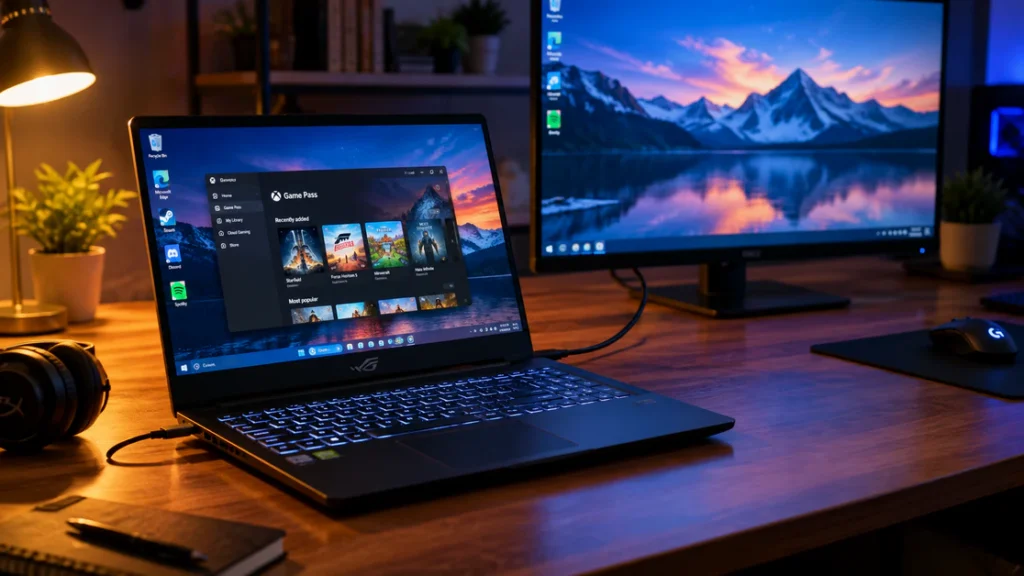
If Device Manager shows both an Intel or AMD graphics adapter and an NVIDIA one, expand Display Adapters to confirm, and you’re dealing with hybrid graphics, sometimes called Optimus or Advanced Optimus depending on the laptop.
On almost every laptop built this way, your built-in screen is wired directly to the integrated chip, not the NVIDIA GPU. The NVIDIA card only activates when a game or rendering task specifically calls for it. Because of that wiring, the Control Panel’s Display tab has nothing to show for a screen the NVIDIA GPU never actually drives.
This isn’t a bug to chase. Plug an external monitor into the laptop’s HDMI or USB-C port that’s wired to the discrete GPU. Check your laptop’s manual for which port that is, since not every port routes through NVIDIA. If the Display tab appears for that external screen while your built-in panel still shows nothing, hybrid graphics are confirmed working exactly as designed.
Some newer gaming laptops include a physical MUX switch or an “Advanced Optimus” toggle in the manufacturer’s own software (Armoury Crate on ASUS, Omen Gaming Hub on HP, and similar tools on other brands). Switching this to “Discrete GPU only” mode routes the built-in screen through the NVIDIA card directly, which brings the missing Display settings back at the cost of shorter battery life on battery power.
The Workaround Almost Nobody Mentions
If GeForce Experience now folded into the NVIDIA App on newer installs is running in your system tray, right-click its icon there instead of the desktop.
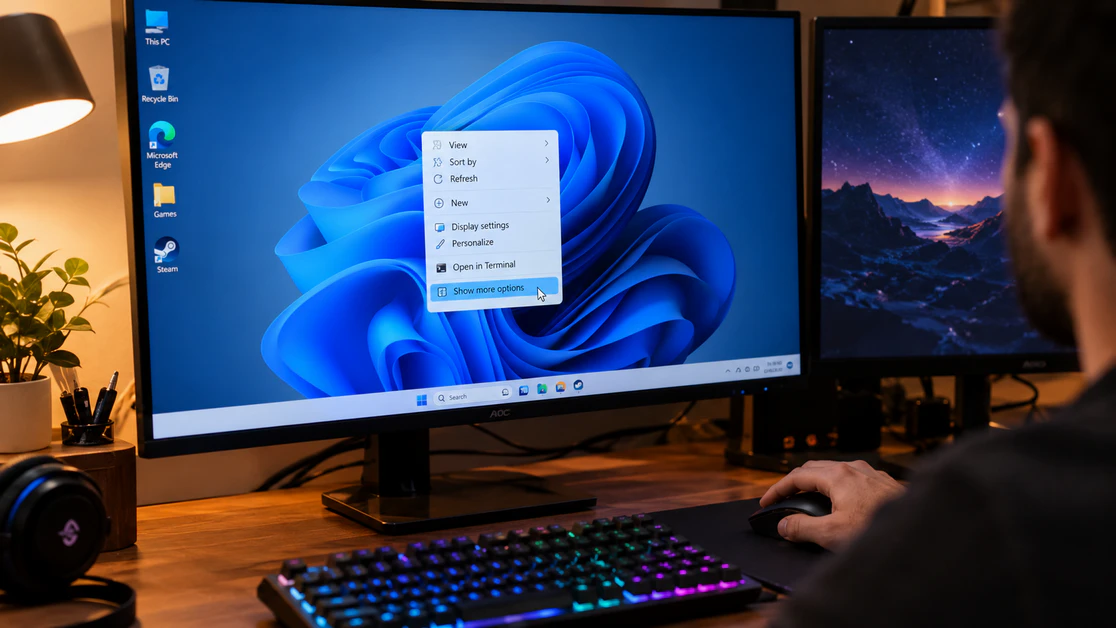
On several driver versions, the Control Panel option shows up reliably in that taskbar right-click menu even when it’s missing from the desktop context menu entirely. It’s a five-second workaround while you sort out the actual cause above, and it costs nothing to try first.
Cause and Fix Summary
| Cause | How Common | Fix |
| Driver 610.47+ installed, no classic panel included | Most common | Use the NVIDIA App instead |
| NVIDIA Display Container LS set to Manual | Common | Set service to Automatic, restart |
| Hybrid graphics laptop routing | Common | Test external monitor on discrete GPU port |
| Broken desktop shortcut only | Less common | Launch nvcplui.exe directly, recreate shortcut |
| ShowInControlPanel registry value set to 0 | Less common | Edit registry value to 1 |
| Corrupted Windows system files | Rare | Run sfc /scannow |
Prevention Tips
- Check the NVIDIA Display Container LS service is set to Automatic right after any driver install, since some versions leave it on Manual by default.
- Confirm your GPU driver version before assuming a missing panel means something is broken; you may just be past the 610.47 cutoff.
- Download drivers only from nvidia.com/drivers or your laptop manufacturer’s official support page.
- On laptops, check Device Manager for hybrid graphics before troubleshooting a “missing” Display tab that’s actually working as intended.
Common Mistakes
- Reinstalling the driver repeatedly without checking the NVIDIA Display Container LS service first.
- Assuming a missing Display tab on a laptop is a driver fault instead of checking for hybrid graphics.
- Editing the registry without exporting a backup of the NVTweak key first.
- Searching only the desktop right-click menu and missing the GeForce Experience taskbar icon workaround.
Frequently Asked Questions
Why did the NVIDIA Control Panel disappear after my last driver update? Any driver from version 610.47 onward installs the NVIDIA App instead of the classic Control Panel, since NVIDIA retired the panel for new installs in May 2026.
Is the NVIDIA Control Panel completely gone now? No. Existing installs keep working in maintenance mode with no further updates, and the legacy version is still downloadable from the Microsoft Store if you specifically need it.
Why does 3D Settings show up but the Display tab doesn’t? This almost always points to a hybrid graphics laptop, where your built-in screen runs through the integrated GPU instead of the NVIDIA one, so there’s nothing for the Display tab to configure.
Does reinstalling GeForce Experience bring the Control Panel back? No. GeForce Experience and the Control Panel are separate components, and reinstalling one doesn’t affect the other.
Will editing the registry void my warranty or damage my PC? Editing a single NVIDIA-specific value carries low risk if you export a backup first, but incorrect edits elsewhere in the registry can cause boot problems, so only change the exact key listed above.
If your GPU driver update also shifted your screen’s colors or brought on strange lines, screendotfix.com has two related guides worth a look: our breakdown of red lines on a PC screen covers the same driver corruption pattern from a different angle, and our green dots on laptop screen guide walks through the BIOS and Safe Mode checks that confirm whether a driver or the panel itself is at fault.
Disclaimer: This guide covers NVIDIA GPU driver and software settings only. It does not cover physical display repair or hardware replacement.
Author Note: Written by James, founder of screendotfix.com. I’ve spent years diagnosing display and GPU driver issues across Windows laptops and desktops, and the driver-version split in this guide comes directly from patterns I’ve tracked in reader questions since NVIDIA’s May 2026 change.
Article Summary: A missing NVIDIA Control Panel almost always comes down to one of two things: a driver from version 610.47 onward that never installed it in the first place, or an older driver where the NVIDIA Display Container LS service, a broken shortcut, or a hidden registry value is blocking it. Checking your driver version first tells you which of the two paths to follow, and saves an unnecessary reinstall either way.