
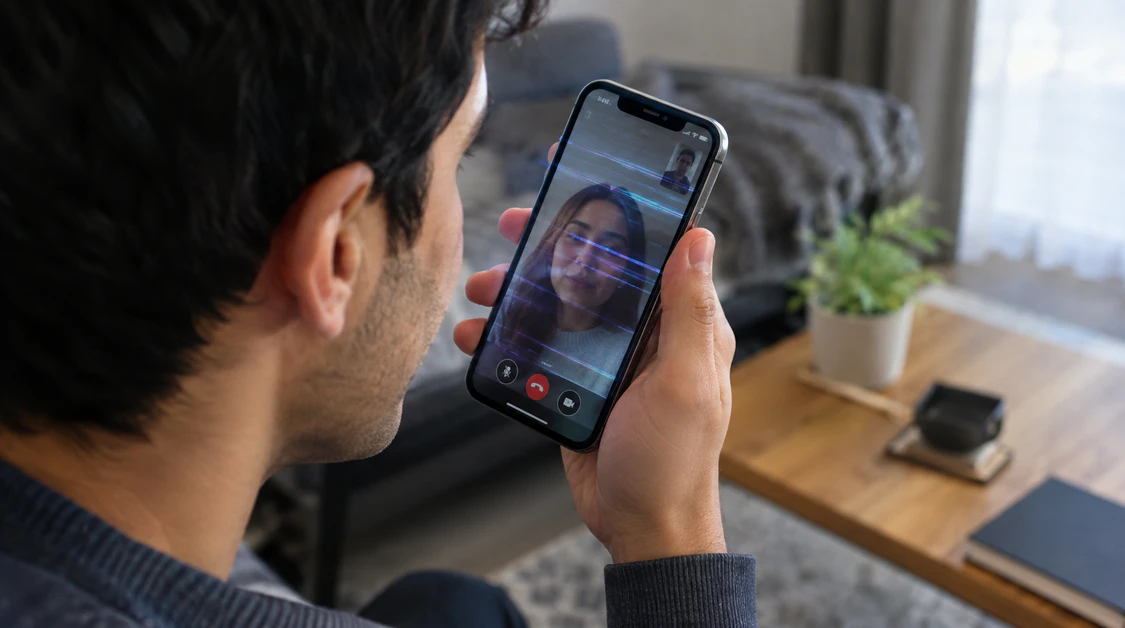
Screen Flickering During Calls? Here’s the Real Cause
Screen flickering during a call is almost never a broken display. In most cases on phones, it’s the proximity sensor misreading distance and toggling the screen on and off. On laptops and desktops, it’s usually the video call app’s hardware acceleration fighting with your graphics driver. At screendotfix.com, we start by figuring out which of these two you actually have, because the fixes don’t overlap.
Two Completely Different Problems Share This Name
People type “screen flickering during calls” for two things that have nothing in common. One is the phone’s own screen strobing between dark and bright while you’re holding it to your ear. The other is the video image inside Zoom, Teams, or FaceTime stuttering while the rest of the screen stays normal.
Mixing these up wastes time. A proximity sensor fix does nothing for a Zoom hardware acceleration bug, and updating your GPU driver won’t fix a phone that goes black every time it’s near your face.
Quick test: Put the call on speaker and move the phone away from your face. If the flicker stops the moment the phone is out in the open, it’s the sensor, not the screen. If you’re on a laptop, minimize the call window for two seconds if the flicker was only inside that window, it’s software, not hardware.
Why Phone Screens Flicker or Go Dark on Calls
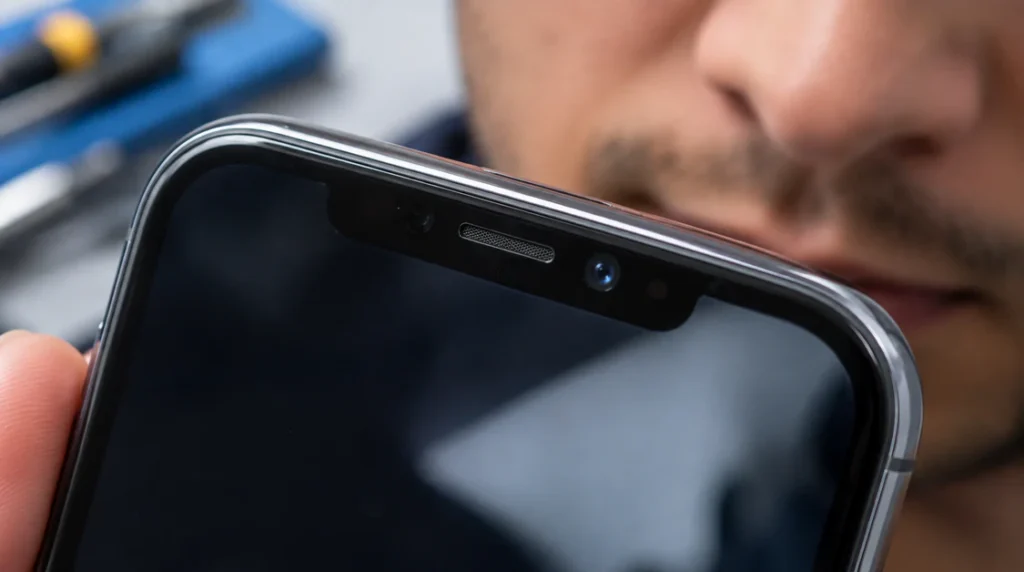
The proximity sensor is the usual suspect
Every phone has a small sensor near the earpiece that turns the screen off when it’s close to your face, so you don’t accidentally hang up with your cheek. When that sensor misreads distance, the screen flickers between off and on in rapid bursts.
This happens more often than people expect. In our repair queue, sensor-related flicker on calls shows up more than an actual failing display does, especially on phones that are two or more years old.
A screen protector can trigger it
Thick tempered-glass protectors, especially ones with a raised lip or bubble near the top edge, can sit slightly above the sensor window. That small air gap confuses the sensor’s readings during a call.
Peel the protector off, make a call, and watch what happens. If the flicker stops, the fix costs nothing; you just need a thinner protector or one cut correctly around the sensor cutout.
Auto-brightness gets stuck after a notification
A pattern we’ve seen repeatedly: a notification (iMessage, WhatsApp, email) arrives mid-call, the screen briefly wakes to show it, and afterward the brightness sensor stops responding correctly. The screen then flickers or won’t dim again until the phone is restarted.
This is a software state bug, not hardware failure. A restart clears it every time; if it comes back within a day or two on the same phone, that points to a sensor going bad rather than a one-off glitch.
When it’s the display itself
If the flicker also happens outside calls scrolling, watching video, or just sitting on the home screen that’s not the proximity sensor anymore. That pattern points to the display’s driver IC or backlight circuit, and it tends to get worse in cold weather or when the phone heats up during a long call.
Fixing Phone Flicker on Calls, in Order
- Remove the case and any screen protector, then make a test call on the speaker with the phone flat on a table. This isolates the sensor from anything physically blocking it.
- Clean the sensor window at the top of the screen with a dry microfiber cloth. Dust and oil buildup here is a common, completely free fix.
- Restart the phone. This clears the stuck auto-brightness state described above and resolves a large share of cases on its own.
- Update iOS or Android. Apple and Samsung have both shipped point releases that specifically addressed proximity sensor misreads on certain models.
- Turn off Attention Aware features (Settings > Face ID & Passcode on iPhone, or Settings > Display on Android) temporarily to see if a conflicting sensor read is the trigger.
- Book a proximity sensor or display assembly replacement if the flicker survives all of the above and shows up on every call.
What repair actually costs
A standalone proximity sensor replacement is rare as its own part on most modern phones it’s bonded to the display assembly, so the repair is priced as a screen replacement even though the glass itself is fine. Expect roughly $80 to $180 for an iPhone display assembly depending on model, and £70 to £150 in the UK, current as of this year. On Android flagships the range runs similar, while budget Android models can be repaired for less because parts are cheaper.
If your phone is still within Apple, Samsung, or Google’s warranty window, this exact symptom is covered, and a straight swap costs nothing beyond your time at the store.
Why Video Call Windows Flicker on Laptops and Desktops
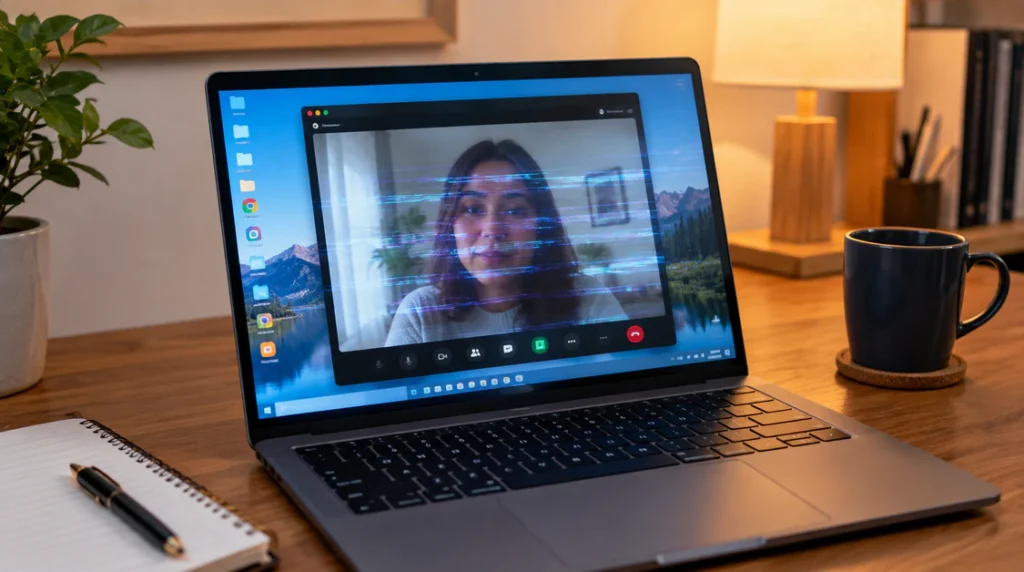
Hardware acceleration is the most common cause
Zoom, Teams, and Meet all offload video rendering to your graphics card by default. When the GPU driver and the app disagree about how to handle that load, the video feeds yours or theirs flickers, tears, or shows a flashing bar along one edge.
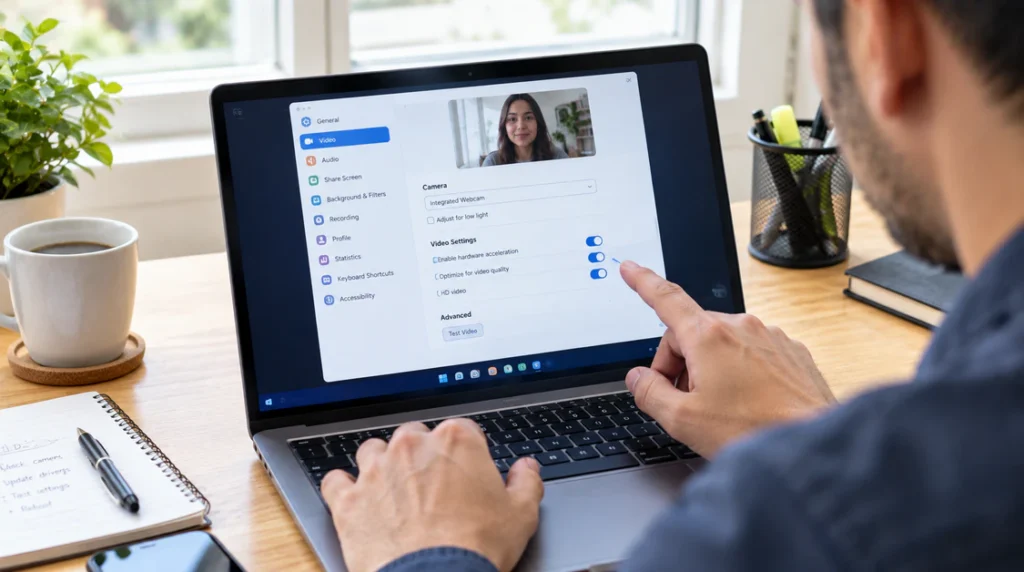
In Zoom: open Settings, go to Video, click Advanced, and uncheck “Enable hardware acceleration for camera.” Do the same under Share Screen > Advanced. This single toggle resolves the majority of call-flicker tickets we see reported for Zoom specifically.
In Teams: the equivalent setting sits under Settings > Devices, where you can disable GPU hardware encoding under advanced video options.
An outdated or mismatched GPU driver
If turning off hardware acceleration doesn’t help, the graphics driver itself is the next thing to check. Run Windows Update, or pull the latest driver directly from NVIDIA, AMD, or Intel’s site rather than relying on Windows to find it. Windows Update driver packages lag behind the vendor’s own release by weeks or months.
External webcams and the HD checkbox
If you’re using an external webcam instead of the built-in camera, check the camera’s own settings inside the call app. A number of users have traced call flicker directly to the HD resolution checkbox in their camera settings toggling it off, then back on, forces the camera to renegotiate its video stream and clears the flicker.
Refresh rate mismatch on external monitors
If the flicker only shows up when the call window sits on a second monitor, mismatched refresh rates between your two displays are a likely cause. Go to Settings > System > Display > Advanced Display, and set both monitors to the same refresh rate; most flicker of this type happens when one display runs at 60Hz and the other at 75Hz or higher.
Software Fixes, in Order
- Disable hardware acceleration for both camera and screen share in your call app’s settings.
- Update your GPU driver from the manufacturer’s site, not just Windows Update.
- Toggle the HD checkbox off and on in your camera settings if you’re using an external webcam.
- Match refresh rates across monitors if the call window lives on a secondary display.
- Close background apps using the GPU video editors, other conferencing apps, and browser tabs with active video all compete for the same hardware resources.
- Test in a browser version of the call (web.zoom.us, teams.microsoft.com) instead of the desktop app. If the flicker disappears, the issue is isolated to that specific app install, and reinstalling it usually clears it.
When It’s Genuinely Hardware, Not Software
Laptop screen flicker that continues after you close the call app entirely, or that shows up on the login screen before any software loads, points to a loose display cable or a failing inverter board rather than anything Zoom or Teams is doing. That’s a different repair path: check the cable seating at the hinge first, since laptops that have been opened and closed thousands of times commonly develop this exact fault right there.
FAQ
Why does my phone screen flicker only during calls and not otherwise?
It’s almost always the proximity sensor reacting to your face or ear being close to the screen, not a display fault, since the flicker is tied specifically to that proximity condition.
Can a screen protector really cause flickering on calls?
Yes, a thick or misaligned protector near the earpiece can create a small gap that confuses the proximity sensor’s readings during a call.
Does turning off hardware acceleration in Zoom hurt call quality?
No, it shifts rendering from the GPU to the CPU, which on most modern laptops has no visible effect on video quality during a normal call.
Is screen flickering during calls covered under warranty?
On a phone still within its warranty period, yes manufacturers treat sensor-related flicker as a hardware defect and typically replace the display assembly at no cost.
Related Reading on screendotfix.com
For a similar proximity-related display quirk, our YouTube white screen error guide covers a comparable app-versus-hardware diagnostic approach.
If your laptop’s flicker turns out to be a hardware fault rather than a call-app issue, our green dots on laptop screen guide walks through the same cable-and-panel checks referenced above.
Author Note
I’m James, founder of screendotfix.com. Most of the “broken screen” calls I get during video-call flicker turn out to be a $0 fix, a sensor cleaning or one unchecked box in Zoom’s settings so run through the free steps before booking a repair.